Tapping on an Activity in the Activities screen will open the Activity Details screen for the selected Activity.
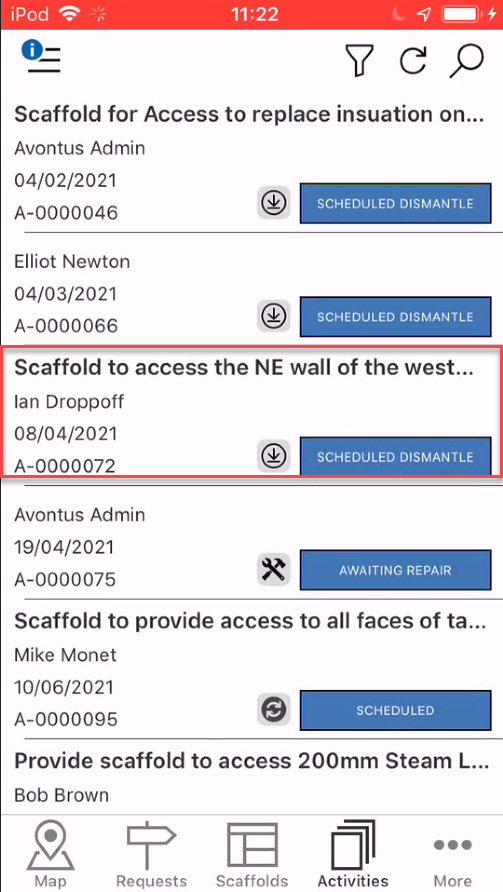
The Activity Details screen provides an overview of the Activity such as the date the Activity needs to be completed and a description of the Activity.
Watching and Editing an Activity
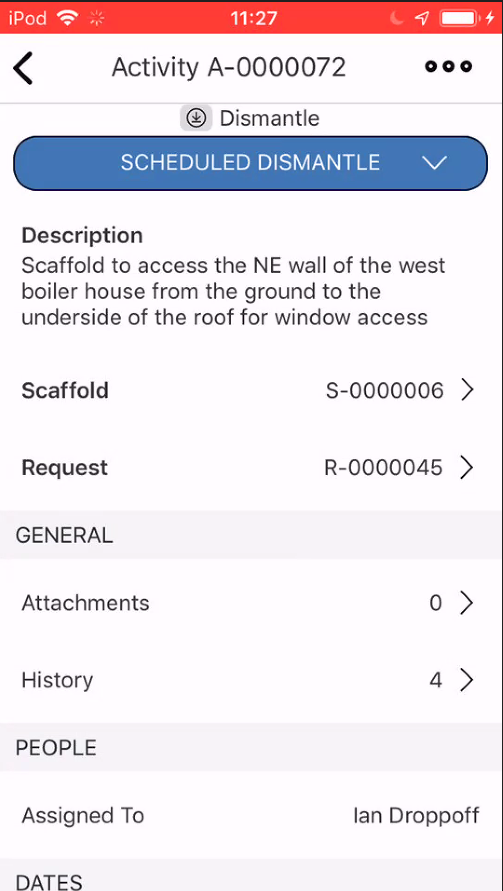
The three dots in the top right of the screen (see below) allows the user to edit the Activity and “watch†the Activity for any changes made to its details or any status changes.
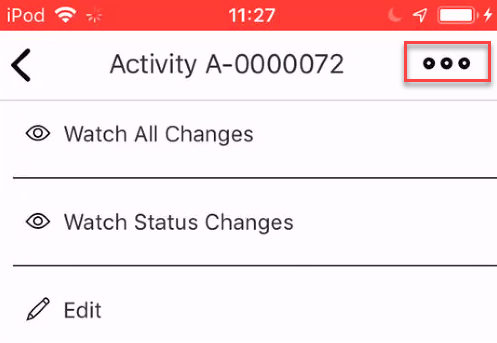
Watch All Changes - This will send a notification to you whenever any changes, including changes to the Activity's details and any status changes, are made. You can view these in the Notifications screen.
Watch Status Changes - This will send a notification only when the Activity's status is changed. You can view these in the Notifications screen.
Edit - Make changes to the Activity.
Activity Details
Description
A description of the activity. This is best used as a description of the purpose of the activity.
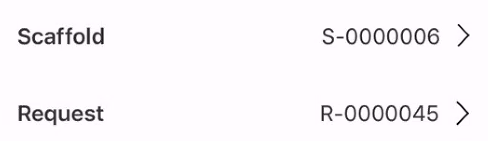
Scaffold and Request
The scaffold and request are attached to this activity. You can tap on the Scaffold or Request ID to be taken to the details screen of the request or scaffold.
General
Attachments
This section displays any documents, plans, images or models attached to the activity. Tap on the Attachments section to see any documents attached to the activity.
The preceding number displays how many attachments are attached to this Activity
 .
.
This will display all documents, plans, images, etc that have been attached to this activity.
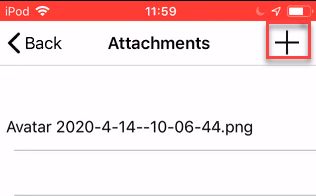
Tap on an attachment to open it. Attachments can be added by tapping the + button (see above).
For more information on adding attachments, please see the Adding an Attachment guide.
History
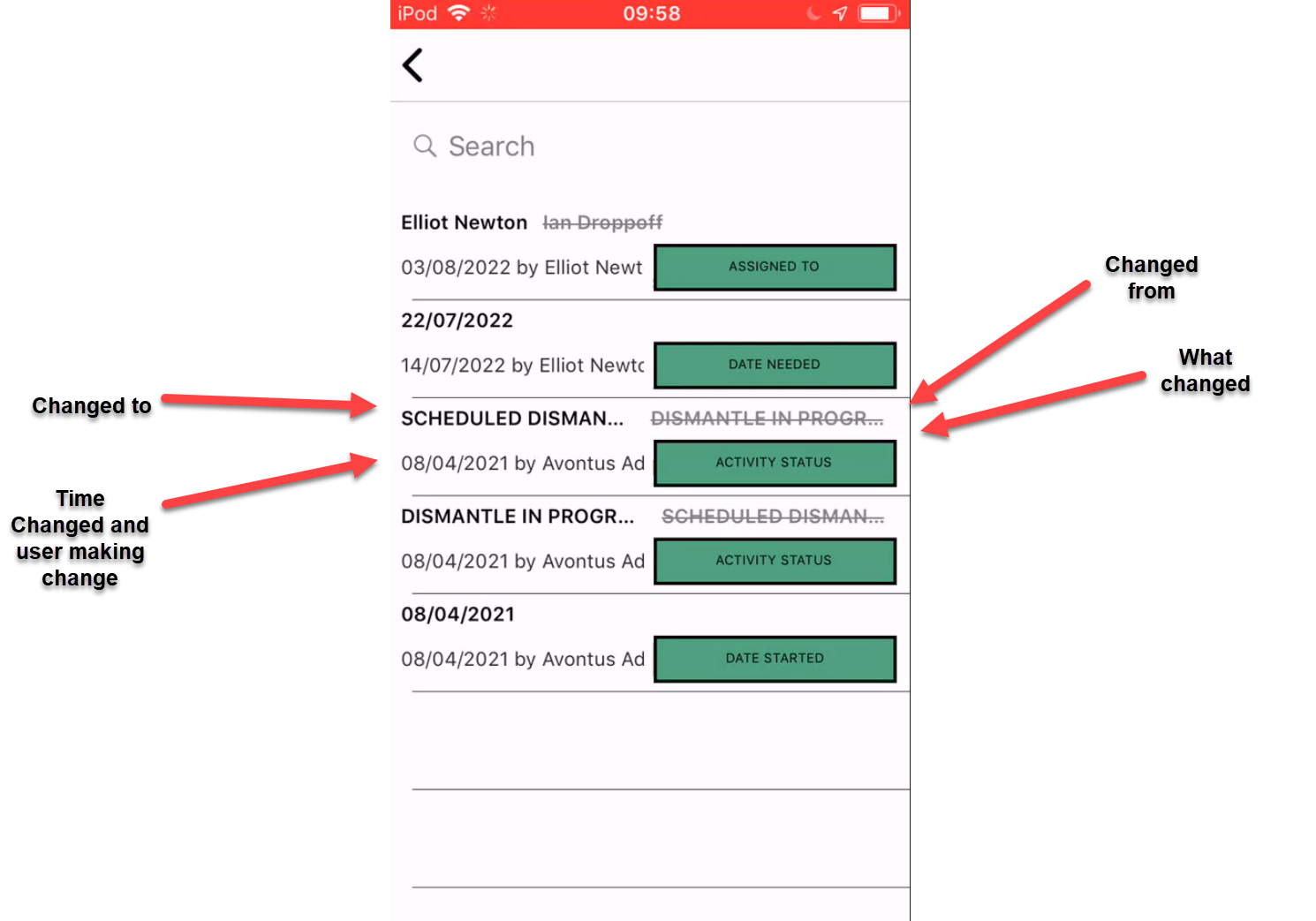
The History screen provides an overview of all changes, including status changes, on the activity.

Tap on the History section to open the History screen where you can find all changes (such as a change in the assigned user), and status changes (from Awaiting Repair to Repair in Progress).
People
Assigned to
The user assigned to this activity.

Dates
Need Date
The date the activity needs to be completed.
