Adding a ladder is a simple process, during which you configure the ladder's characteristics. Once added, you can edit a ladder's characteristics at any time.
To add a ladder:
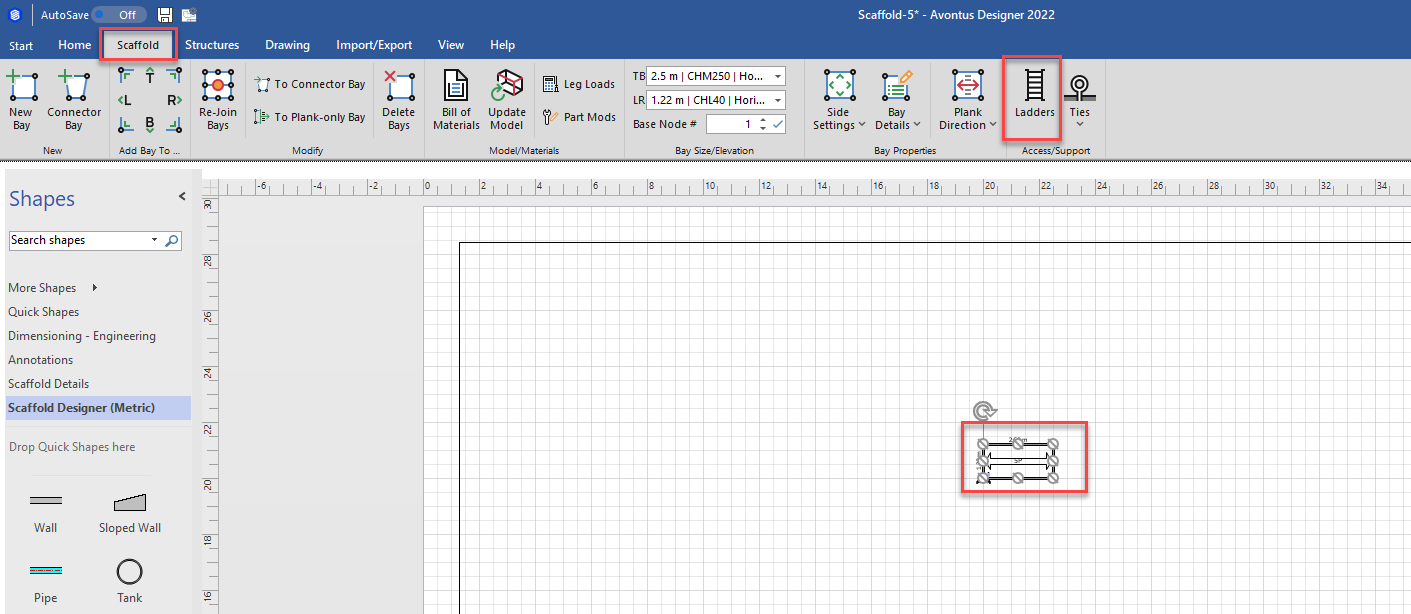
Click the appropriate Bay in the Drawing Page, to select it.
Click the Scaffold tab and click Ladders.
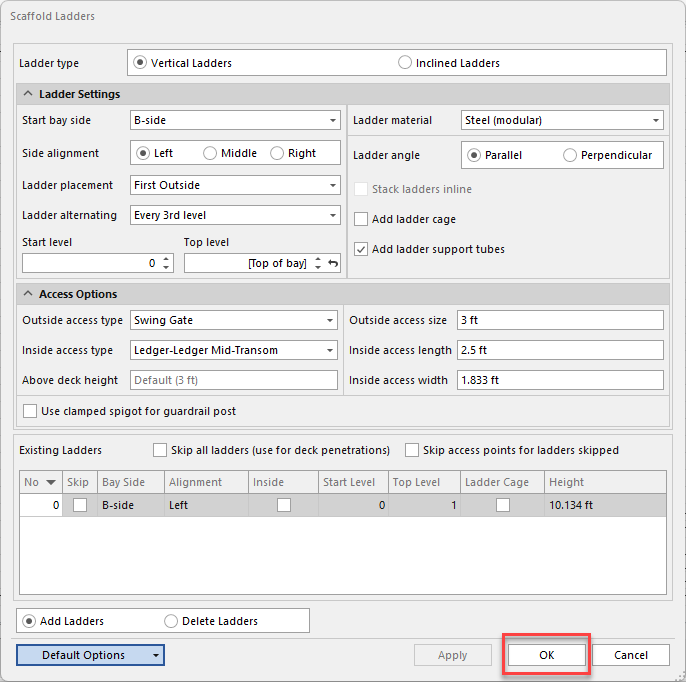
The Scaffold Ladders dialog appears.
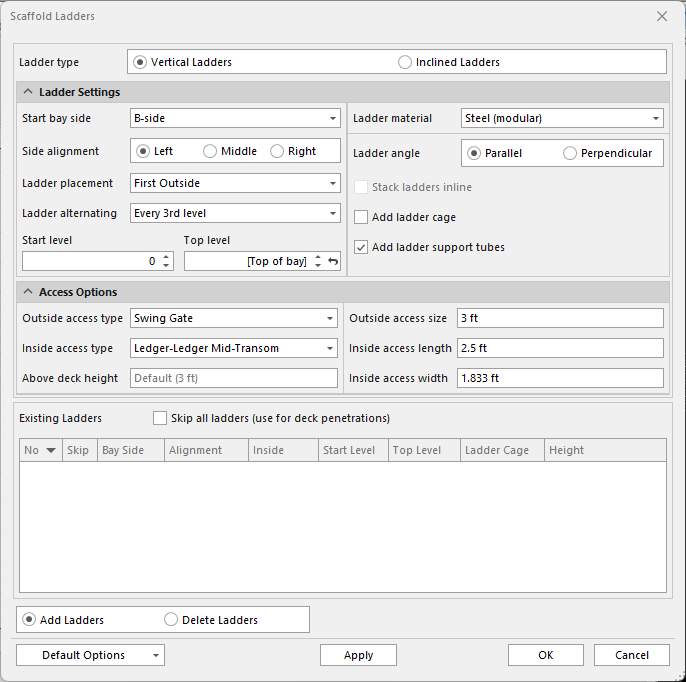
Enter the appropriate Ladder Settings.
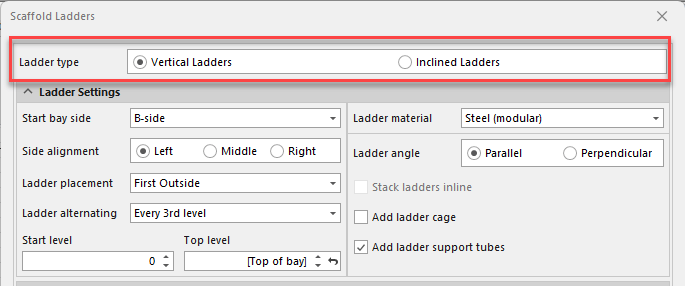
Click the appropriate Ladder type radio button: Vertical or Inclined.
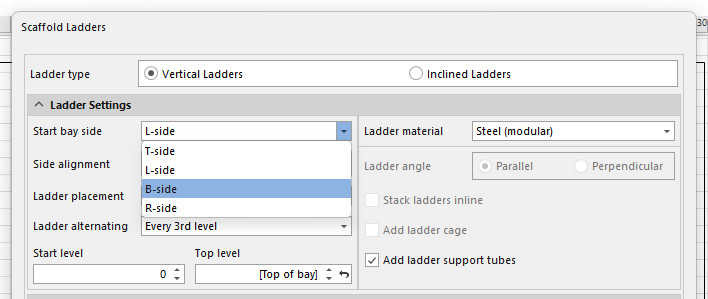
Click the Start bay side dropdown and select the appropriate side. Your options are:
T-side
L-side
B-side
R-side
Click the appropriate Side Assignment radio button: Left, Center or Right.
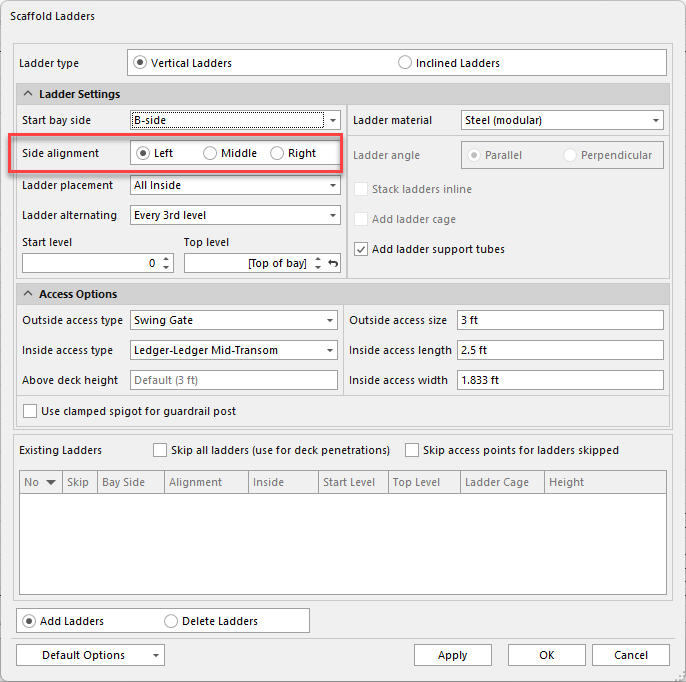
Click the Ladder placement dropdown and select the appropriate placement: Your options are:
None
All Outside
All Inside
First Inside
First Outside
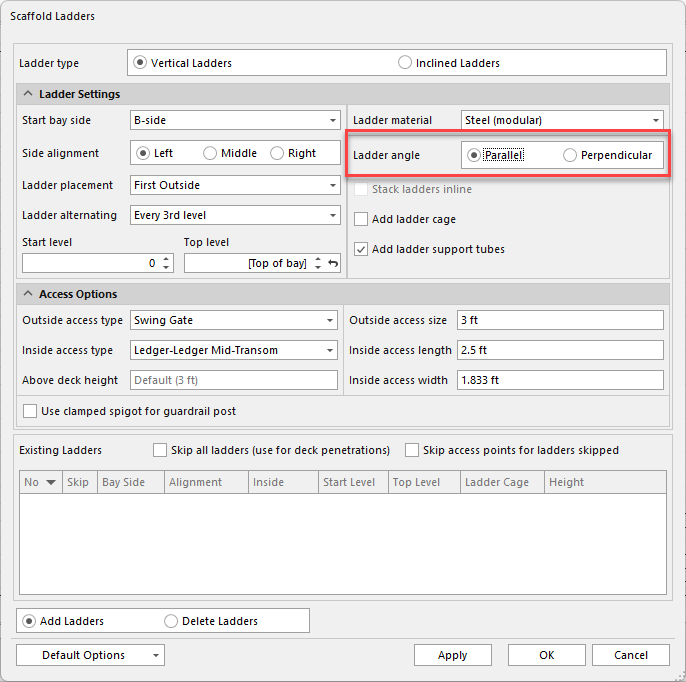
If you select First Outside, the Ladder Angle radio buttons and the Ladder Cagecheckbox become active.Click the appropriate Ladder Angle radio button: parallel or perpendicular.
If you want a cage surrounding the ladder, click the Ladder Cage checkbox to put a check in it.
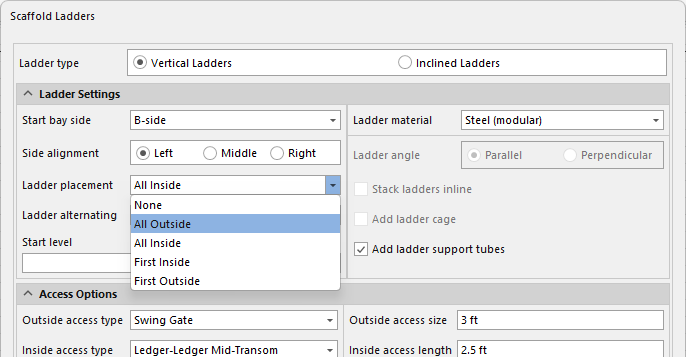
Click the Ladder alternating dropdown and select how you want the ladder to switch the placement side. Your options are
None
Every 2nd Level
Every 3rd Level
Every 4th Level
Every 5th Level
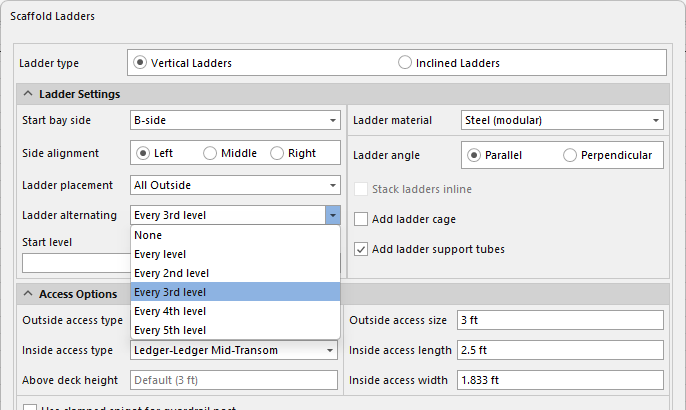
Click in the Start level text field and enter the level at which you want the ladder to start. This enables the beginning level(s) to be skipped if desired. 0 is the default.
Click in the Top level text field and enter the level at which you want the ladder to end. This enables the ladder(s) to end at or below the top level of the Bay. [Top of bay] is the default.
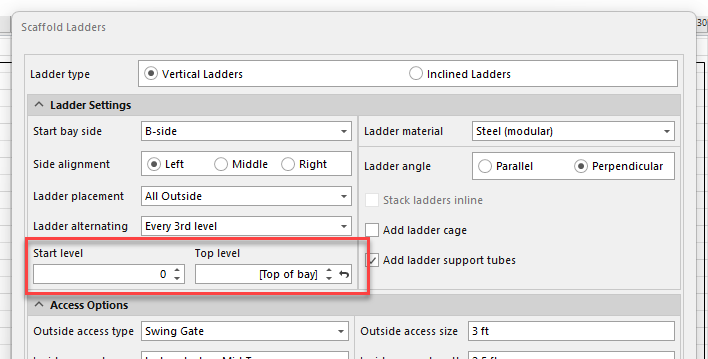
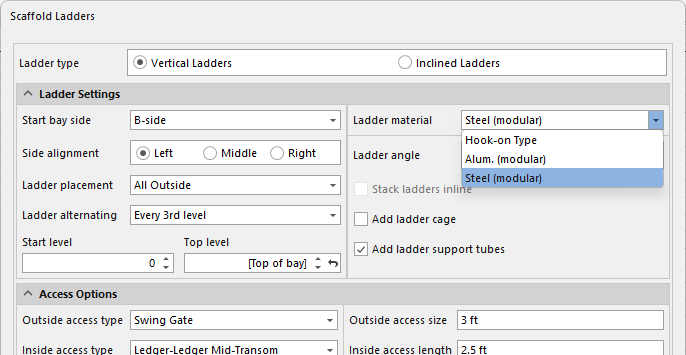
Click the Ladder material dropdown and select the appropriate ladder material. Your options are:
Select the Ladder angle
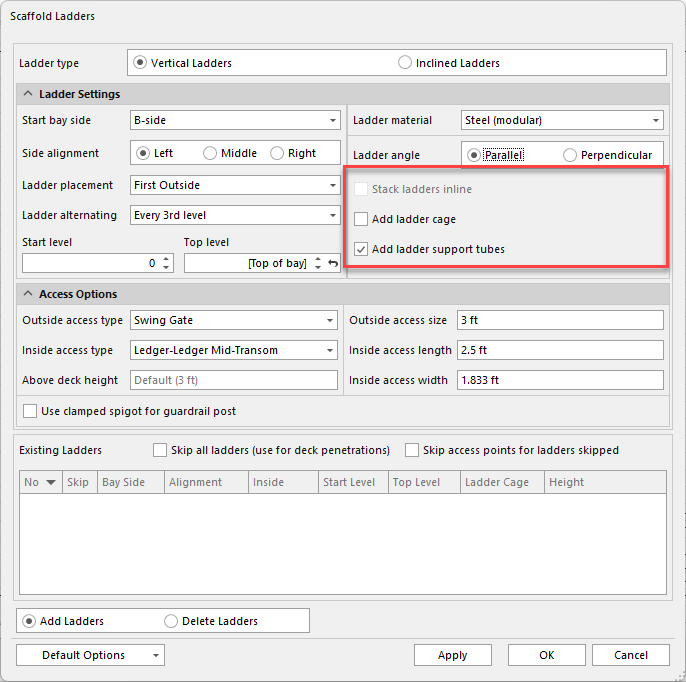
If you want Avontus Designer to place the ladders in identical positions on each Bay, click the Stack ladders inline checkbox, to put a check in it.
Note: Only available with inclined ladders
If you want to add a cage around the ladders, click Add ladder cage to put a check in it
Note: Only available with vertical ladders
If you want to add support tubes to ladders, click Add ladder support tubes to enable/disable support tubes.
Enter the appropriate Access Options.
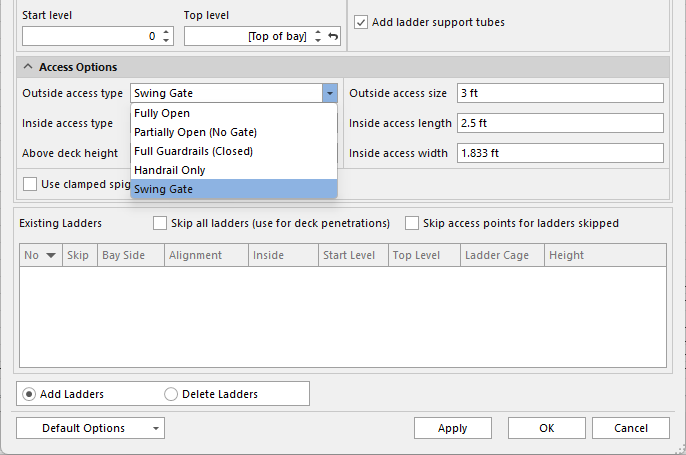
Click the Outside access type dropdown and select the appropriate access type. Your options are:
Fully Open
Partially Open (No Gate)
Full Guardrails (Closed)
Handrail Only
Swing Gate
Click the appropriate the Inside access type dropdown and select the appropriate access type. Your options are:
Open
Partially Open
Ledger-Ledger mid-Transom
Ledger-Deck Transom
Deck-Deck Transom
Access Deck W/Hatch Door
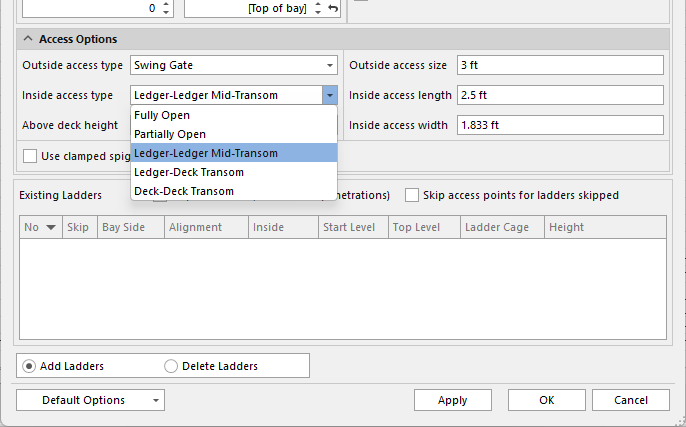
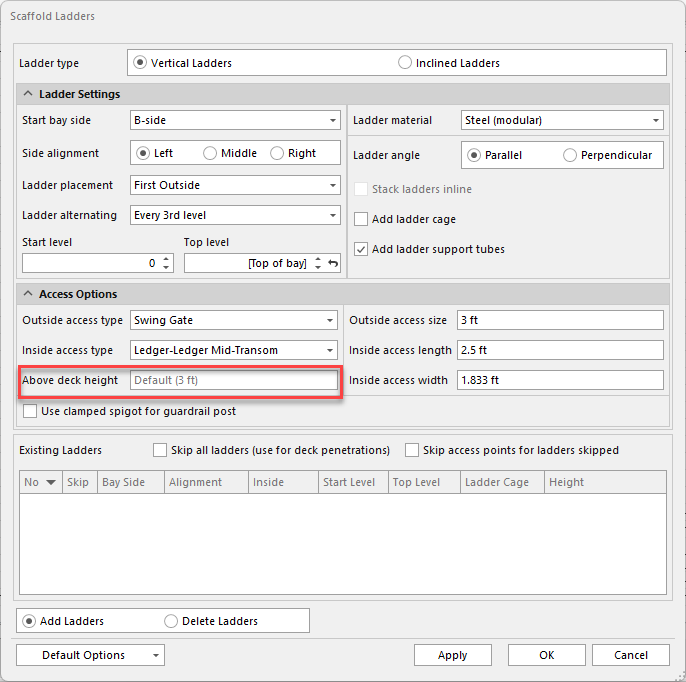
Set the Above deck height
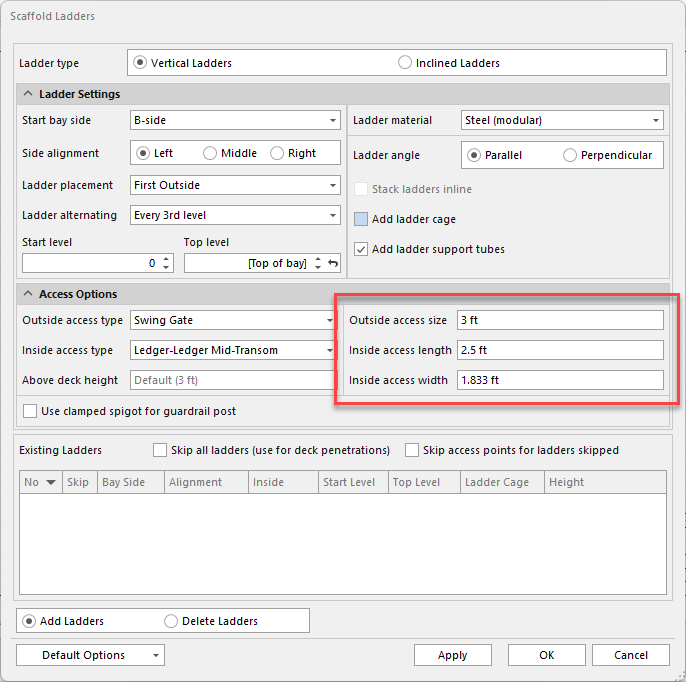
Click in the Outside access Size text field and enter the appropriate access size.
Click in the Inside access length text field and enter the appropriate length.
Click in the Inside access width text field and enter the appropriate width.
Click the Add Ladders radio button and click Apply.
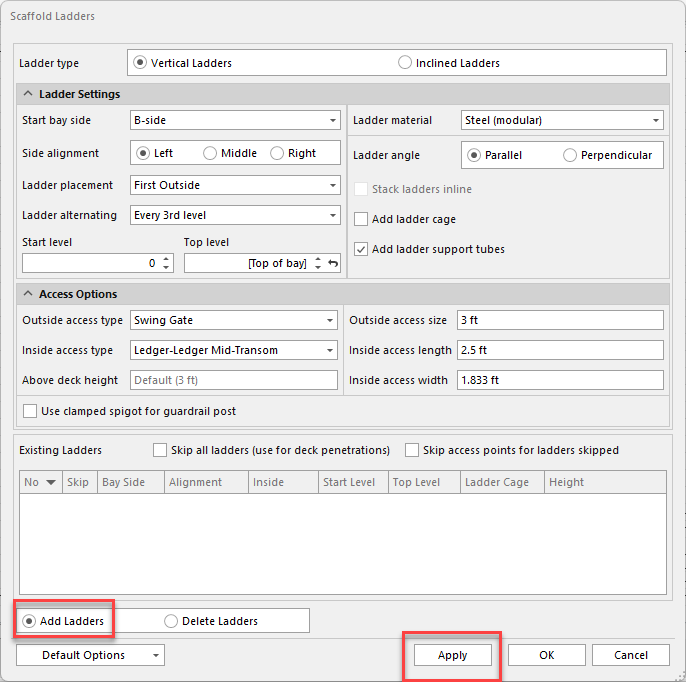
Avontus Designer adds ladder information and details to the Existing Ladders table in the bottom of the dialog.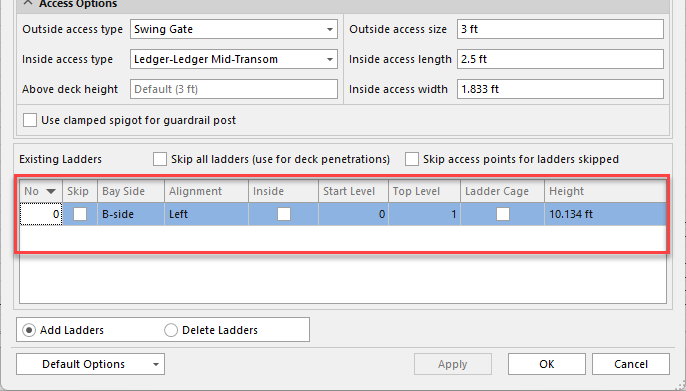
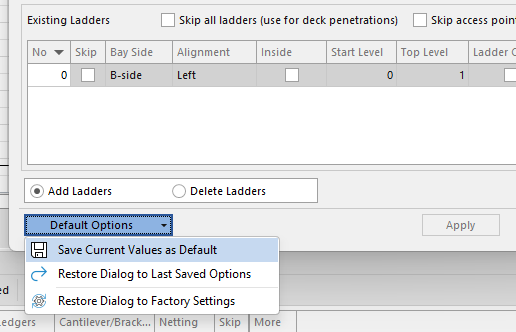
Note: Click Default Options and then Save these Current Values as Default to save these ladder settings.
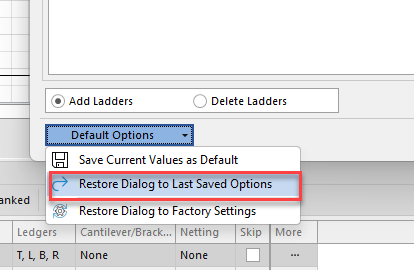
Note: Click Default Options and then Restore Dialog to Last Saved Options to reset the dialog back to the last saved option.
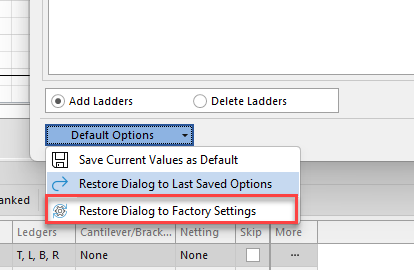
You can also Restore dialog to Factory Settings.
Click OK
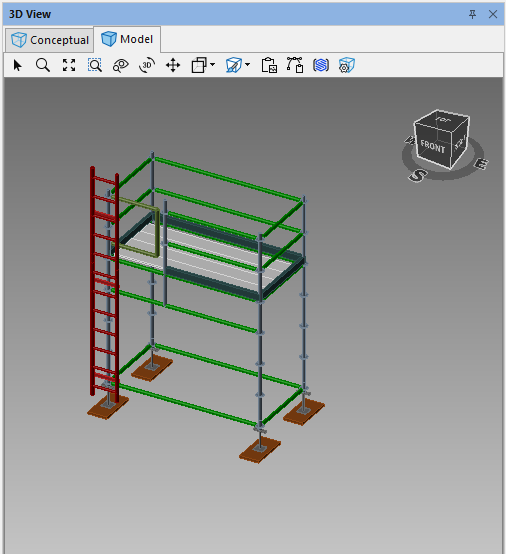
The ladder will be added to your design
For information about editing existing Ladders, refer to Skipping a Ladder.