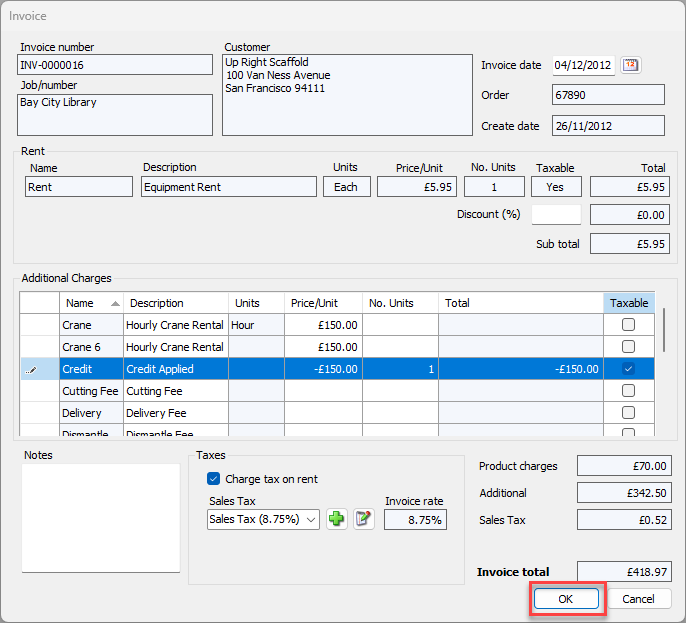
Quantify enables you to add credits to existing Invoices through the Invoice Edit feature. For complete details about editing Invoices, refer to Editing an Invoice.
Note: This method is only possible on invoices for Regular Job Sites and is not possible on invoices for Scaffold Tracking Job Sites.
To add a credit to an existing Invoice:
Click the Invoices tab.
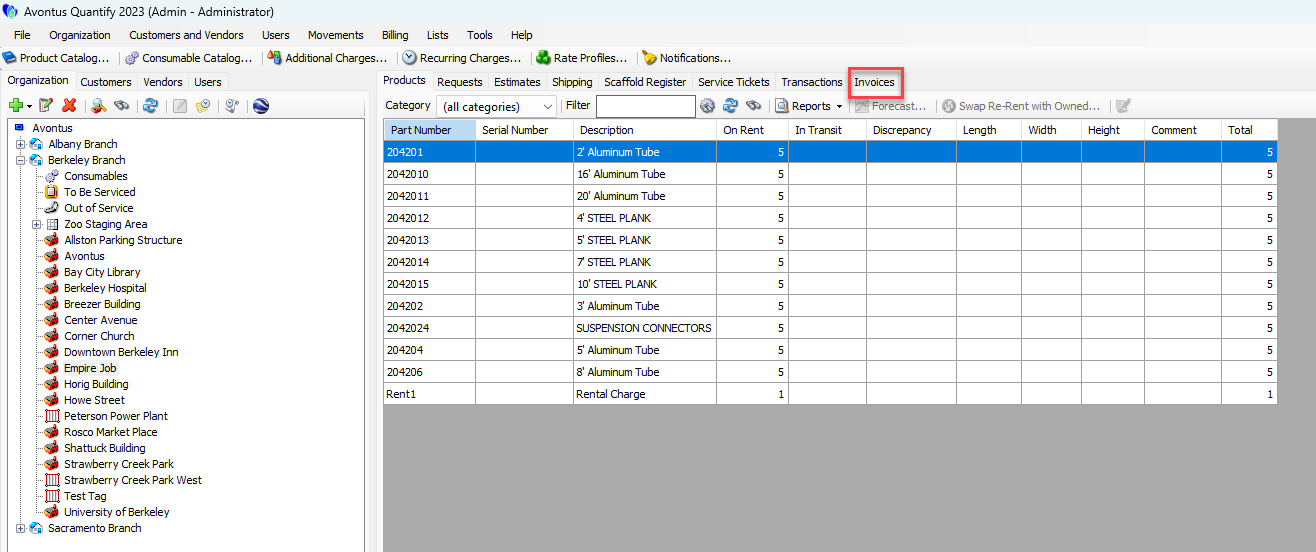
Locate and click the appropriate Invoice and click the Edit Invoice button (
 ).
).
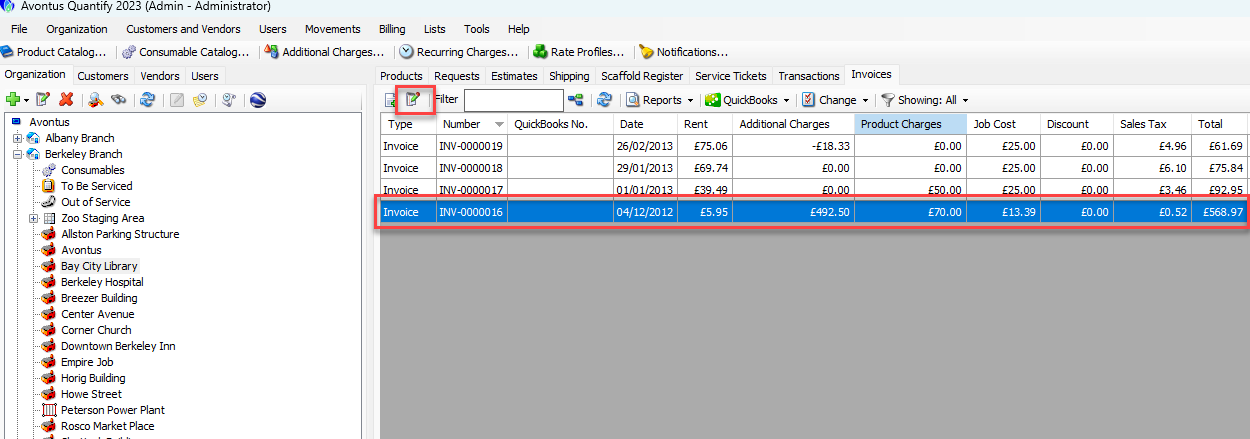
The Invoice dialog appears.Click the appropriate Additional Charge item.
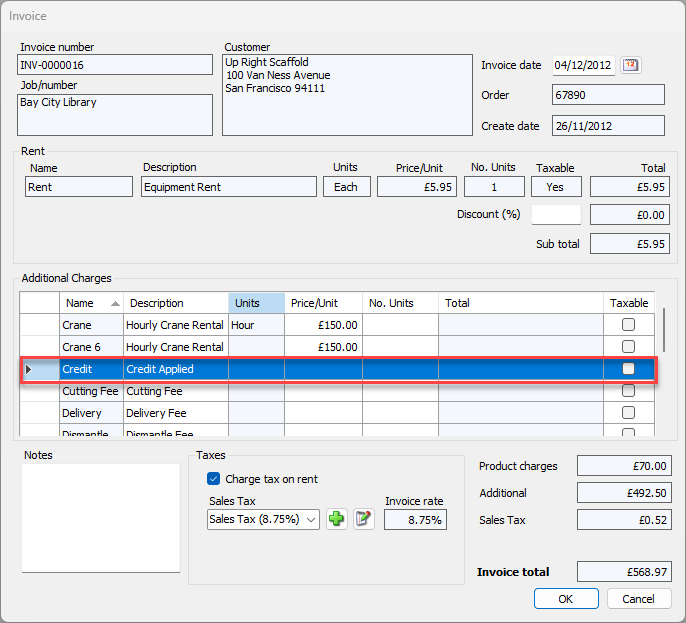
Note: This Additional Charge item must allow negative prices. For information about setting up Additional Charges for use as credits, refer to the Adding an Additional Charge for Credit section of Working with Additional Charges.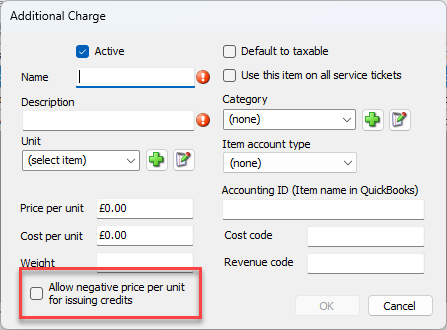
As necessary:
Click in the Description text field and edit the description.
Quantify will include this description in Invoices and reports.
Note: This must be enabled through the Global Options dialog.
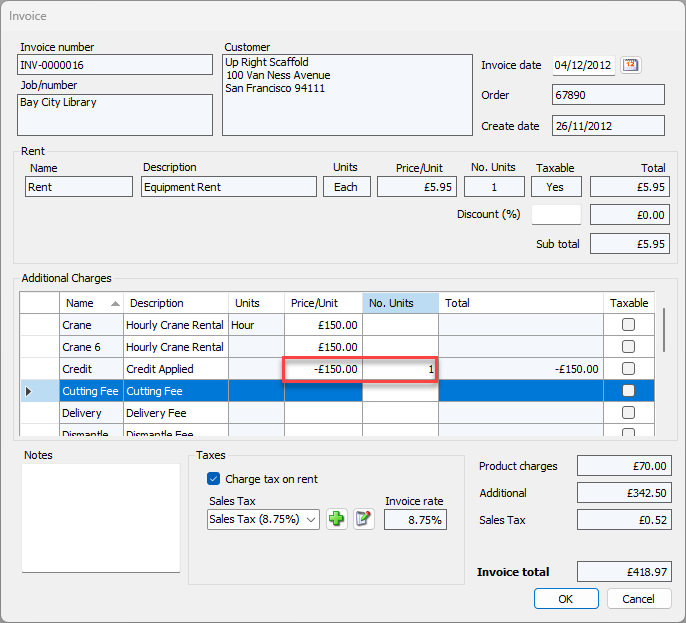
Click in the cell in the charge's Price/Unit column and enter a negative amount.
Click in the cell in the charge's No. Units column and enter 1 if this amount is not multiplied.
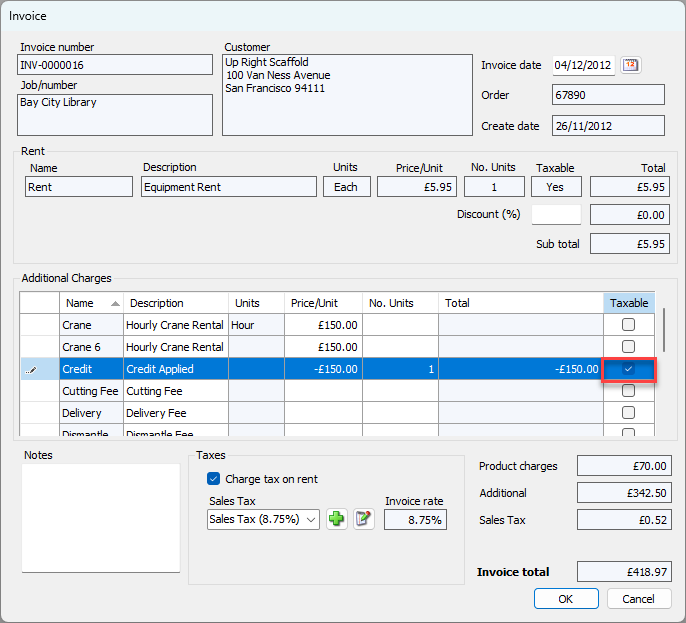
Click the checkbox in the charge's Taxable column (to put a check in it) if this credit is for taxable items or services.
Quantify will include negative tax charges on the Invoice.
Repeat the above procedures as many times as necessary.
Click OK.