Use the Polygonal Slab shape to easily add a multi-sided slab to your drawing. By default, the sides of this slab are of equal length. The Polygon dialog enables you to quickly choose the length, the elevations and the number of sides.
To add a Polygonal Slab to a drawing:
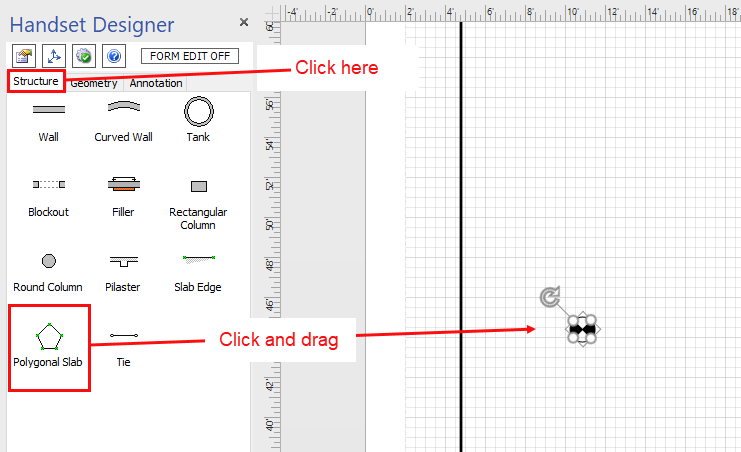
- Click the Structure tab in the Handset Designer pane.
- Click and drag the Polygonal Slab shape onto the Drawing Page.
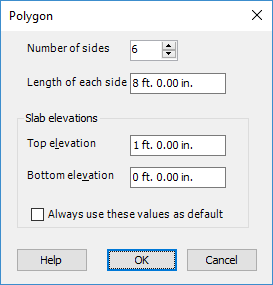
The Polygon dialog appears.
As necessary:
- Click the Number of sides arrows up or down to determine how many sides the polygon will have.
- Click in the Length of each side text field and enter the length measurement for each side.
- Click in the Top elevation text field and enter a top elevation measurement.
- Click in the Bottom elevation text field and enter a bottom elevation measurement.
- To tell Handset Designer to keep these values for all Polygonal Slab shapes, click the checkbox Always use these values as default,
Note: For measurements use ft. for feet, in. for inches or m. for meters. You may also use the standard notations " for inches or ' for feet. - Click OK.
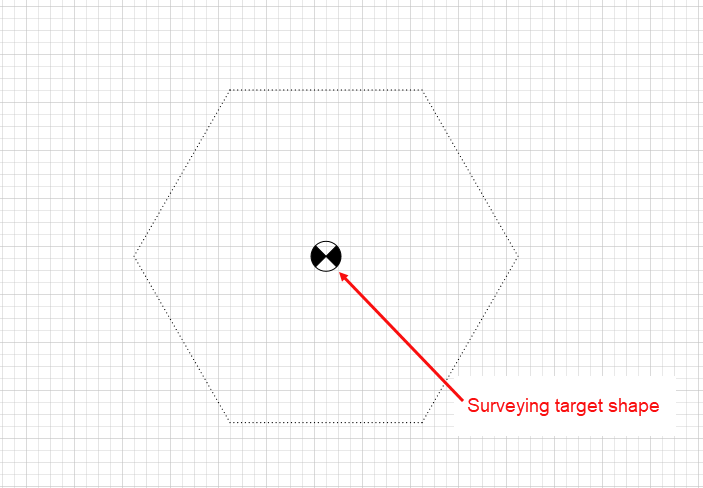
Handset designer displays the polygon shape on the drawing page. A surveying target shape appears in the middle of the shape, showing the center of gravity (often the center) of the final polygon.