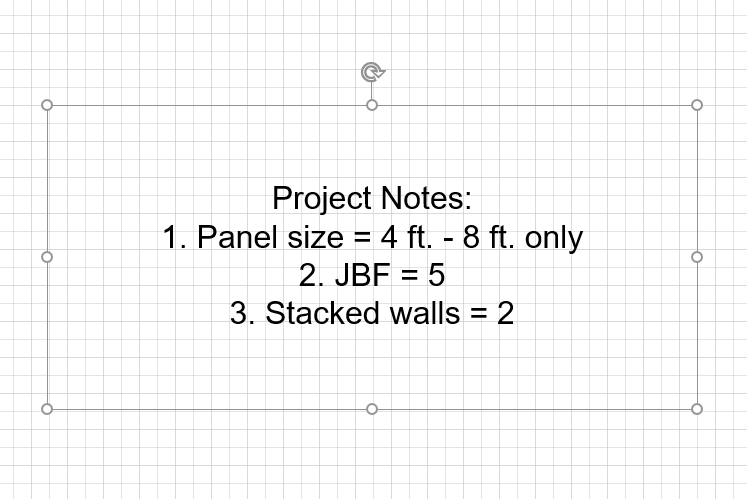
No drawing is complete without some Text Elements. Text Boxes enable you to add notations to your drawing that point out areas of particular interest or concern to the viewer.
To add Text to a drawing:
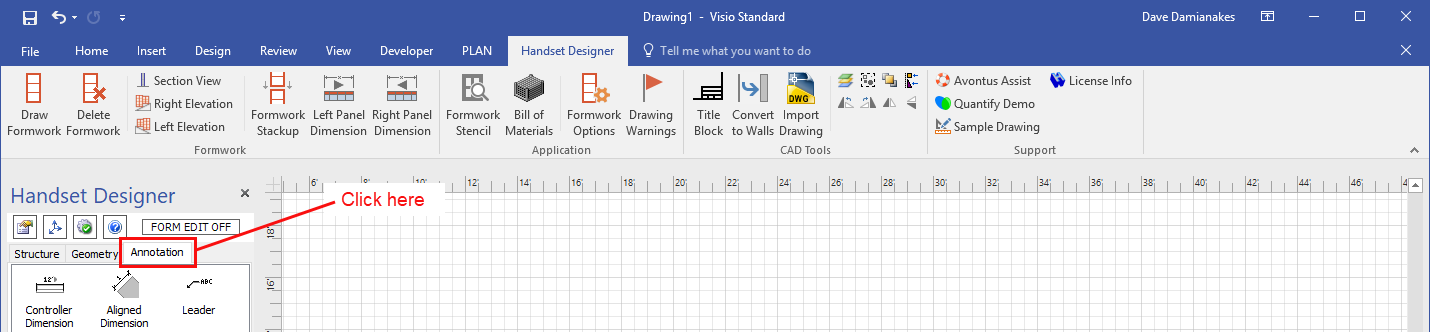
- Click the Annotation tab in the Handset Designer pane.
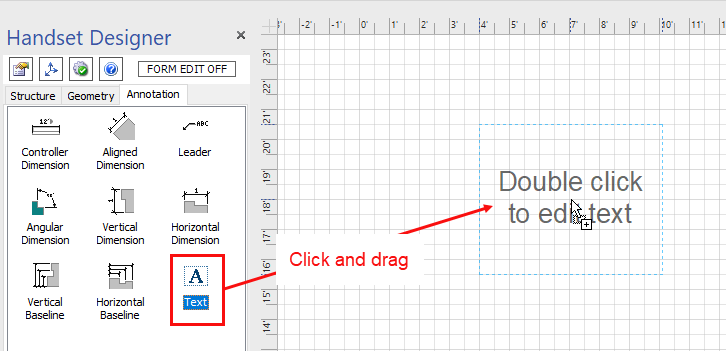
- Click and drag the Text shape to the appropriate location on the Drawing Page.
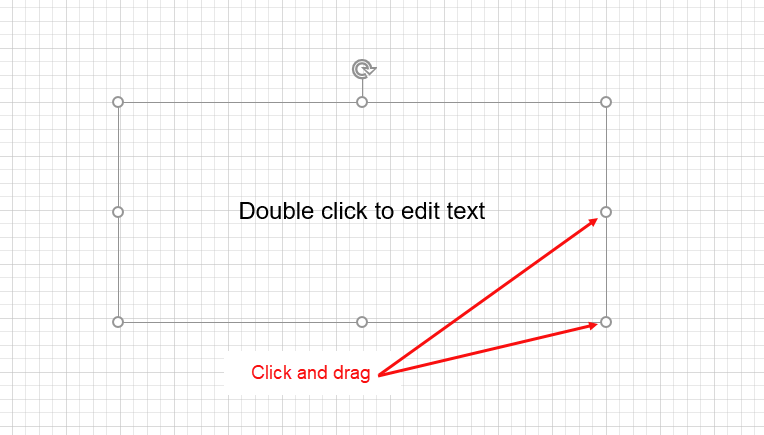
The Text Box appears on the Drawing Page. - Click and drag the shape handles to adjust the Text Box dimensions.
- Double-click the sample text inside the Text Box and enter the new text.
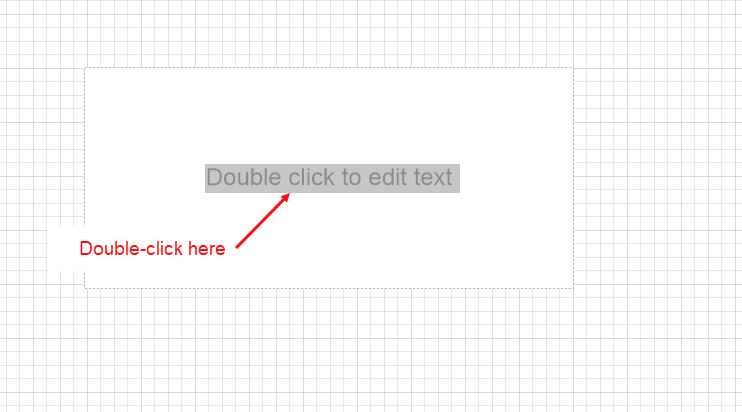
- Click the Drawing Page to exit text editing.
The Text Box displays your new text.