When you draw the Formwork for a structure, Handset Designer automatically adds Ties based on the settings in the Formwork Ties tab of the Formwork Option dialog. (Refer to the Formwork Ties Tab topic to learn more about choosing default settings and creating custom options.)
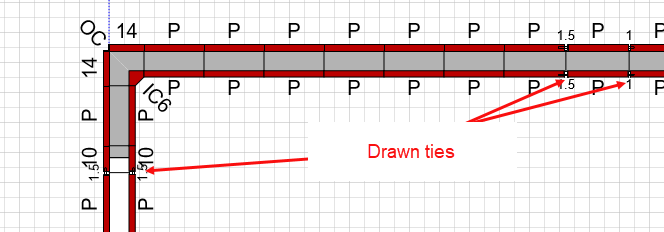
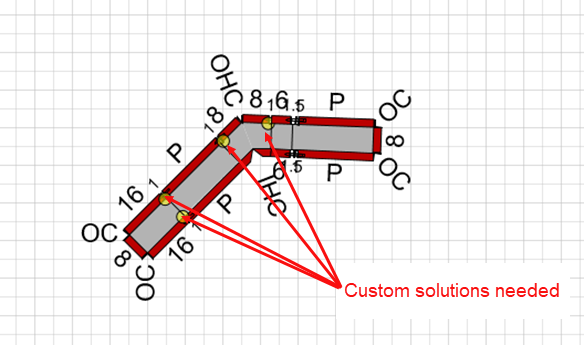
Still, there may be situations in which you must add and manage Ties manually. One of those situations may be where Handset Designer indicates on the Formwork (by yellow circles) that a custom design is needed, as in this example:
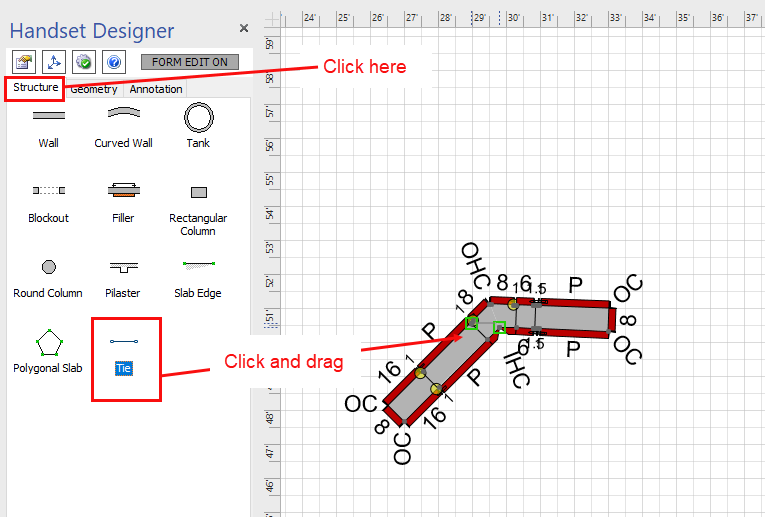
To add a Tie onto a drawing:
- Click the Structure tab in the Handset Designer pane.
- Click and drag the Tie shape onto the Formwork.
Note: Dropping a Tie onto the Formwork also turns the Formwork editing mode to ON, which is visible in the toolbar button. Use it to toggle the Formwork edit mode on or off as needed. (Refer to Editing Formwork for more information.)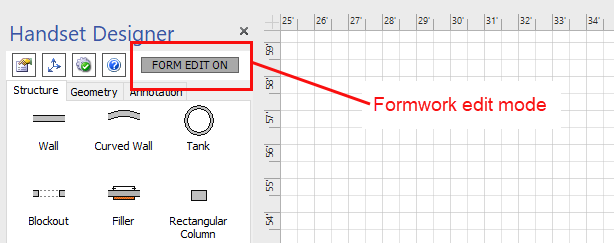
- Click and drag the green connection points to snap them to the Formwork.
Connections are located at Panel and Filler connection points.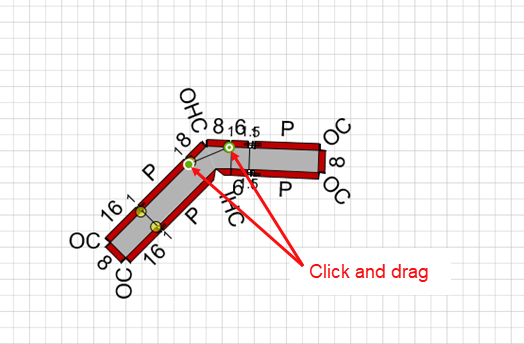
- As necessary, click and drag either of the connection points to change the length of the Tie or to snap it to a different connection point.
Note: If you delete or redraw the Formwork, Handset Designer deletes the custom Ties.