Quantify enables you to quickly update the quantities of inventory associated with Branch Offices or Sub-Branches to match actual yard counts. To do this, you will need to lock the database, this will prohibit other users from making changes that affect balances (such as making Shipments and Transactions).
To adjust inventory balances:
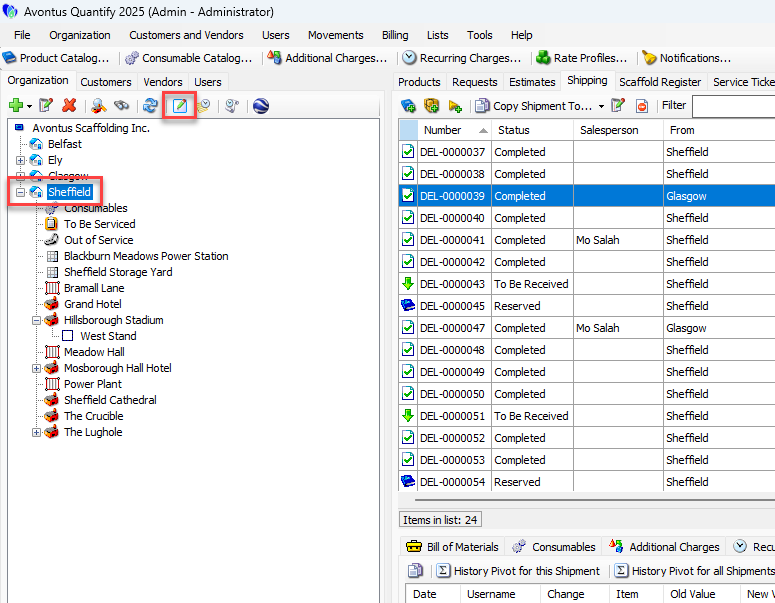
Click the appropriate Branch Office or Sub-Branch in the Organization Tree and click the Adjust quantities for the selected location button (
 ).
).Note: You must lock the database before this button is functional. Refer to Locking and Unlocking the Database for more information.
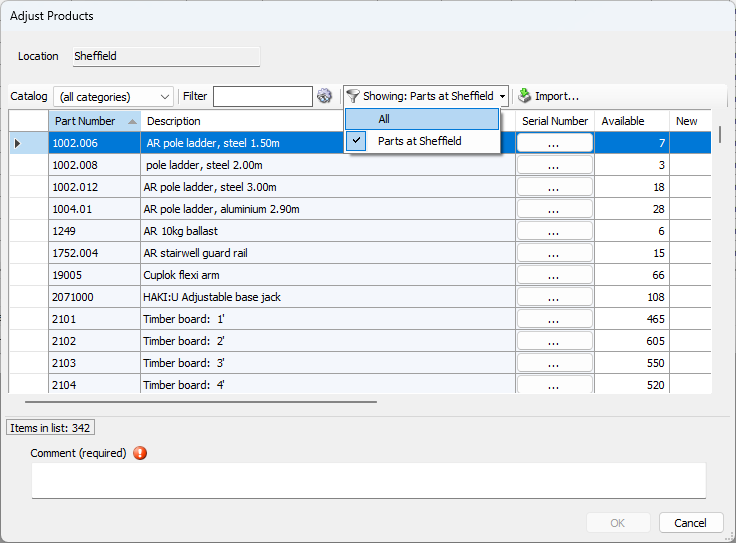
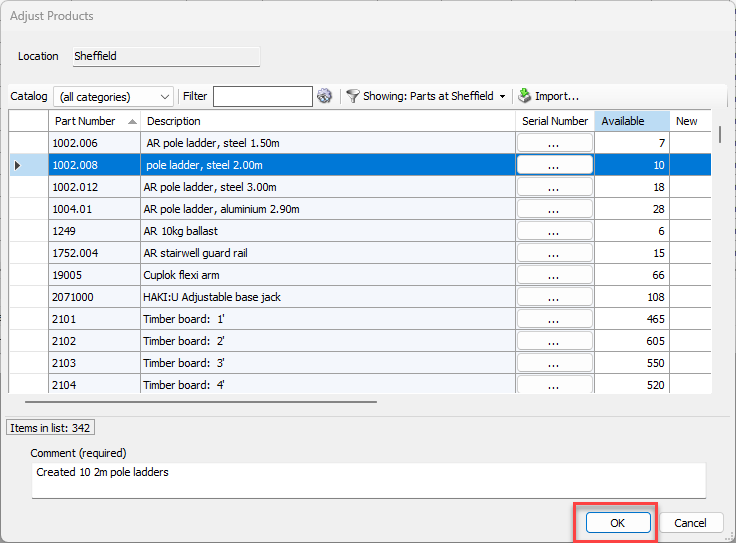
The Adjust Products dialog appears, displaying the current inventory and other counts for the location selected in the Organization Tree.Note: To add an item not already at the Branch Office, click the Showing dropdown and select All.
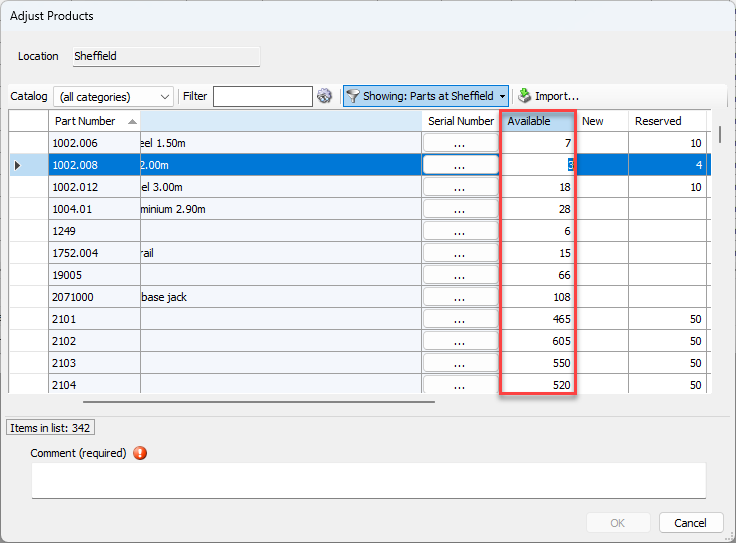
Locate the Product you want to adjust, double-click in its Available column and enter the new available amount.
Note: Column headings may have different naming conventions based on the configuration of your database.
Repeat the above step as many times as necessary.
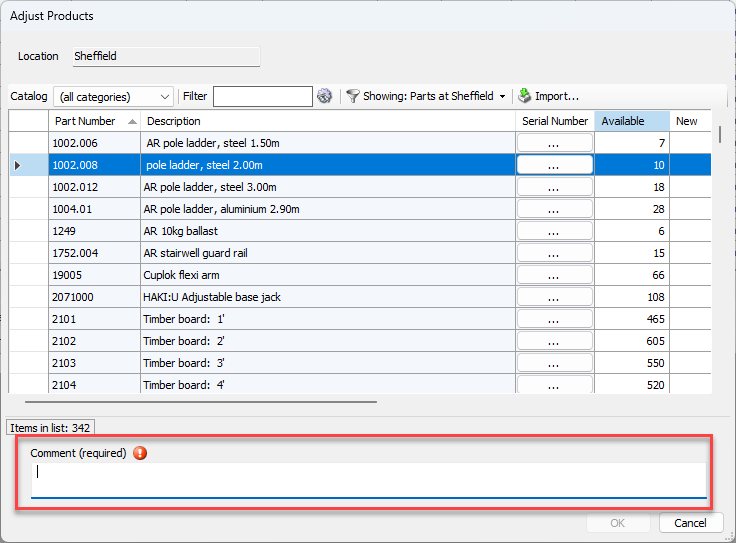
Click in the Comment text field and enter a comment for this adjustment.
Click OK.
You can view the updated counts in the Products tab.
You will now need to unlock the database Locking and Unlocking the Database.