The Details tab shows you which Activities and Access Points have been added to the Scaffold, and their details. You can also use it to enter the location and tracking information that enables you to view the Scaffold's location in Google Earth.
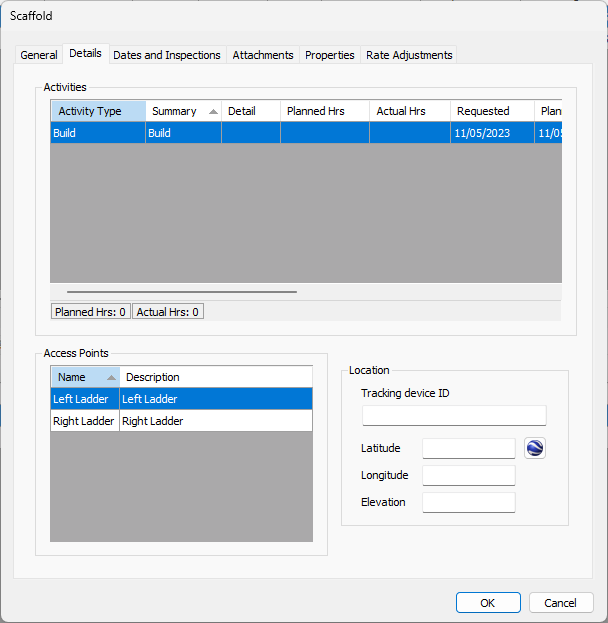
Use the information below to help you configure the Details tab, then continue with the rest of the tabs, as necessary.
Activities Section
Activities are only available with the Industrial version of Quantify.
| Activity Type | This column displays the type of Activity assigned to the Scaffold: Build, Dismantle or Modify. |
| Summary | This column displays the summary associated with the Scaffold. |
| Detail | This column displays any details entered for the Activity. |
| Activity List 1, 2, 3 | These columns display which Activities have been selected from any custom list dropdowns in the General tab of the Activity dialog. For example, type of work, activity manager, etc. |
| Planned Hrs | This column displays the number of hours planned to complete the Activity. |
| Actual Hrs | This column displays the actual hours it took complete the activity. |
| Requested | This column displays the date on which the Activity was requested. |
| Planned | This column displays the date on which the Activity was planned to occur. |
| Actual | This column displays the date on which the Activity actually occurred. |
| Days Request to Planned | This column displays the amount of time that elapsed between the requested Activity start date and the planned Activity start date. This is based on calculation of entered information. Note: You cannot edit information in this column. |
| Days Planned to Actual | This column displays the amount of time that elapsed between the planned Activity start date and the actual Activity start date. This is based on calculation of entered information. Note: You cannot edit information in this column. |
| Days Request to Actual | This column displays the amount of time that elapsed between the requested Activity start date and the actual Activity start date. This is based on calculation of entered information. Note: You cannot edit information in this column. |
Access Points
Access Points are only available with the Industrial version of Quantify.
| Name | This column displays the name of each current access point. |
| Description | This column displays descriptions of each current access point. |
Location
Location services are available with all version of Quantify.
| Tracking Device ID | Use this text field to configure the mobile device ID that will be used to locate scaffolds. If you use Quantify Web, you can use your device's location as the scaffold location. If you do, Quantify automatically completes the Latitude and Longitude fields. |
| Latitude | Use this text field to configure the scaffold's latitude. |
| Longitude | Use this text field to configure the scaffold's longitude. |
| Elevation | Use this text field to configure the scaffold's elevation above sea level. |
Google Earth | Click this button to to view the scaffold's location in Google Earth. For these procedures, refer to Viewing Scaffold Locations in Google Earth. |
