After saving the Estimate with the drawing attachment in Quantify, it can be used to create a Shipment to a Scaffold Tag job.
To attach a drawing to a scaffold job:
Launch and log in to Quantify.
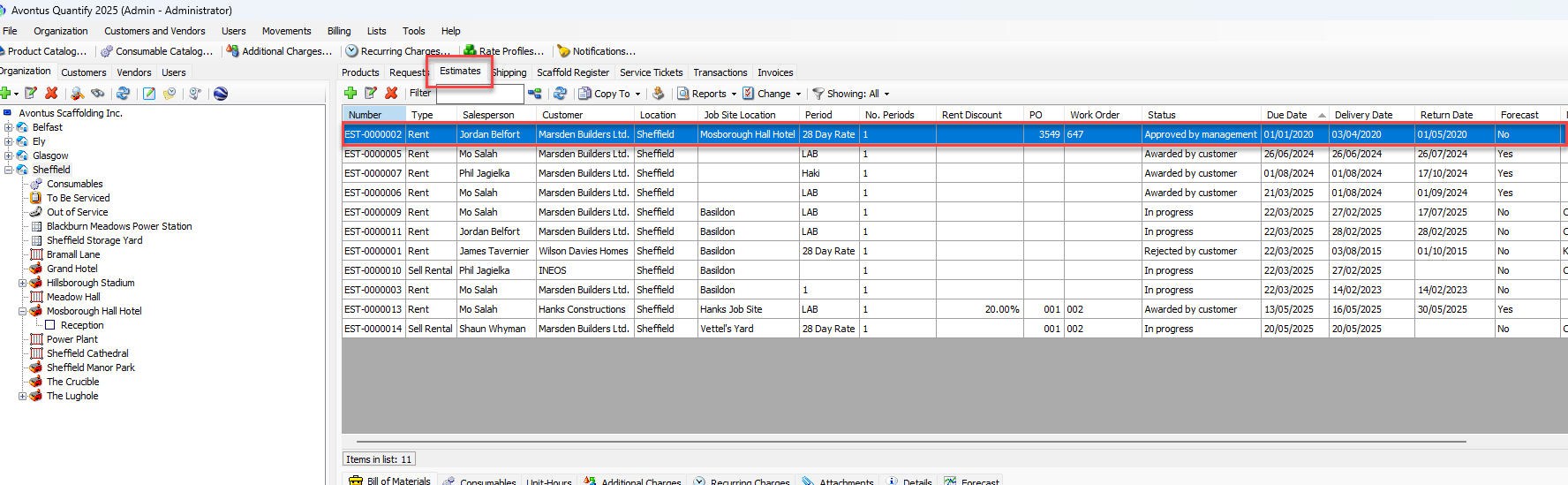
Click the Estimates tab and click the Estimate.
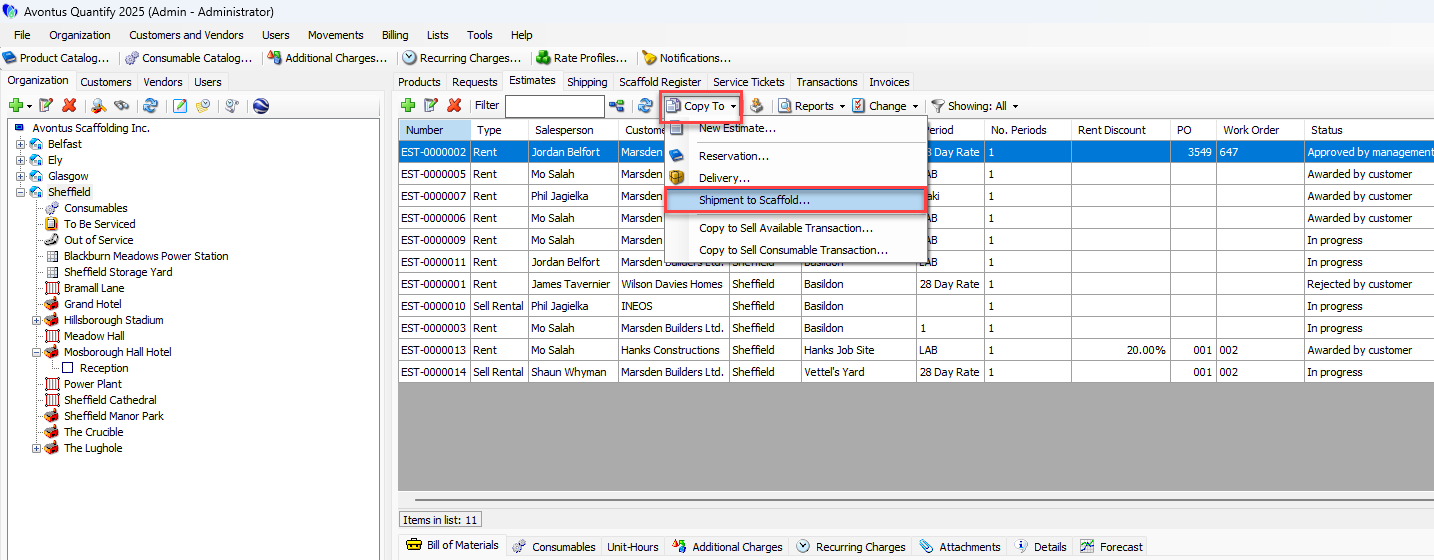
Click Copy To and select Shipment to Scaffold Tag from the menu that appears.
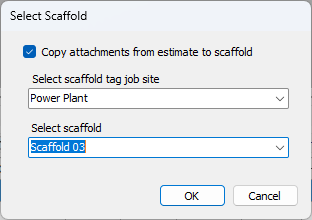
The Select Scaffold dialog appears.As necessary, click the Copy Attachments from Estimate checkbox, to put a check in it.
Click the upper dropdown and select the appropriate Job Site.
Click the lower dropdown and select the appropriate Scaffold.
Click OK.
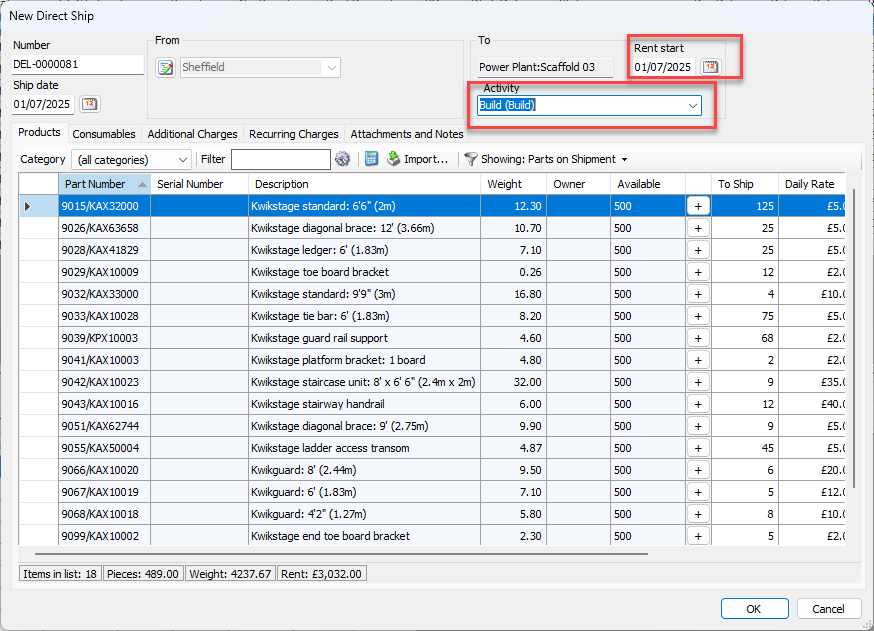
The New Direct Ship dialog appears.Click in the Rent Start text field and enter the appropriate start date.
Click the Activity dropdown and select the appropriate activity.
Click OK.
Note: Drawings in Quantify Web are view-only. Use Avontus Designer to make changes to a drawing. After saving the changes, the new drawing must be attached to the scaffold job manually.