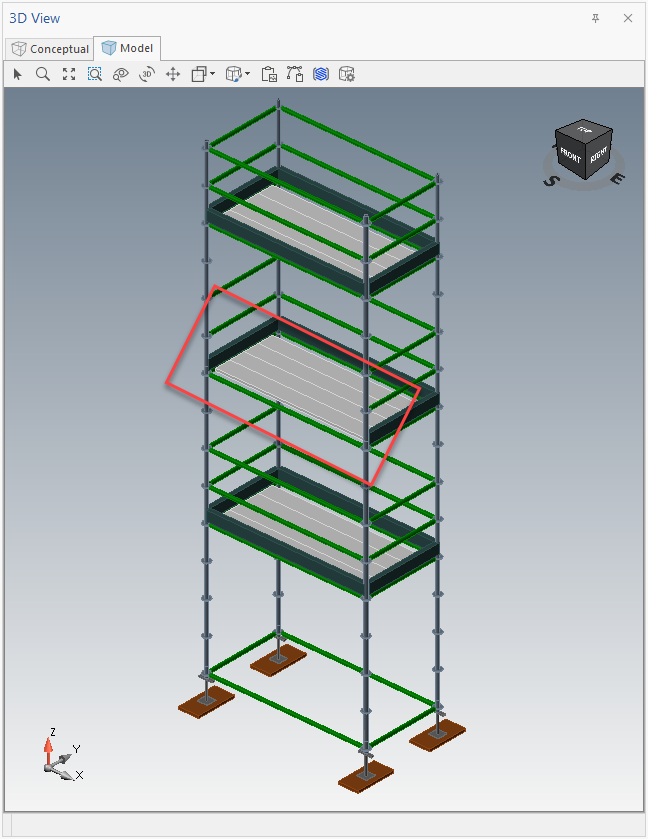
When you use the Bay Level Editor to change Bay settings or materials, those changes are called Bay Level Overrides. These overrides become exceptions to Bay defaults for that specific setting or material and will not be updated or affected when you use controls like Side Settings or Bay Details to make changes to the Bay.
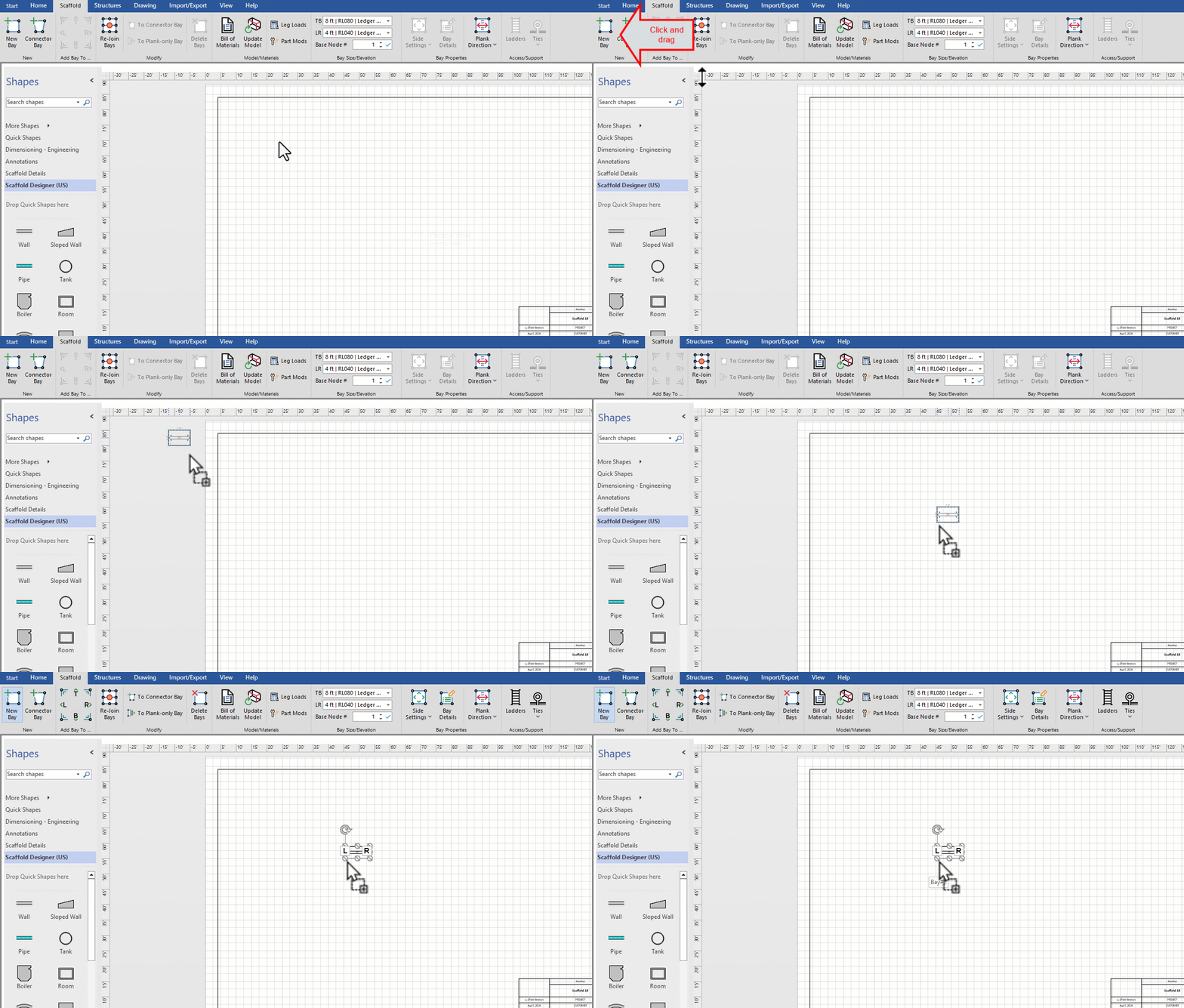
Drag in a bay from the toolbar
Select the new bay and add new levels to the bay. We will add two new levels.

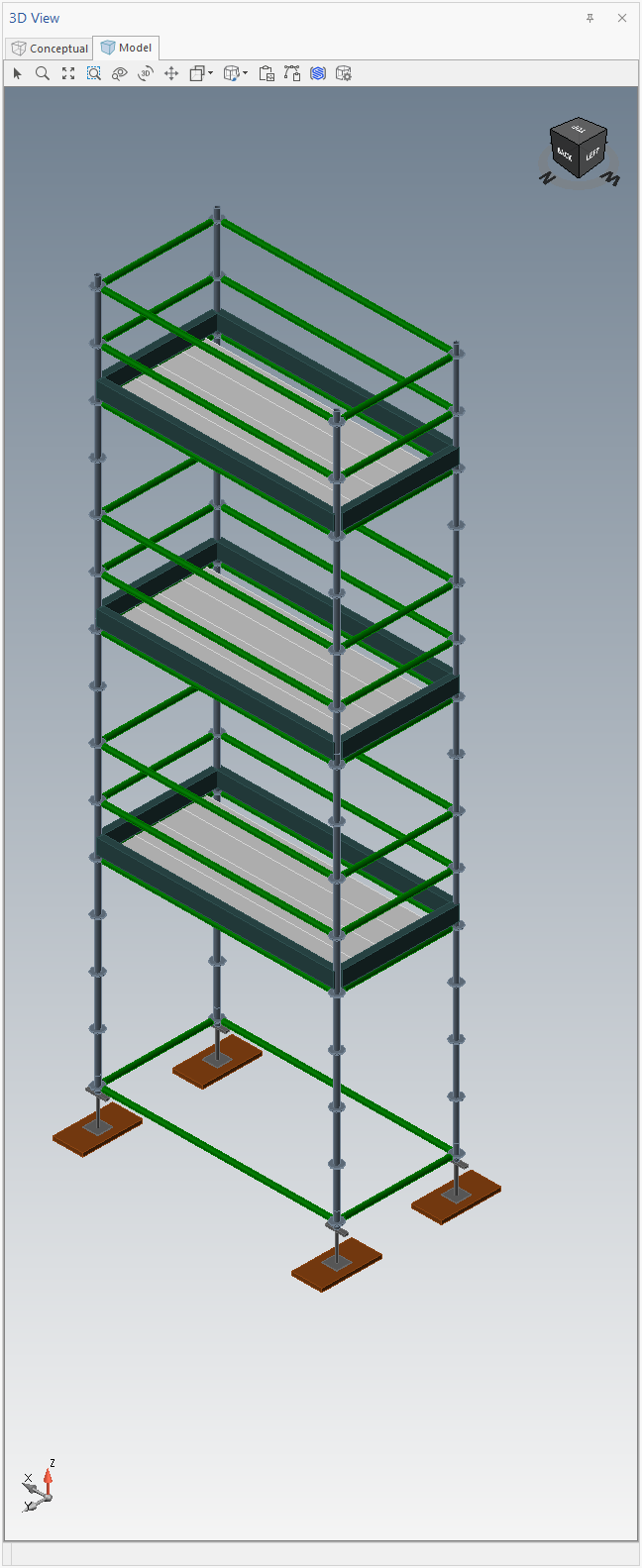
The 3D model will look like this.
We will remove the bottom guardrail from the second level.In the Bay Level Editor, select Guardrails on the second level.

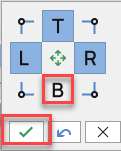
Remove the bottom guardrail and select the tick icon.
This will remove the bottom guardrail from the second level bay.