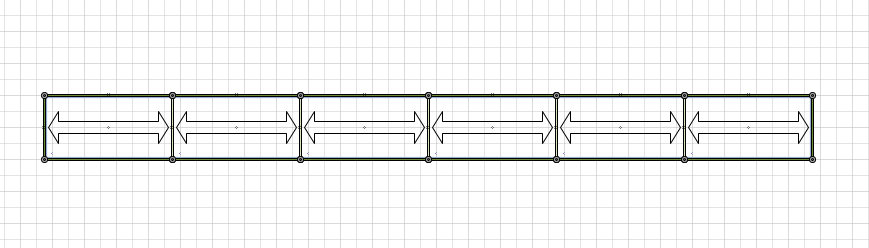
By default, the Bay labels have a text size of 6 pt. You can change the size to more easily see the dimensions of any Bay in a drawing or render them virtually invisible (see below).
Changing Bay Label Text Size
To change Bay label text size:
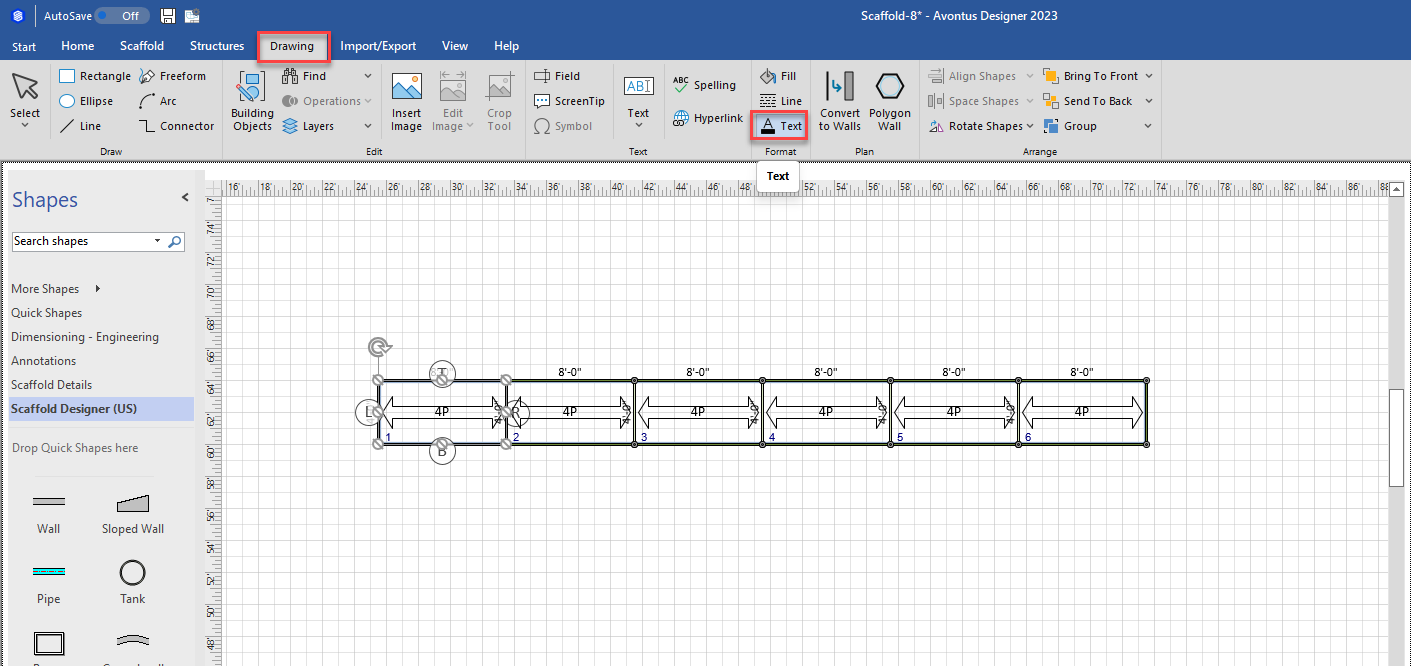
Select the appropriate Bay(s).
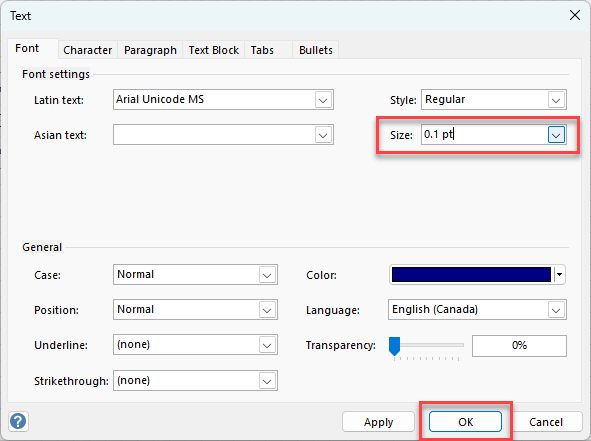
Click the Drawing tab and click Text in the Format group.
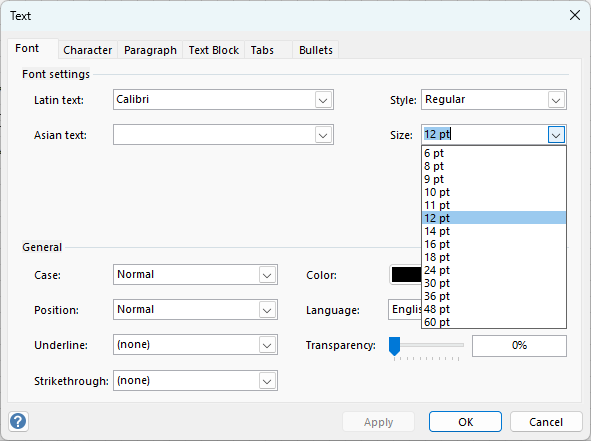
The Text dialog appears.Click the Size dropdown and select appropriate text size.
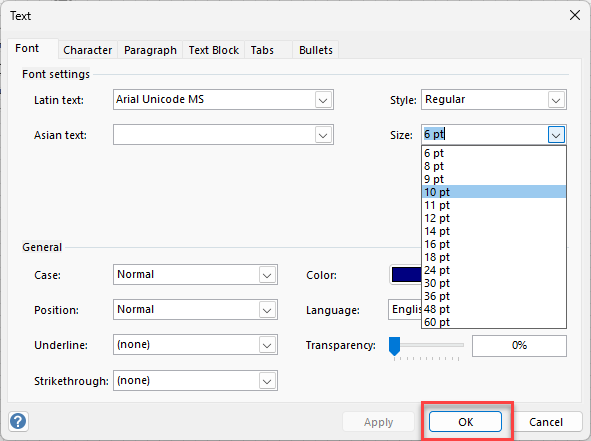
Click OK.
Avontus Designer changes the label text size.
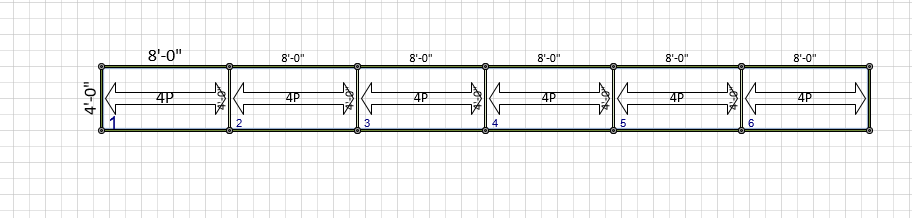
De-Cluttering a Drawing
While you can make the text in labels as large as you want, you can also make it as small as .01 pt., which renders the text virtually invisible. This can reduce visual clutter in runs of Bays on a page. Just enlarge the numbers on one Bay, then reduce the size on others of same run to .01.
To de-clutter a drawing:
Use the procedures above to increase the text size of the appropriate scaffold.
Select the scaffolds in the run.
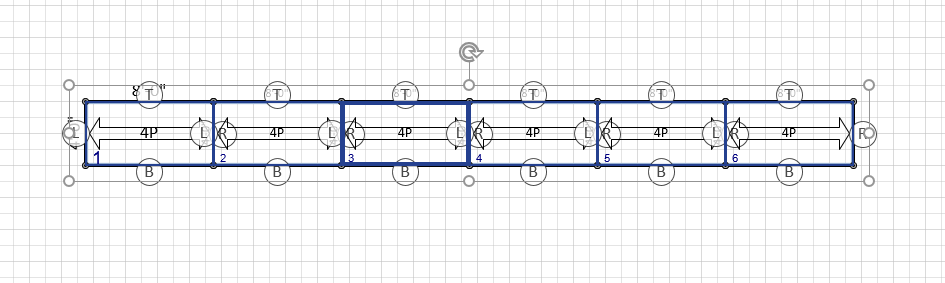
Use the procedures above to reduce their label text size to .01.
Note: Instead of selecting the font size, delete the current size and enter .01 pt.
The result looks like this: