A Scaffold can be set to Awaiting Inspection manually, or you can set up Scaffolds to change status automatically at a certain time or date. This can be set up in the Scaffold Settings screen of the Working with Settings.
When a scaffold is in the Awaiting Inspection status, you will need to perform an inspection.
This article will explain how to perform a Scaffold Inspection.
Note: You can also inspect scaffolds in the Scaffold Details screen
From the Map screen, select the Scaffold awaiting inspection and click Awaiting Inspection
Click Inspect Scaffold
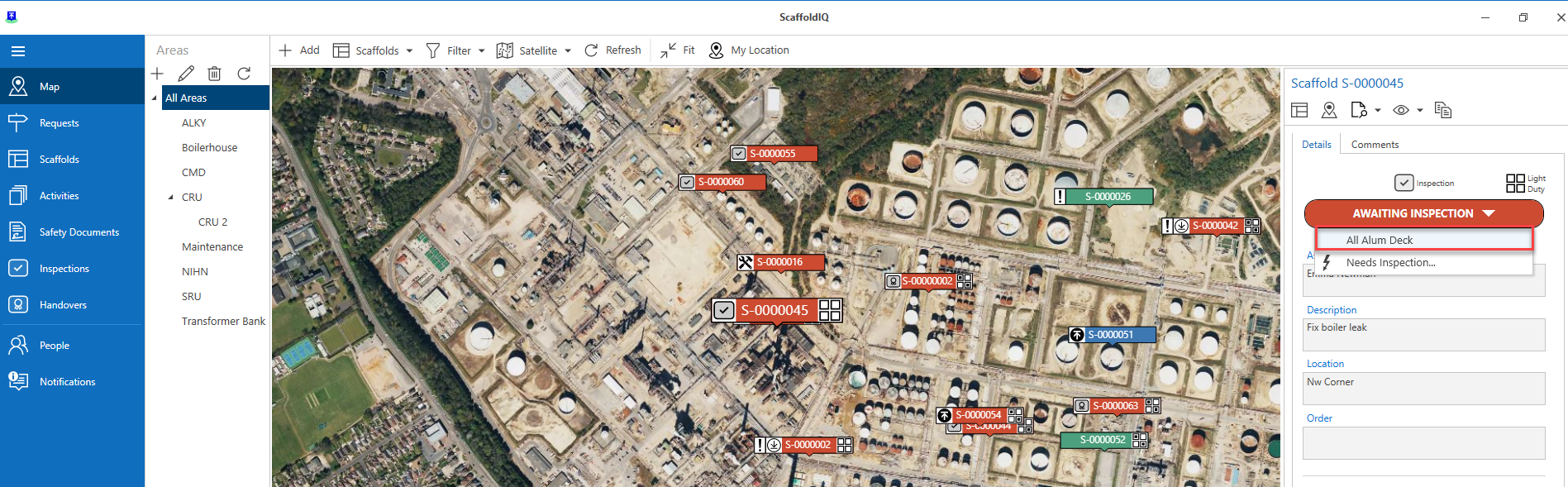
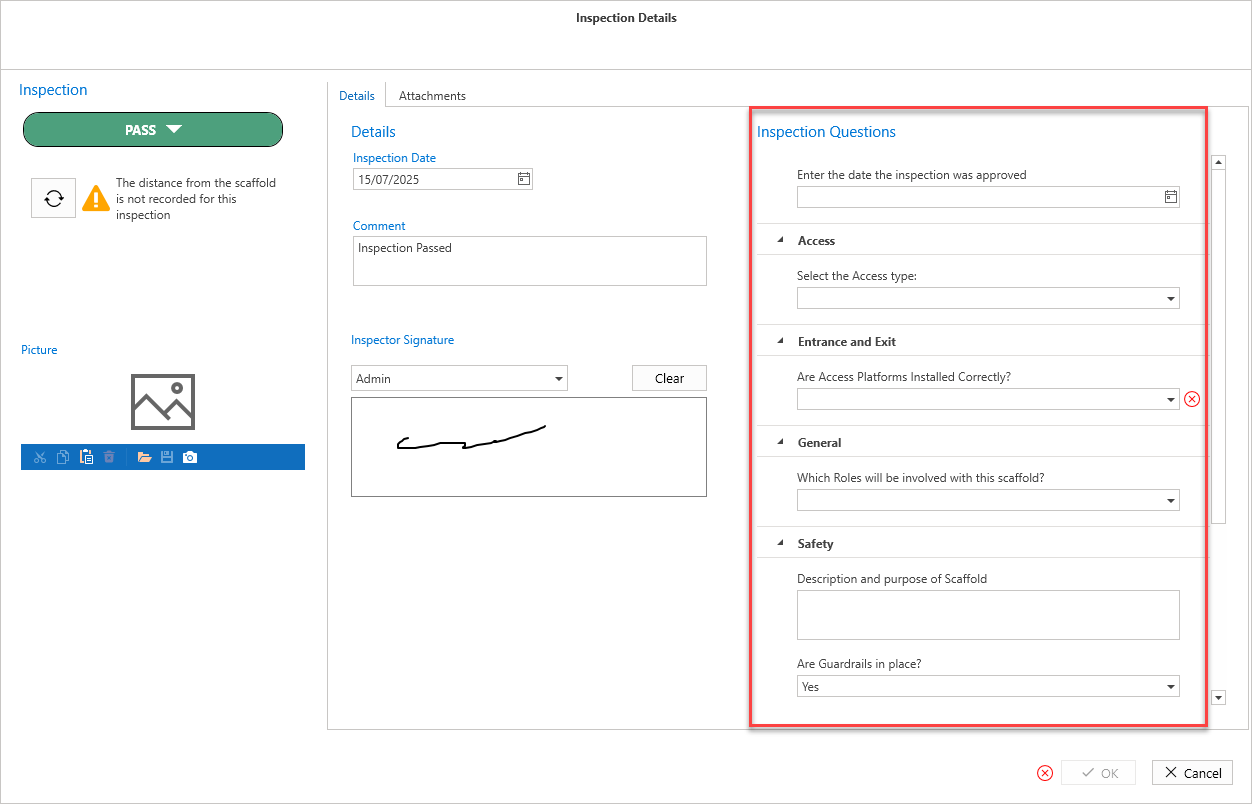
The Inspection details screen will be launchedSelect the Inspection result
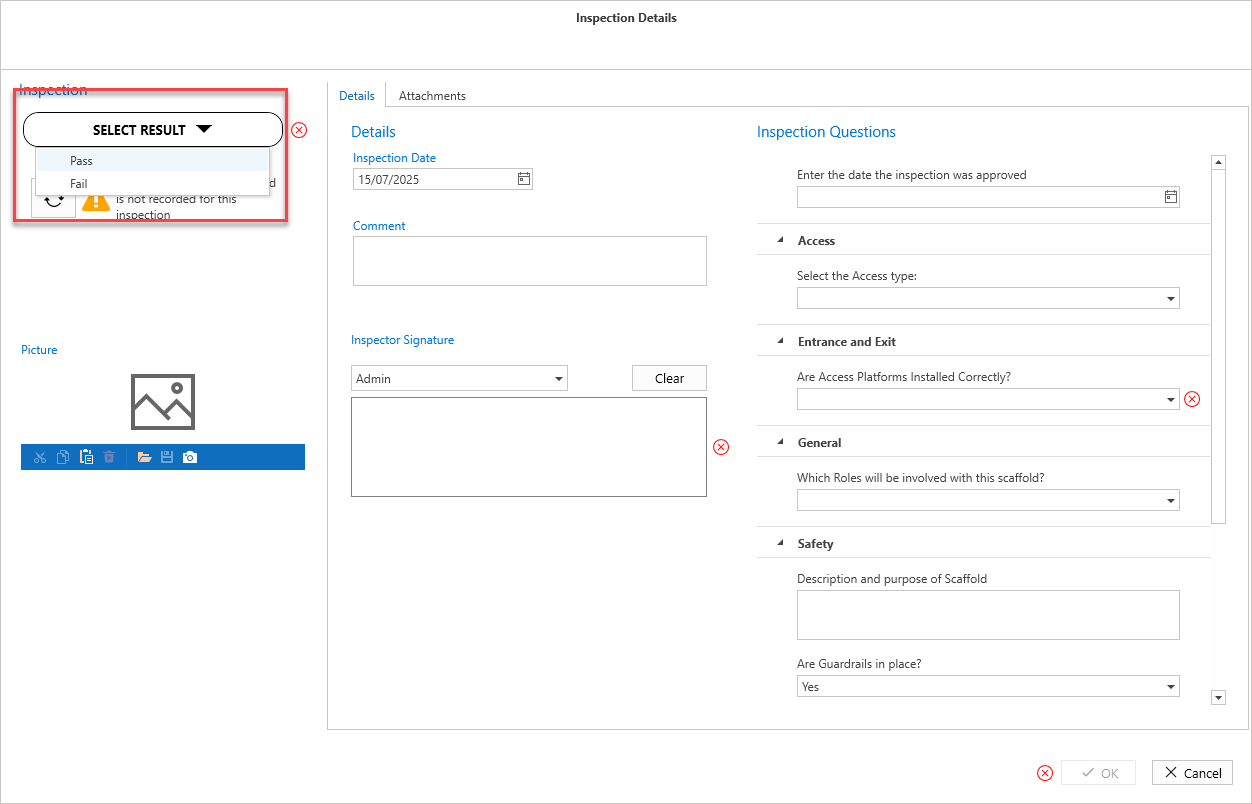
Note: If the inspection fails, the status will change to Awaiting Repair. For more information on repairs, see the Repairing a Scaffold guide.
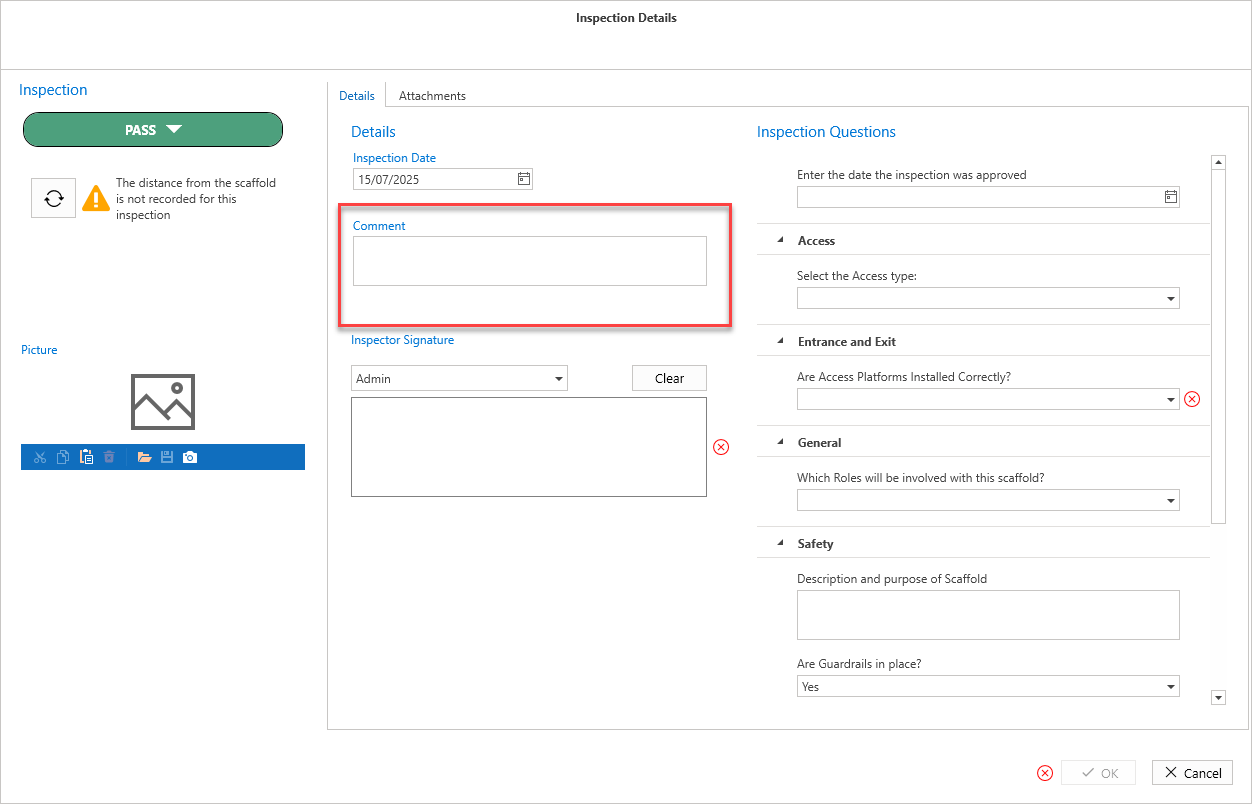
Provide a comment
Select the inspector and provide a signature
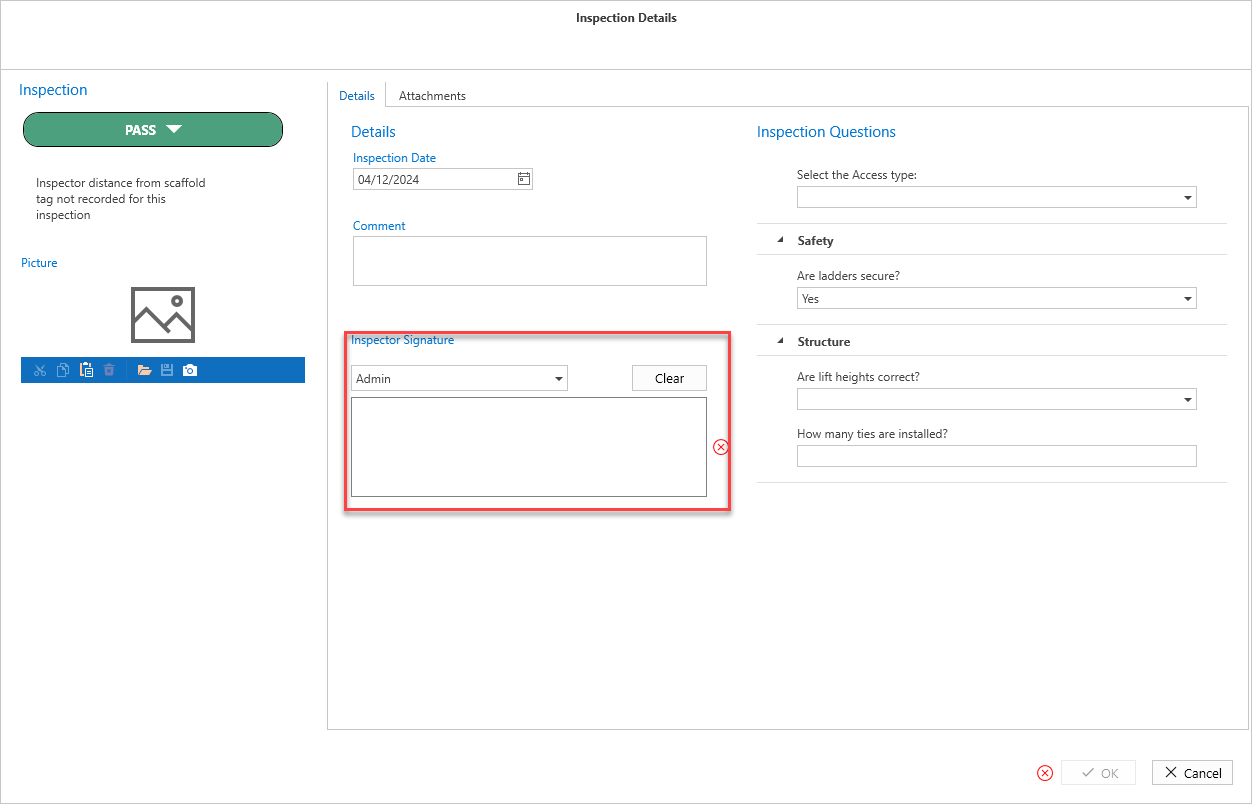
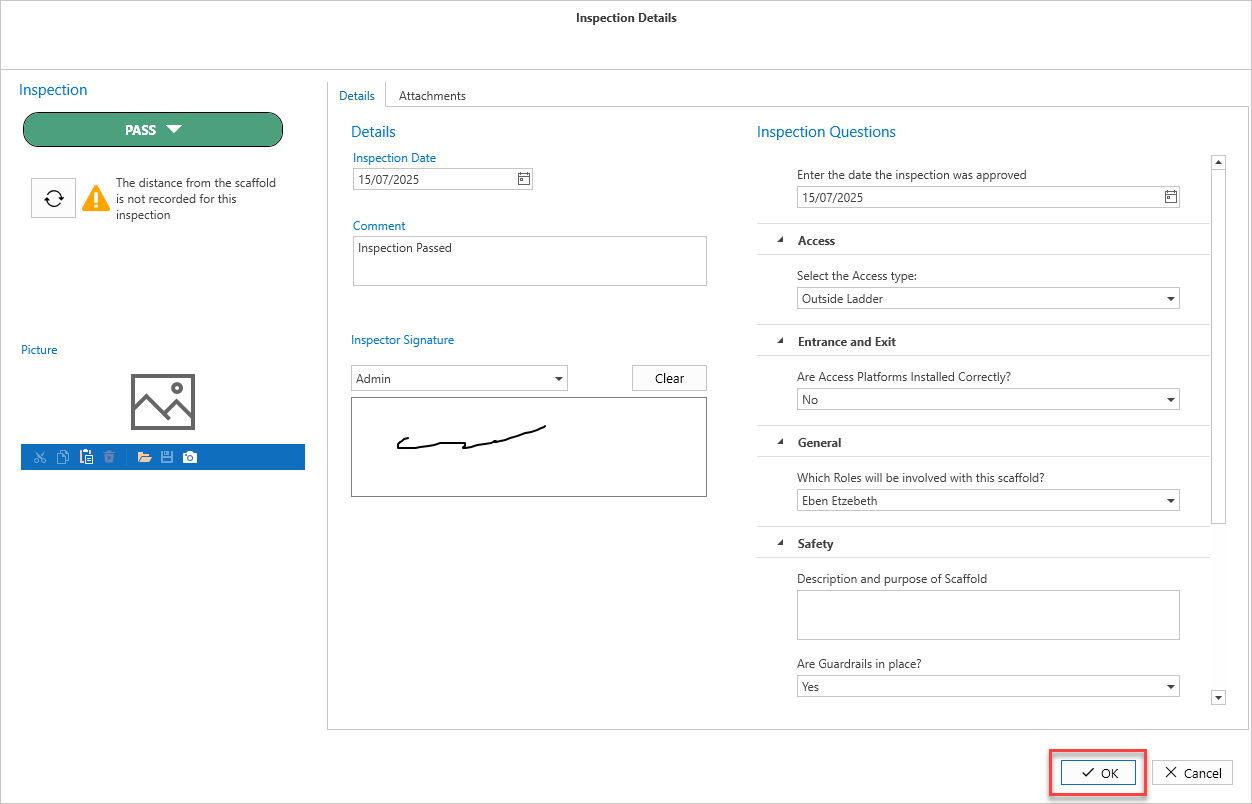
Answer any inspection questions
Click OK
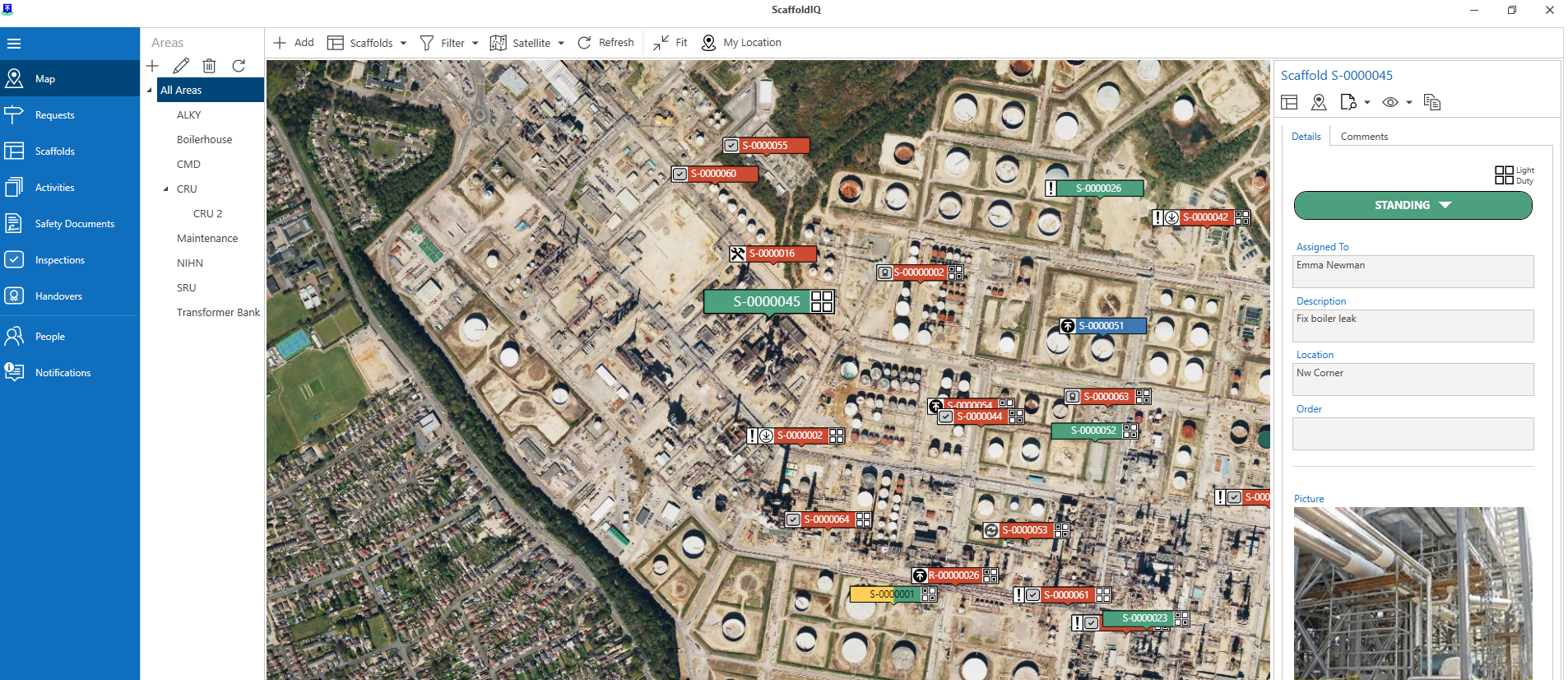
The Scaffold will now be Standing
To complete an inspection via the Scaffold Details screen
From the Map screen, select the Scaffold pin and select Details
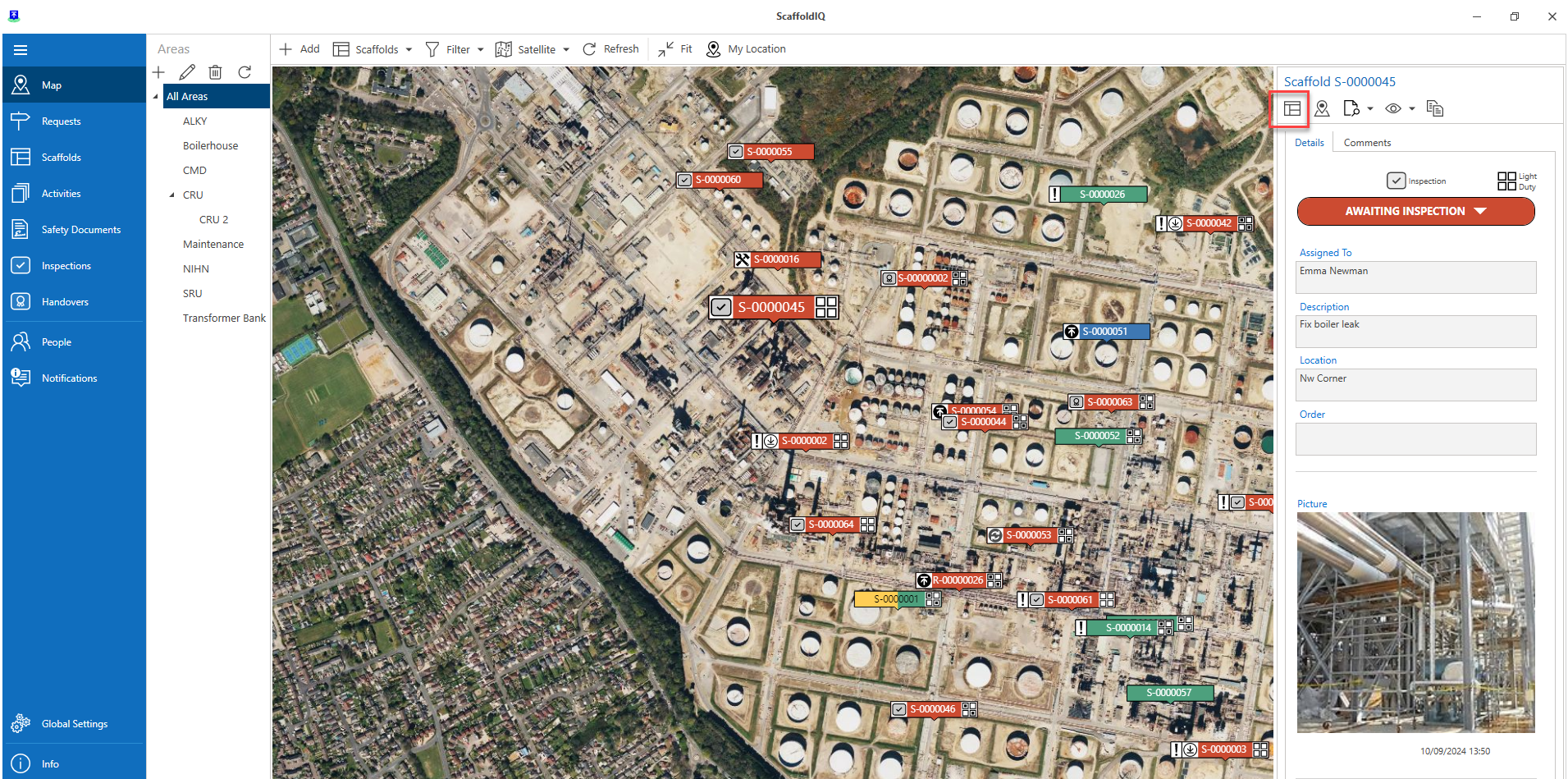
Select the inspection template
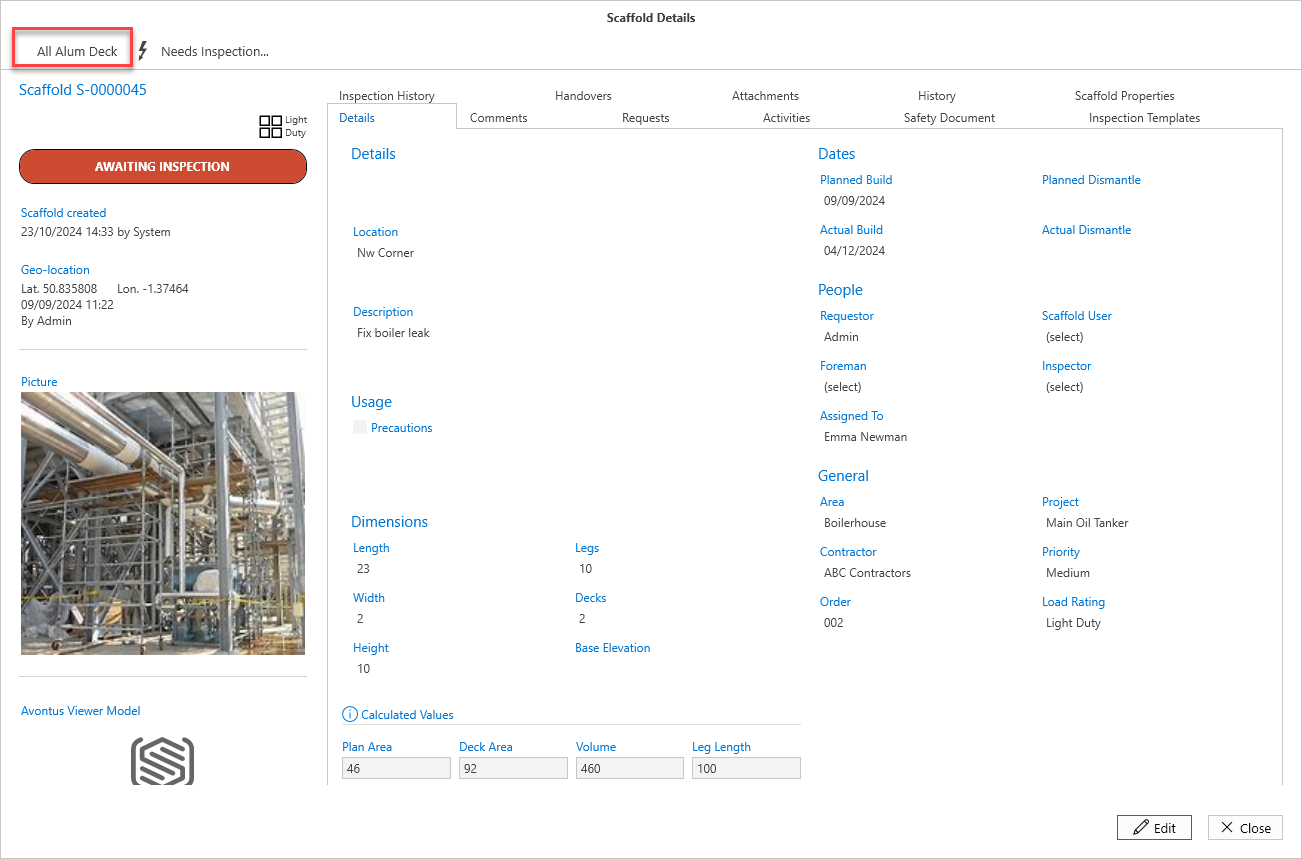
The Inspection Details screen will be launched3. Select the Inspection result
Note: If the inspection fails, the status will change to Awaiting Repair. For more information on repairs, see the Repairing a Scaffold guide.
4. Provide a comment
5. Select the inspector and provide a signature
6. Answer any inspection questions
7. Click OK
The Scaffold will now be Standing
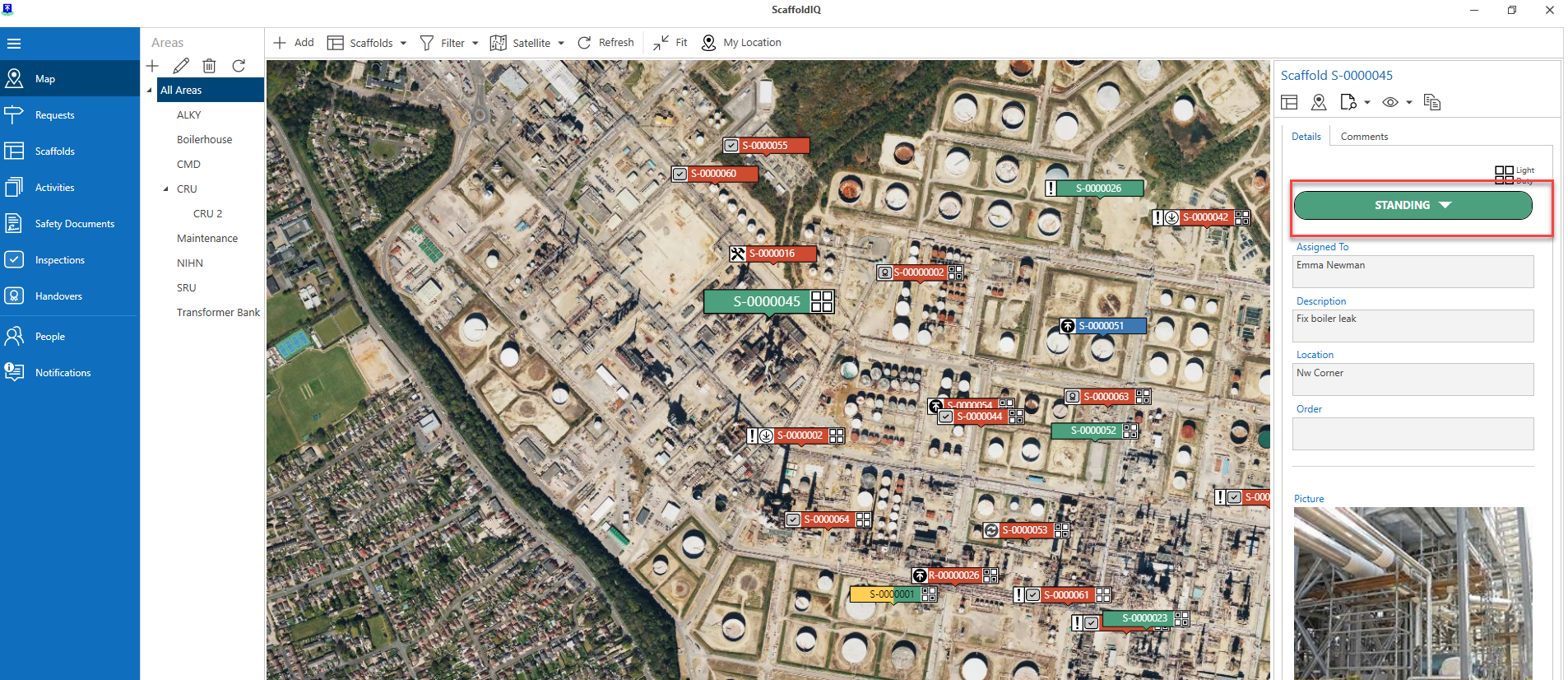
Note: If the Scaffold Inspection fails, the status of the Scaffold will change to Awaiting Repair. Please see Repairing a Scaffold for more information.