Before beginning a drawing, you should configure the Formwork settings for the drawing. Handset Designer only saves the settings you configure here in the new drawing.
To configure Formwork settings for the drawing:
Click Formwork Options.
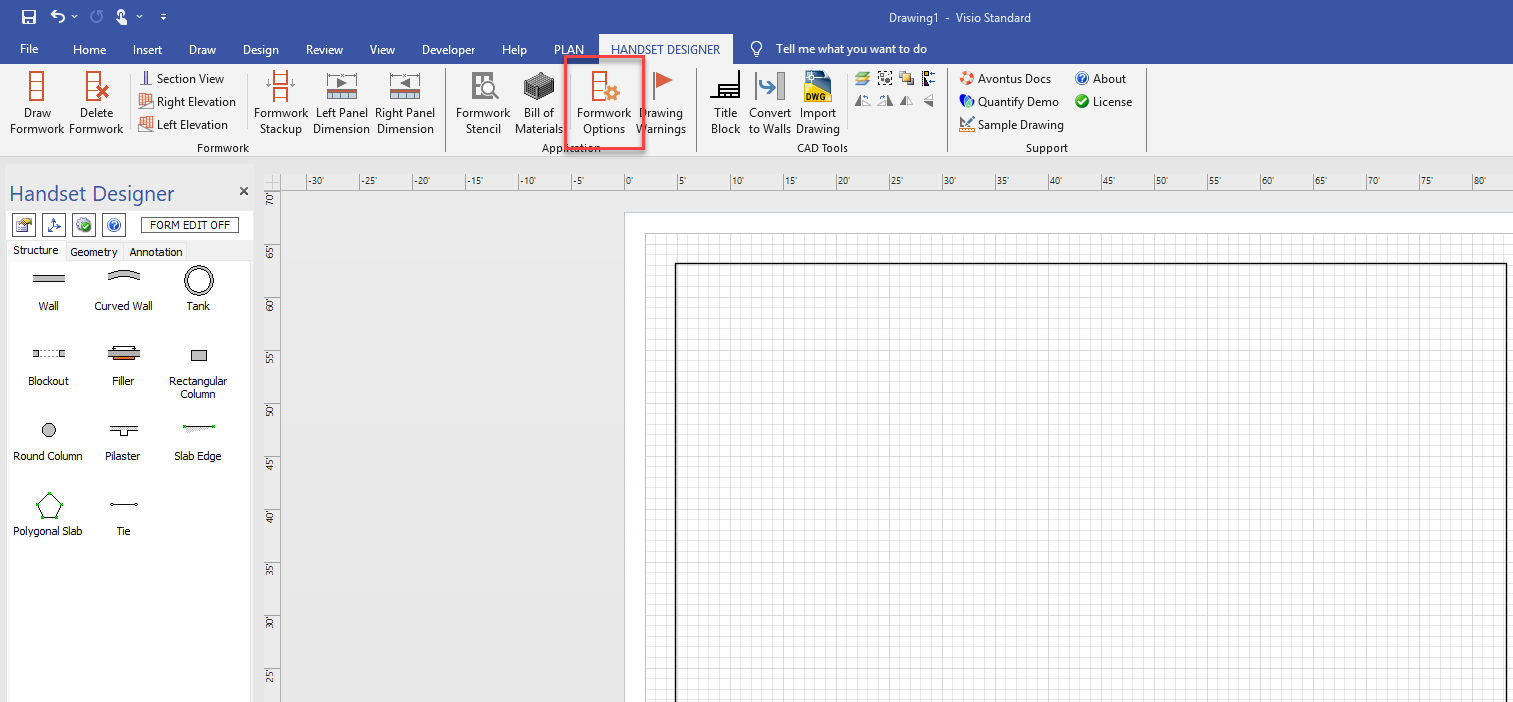
The Formwork Options dialog appears, with the Drawing and Counting tab selected.Click the Formwork Ties tab.
The Formwork Options dialog refreshes.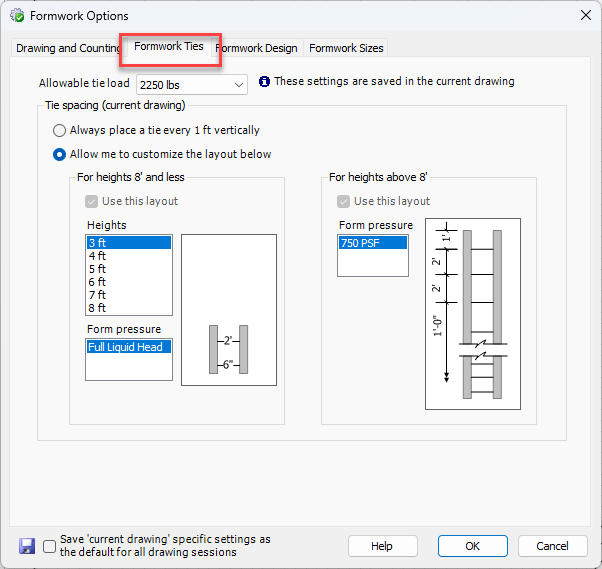
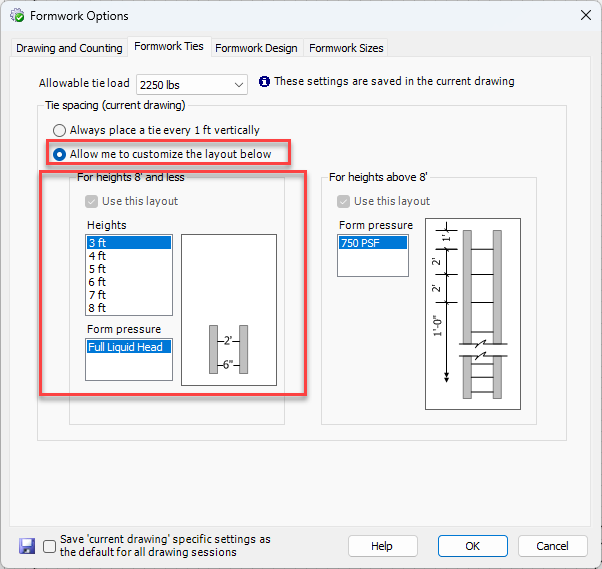
As necessary:Click the Allowable tie load dropdown and select the appropriate tie load. Your options are: 2250 lbs and 3000 lbs.
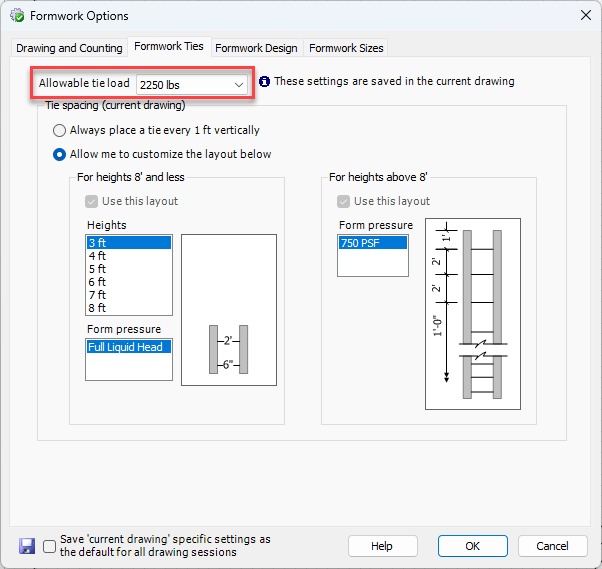
To have Handset Designer automatically place ties every vertical foot, click the Always place a tie every 1 ft. vertically radio button.
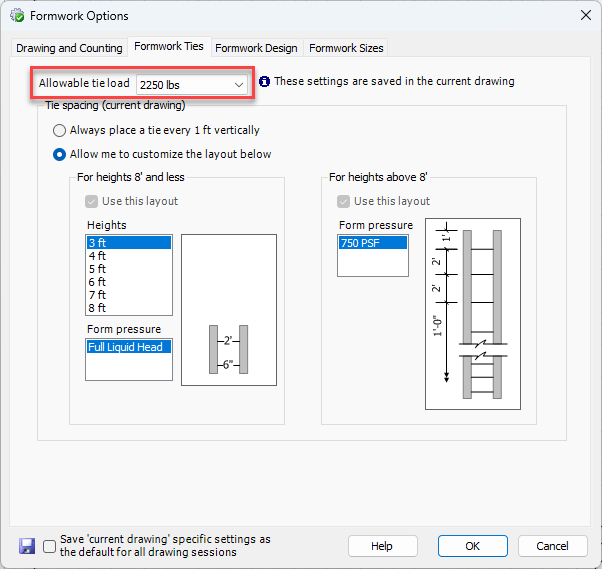
To customize tie placement:
Click the Allow me to customize the layout below radio button
Click the appropriate height in the For heights 8' and less area.
The heights diagram in the For heights 8' and less and the For heights above 8' diagrams refresh, showing tie placement.
Note: For information about the contents of this tab, refer to Formwork Ties Tab.
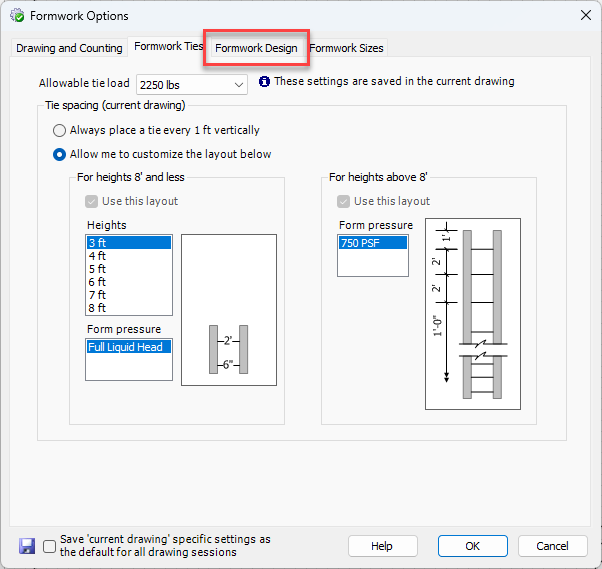
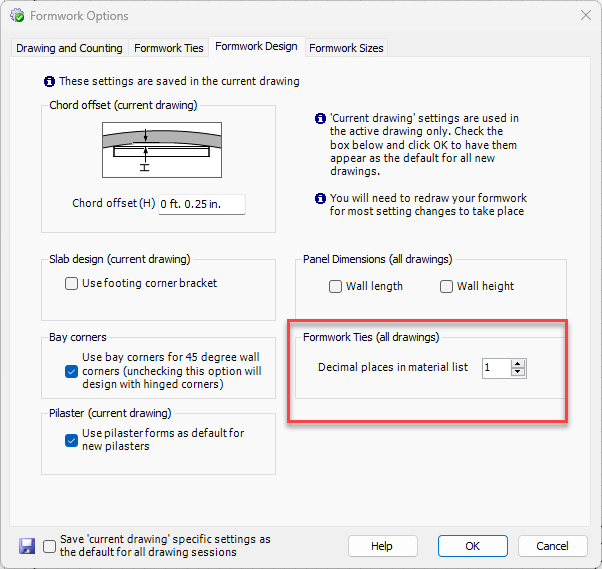
Click the Formwork Design tab.
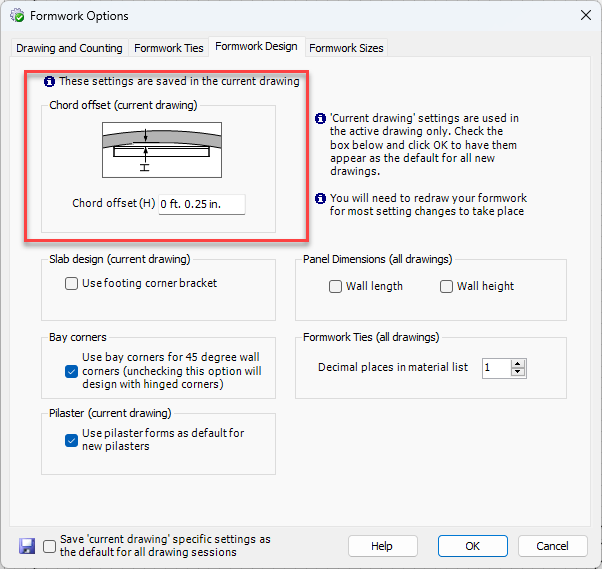
The Formwork Options dialog refreshes.
As necessary:Click in the Chord Offset text field enter the appropriate chord offset.
Click the appropriate radio button(s):
Use Footing corner bracket in the Slab design area
Use bay corner for 45 degree wall corners in the Bay corners area
Use pilaster forms for new pilasters in the Pilaster area
Wall Length and Wall Height in the Panel Dimensions area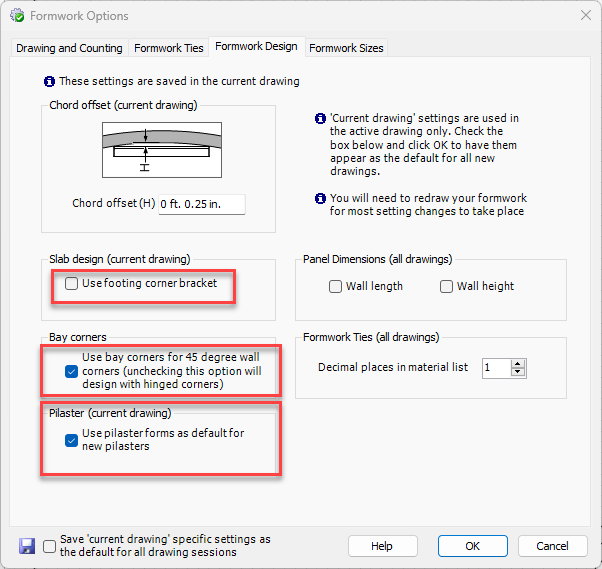
Click in the Decimal places in material list text field and enter the appropriate number of decimal places.
Note: For information about the contents of this tab, refer to Formwork Design Tab.
Click the Formwork Sizes tab.
The Formwork Options dialog refreshes.
Note: For information about the contents of this tab, refer to Formwork Sizes Tab.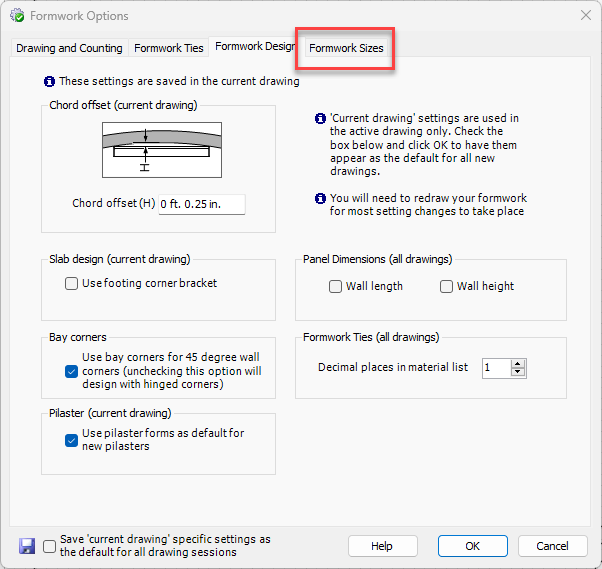
Click the appropriate checkbox(es) to determine the default widths and heights for walls, pilasters, columns and steel fillers.
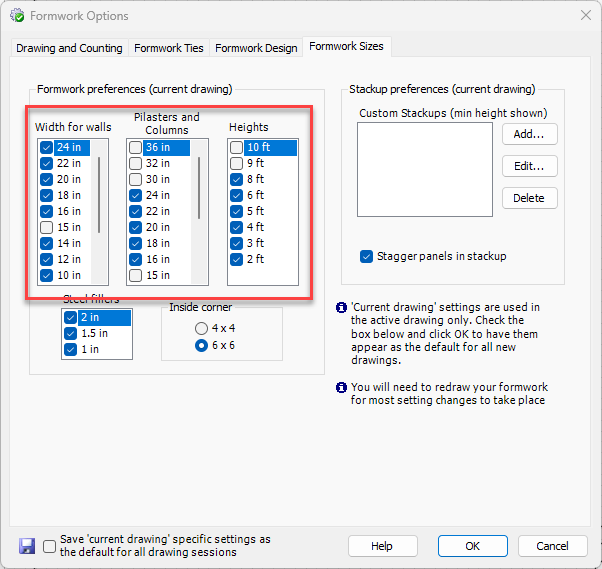
Click the appropriate Inside corner radio button.
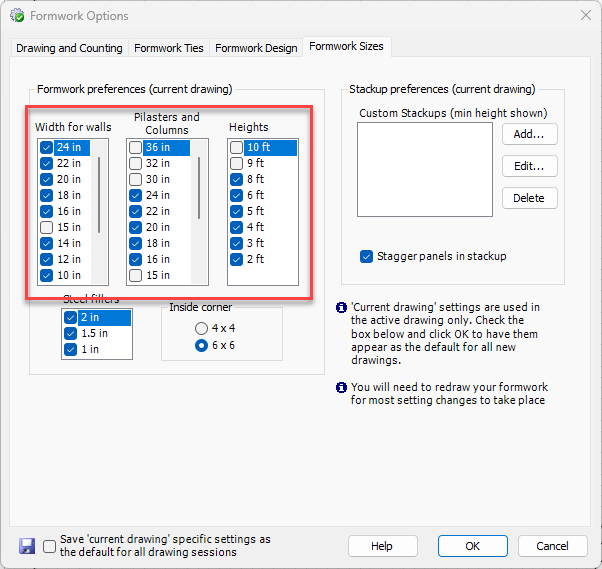
Determine Formwork stackup preferences:
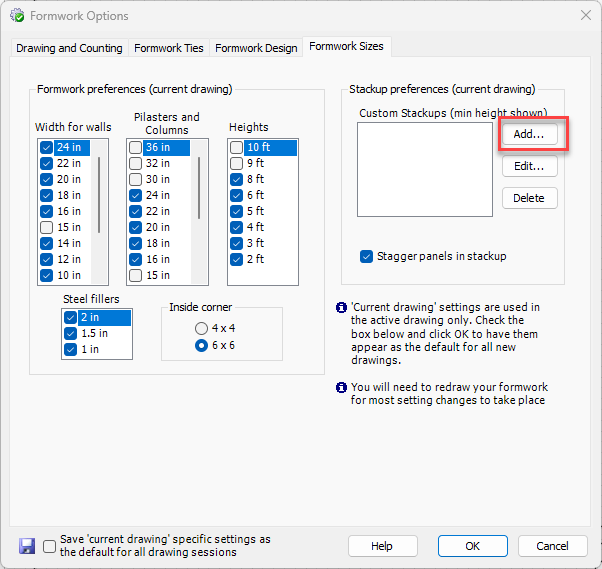
Click Add.
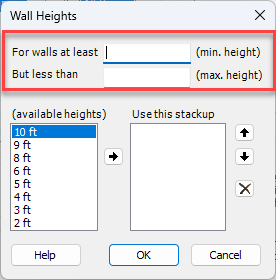
The Wall Heights dialog appears.Click in the For walls at least text field and enter the minimum height of walls for which you want to define stackup.
Click in the But less than text field and enter the maximum height of walls for which you want to define stackup
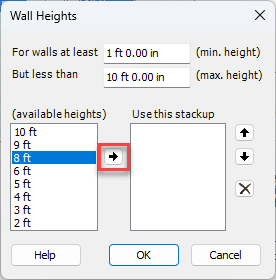
Click the appropriate height in the available heights area, then click the arrow in the center of the dialog (
 ).
).
Repeat the above step as many times as necessary.
Click OK
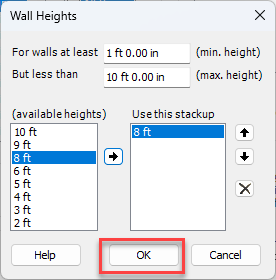
The Formwork Options dialog returns.
Click OK.