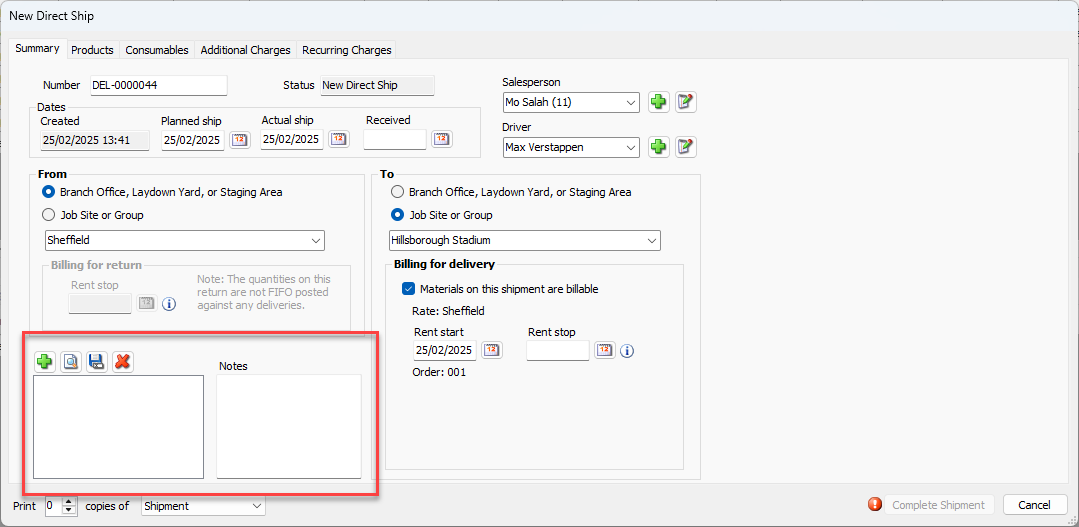
The Summary tab enables you to determine specific details for the new Shipment. This includes setting the Planned shipping date, which job site or branch office will receive the part, and who is the Driver. This article will explain how to configure these fields.
Configuring Summary Information for the New Shipment
To configure the summary information for the new shipment:
As necessary:
Click in the Number text field and enter a new Shipment number.
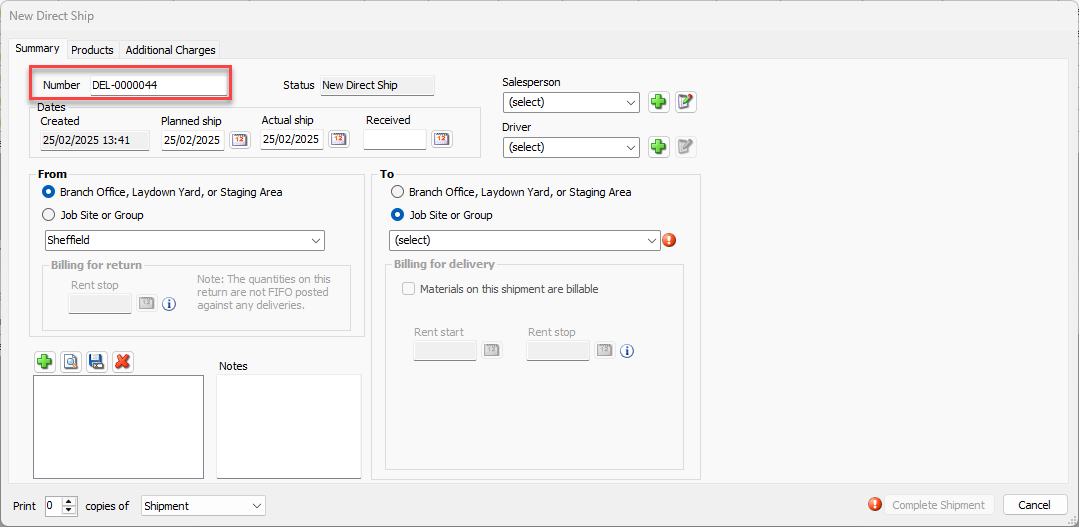
Note: This field defaults to a sequential DEL number. This text field is only editable if this option is selected in Shipment Permissions in the Shipment and Scaffold Tags tab in the Global Options dialog.
Click the Planned Ship calendar icon (
 ).
).
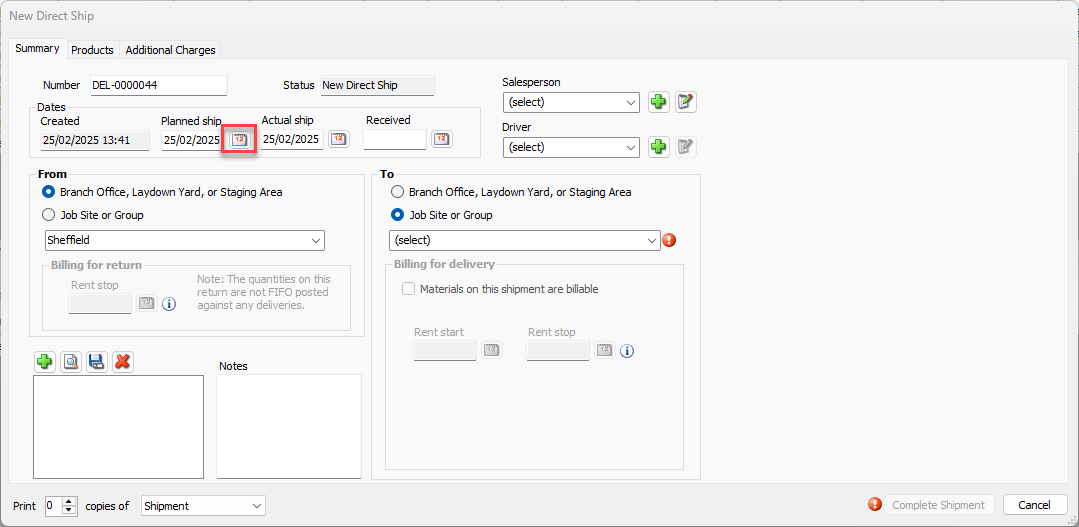
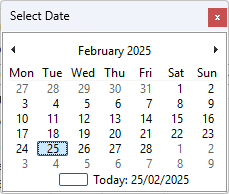
The calendar appears.
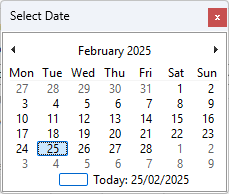
Locate and click the correct planned date of shipment.
Click the Actual Ship calendar icon (
 ).
).
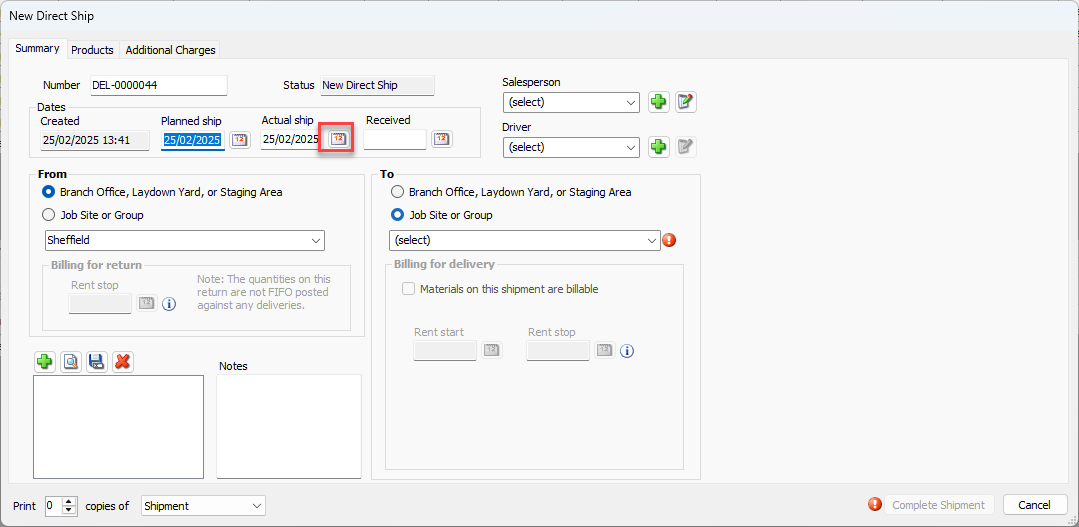
The calendar appears.Locate and click the actual date of shipment.
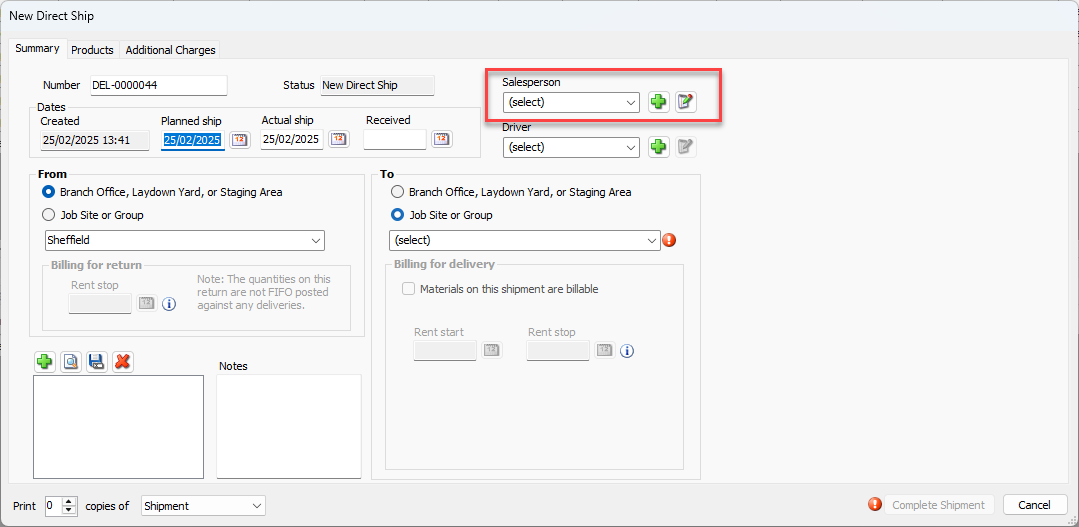
Click the Salesperson drop-down and select the appropriate salesperson
Note: Click the + icon to add new salespeople
Click the Driver dropdown and select the appropriate driver’s name.
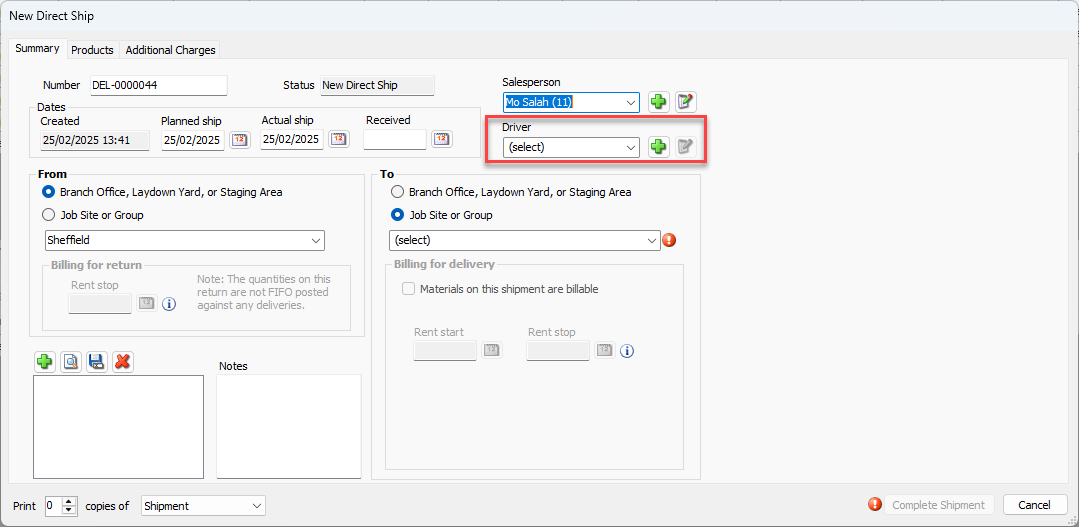
If the driver does not appear in the list:
Click the Add button (
 ).
).
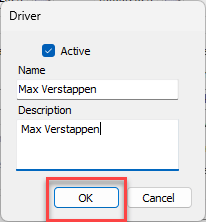
The Driver dialog appears.Click in the Name text field and enter the driver's name.
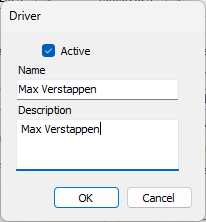
Click OK.
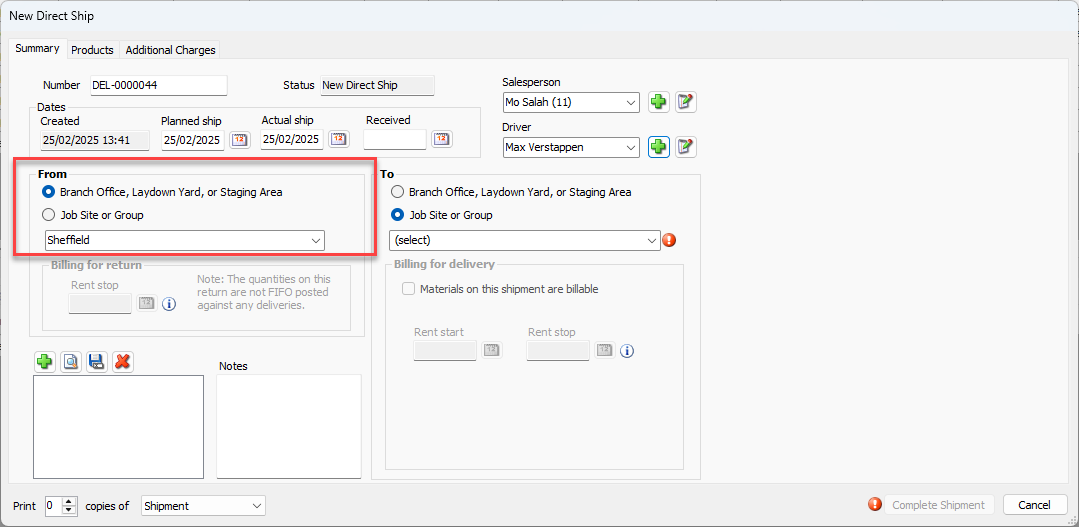
Click the appropriate From radio button, then click the From dropdown and select the appropriate originating location.
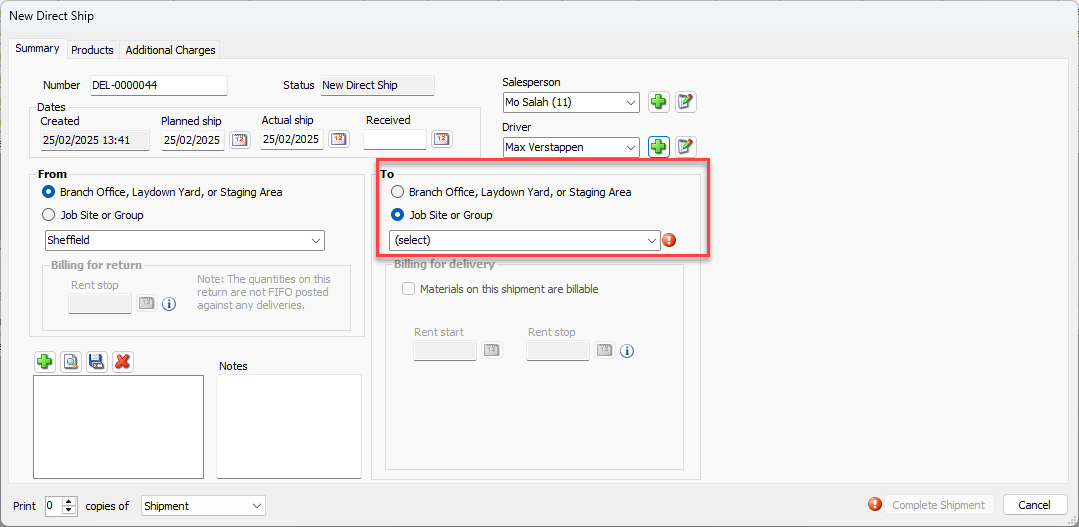
Click the appropriate To radio button, then click the To dropdown select the appropriate originating location.
Note: By default, this is the location previously selected in the Organization Tree.
If it is a billable To location, the Billing for delivery section becomes available and the Rent start date date field is required. This is the date billing for items on the Shipment will begin.
As necessary, click the Rent Start calendar icon.
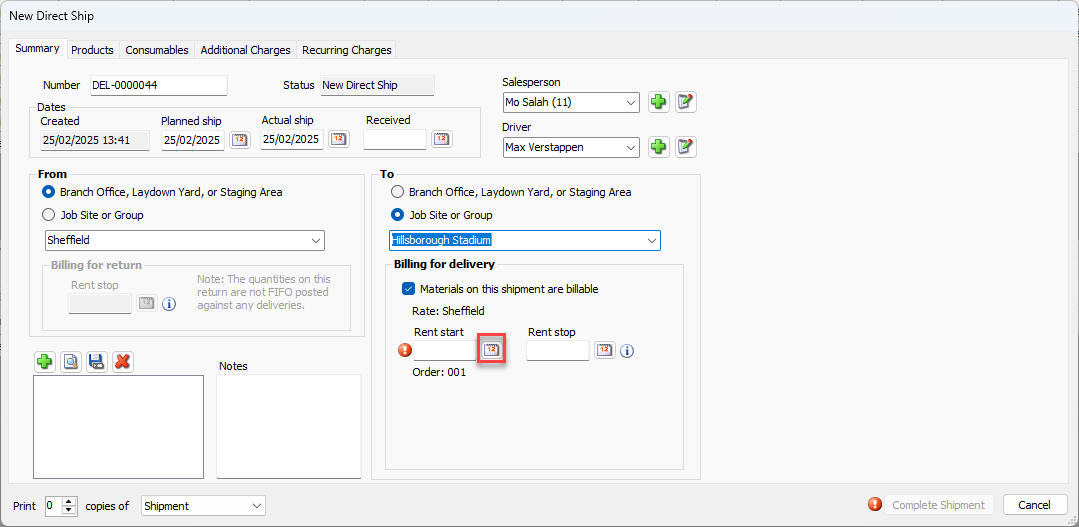
The calendar appears.Locate and click the correct date on which rent for the Products being shipped will begin.
Set the Rent Stop Date
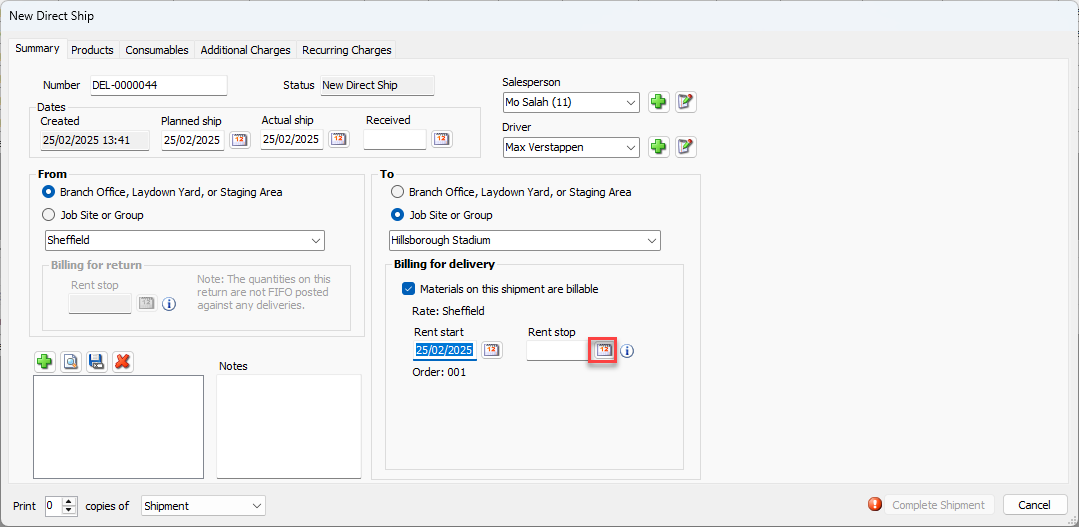
Note: Rent stop is optional. If this date is unknown, leave this field blank.
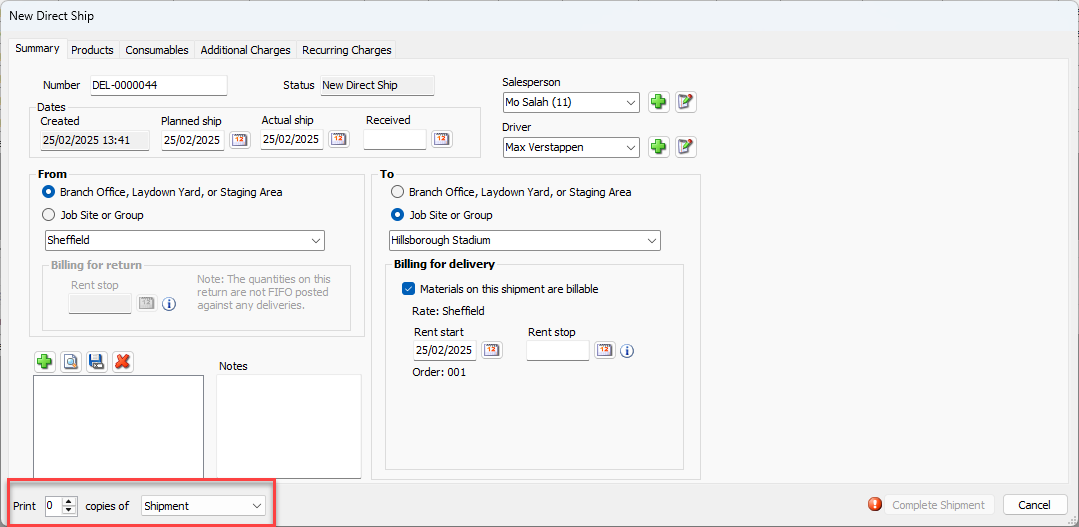
If you enter a date into the Rent Stop date field, it takes precedence over the date centered into the Rent Stop date field in the Billing for return section of the dialog. Quantify uses the rent stop date for equipment that is still remaining on rent, if any. It is possible that equipment has already been taken off rent, due to FIFO allocations in rent billing or when a rent stop date has been specified on a Shipment.Specify the number of copies to print of the Shipment
Select the Products tab to choose the equipment to be included in this shipment.