The items that appear in the Job Site Properties tab are enabled and configured in the Job Site Options tab of the Global Options dialog. Use the information below to help you configure the Job Site Properties tab, then continue with the rest of the tabs, as necessary.
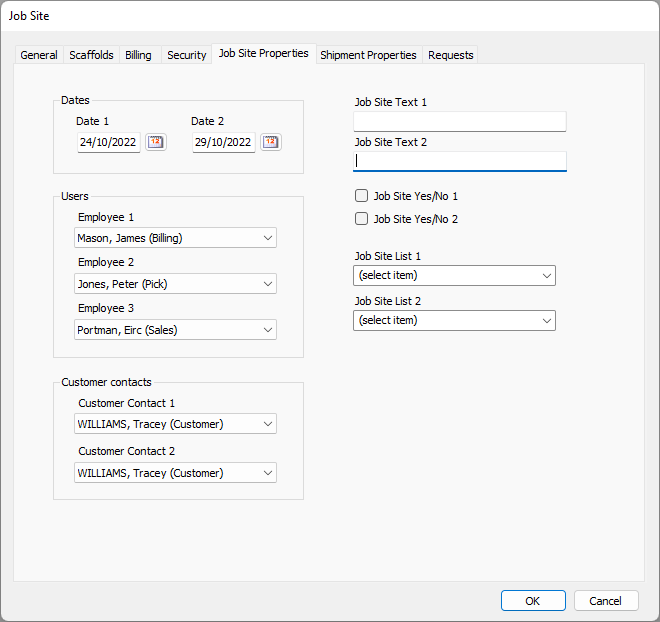
Dates Section
| Date | Custom Date fields enable you to enter significant dates that are not in the Job Site dialog by default. Enter these dates in the dd/mm/yyyy format. The label above the Date field indicates what date to enter. |
Users Section
| Employee | Use the Employee dropdowns to assign users to the Job Site. |
Customer Contacts
| Customer Contact | Use the Customer Contact dropdowns to assign contacts to the Job Site. |
Right Side
| Job Site Custom Text | Custom Job Site Text fields enable users to enter significant notes for the current Job Site. The labels above the text fields tell users what type of notes to enter. These fields have a 50 character limit. |
| Job Site Custom Yes/No | Custom Yes/No question/answer checkboxes enable users to answer custom questions that were configured in the Job Site Options tab of the Global Options dialog. A check in the checkbox means the answer is Yes. The label/question appears to the right of each checkbox. For example, the Job Site dialog can ask if safety equipment is required on a particular job site. A check in the checkbox means that, yes, safety equipment is required. |
| Job Site Custom List | Custom lists were configured in the Job Site Options tab of the Global Options dialog. Use them to assign unique properties that are not in the Job Site dialog by default. |