The Requests tab enables you to determine whether the Job Site can manage requests, who can manage them and what statuses can be assigned to them.
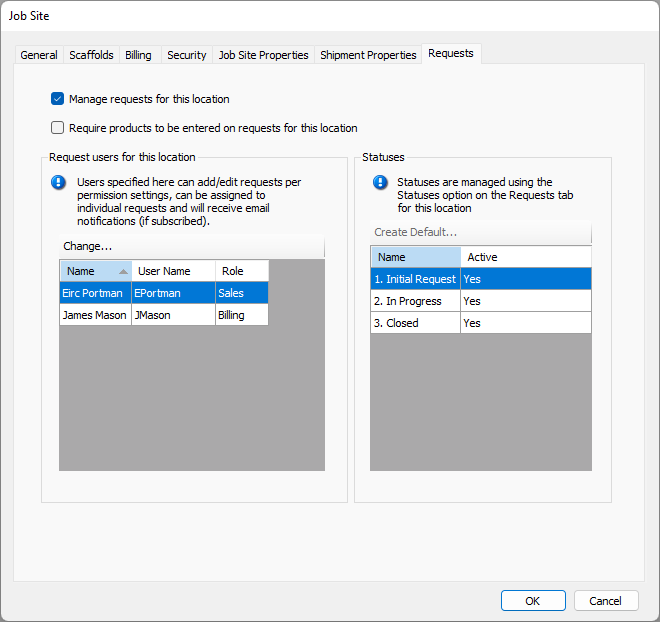
Use the information below to help you configure the Requests tab, then continue with the rest of the tabs, as necessary.
Manage requests for this location | When this checkbox is checked, the Job Site can handle requests for equipment or service needs. Note: Requests are available for both the Enterprise and Industrial Editions of Quantify. |
| Require products to be entered on requests for this location | When this checkbox is checked, Requests cannot be completed without entering some quantities for products. |
Request Users for This Location Section
This section of the dialog enables you to configure which users can create and manage requests and receive email notifications.
Change | Click this button to change the entries in the list of users assigned to the Job Site. |
Name | This column displays the names of users already assigned to handle requests for this Job Site. |
User Name | This column displays the usernames of users already assigned to handle requests for this Job Site. |
Role | This column displays the role assigned to each user already assigned to handle requests for this Job Site. |
Select Users Dialog
To assign users to a location you need to select Change.
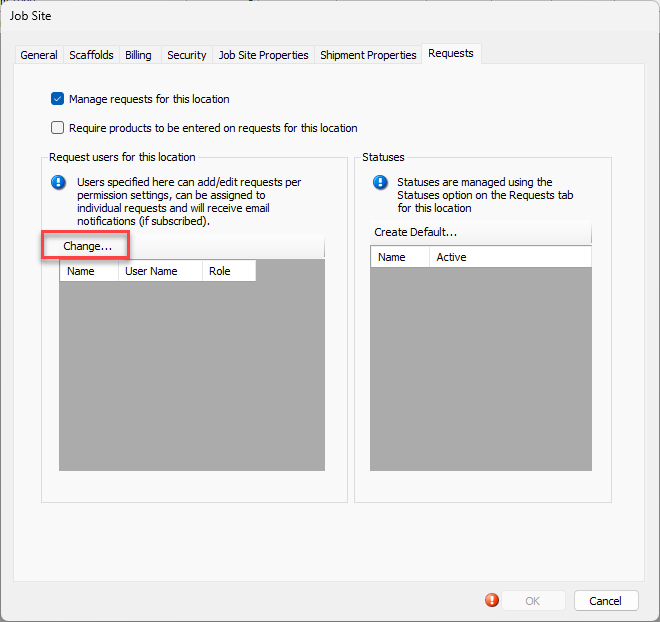
This dialog appears when you click Change in the Requests tab.
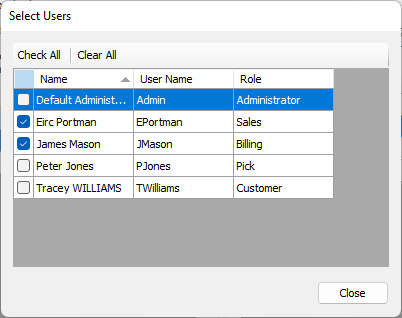
Clear All | Click this button to put a check beside all listed users. If you do and then click OK, all users will appear in the Requests tab for this Job Site. |
Clear All | Click this button to put remove the check beside all listed users. If you do and then click OK, Quantify will remove all users from the Requests tab for this Job Site. |
Name | This column displays the names of available users. |
User Name | This column displays the usernames of available users. |
Role | This column displays the role assigned to each available user. |