The custom properties, dropdowns and fields that appear in this tab are enabled and configured as described below. The properties set in the current dialog only apply to the current Scaffold.
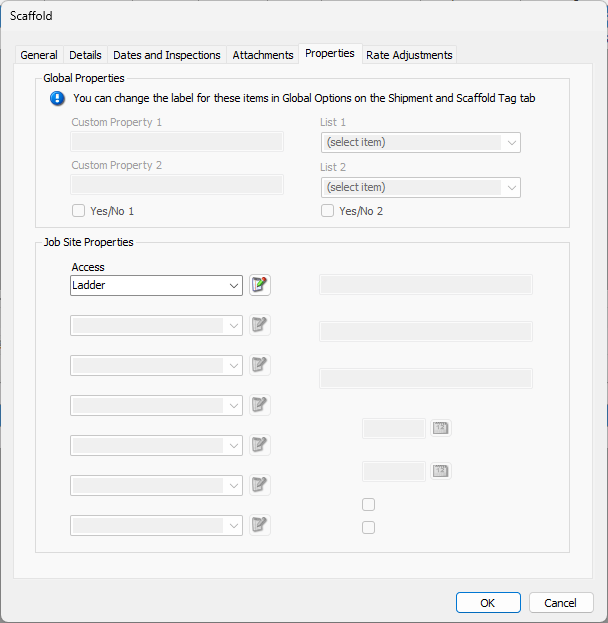
Use the information below to help you configure the Properties tab, then continue with the rest of the tabs, as necessary.
Global Properties
These properties are configured in the Scaffolds sub-tab in the Shipments and Scaffolds tab of the Global Options dialog.
| Custom Property | Use the Custom Property text fields to enter custom properties for the current Scaffold. The label above each text field defines what information you enter. |
| Custom Lists (Freight & Trucking Options above) | Use the custom dropdown lists to choose specific properties from a list of options. These options are configured in the appropriate List dialog. |
| Yes/No | When one or more of these checkboxes are checked, Quantify enables you to create custom Yes/No question/answer checkboxes. A check in the checkbox means the answer is Yes. For example, the Scaffold dialog can ask a user if safety equipment is required on a particular scaffold. A check in the checkbox means that, yes, safety equipment is required. Use the text field beside the Yes/No checkbox to configure the appropriate label/question for the custom Yes/No checkboxes that appears in the Scaffold dialog. |
Job Site Properties
These options are configured in the Scaffolds tab of the Job Site dialog.
| Custom Dropdown Lists | Use the Custom Property dropdown lists to select the custom properties for the current Scaffold. By default, the items in the lists apply to all Scaffolds residing under a selected Job Site. However, you can use the Add button (below) to add items that only apply to the current Scaffold. |
Edit | Click Edit to add items to the appropriate dropdown list. |
| Text | Use the custom text fields for significant notes that are not in the Scaffold dialog by default. The label above the text field defines what kind of note to enter. This field has a 50 character limit. |
| Date | Use the custom date fields for significant dates that are not in the Scaffold dialog by default. Enter dates in the dd/mm/yyyy format. The label beside the Date field defines what the date applies to. |
| Yes/No | Use the custom Yes/No question/answer checkboxes to respond to the question defined by the label to the right of each checkbox. A check in the checkbox means the answer is Yes. For example, the Scaffold dialog can ask a user if safety equipment is required on a particular scaffold. A check in the checkbox means that, yes, safety equipment is required. |

List Items Dialog
The List Items dialog appears when you click the Add button next to a Custom Property.
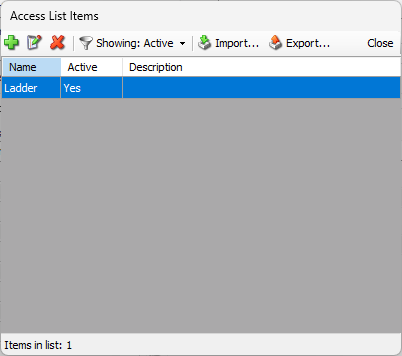
| Add | Click Add ( |
| Edit | Select an item in the list and click Edit ( |
| Delete | Select an item in the list and click Delete ( |
| Filter | Use the items in this dropdown to filter the list of items in the Custom Property dropdown. |
| Import | Click Import to import a pre-made list of items for the Custom Property dropdown. |
| Export | Click Export to export a document containing the list of items in the List Items dialog. |
 ) to an item to a Custom Property List.
 ) to edit that item.
 ) to edit that item.
List Item Dialog
The List Item dialog appears when you click the Add or Edit button in the List Items dialog.
| Active | When this checkbox is checked, Quantify will use this item in its Scaffold Properties list. |
| Name | Use this text field to define the name of the list item. This text field is required. |
| Description | Use this text field to define a short description of the list item. |
Import List Items Dialog
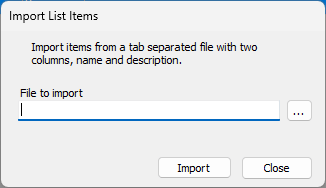
| File to Import | Use the File to Import text field to either view the path to the file you want to import, or to enter the path to the file you want to import. |
| Import | Click the Import to locate and select the file you want to import. |