You can ship items directly from a Reservation without creating a separate Shipment. This is particularly useful when not all of the equipment has been sent on a single shipment. You would have the option to convert the reservation to a delivery and create a new reservation for the unsent parts. Or you can convert the reservation to a delivery and create a new shipment without creating a reservation for the unsent parts.
To convert a new Reservation to a delivery:
Click the appropriate location in the Organization Tree, then click the Shipping tab.
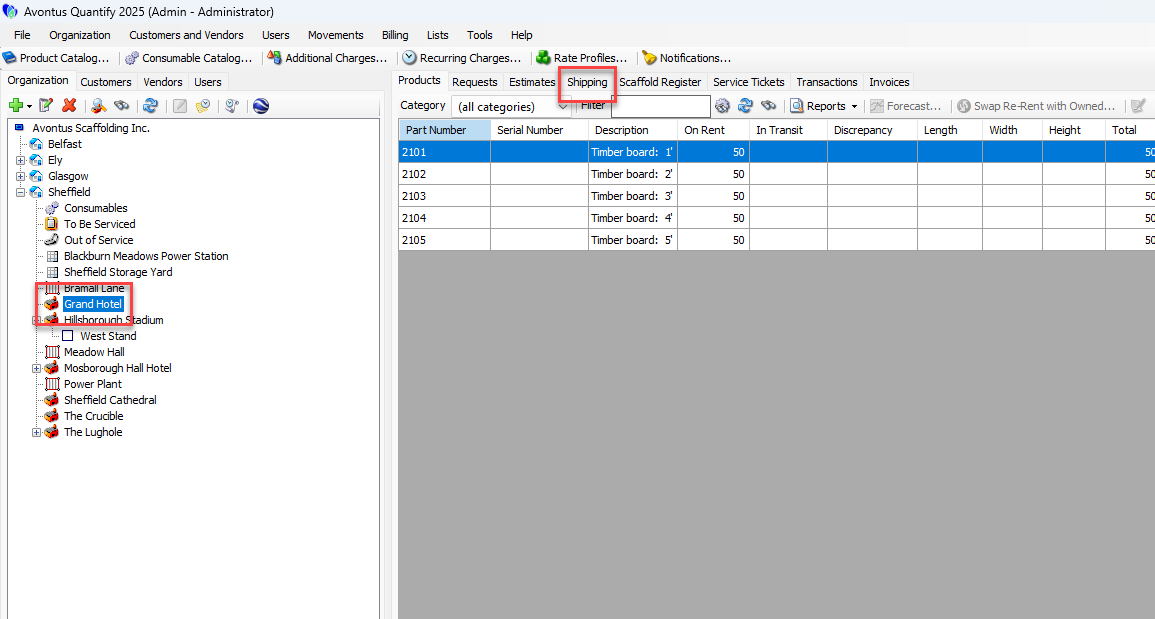
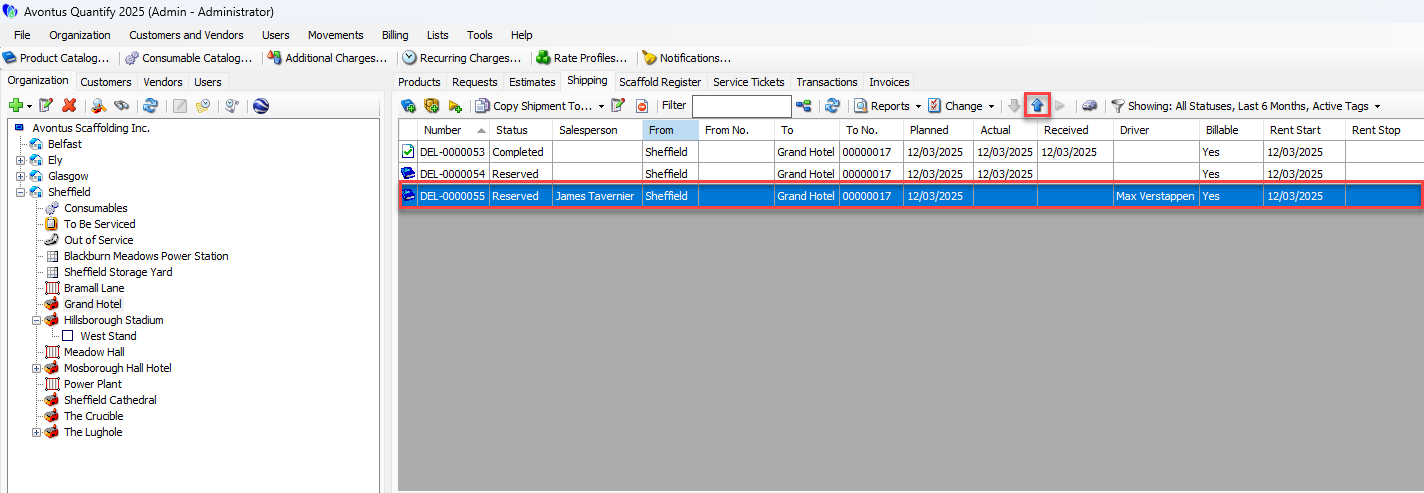
Locate and select the appropriate Reservation, then click the Send Selected Shipment button.
Note: The Send Selected Shipment button is only available when a Reservation is selected.
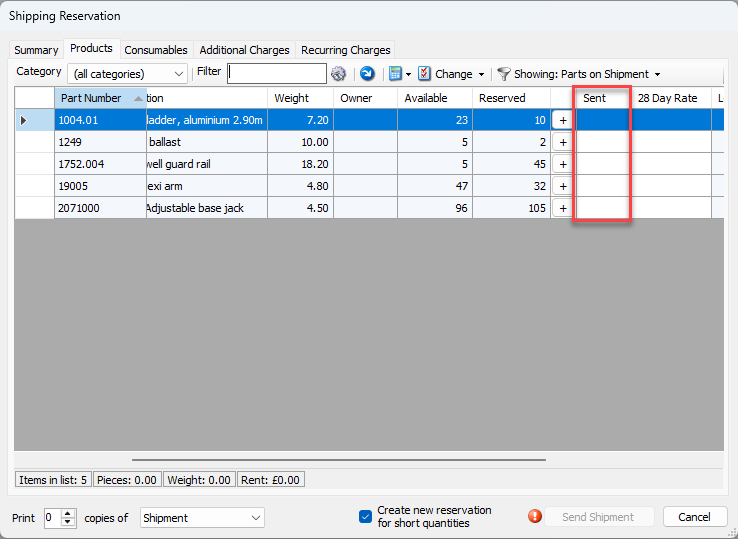
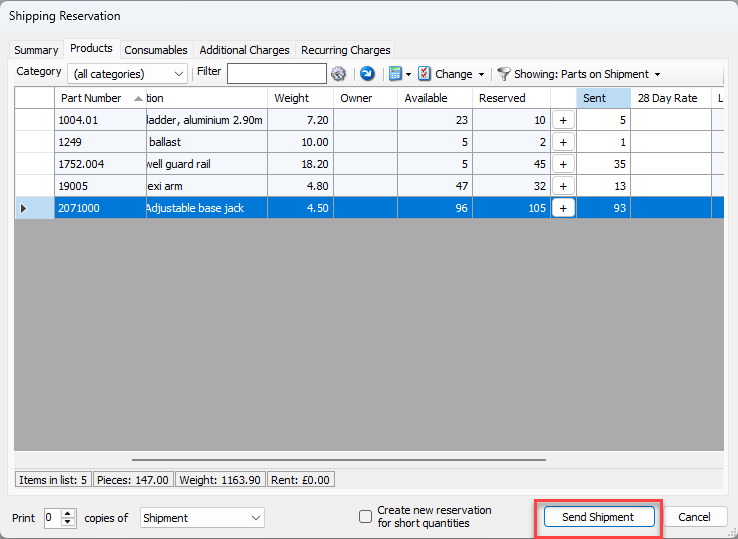
The Shipping Reservation dialog appears, with the Products tab , displaying Products and counts that were reserved.
Enter the number of parts sent
By default the Create New Reservation for Short Quantities checkbox is enabled. If the checkbox is enabled, and this Shipment does not include all equipment in the Reservation, Quantify will create a new Reservation for the remaining equipment when the Shipment is sent.Click the Create New Reservation for short quantities checkbox (to remove its check) to send the included equipment to the inventory to the site or branch office receiving the Shipment, and not create a new Reservation for the remaining equipment
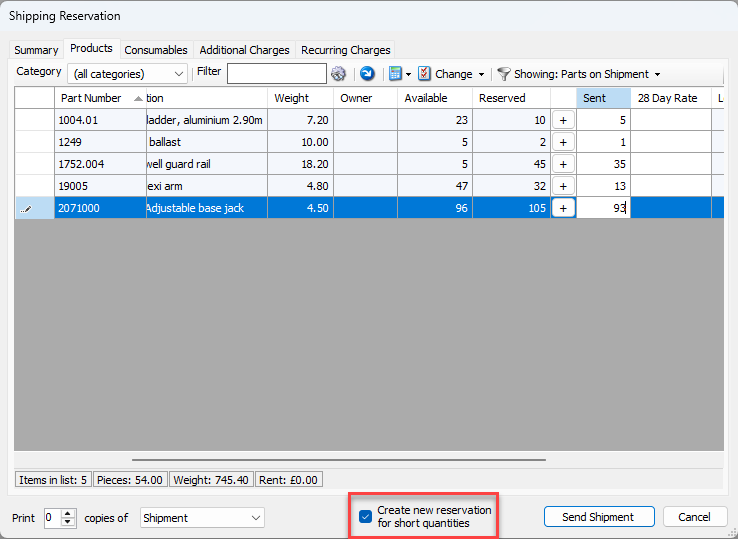
Click Send Shipment.
Quantify converts the Reservation to a delivery, adds the inventory to the Job Site and displays it in the Products tab. The unsent parts are returned to the original site or Branch Office.
You can to create a new reservation for any unsent parts, ensure the Create New Reservation for short quantities checkbox is checked.