You can copy the contents of a Shipment to an Estimate, Reservation, Request or another Shipment. This allows you to copy the contents of a Shipment, such as the parts contained on the Shipment to an Esimtate, Reservation, Request or another Shipment. This saves time as all the required detail is added automatically, without having to add the information manually.
Copying a Shipment
To copy the contents of a Shipment to an estimate
Select the Branch Office or Jobsite and then select the Shipping tab.
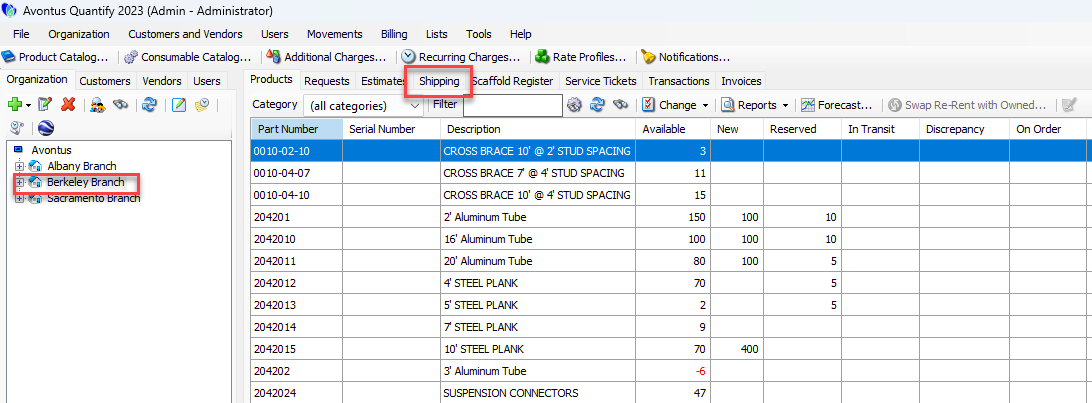
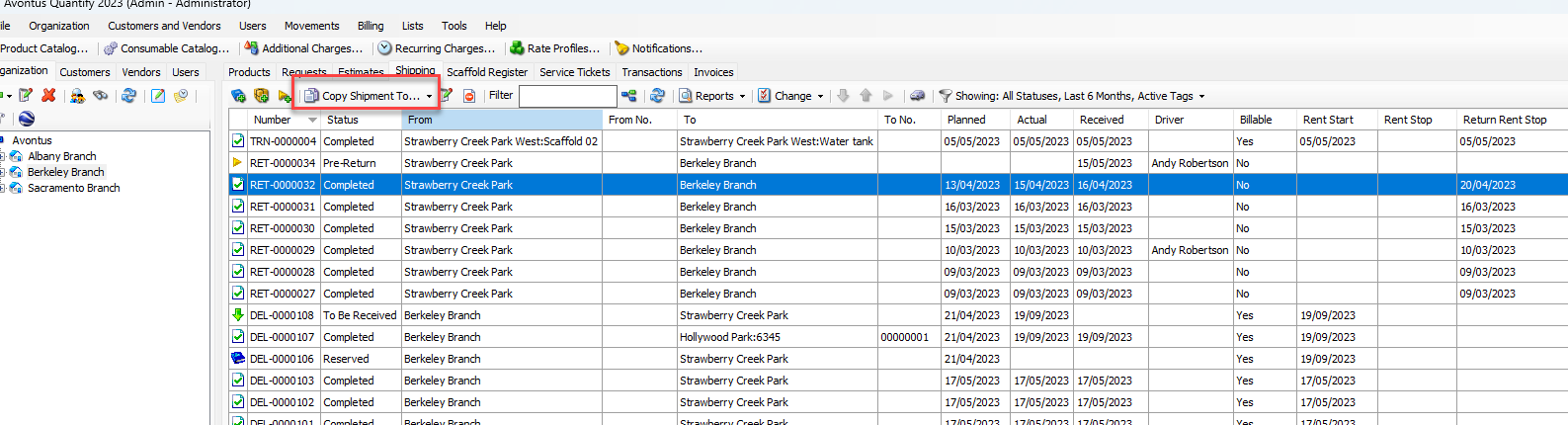
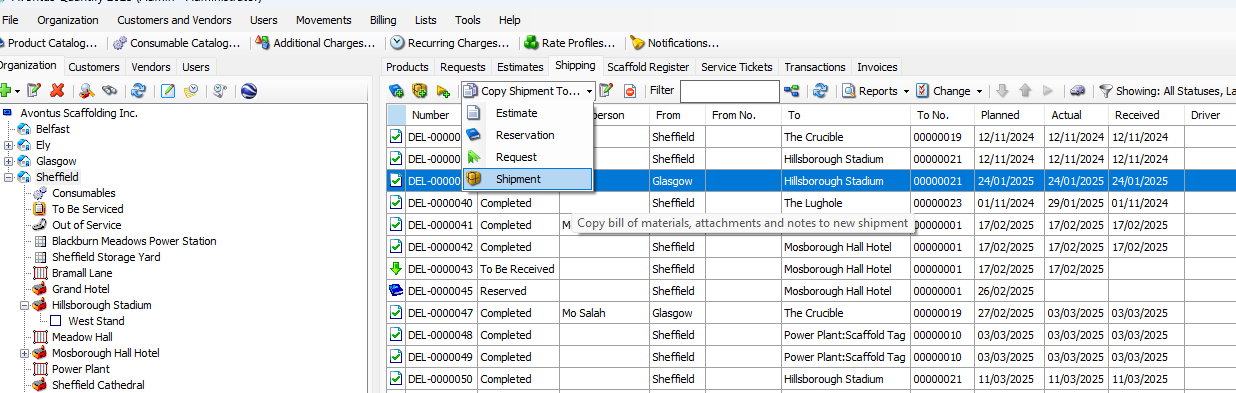
Select the Shipment to be copied and then click Copy Shipment to
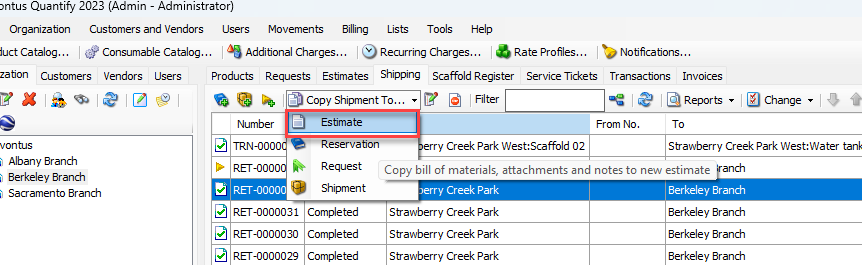
Select Estimate from the drop-down
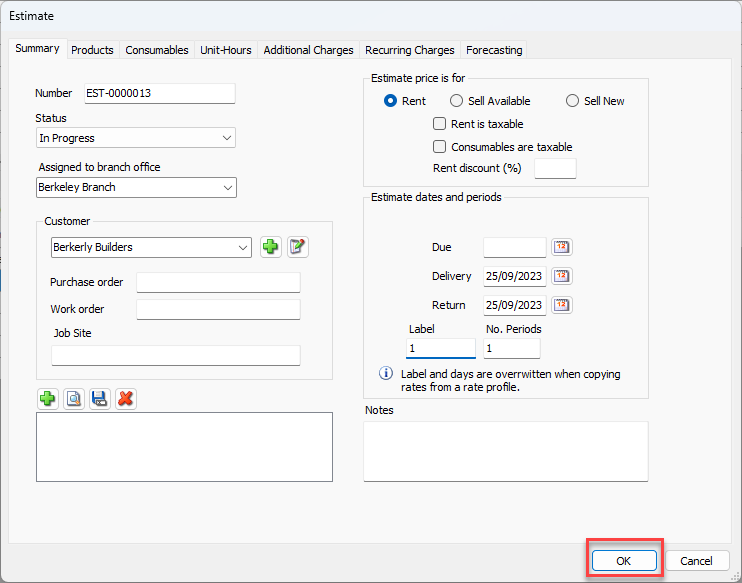
In the Summary tab, complete the required fields.
Note: This includes the Assigned Branch Office, the Customer, Delivery and Return Date, and the Label.
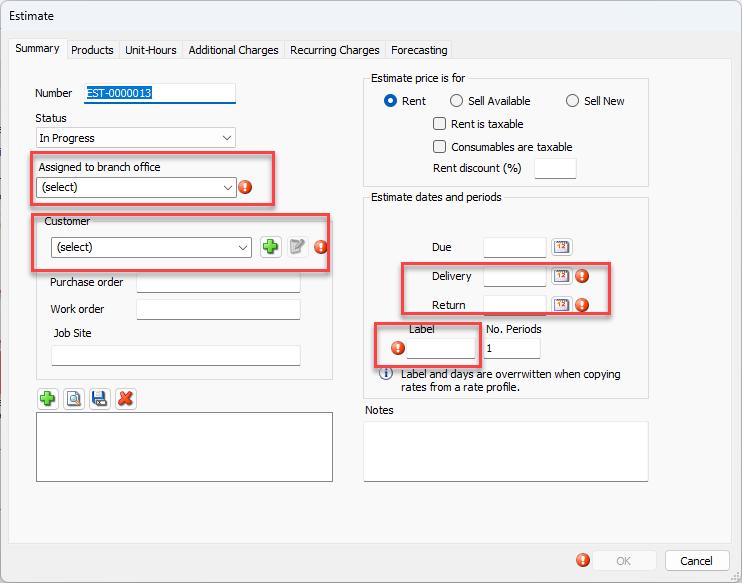
When done, click OK.
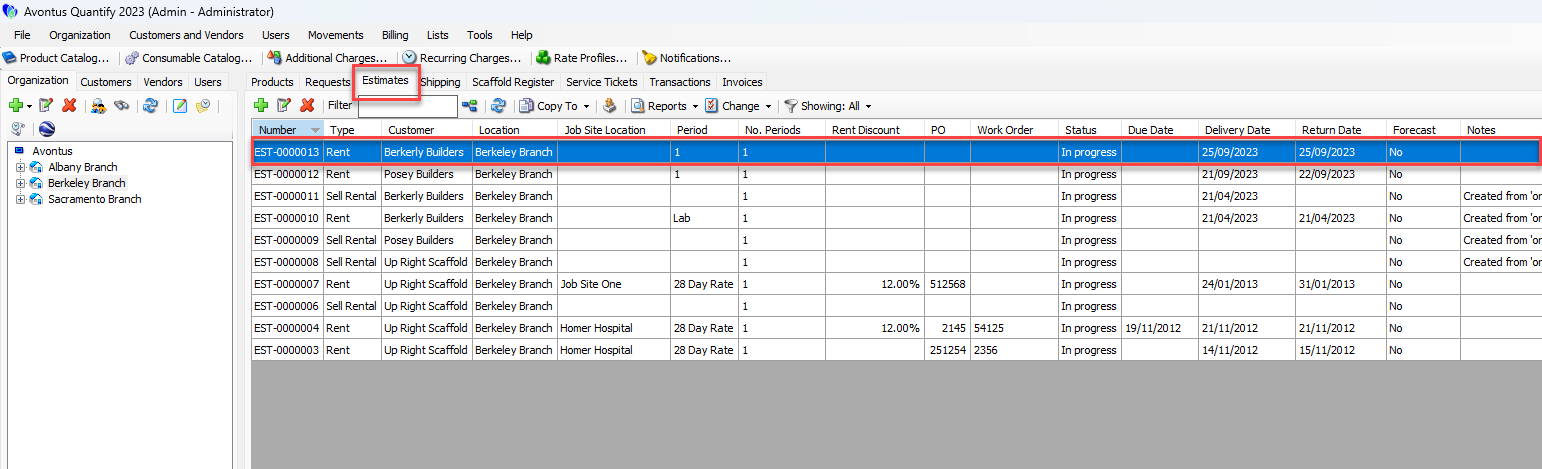
This will add the new estimate in the Estimates Tab.
Copying to an Reservation.
To copy the contents of a shipment to an Reservation.
Select the Branch Office or Jobsite and then select the Shipping tab.
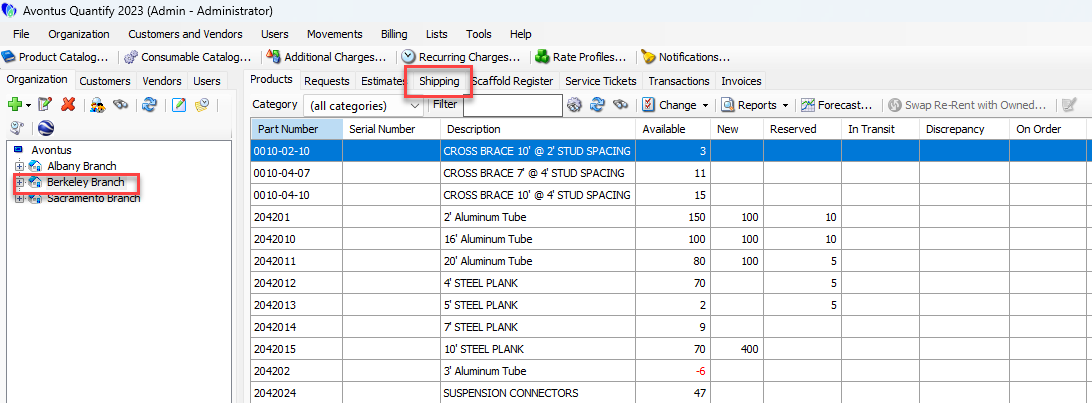
Select the Shipment to be copied and then click Copy Shipment to
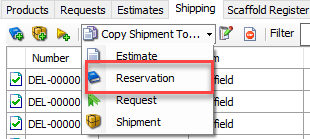
Select Reservation from the drop-down.
Complete the reservation by selecting the Branch Office and where you are sending the copied Shipment.
Click Continue.
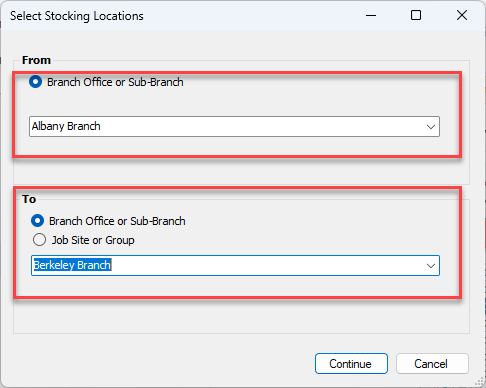
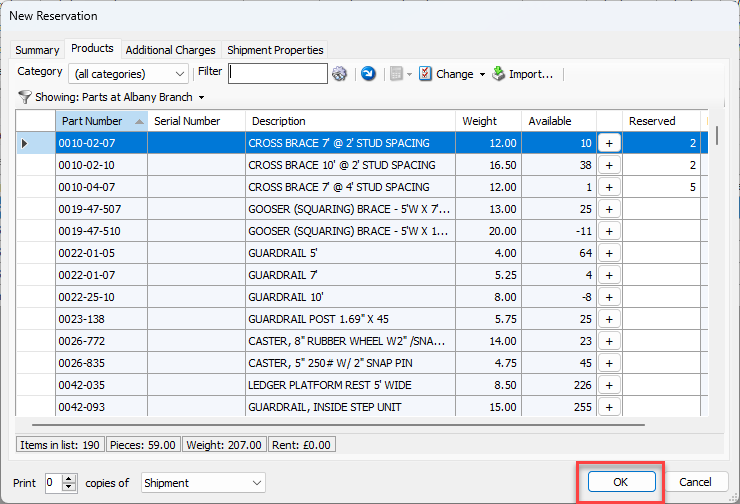
Complete the Reservation dialog and click Continue when done.
Note: Please see Reservations for more information.
Copying to an Request.
To copy the contents of a shipment to a Request.
Select the branch office or jobsite and then select the Shipping tab.
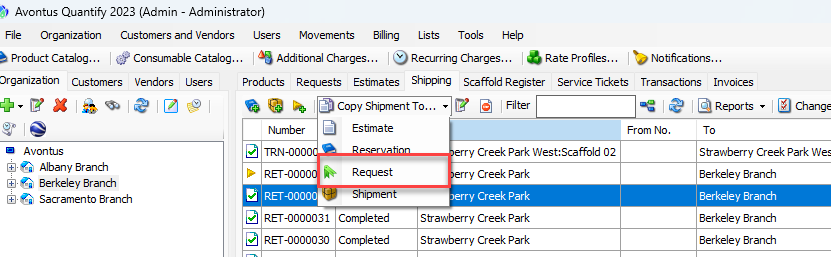
Select the Shipment to be copied and then click Copy Shipment to
Select Request from the drop-down
Complete the Summary including the Job Site or Group, Notes, Status, and Date Needed.
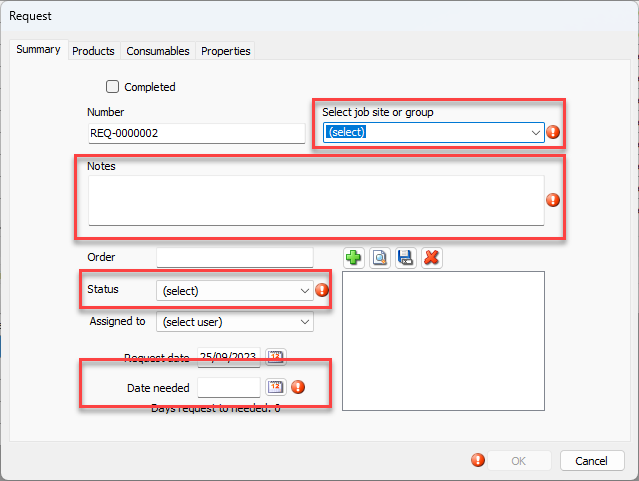
Click OK
The Request will be created with the copied content.
Copying to a Shipment
To copy the contents of a Shipment to another Shipment.
Select the branch office or jobsite and then select the Shipping tab.
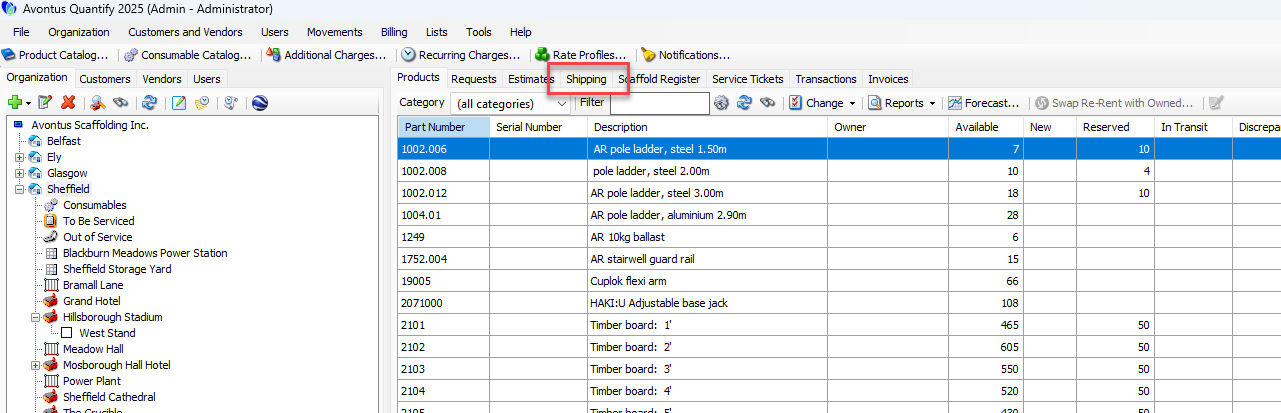
Select the Shipment to be copied and then click Copy Shipment to
Select Shipment from the drop-down
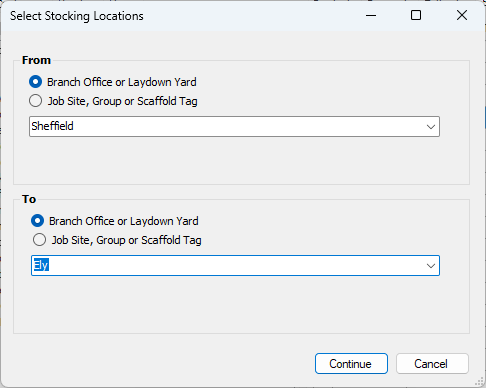
Complete the Shipment dialog, specifying both the From and To drop-downs
Note: For more information on Shipments, visit the Creating a Shipment page.
Complete the Shipping dialog, and click Complete Shipment
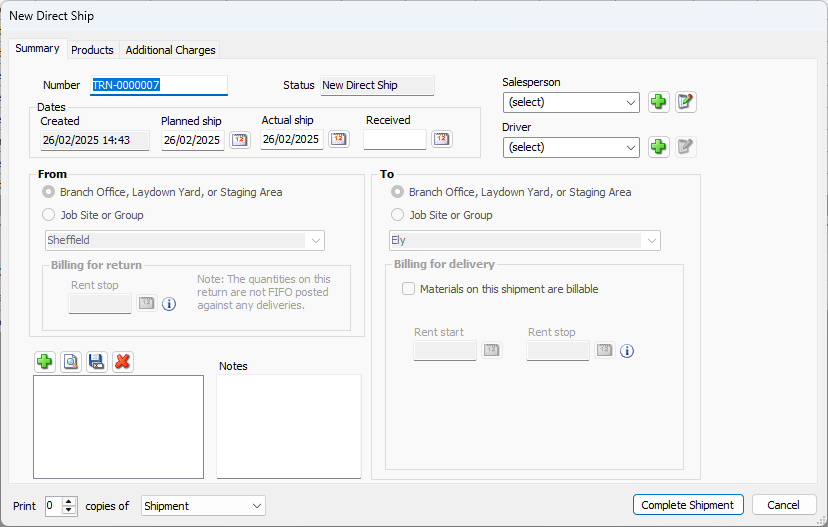
A new Shipment will be created.