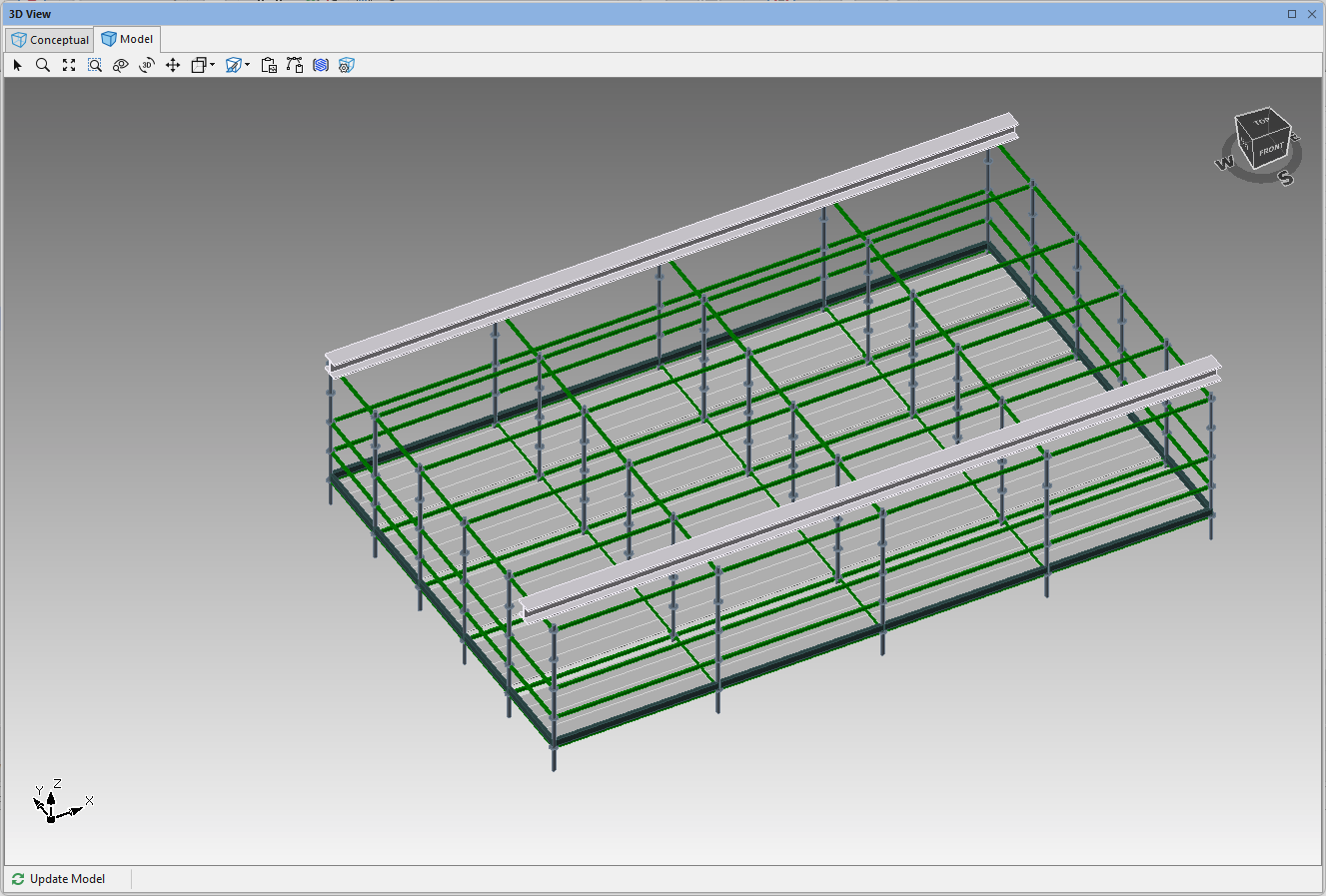
You can hang a scaffold to a beam or off the edge of bridge. In this guide we will hang multiple scaffold bays off two Beams.
To create a hanging scaffold:
Drag in the beam
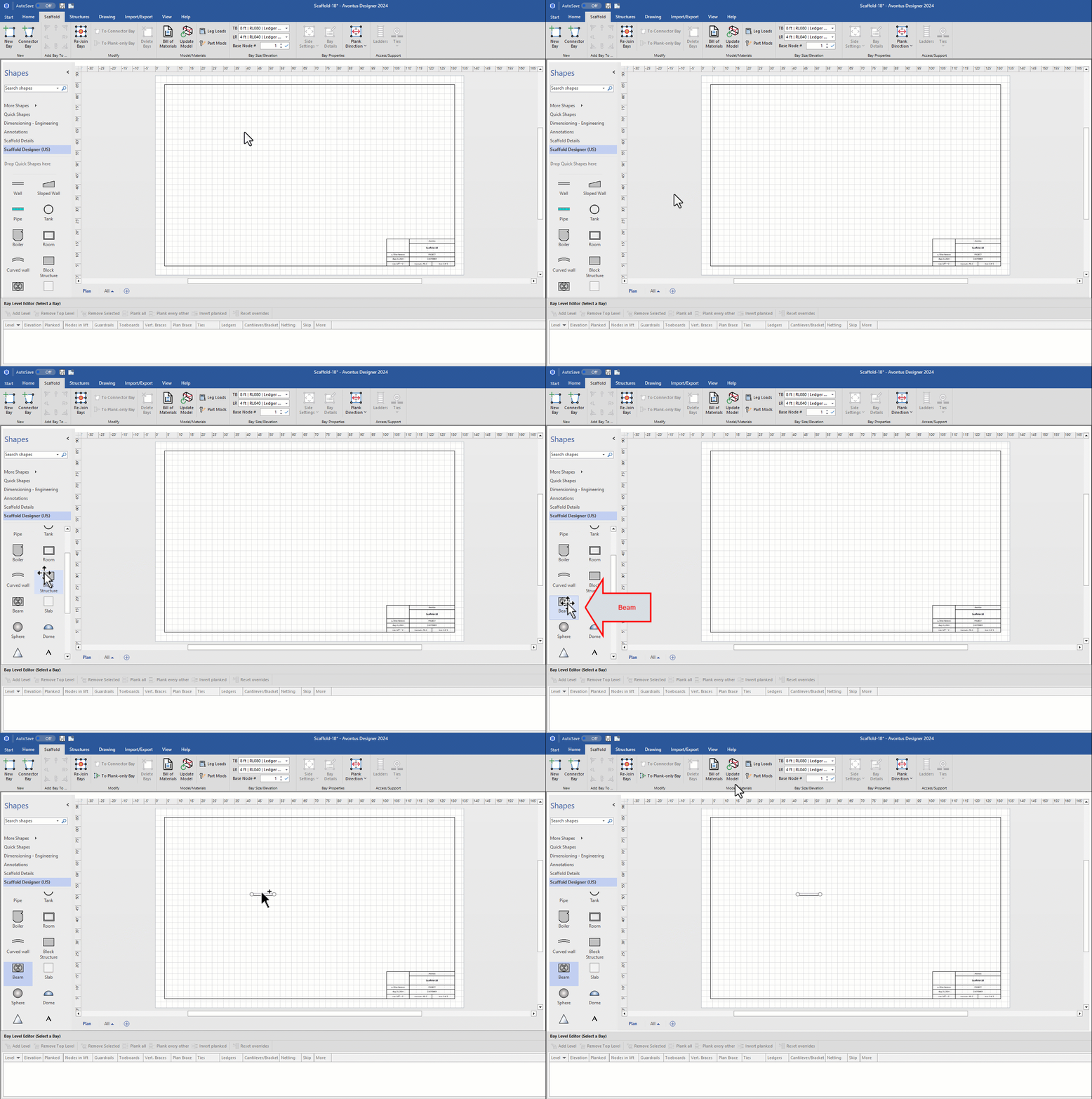
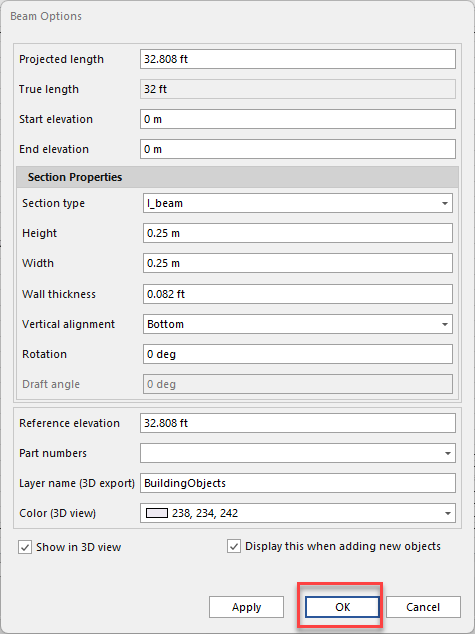
Double-click the beam.
Note: If enabled, the Beam options will appear automatically.
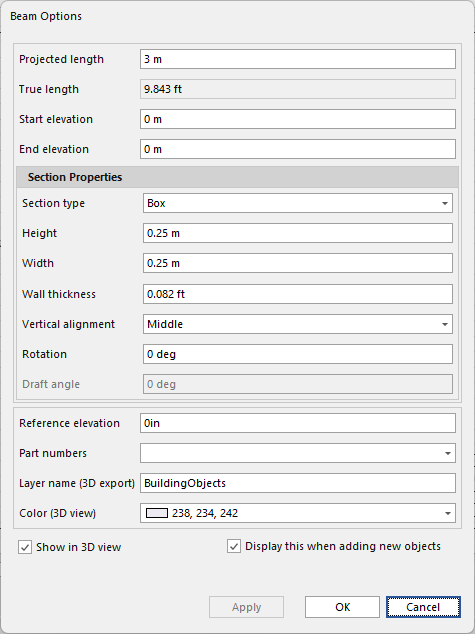
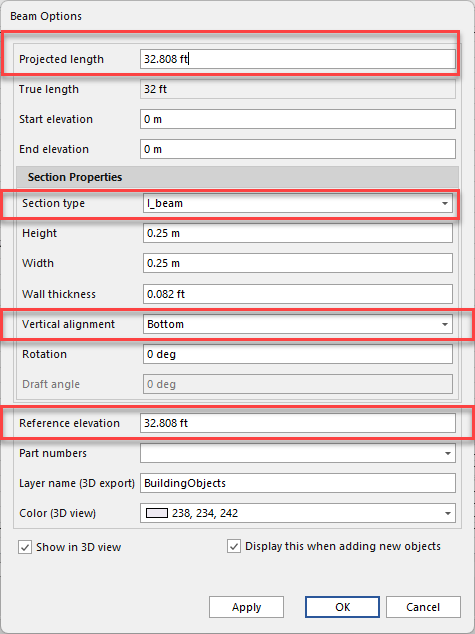
Specify the length of the beam.
Change the Section type to I-Beam.
Set the Reference Elevation to specify the height the beam will be.
Click OK
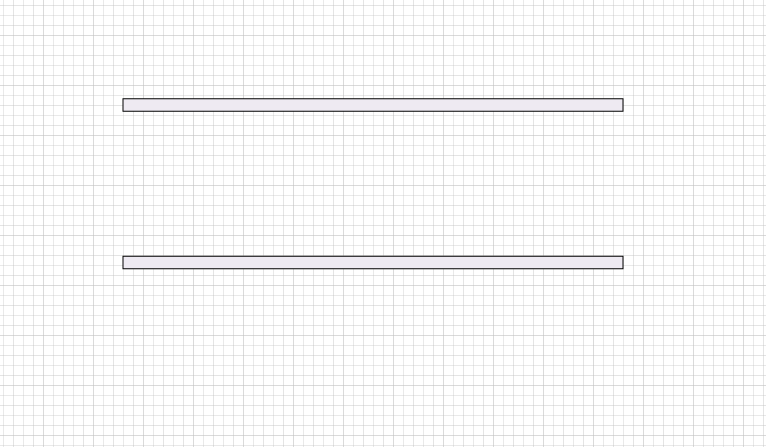
Copy and paste a beam parallel to the original beam. The bays will hang from these two beams.
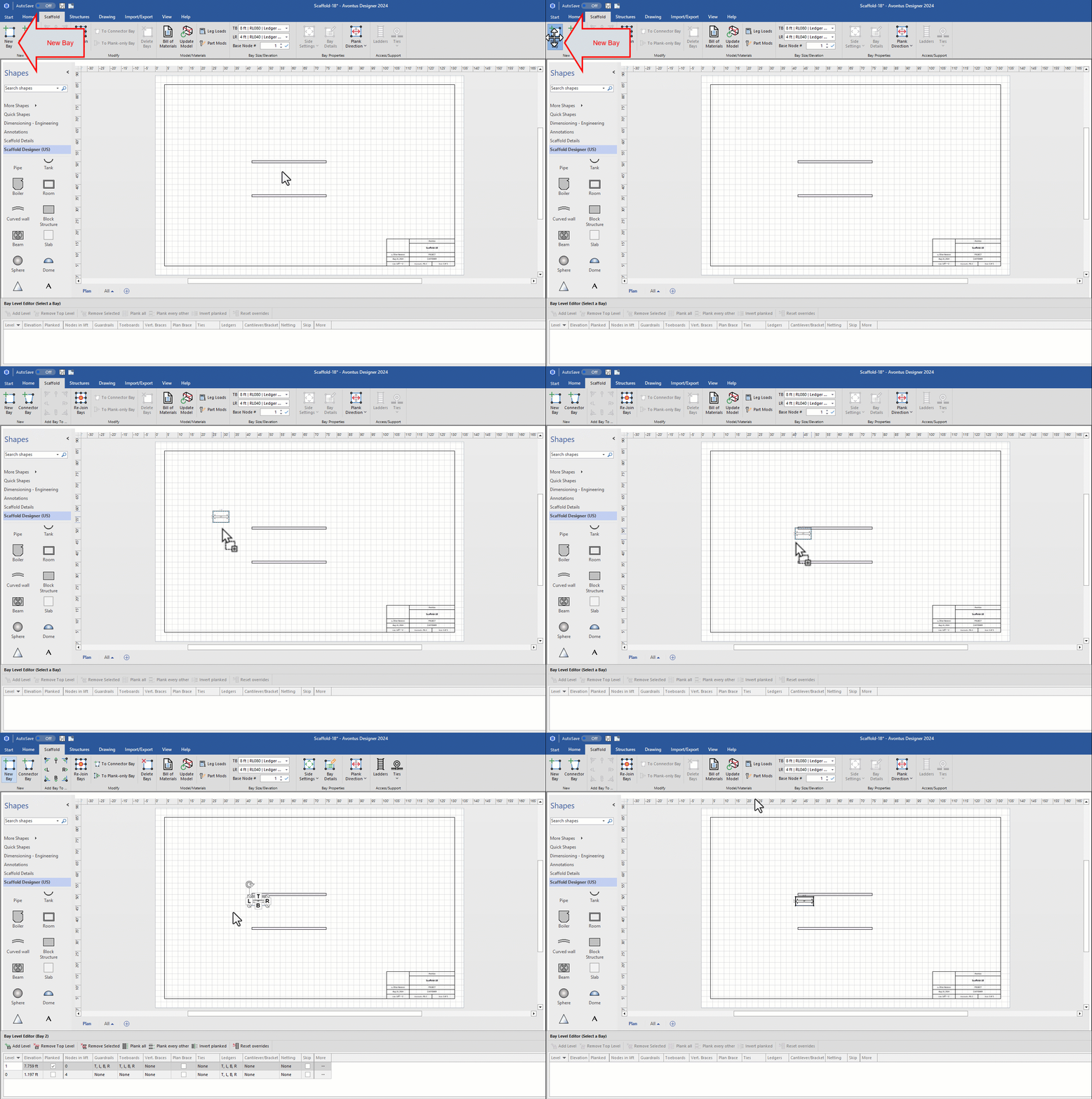
Click the Scaffold tab and drag in a new bay.
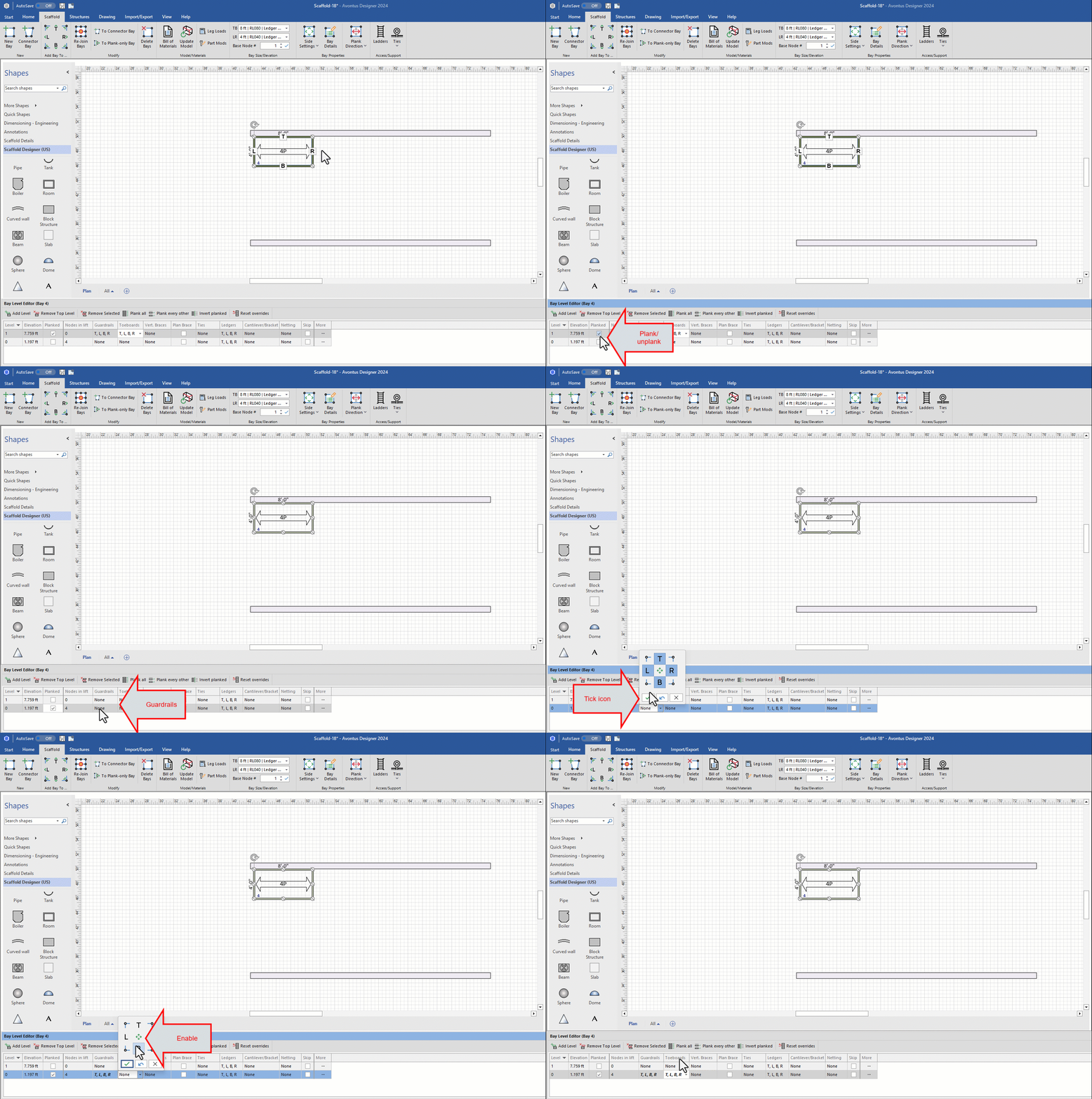
Select the Bay and in the Bay Level Editor uncheck Planked for Level 1 and check Planked for Level 0. This will add a plank for the bottom level whilst unplanking the top level.
Click on the Guardrail drop-down for level 0
Add all guardrails by selecting the middle button.
Click the tick icon.
Click on the Toeboards drop-down for level 0
Add all the toeboards by selecting the middle button.
Click the tick icon.
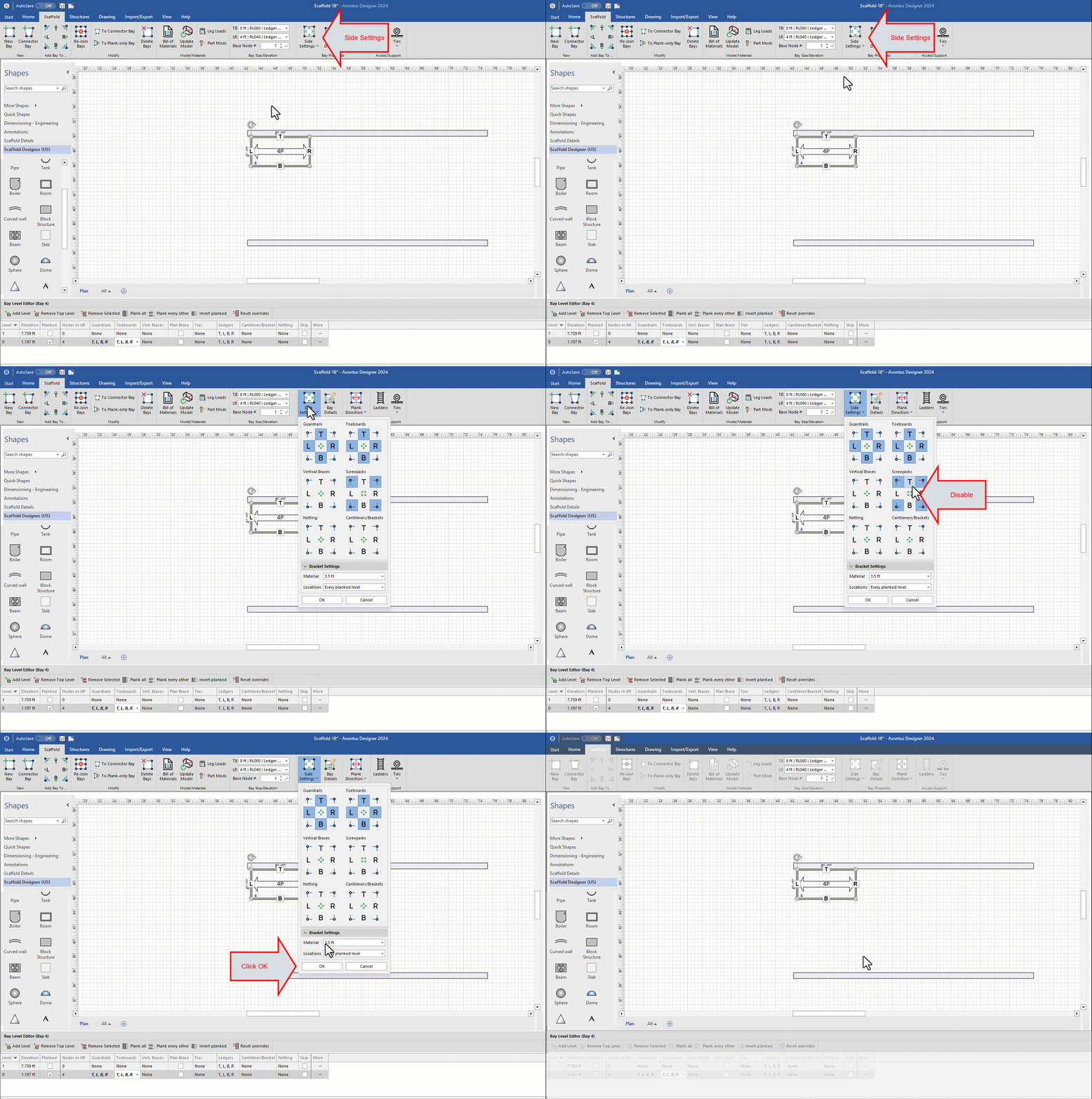
With the Bay still selected Click Side Settings in the toolbar
Disable all Screwjacks.
Click OK
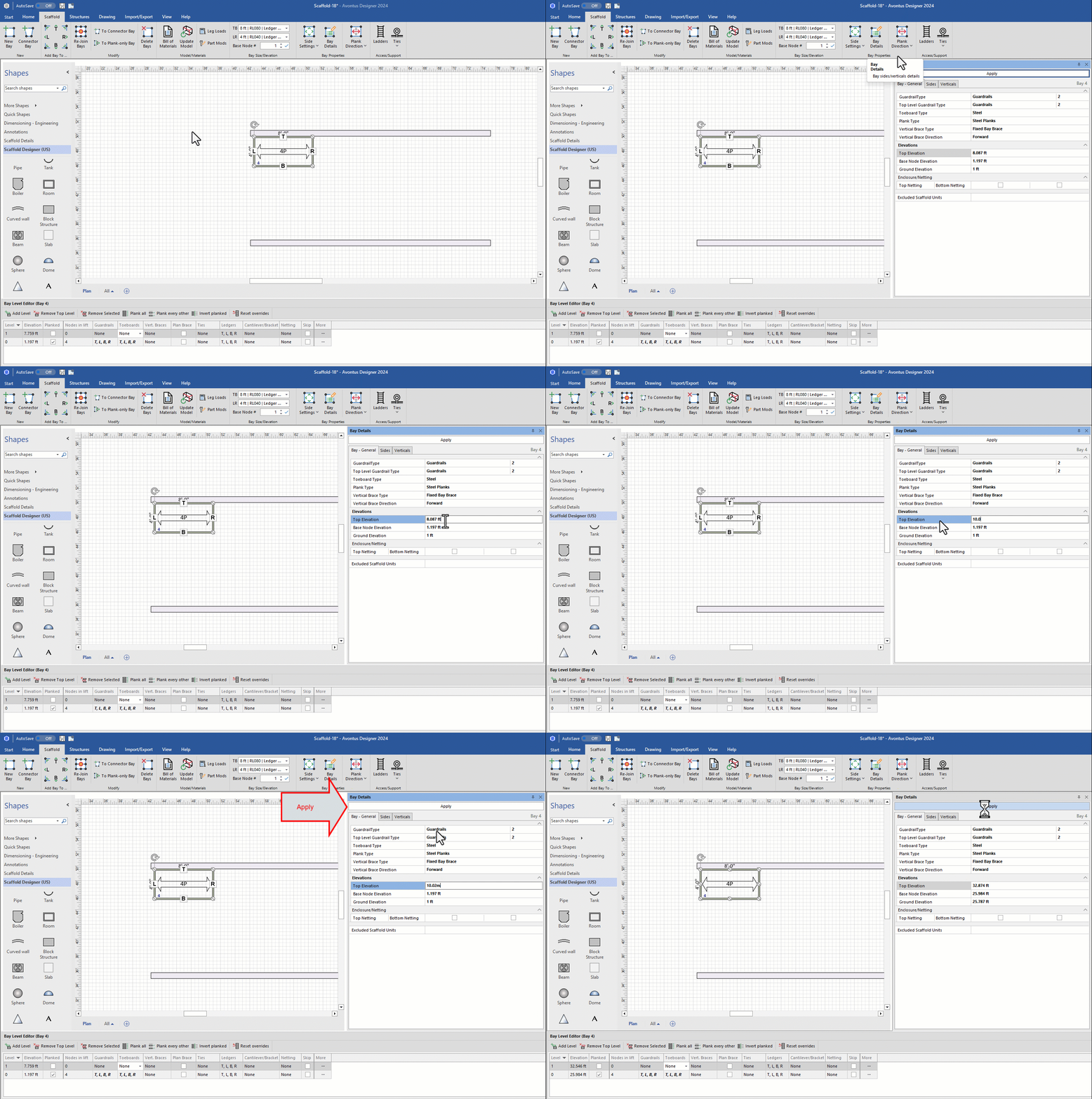
Select the bay and click Bay Detail
Edit the Top Elevation of the bay to a height similar to the beam or item you will hang the scaffold off. The beam was set to 10m.
Note: You may need to experiment with the Top Elevation until you get the correct height. Also note that the Top Elevation is the very top of the scaffold, which is usually the top of the Vertical.
When the height has been specified, click Apply.
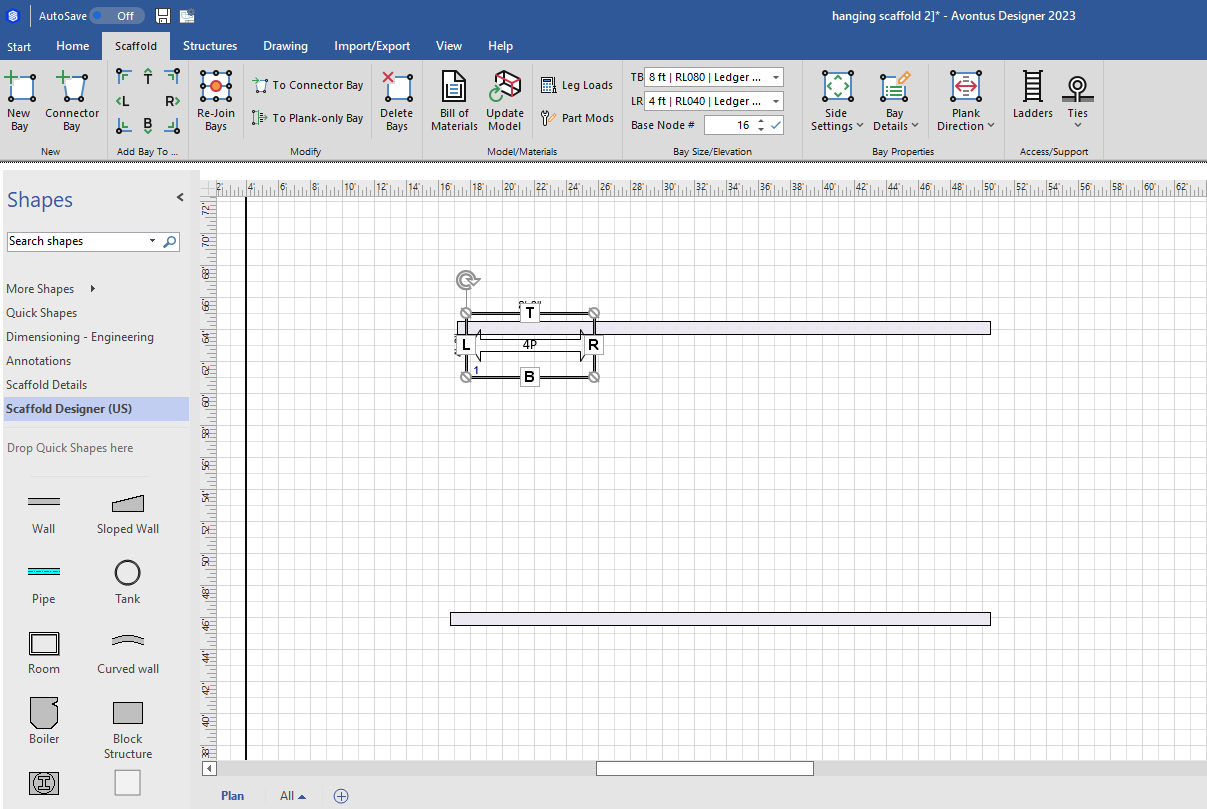
Drag the bay into the correct location. The bay should overlap the beam. This is so the bay can be clamped to the beam.
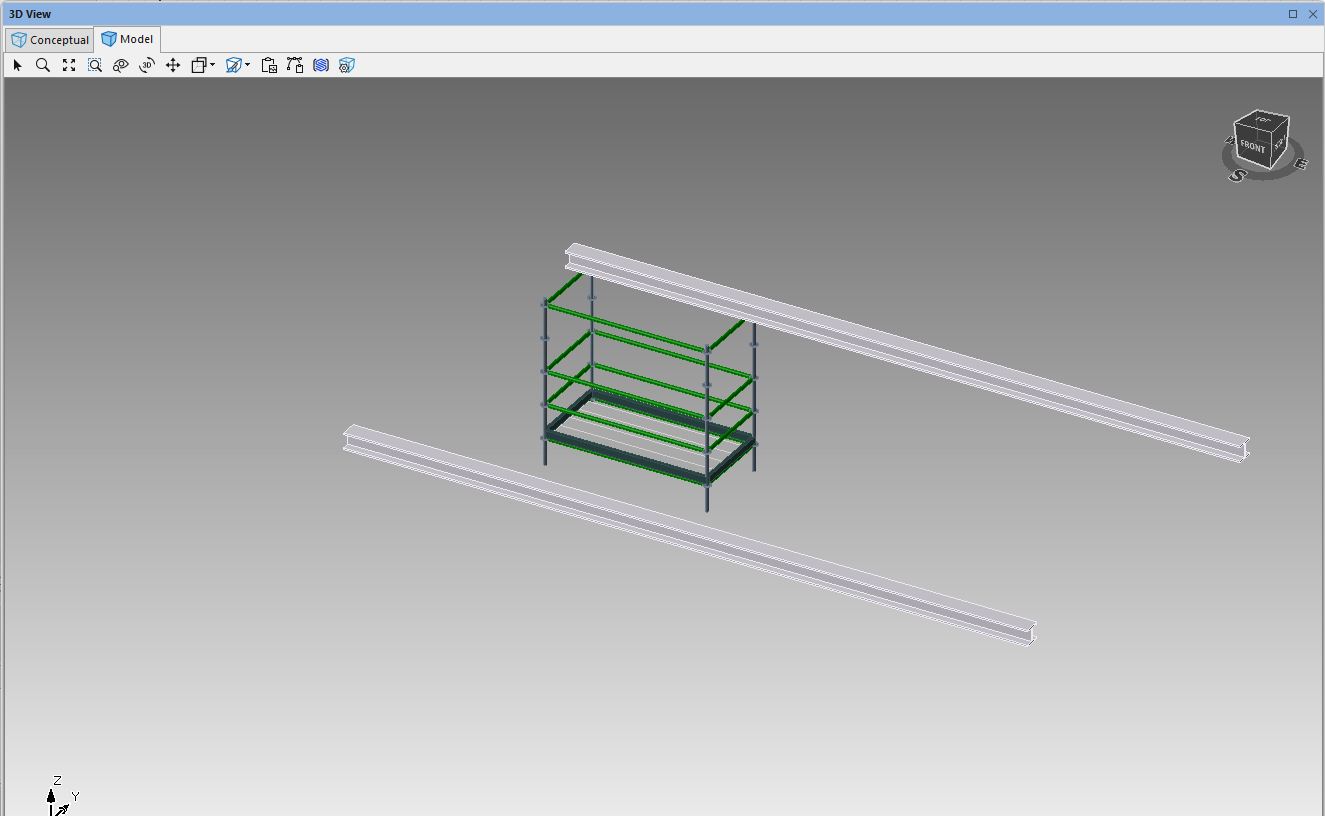
The 3D model will look like this.
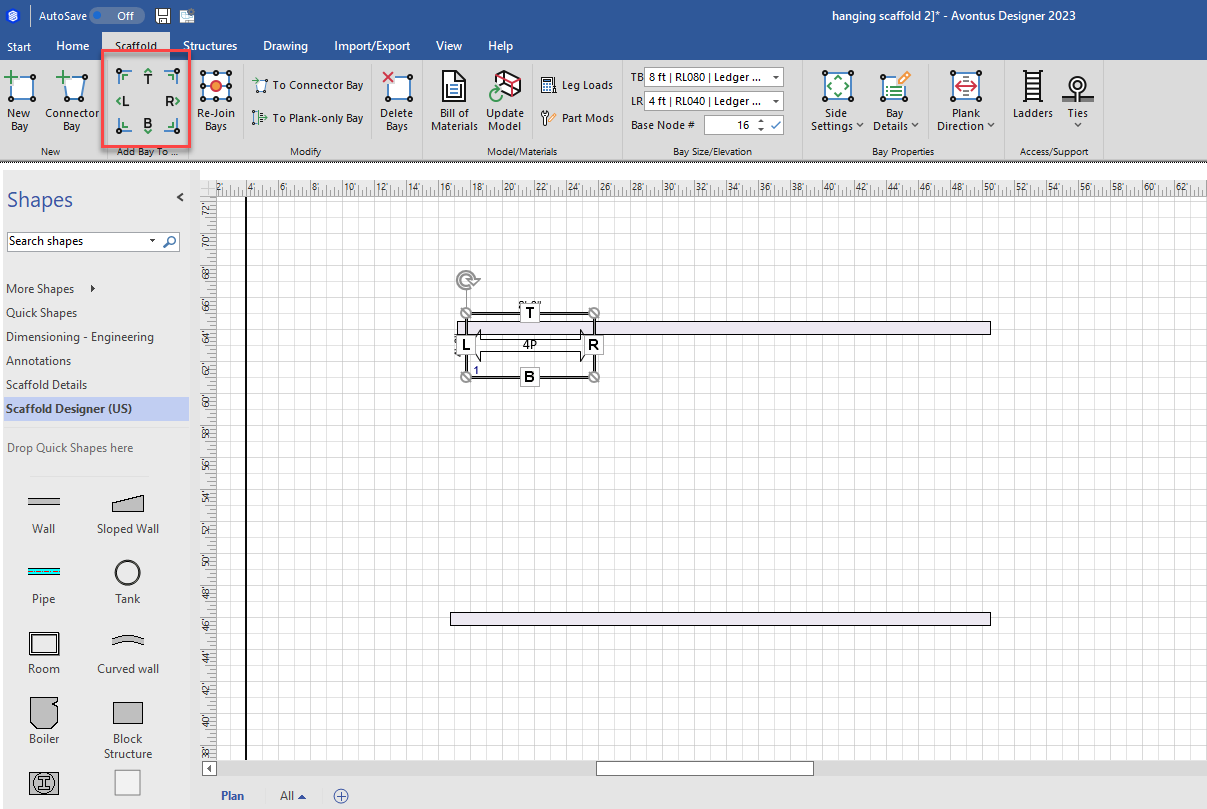
Using the Add Bay To, add the remaining bays and drag them into place.
Rejoin all the bays
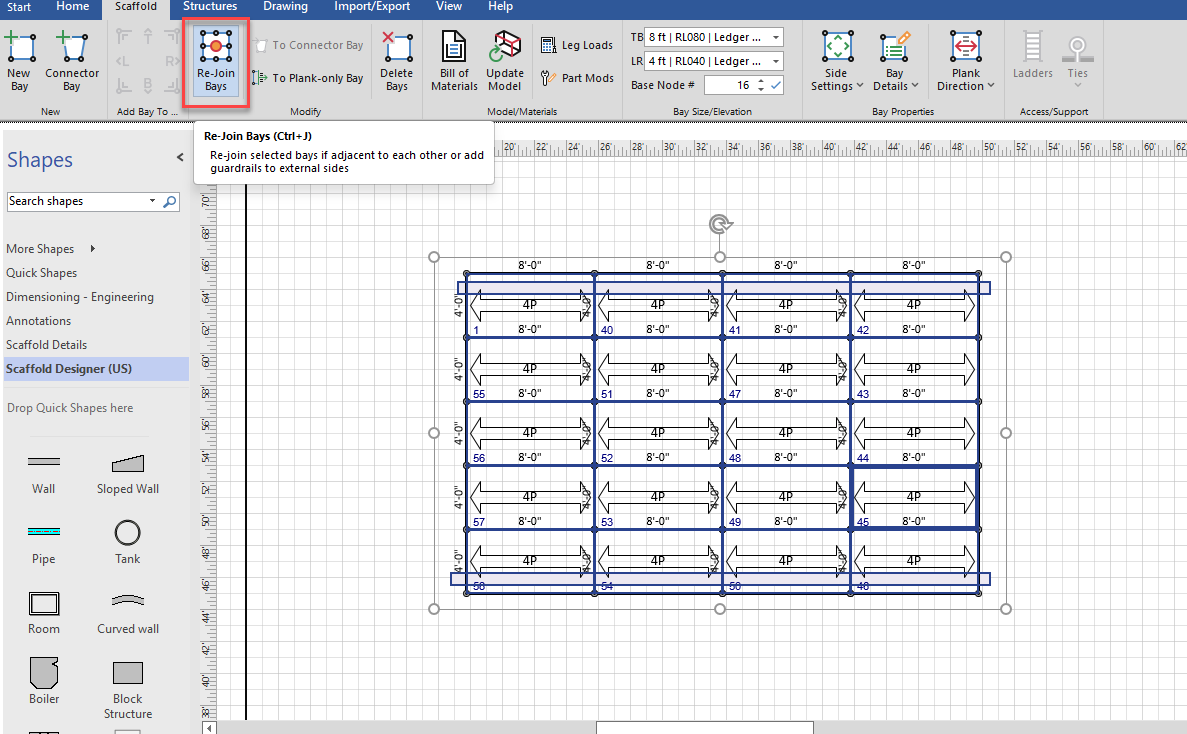
The drawing page may look like this
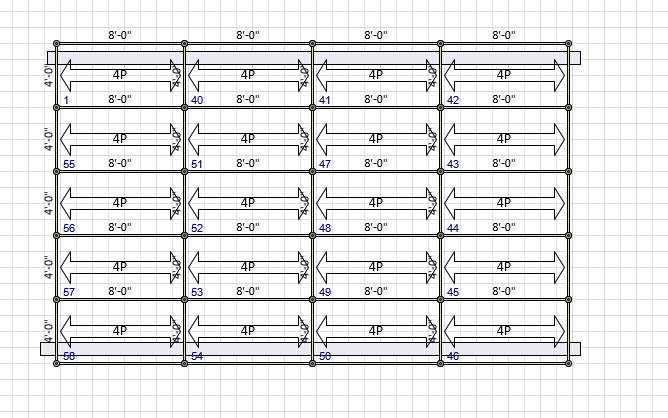
The 3D model will look like this