Quantify enables you to generate and edit various types of Deliveries, Transfers and Returns and to move items between Branch Offices and Job Sites as needed. You can generate the following types of shipments:
Deliveries to a Location
Returns from a Location
Pre-Returns from a location
Reservations for a location
Creating a New Shipment
The procedures in this section apply to Deliveries, Returns, and Reservations. If you want to learn about or to create Pre-Returns, refer to Working with Pre-Returns.
To create a new Shipment:
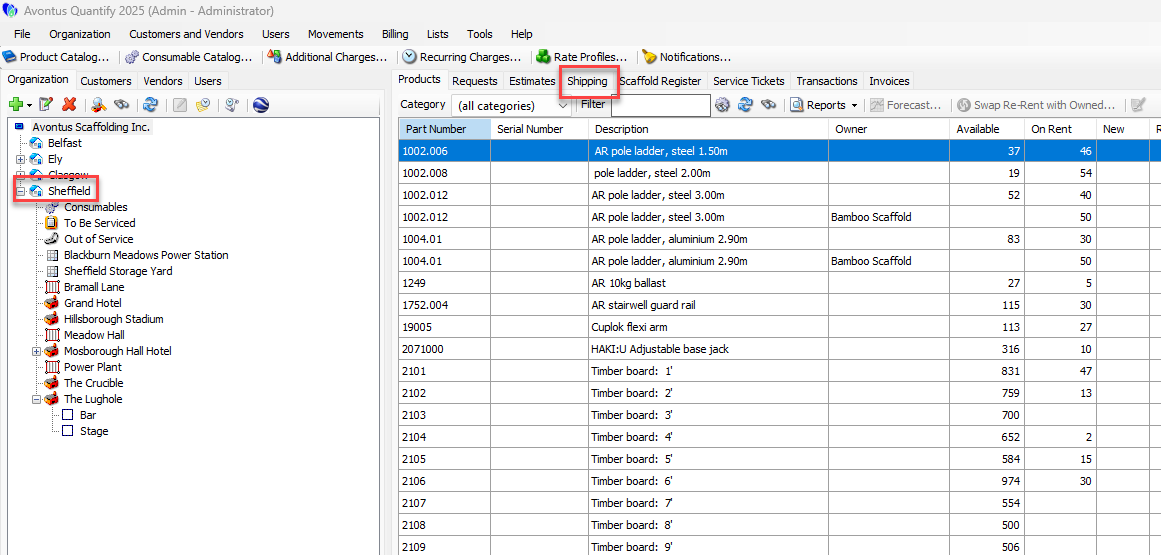
Locate and click the Branch Office or Job Site from which you want to ship equipment, click the Shipping tab
Click the Ship Items to a Location button
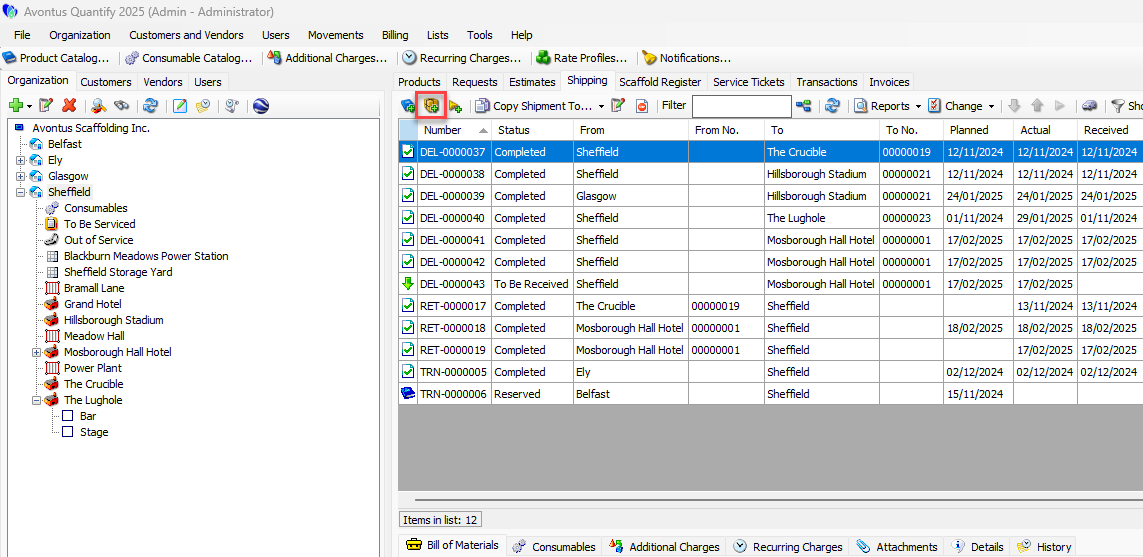
Note: You can also right-click the Job Site and select either Deliver to this location or Return from this location from the New Shipment sub-menu.
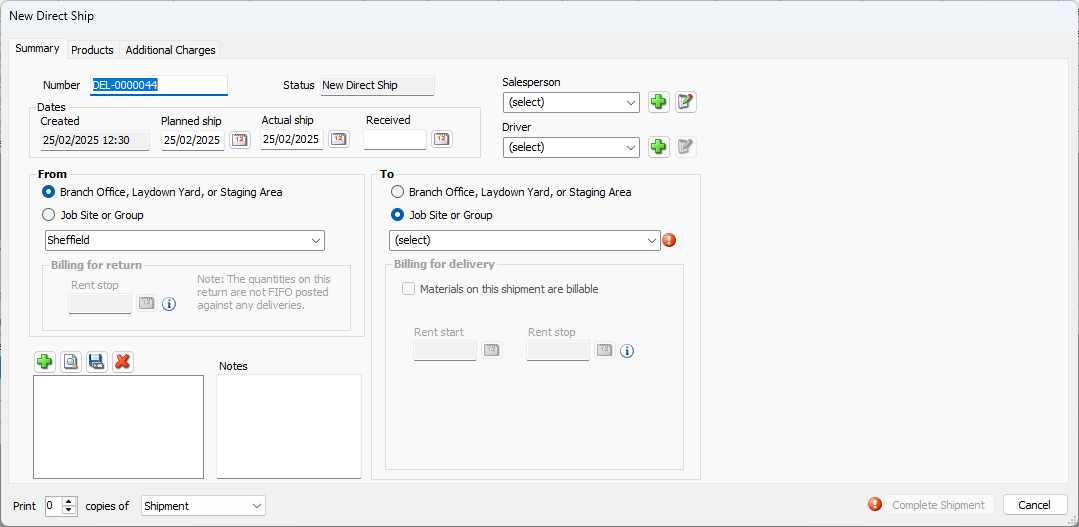
The New Direct Ship dialog appears. Quantify then pre-populates the From and To sections of the Direct Ship dialog.Use the information in The New Direct Ship Dialog to configure the new Shipment.
For more information, please see the video below