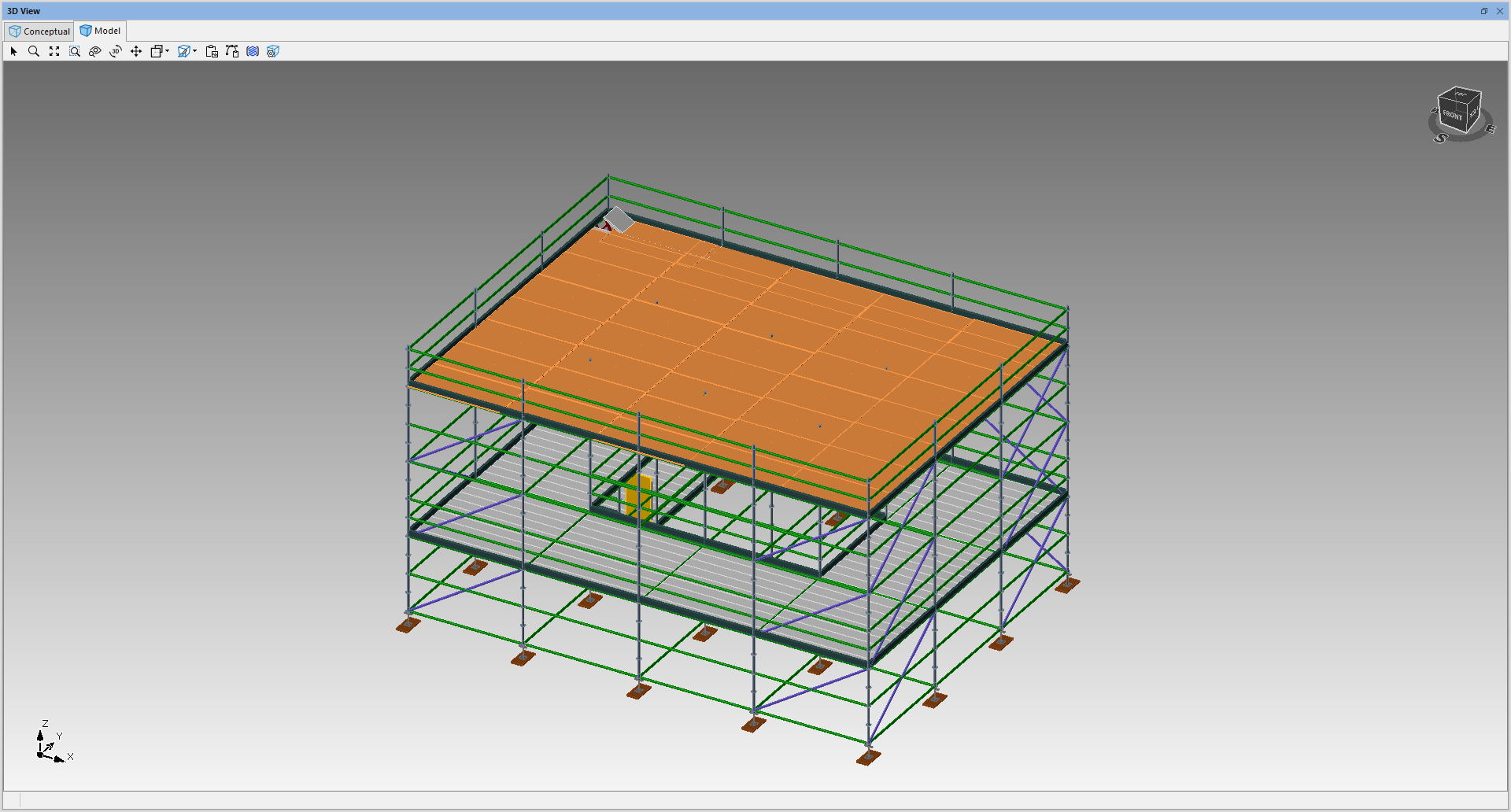
In this article, we demonstrate how to create plywood sheets (plyboard) for your scaffolding designs using building objects in Avontus Designer. We will show you how to create the required boards for your platform, which will cover your steel pans. We also reference the parts within the bill of materials to accurately calculate how many sheets you will need.
Please see Creating Plywood Sheets for Your Scaffolding Using Building Objects for a video version of this article.
To do this
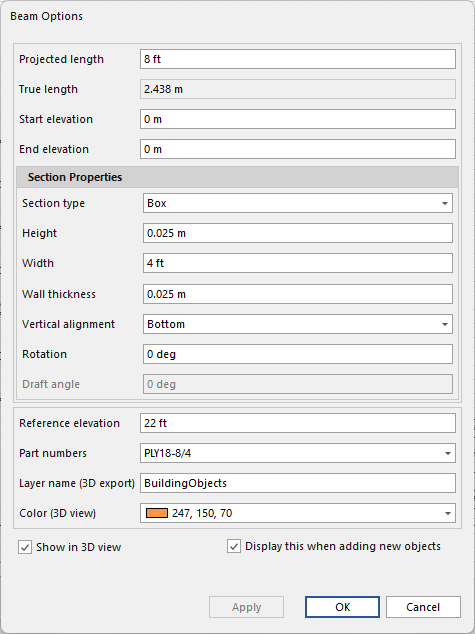
Drag a Beam onto the design page.
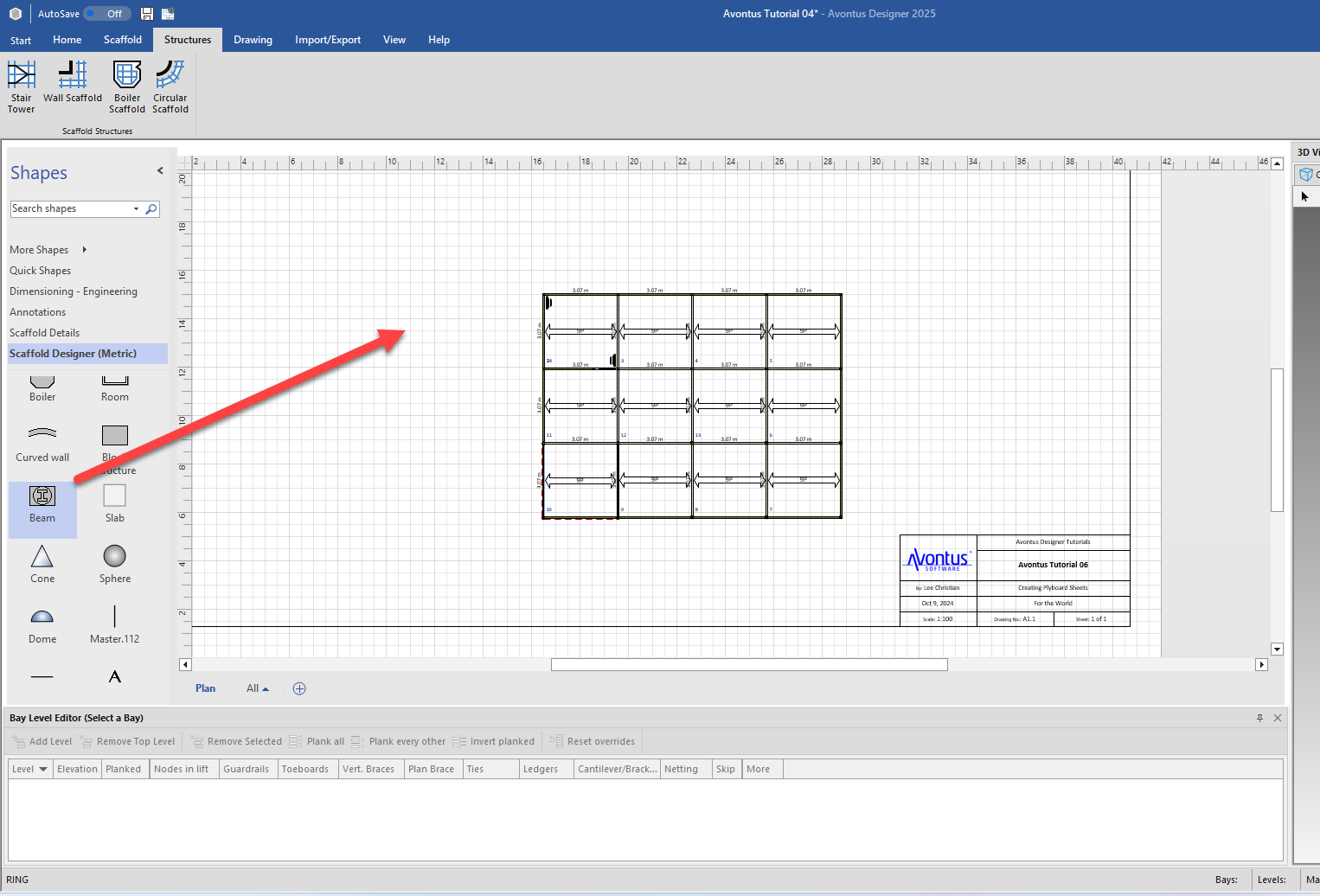
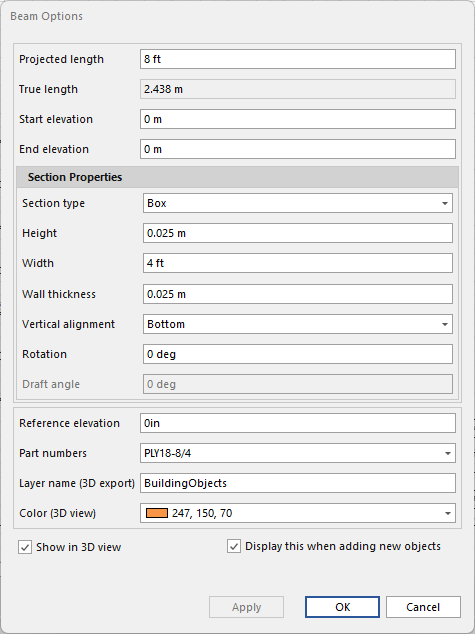
In the Beam’s settings, set the length to 8 ft.
Set Height to 18mm
Set Width to 4 ft
Set Wall Thickness to 0
Set Vertical Alignment to Bottom
Provide the Part Numbers
Change the colour if required
Click OK.
You have now created your Plywood sheet.
Place the Plywood sheet on the Bay/board
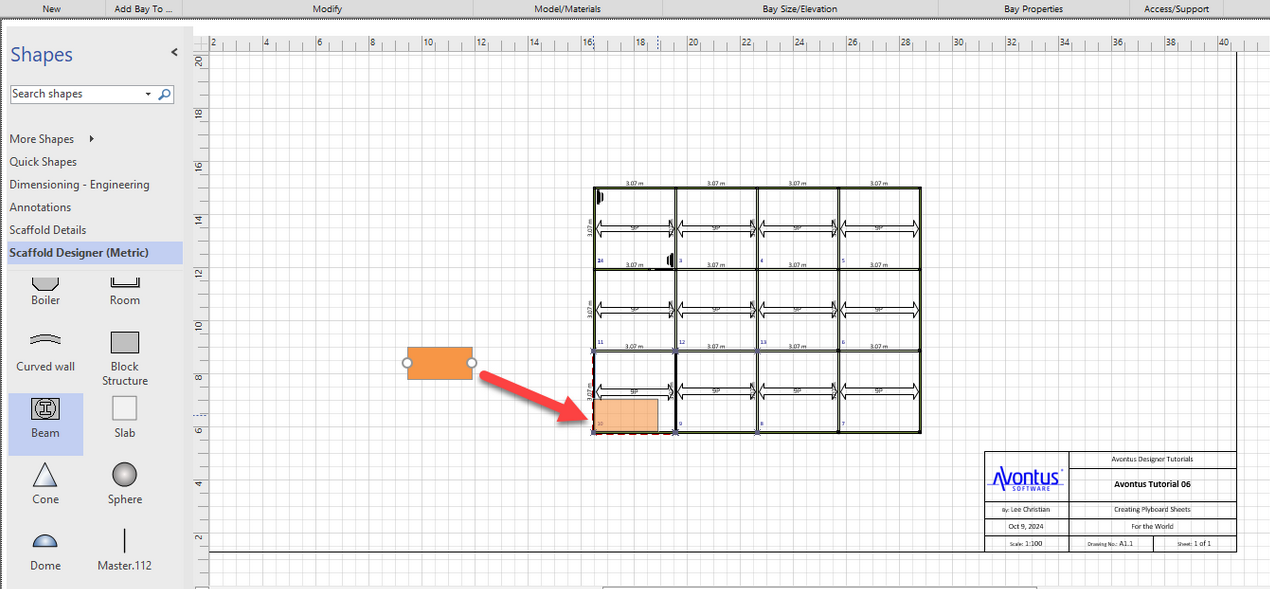
We will now send the sheet to the back so the bay measure appears on top of the sheet.
Click the sheet, and select Drawing.
Click Send to Back, and select Send to back to send the plywood sheet to the back so you can see the bay’s measurements.
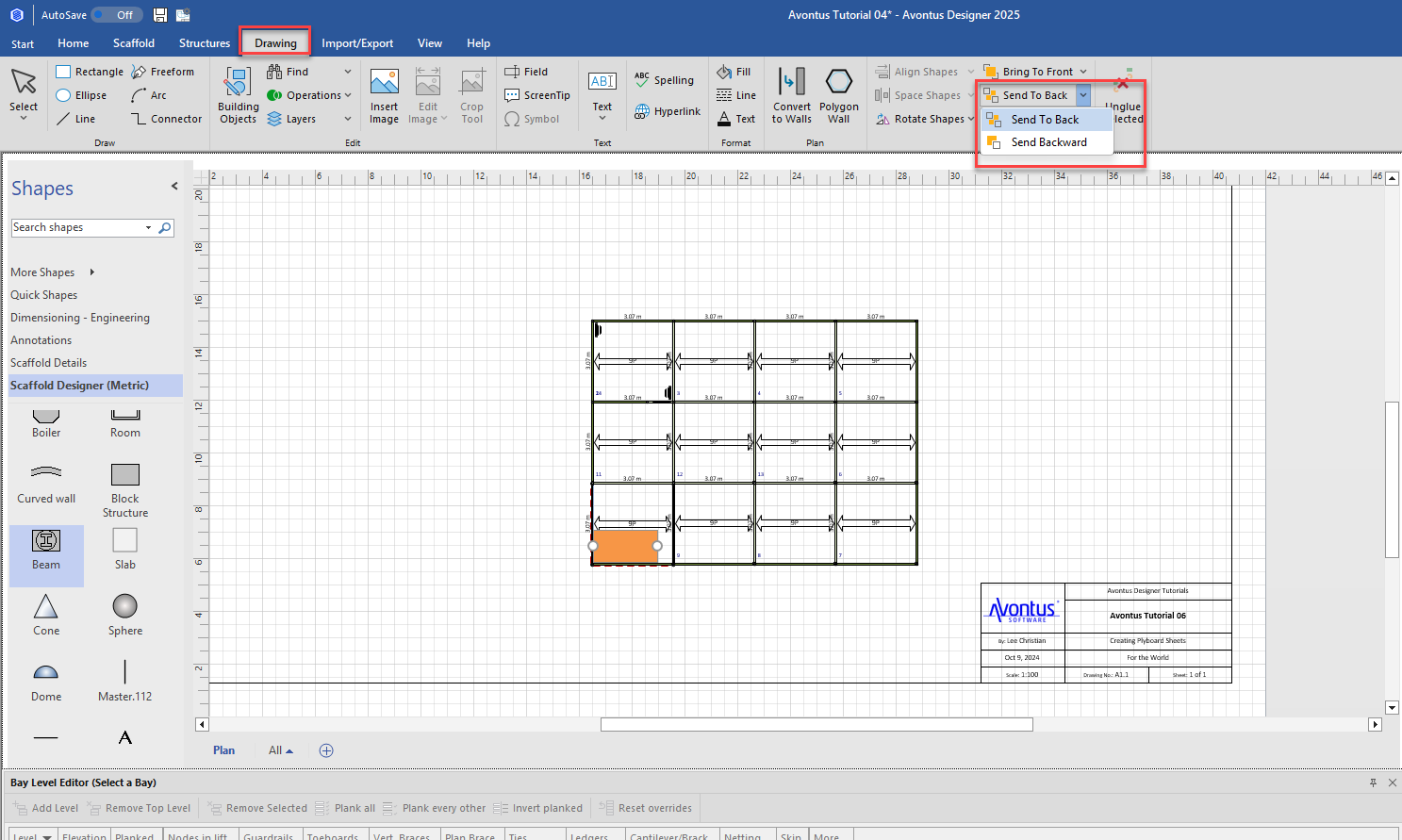
Your design will look like this.
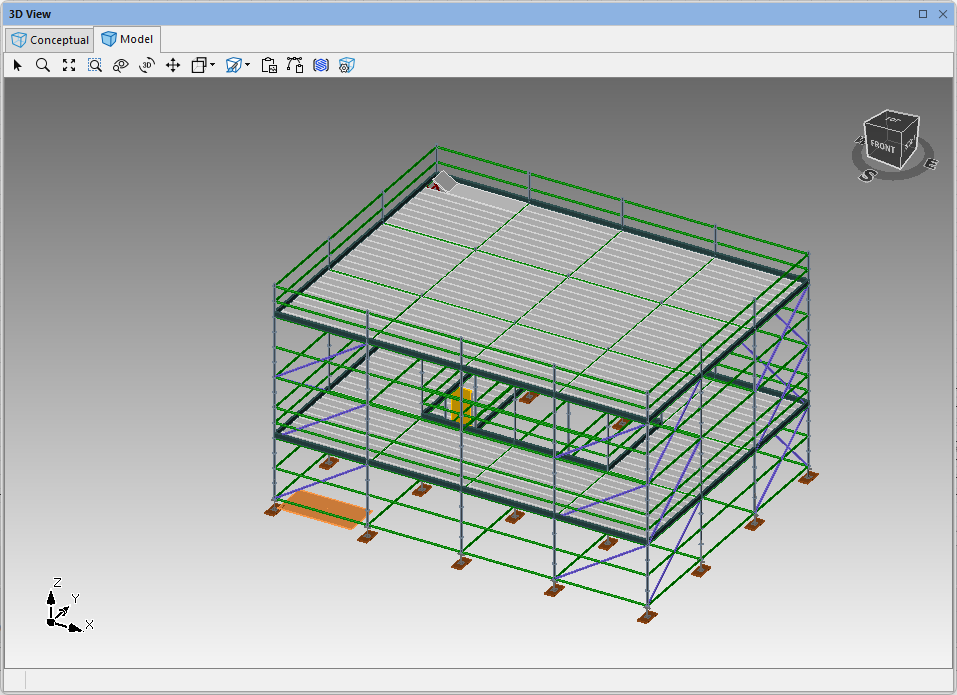
We will then need to adjust the height of the Plywood sheet as it’s at the bottom of the design. We will need to adjust this to match the board level of the bay, which can be found in the Elevation column of the Bay Level Editor.
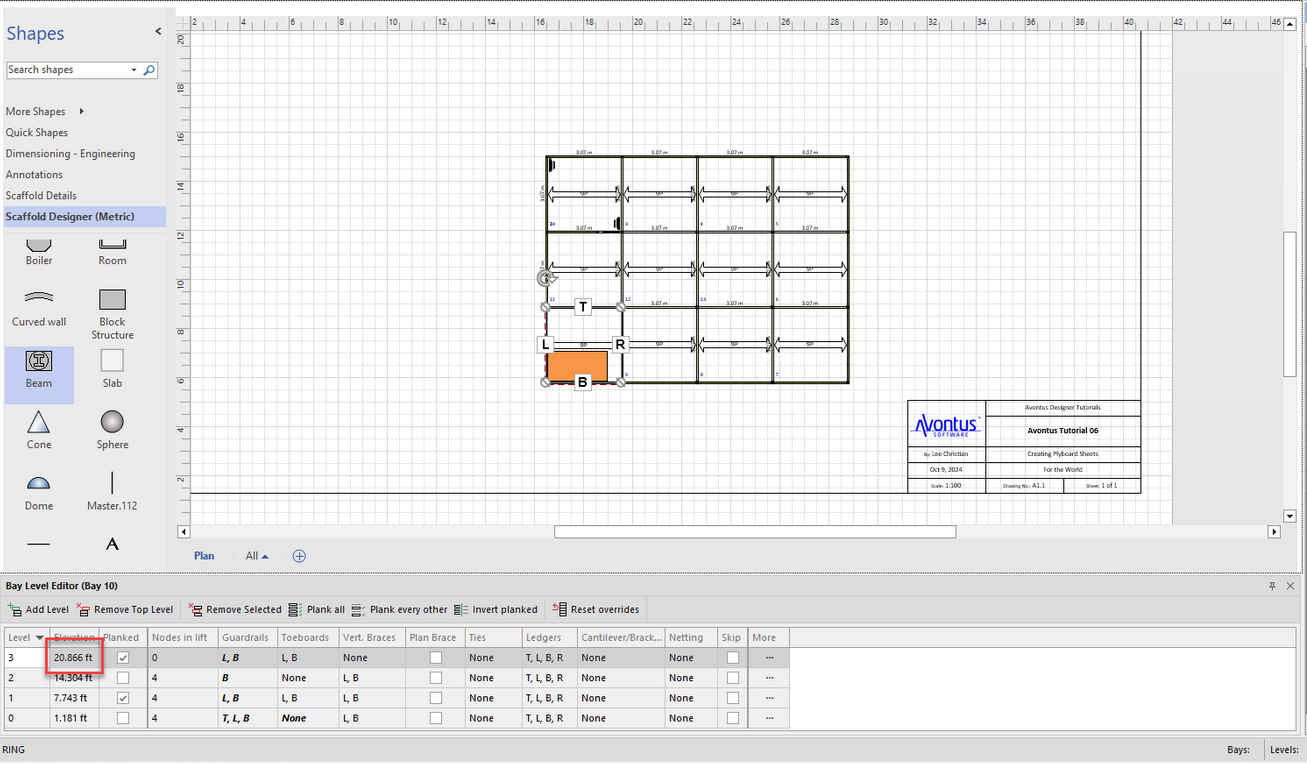
Open the Plywood sheet’s details and set the Reference Elevation to be slightly higher than the board’s elevation
Click OK
The height of the plywood sheet is at the desired length.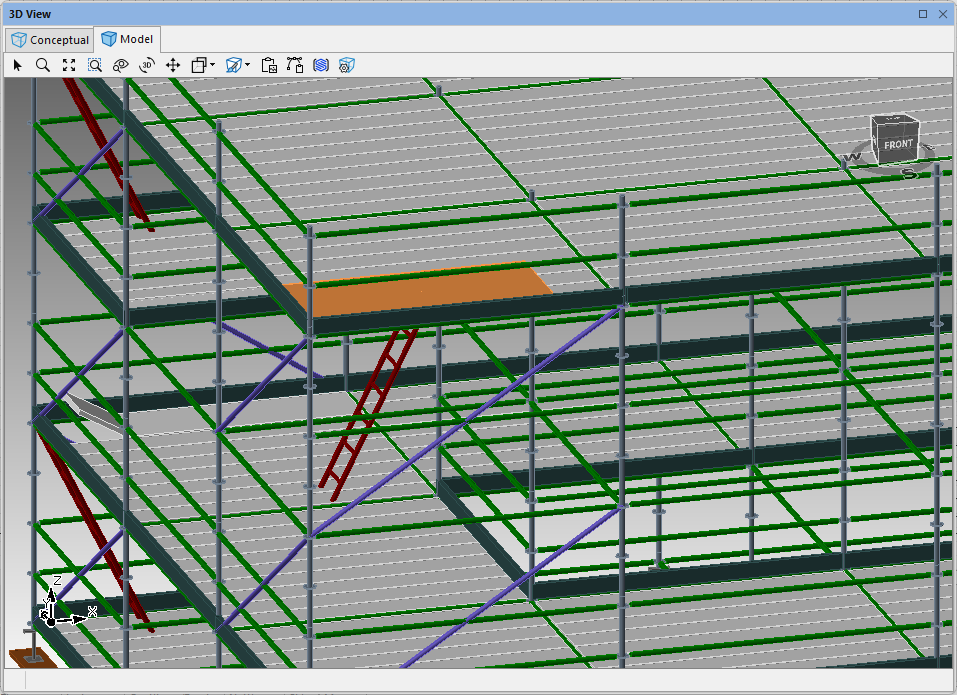
You can then copy and paste the sheet until all bays/boards are covered.
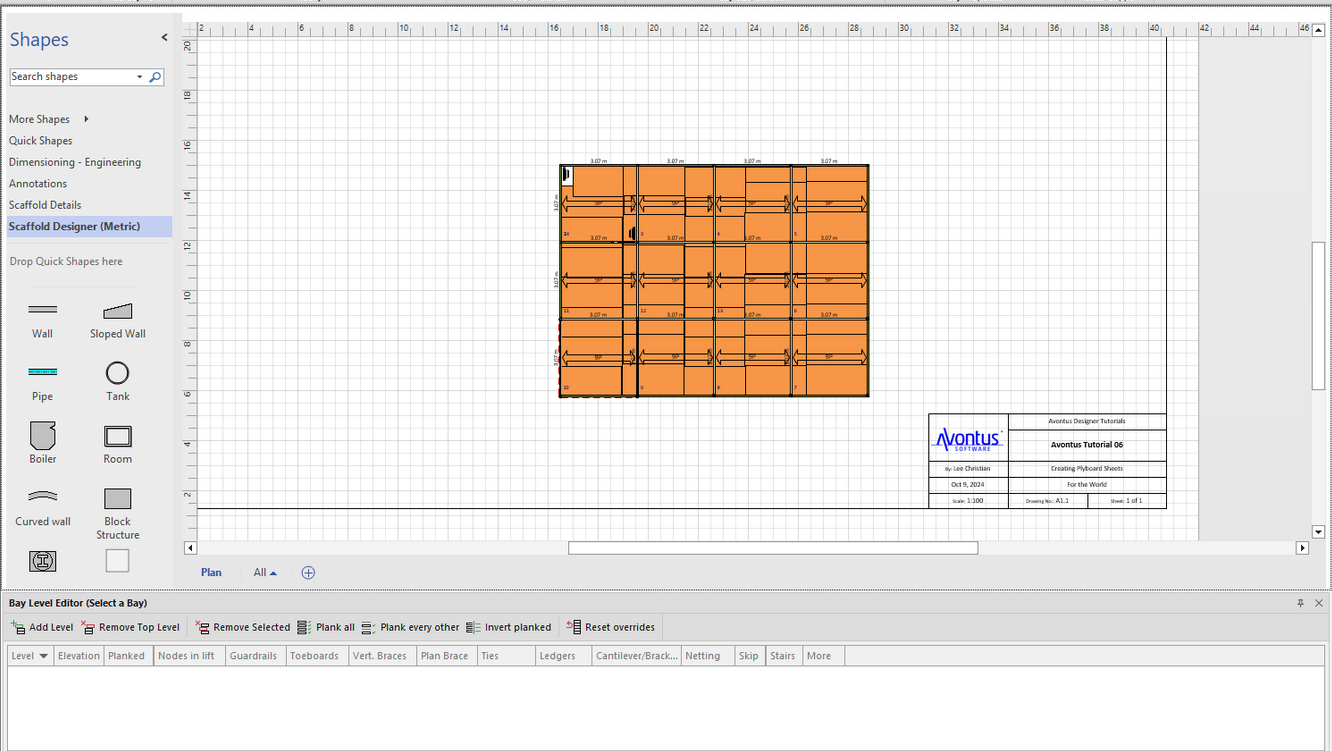
Your design will look like this.