You can customize the page size of a drawing to meet various standards and custom sizes.
Note: You can change the page size at any time, but Handset Designer may move existing objects on the page (such as Walls and Columns) as a result.
The default page size for drawings in US units is: Letter: 8 1/2" x 11"
The default page size for drawings in Metric units is: A4: 297 mm. x 210 mm.
To customize the Drawing Page size:
Click the Design tab, then click Page Setup.
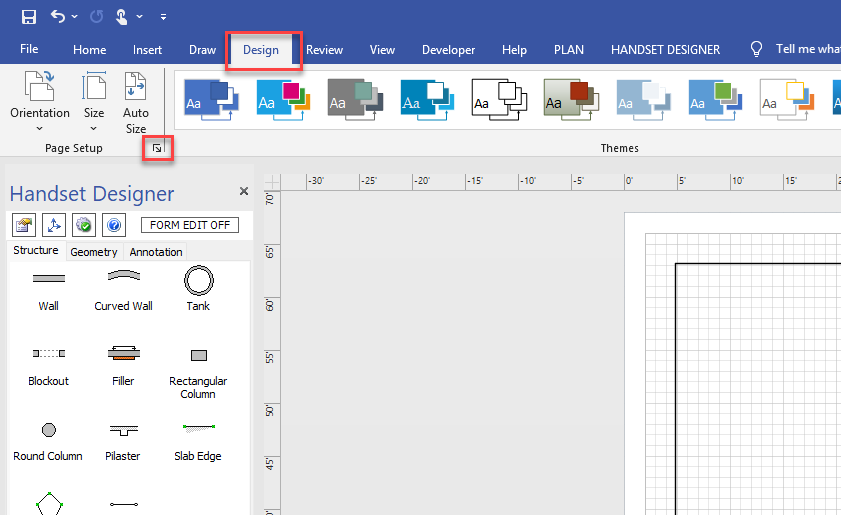
The Page Setup dialog appears.Click the Page Size tab.
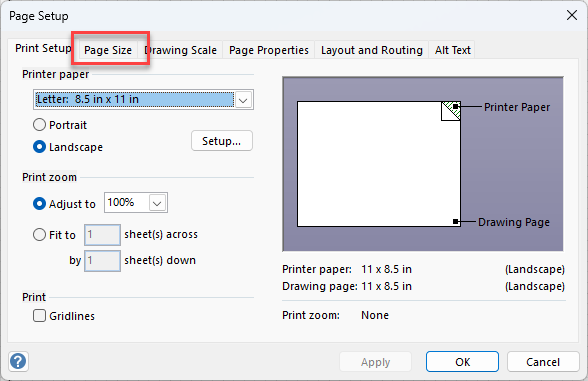
Click the appropriate Page Orientation radio button. Your options are Portrait and Landscape.
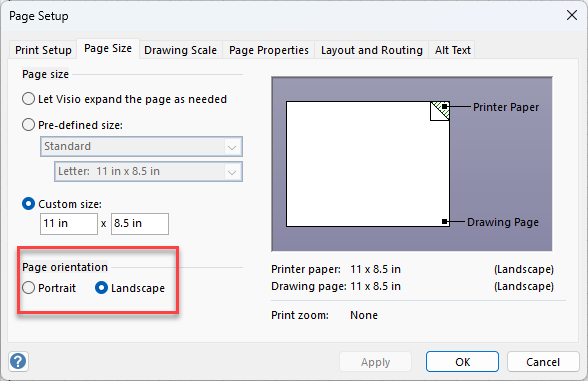
To assign a pre-defined size:
Click the Pre-defined size radio button.
Click the top dropdown and select the appropriate standard.
Click the bottom dropdown and select the appropriate dimensions.
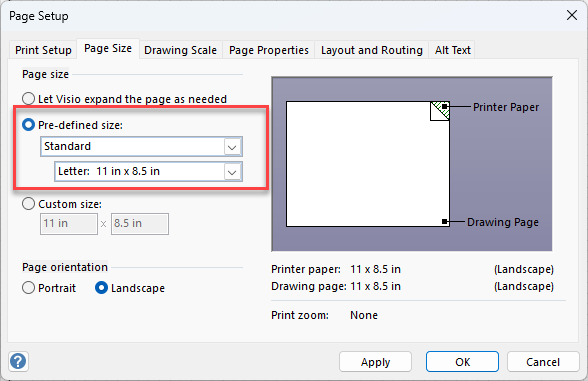
To assign a custom size:
Click the Custom Size radio button.
Click the top dropdown and select the appropriate standard.
Click the left dimension text field and enter the height of the page.
Click the right dimension text field and enter the width of the page.
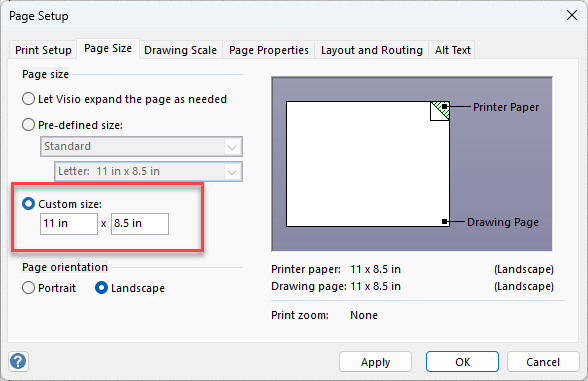
Note: The page size relates to the size of the Drawing Page as it appears in Handset Designer and may vary from the printer paper size. To adjust the size of the drawing or print across multiple pages when these sizes do not match, refer to the article titled Print Setup.
Click OK.