Handset Designer calculates drawing scales automatically, freeing you from having to choose appropriate page sizes for your drawings. But you can customize the scale of a drawing to change the size of objects on the drawing page relative to the page size.
The default scale for drawings in US units is: 1/8" = 1' 0"
The default scale for drawings in Metric units is: 1 : 100
Note: The scale displayed on imported plans or files may not match the actual scale. Tools such as PDF printers and printer scaling can cause the scale of a plan to be altered. If you attempt to match the scale of an imported file, you may need to use the custom scale to match the actual scale of the file.
To change the scale of a drawing:
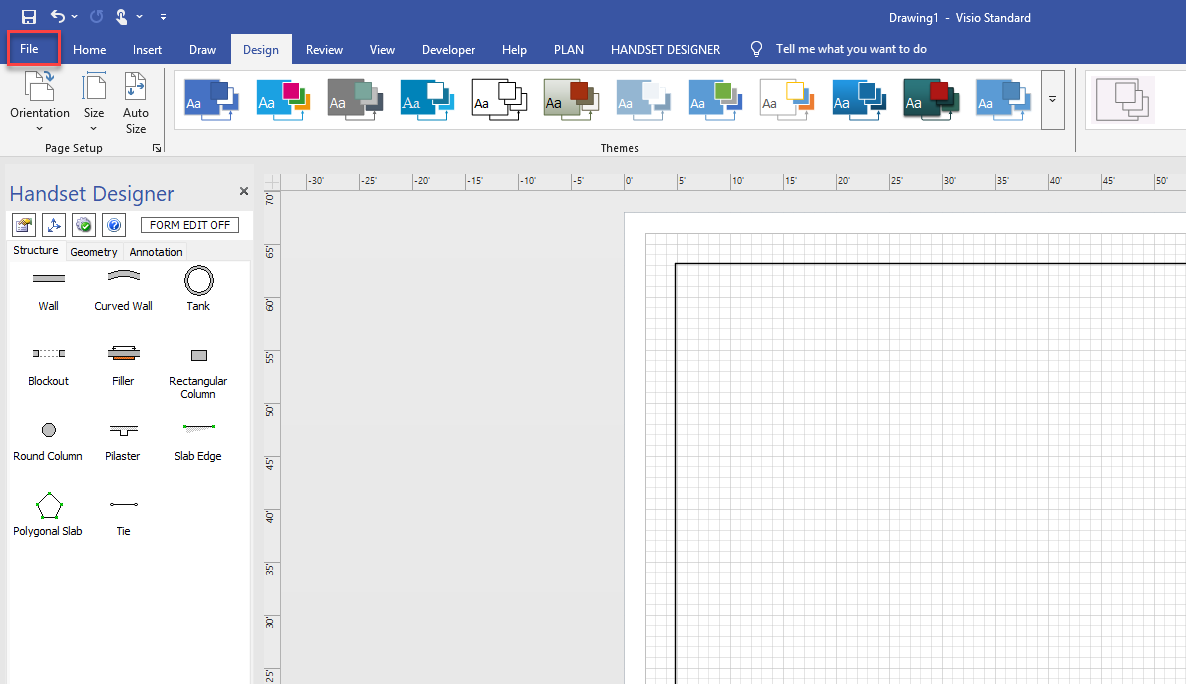
Click the File tab.
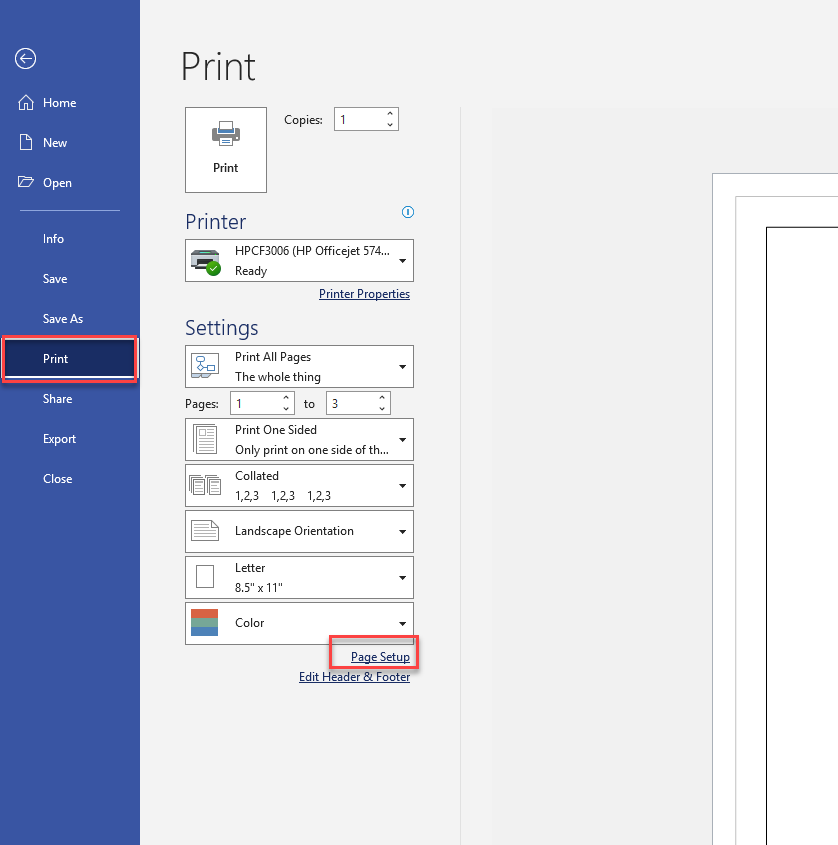
The Info interface appears.Click Print, then click Page Setup.
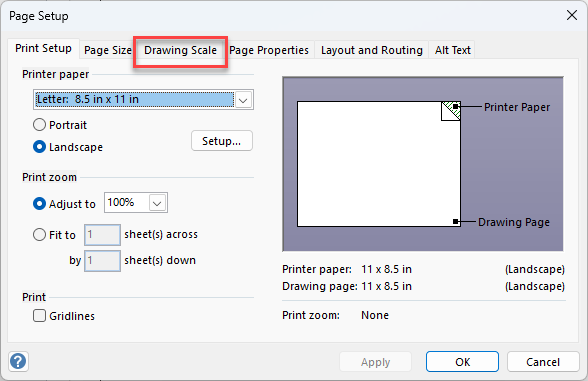
The Page Setup dialog appears.Click the Drawing Scale tab.
Note: Handset Designer supports all drawing scales, but the title block will always show Scaled to fit if anything other than the Architectural scale is selected.
To assign no scale, click the No Scale radio button.
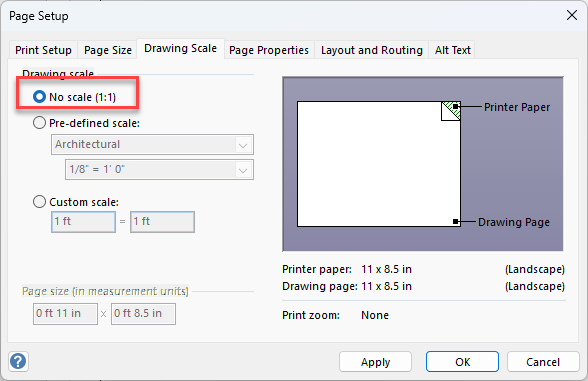
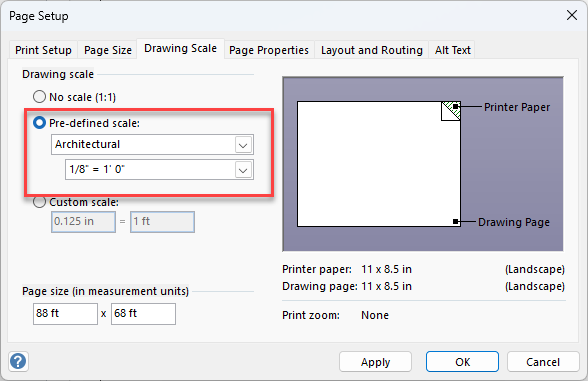
To assign a pre-defined scale:
Click the Pre-defined Scale radio button.
Click the top dropdown and select the appropriate standard.
Click the bottom dropdown and select the appropriate ratio.
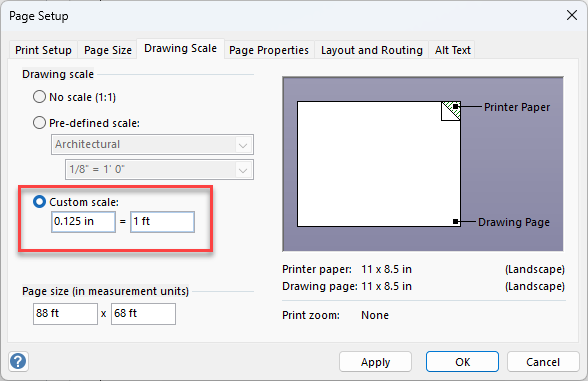
To assign a custom scale:
Click the Custom Scale radio button.
Click the left dimension text field and enter the height of the page.
Click the right dimension text field and enter the width of the page.
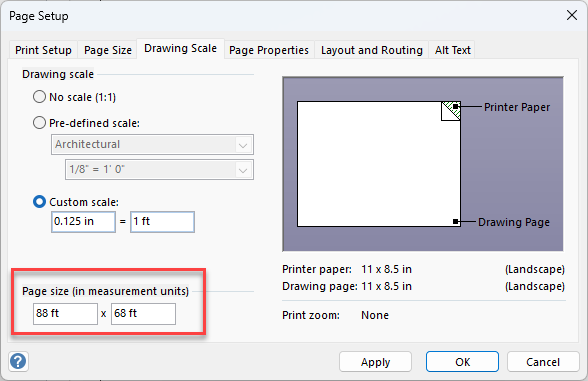
To assign a page size:
Click in the left Page Size text field and enter the height of the page.
Click in the right Page Size text field and enter the width of the page.
Click OK.
Handset Designer automatically calculates and displays the page size based upon the scale you select.
You can change the scale without effecting text and dimension sizes. These elements will always stay the same point size on your final printed page.