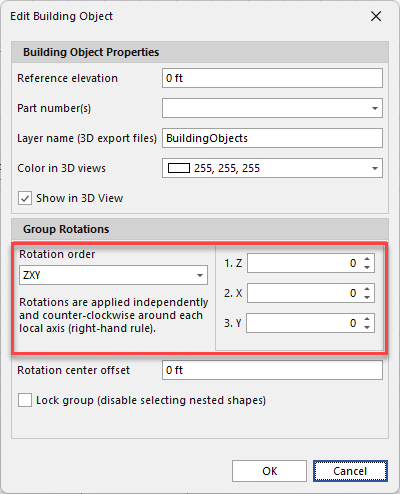
The Edit Building Object dialog allows the user to adjust the visual look of the building object(s), including its color and rotation.
To group shapes together, select all the shapes, right-click and select group.
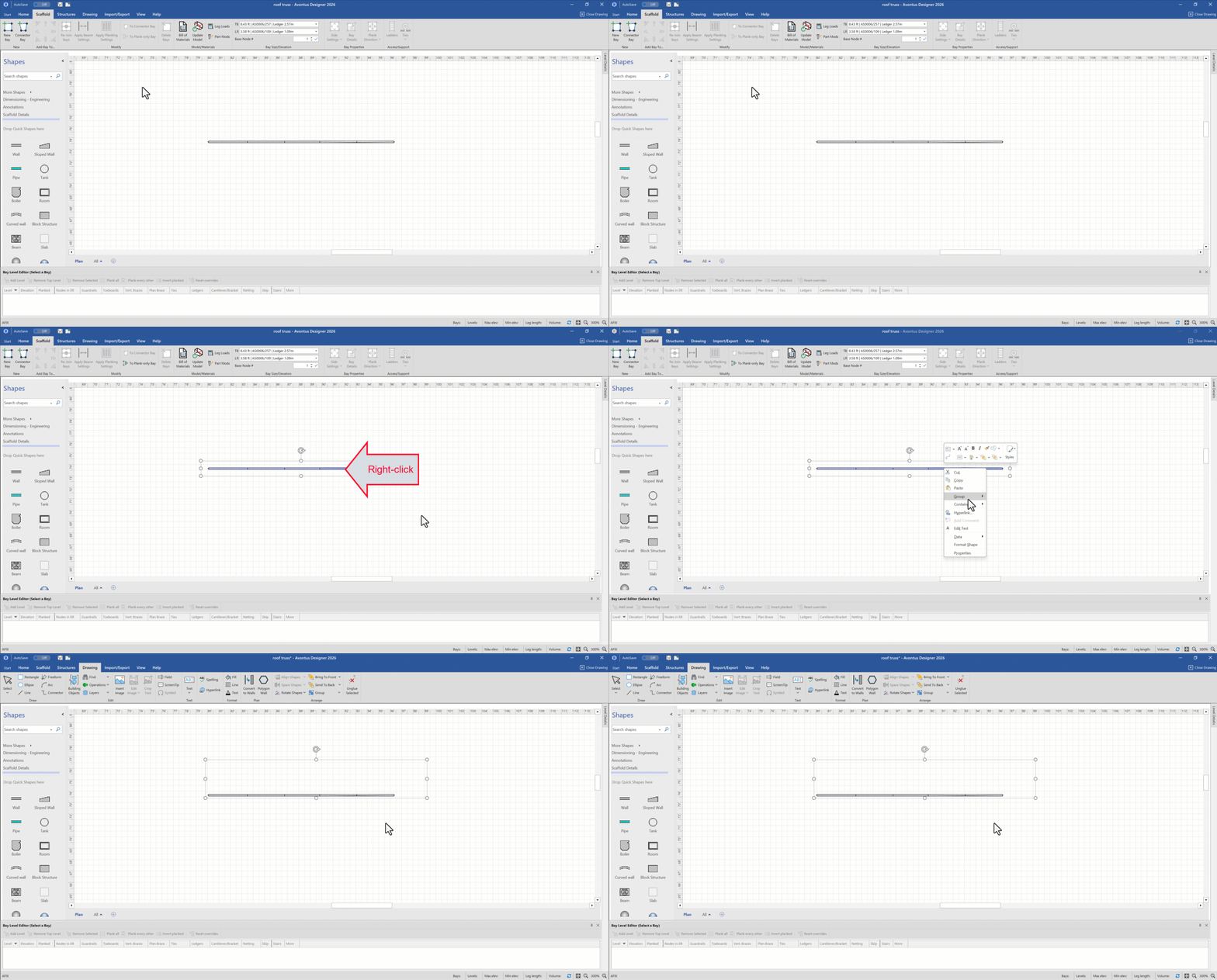
You can access this dialog by selecting Building Objects in the Drawing tab. You will need to have a grouped object selected to access the Building Objects dialog.
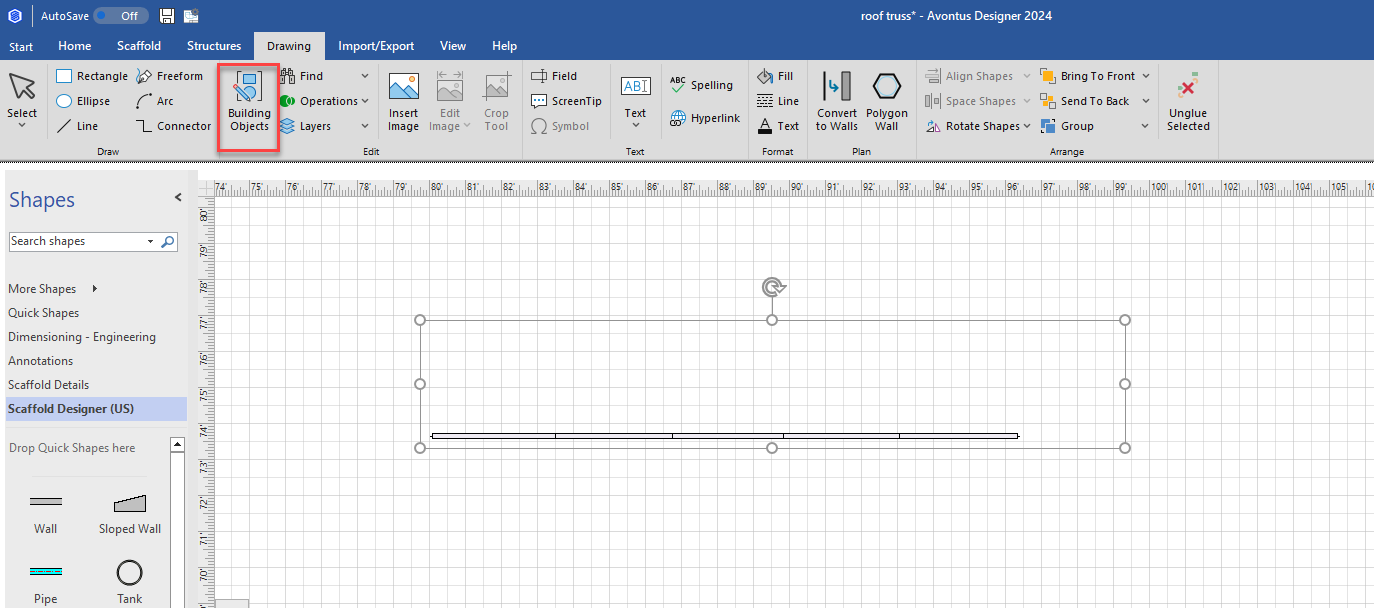
The Building Object dialog will appear.
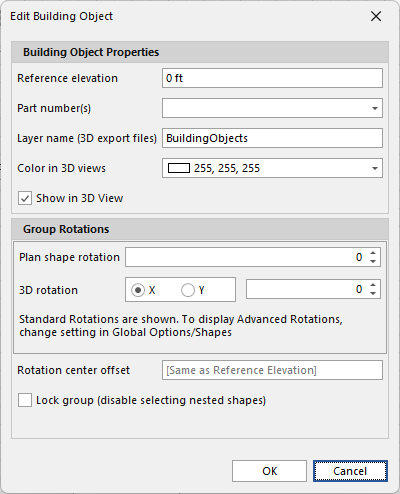
Building Object Properties
Reference Elevation -Adjusts the elevation of the entire object. 0 is ground level therefore the higher the number the higher the object will be off the ground. This is useful for when working with objects that are not at ground level.
Part Numbers - The object's part numbers. This can be assigned to a component logged in the Material Master so that the parts are calculated in the Bill of Materials.
Layer name (3D Export Files)- When exported, the object will be assigned to these 3D export files.
Color in 3D views- This adjusts the color of the object when viewed in the 3D view.
Showin 3D Model view - Enable this checkbox to hide the model in the 3D view.
Group Rotations
Plan Shape Rotation - This adjusts the object in plan view on its Z axis.
3D Rotation - This adjusts the rotation of the 3D object. You can specify whether to rotate the object by the X or the Y axis.

Rotation centre elevation - This adjusts where the object will be rotated. This is calculated from the point of the object's Reference Elevation. So, if the object's Reference Elevation is 3.5m then setting the Centre Reference Elevation to 0.5m, the point in which the object will be rotated is set at 4m.
If you leave it blank, it will be set the same as the Reference Elevation.
Lock Group- This disables selecting of nested shapes.
Note: In most cases, it is recommended that you lock the group as the final step in its creation.
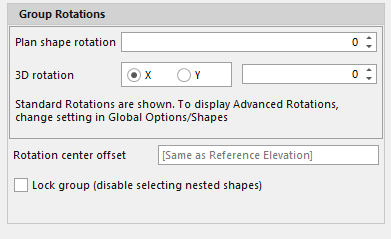
If you enable Advanced Rotations in the Global Options menu, you will see further rotation options. See Advanced Rotations for more information.
Note: When a Building Object is rotated, the center of rotation is at its center, not an edge, this can result in unexpected results in location after the building object is rotated. Therefore, before rotating the building object, move its center of rotation to a known point, such as the lower edge of the object.