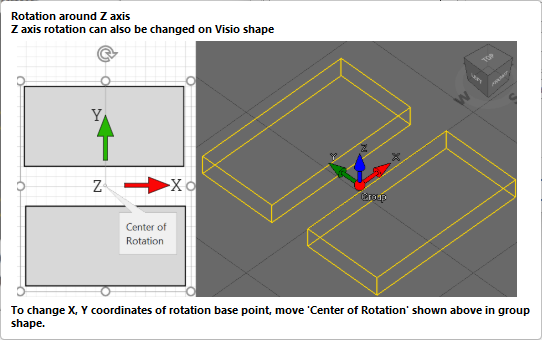
In the Global Options screen, there is the option to enable advanced rotations which configures, by default, in what order the object will be ordered by on its axis.
To enable Advanced Rotations
Click Start
Select Global Options
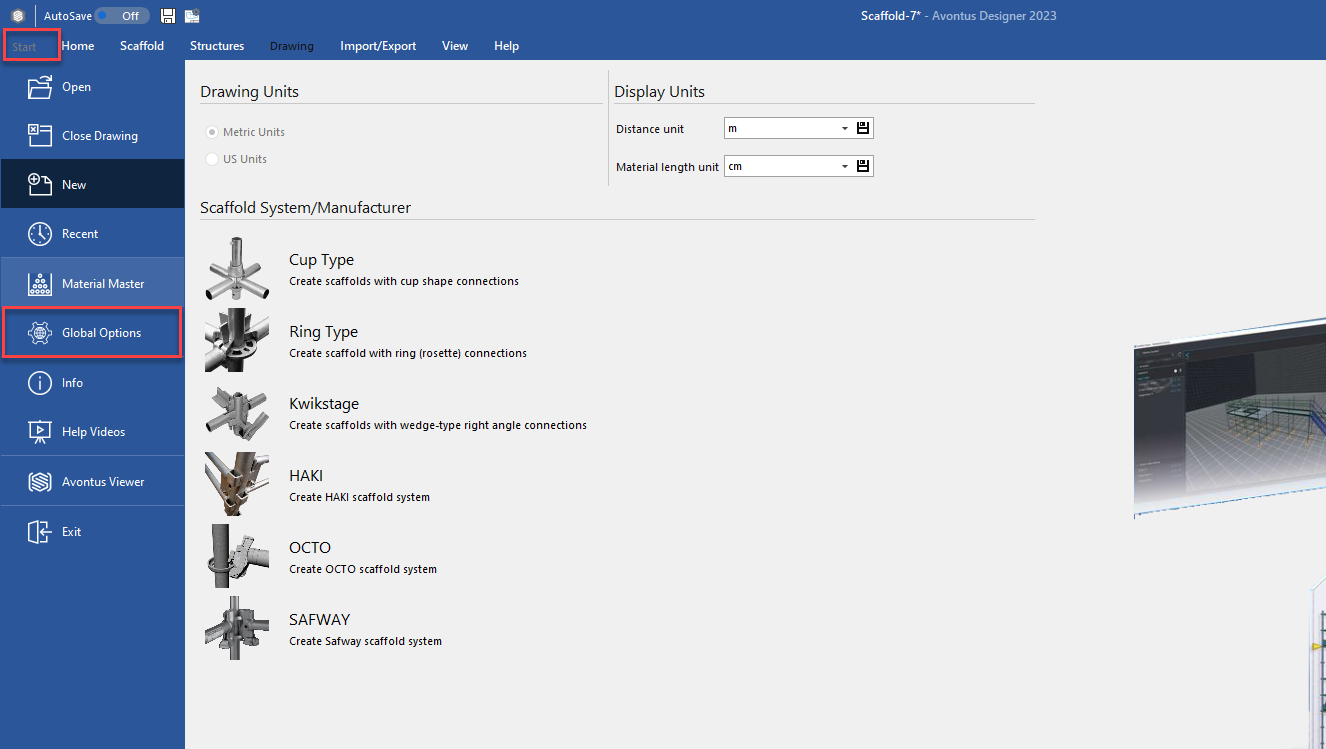
Select Shapes and then enable the Show Advanced Rotations checkbox
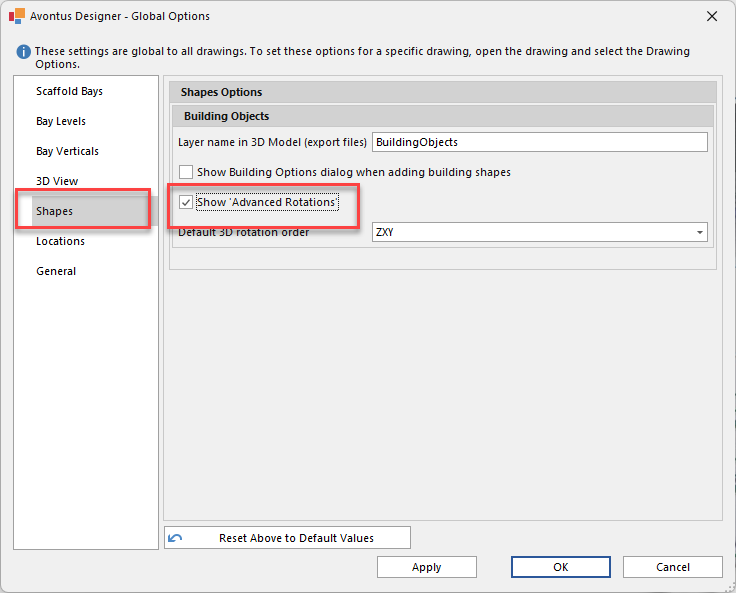
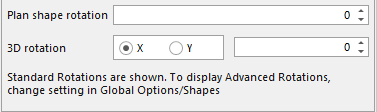
The Show Advanced Rotations check box enables the customisation of all three of the Z, Y, Z axis in the Building Objects dialog.
Enabled | Disabled |
|---|---|
|
|
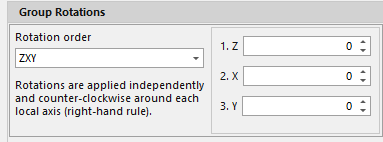
The default 3D rotation order drop-down sets, by default, in what order the object rotates on its axis. This can be changed for individual object groups in the Building Objects dialog.
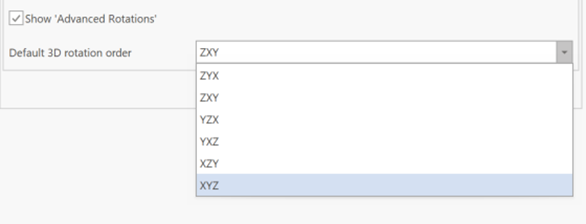
Selecting one of the available options will then adjust in what order the axis will be applied in the Build Objects dialog.
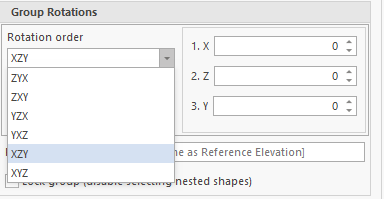
The axis rotation is calculated in the order specified, in the example above it is:
X
Z
Y
Note: Hovering the cursor over the axis text box will display a popup which details rotation on the selected axis (X, Y, Z).