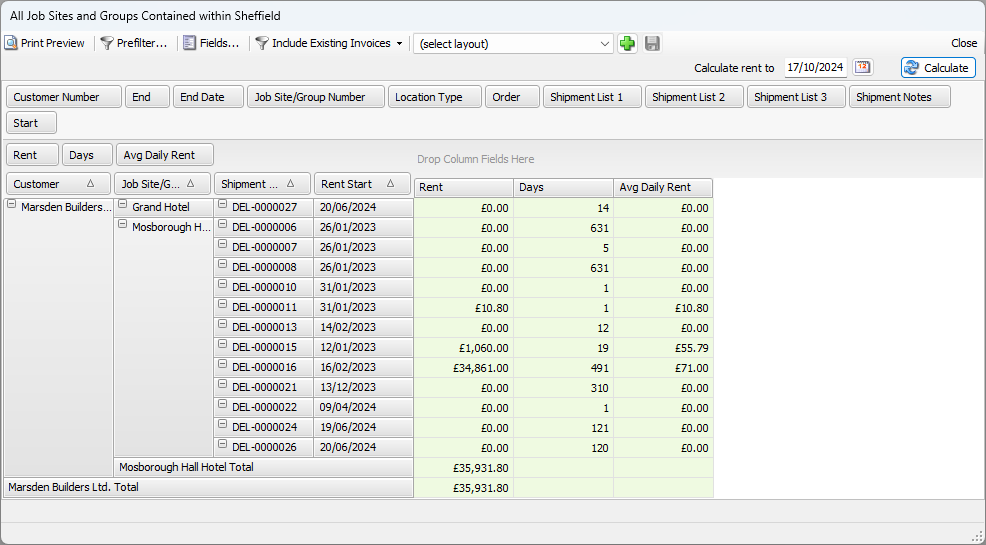
Quantify can create a report calculating rental amounts for all Job Sites associated with a selected Customer.
Note: This report only includes materials on rent. It does not include Additional Charges or Product sales.
To create a Rent Extension report:
To create this report grouped by customer name, as necessary, organize your Organization Tree by customer if you aren't set up this way already.
Click the Tools menu and select My Options.
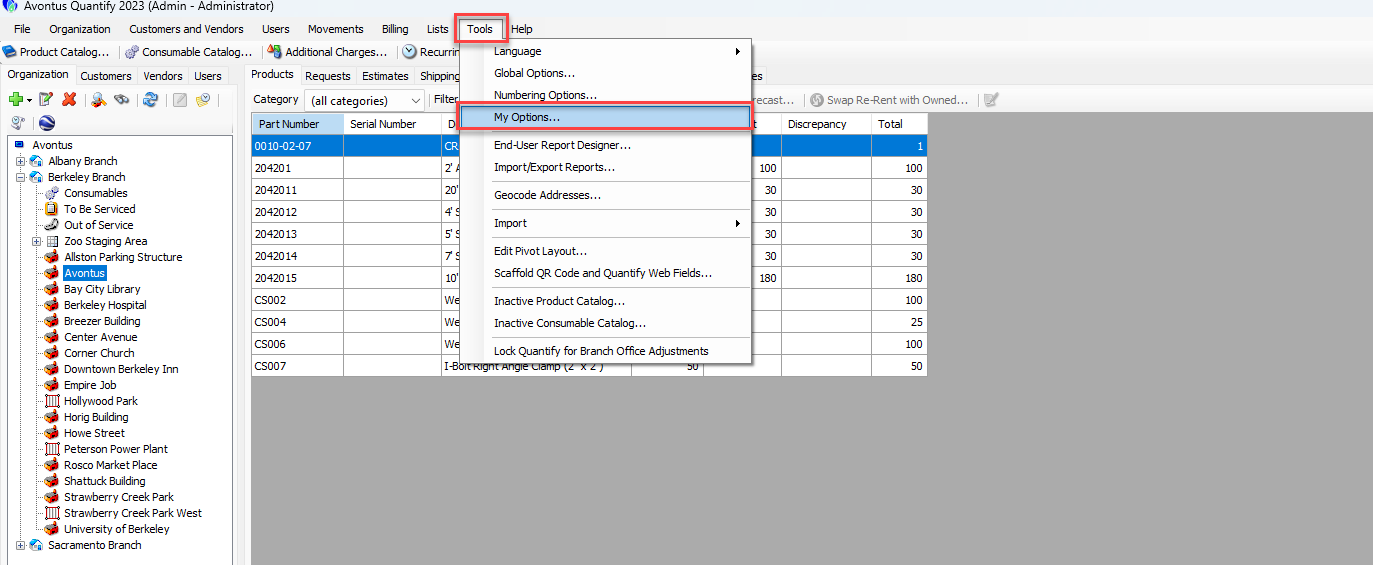
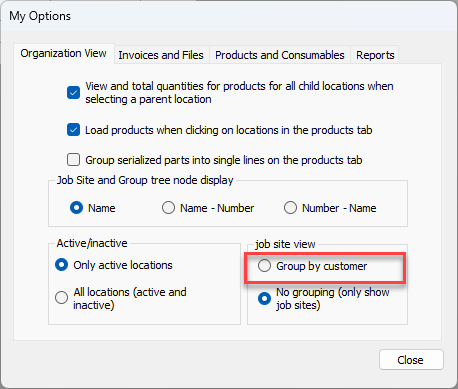
The My Options dialog appears.
Click the Group by Customer radio button.
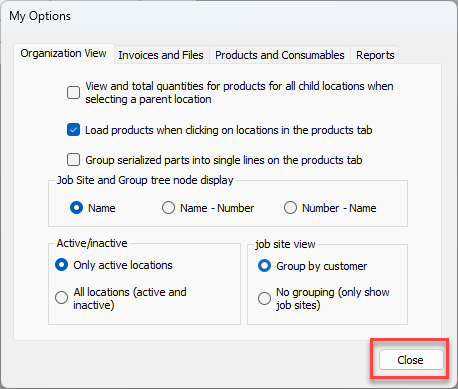
Click Close.
Click the appropriate customer in the Organization Tree then click the Invoices tab.
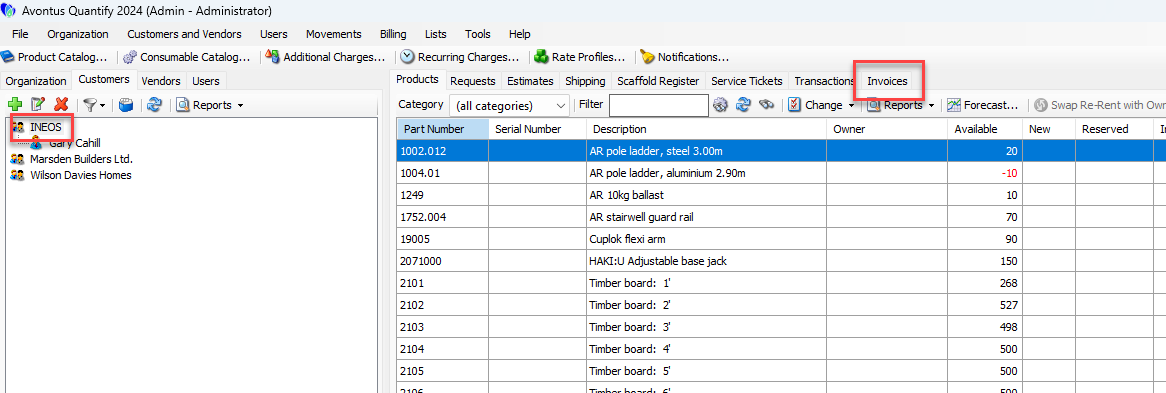
Note: This example includes jobs assigned to Posey Builders that exist under the Berkeley Branch Office only.
Click the Reports dropdown and select Rent Extension Pivot.
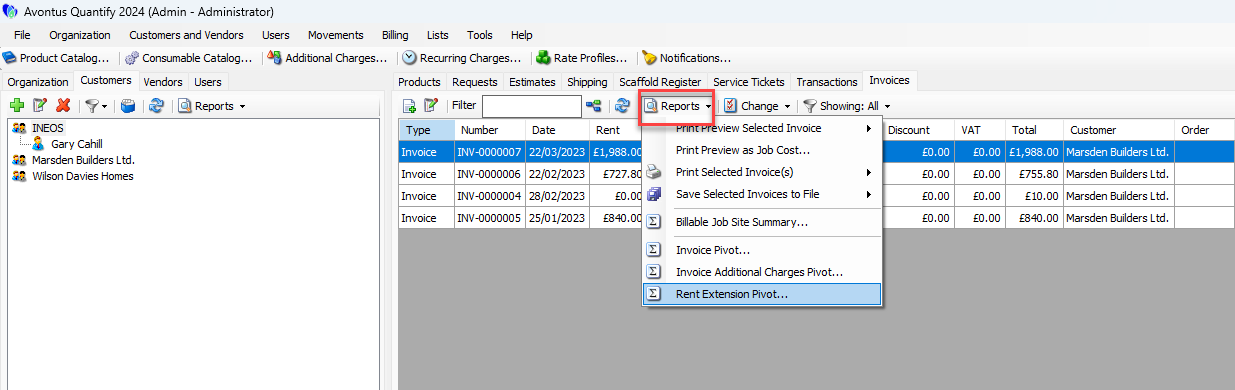
The Rent Extension pivot report for the selected customer appears.Click the Calculate Rent To calendar icon (
 ).
).
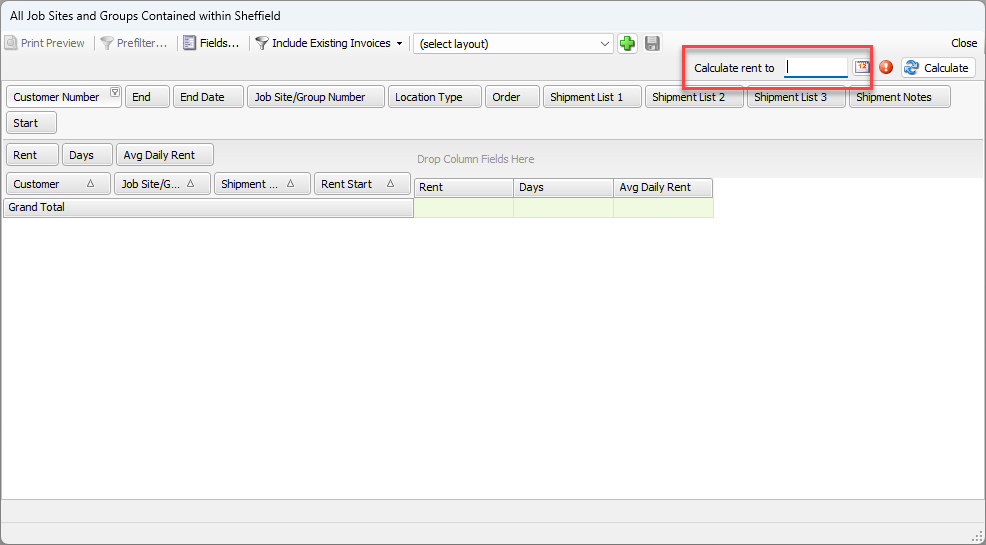
A calendar appears.
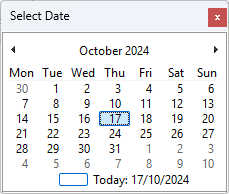
Locate and click the appropriate date.
Click Calculate.
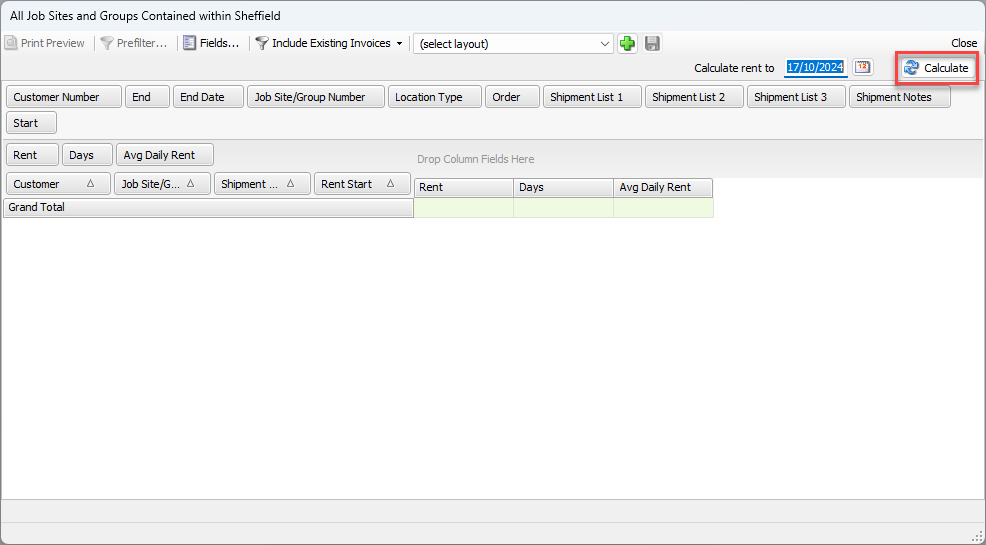
Quantify populates the pivot with projected rent charges for Job Sites assigned to the selected user (under the selected Branch Office location) up to the selected date with a total at the bottom.