On a column heading of a Leg Loads table, you can filter content from that column by clicking the key icon.
Note: You will need to hover the cursor over the column heading to reveal the key icon.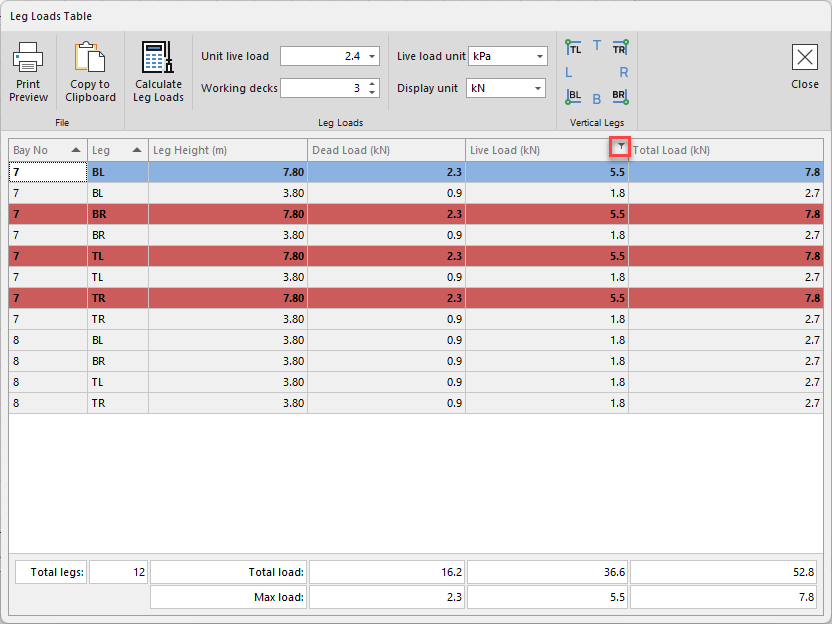
You can specify between Numeric Filters and Values.
Values
You can filter the value range by clicking and dragging the marker along the slider.
Note: You can also enter a number in the text box.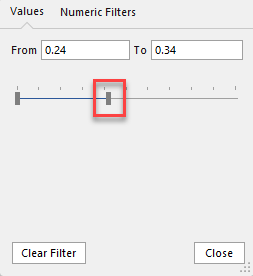
The content within the Leg Loads table to filter out any values below the From amount.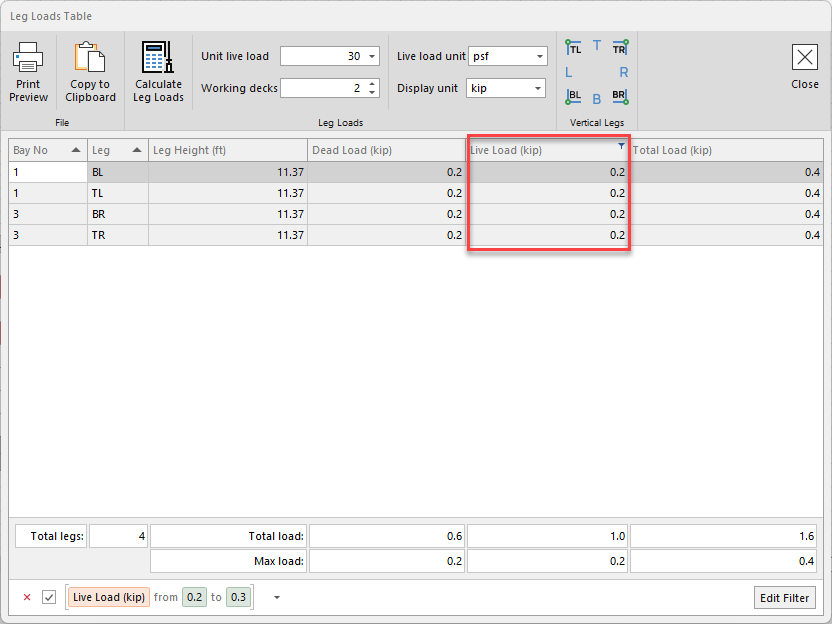
Numeric Filters
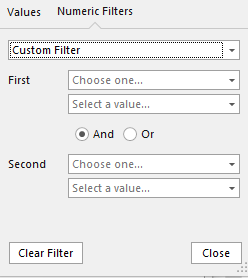
The Numeric filter tab allows you to filter out data depending on the formula specified.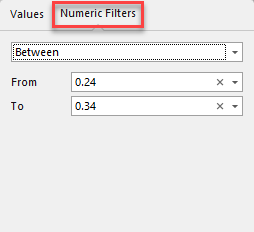 You can filter by
Equals
Only display results equal to the specified amount.
Does not Equal
Only display results not equal to the specified amount.
Between
Only display results between the specified amounts.
Greater Than
Only displays results greater than the specified amount.
Greater Than or Equal To
Only displays results greater than or equal the specified amount.
Less Than
Only displays results less than the specified amount.
Less Than or Equal To
Only displays results less than or equal the specified amount.
Top N
Only display the top results equal to the specified amount.
Top B
Only display the bottom results equal to the specified amount.
Above Average
Only display results greater than the average figure.
Below filter
Only display results less than the average figure.
Custom Filter
The custom filters allow you to combine multiple filters using the and/or functions.