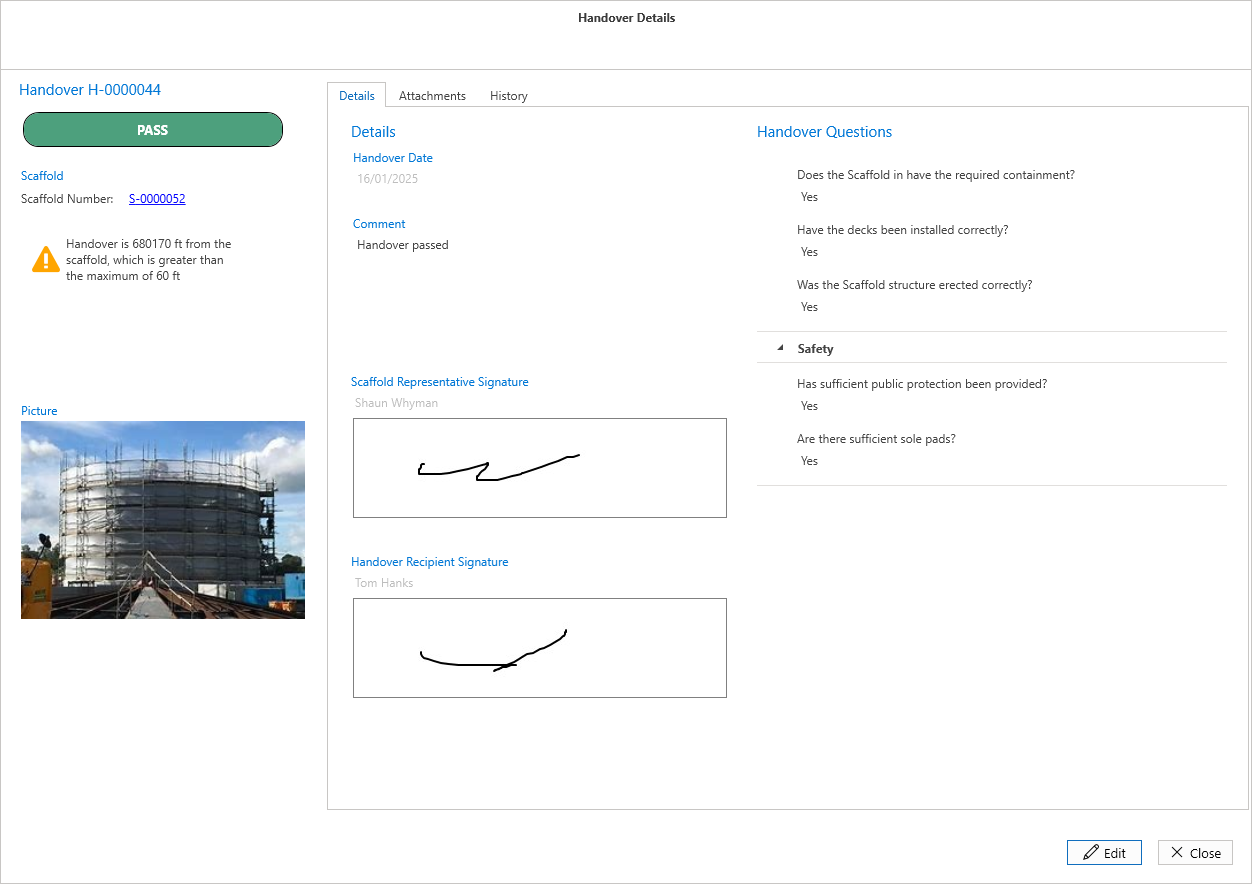
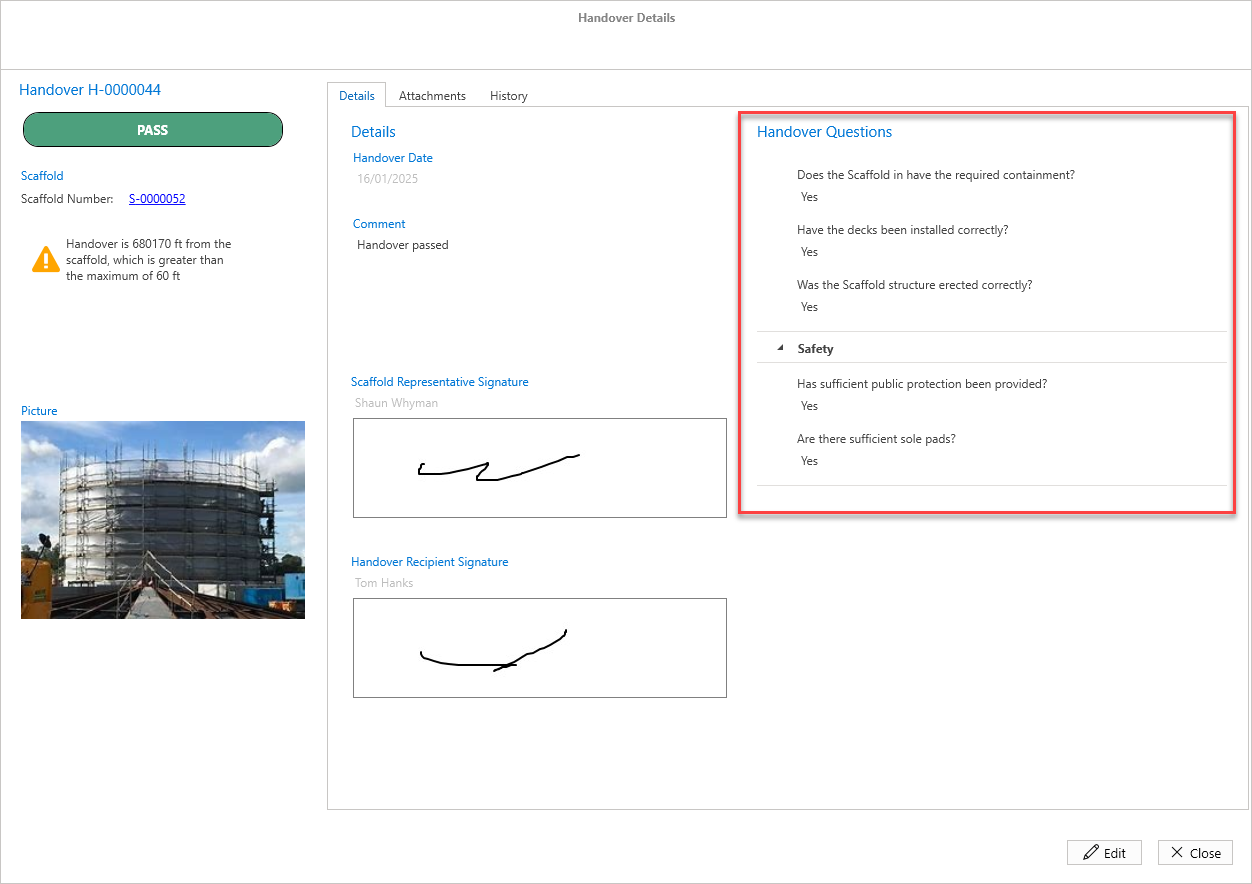
The Handover Details dialog screen displays the Handover information, including comments added during the Handover of the scaffold. These comments could detail why the Handover failed, for example.
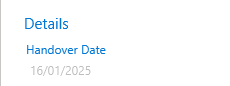
Handover Date
The Handover Date is the date the handover was completed.
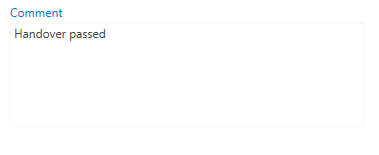
Comment
A comment is a note added by a user that relates to the Handover, explaining it has been passed or why it failed.
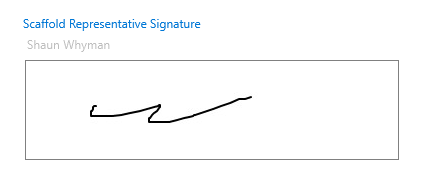
Scaffold Representative
This will be the signature of the Handover Representative.
A user’s permissions (set in the People section) determines if they are selectable as a representative.
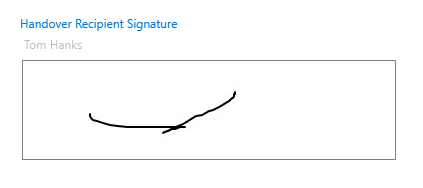
Handover recipient signature
This will be the signature of the Handover Recipient.
Note: Handover Recipient MUST be a paid user.
Handover Questions
These are questions answered by the Scaffold Representative or the Handover Recipient during the Handover of this scaffold.
For more information on Handover Questions, please visit the Custom Properties guide.
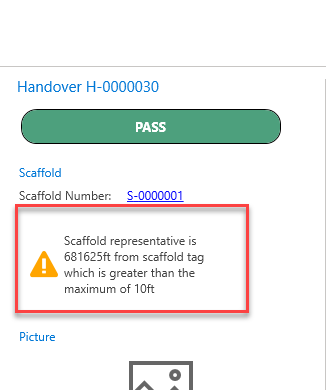
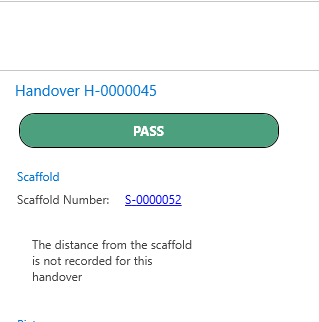
Some Handovers may display a warning if the user performing the Handover exceeded the maximum distance from the scaffold being handed over. This value can be configured in the Global Settings screen. If the distance is exceeded, a warning will appear under the Scaffold Number.
If a maximum distance is not set, you will see a message stating that the distance from the scaffold is not recorded.
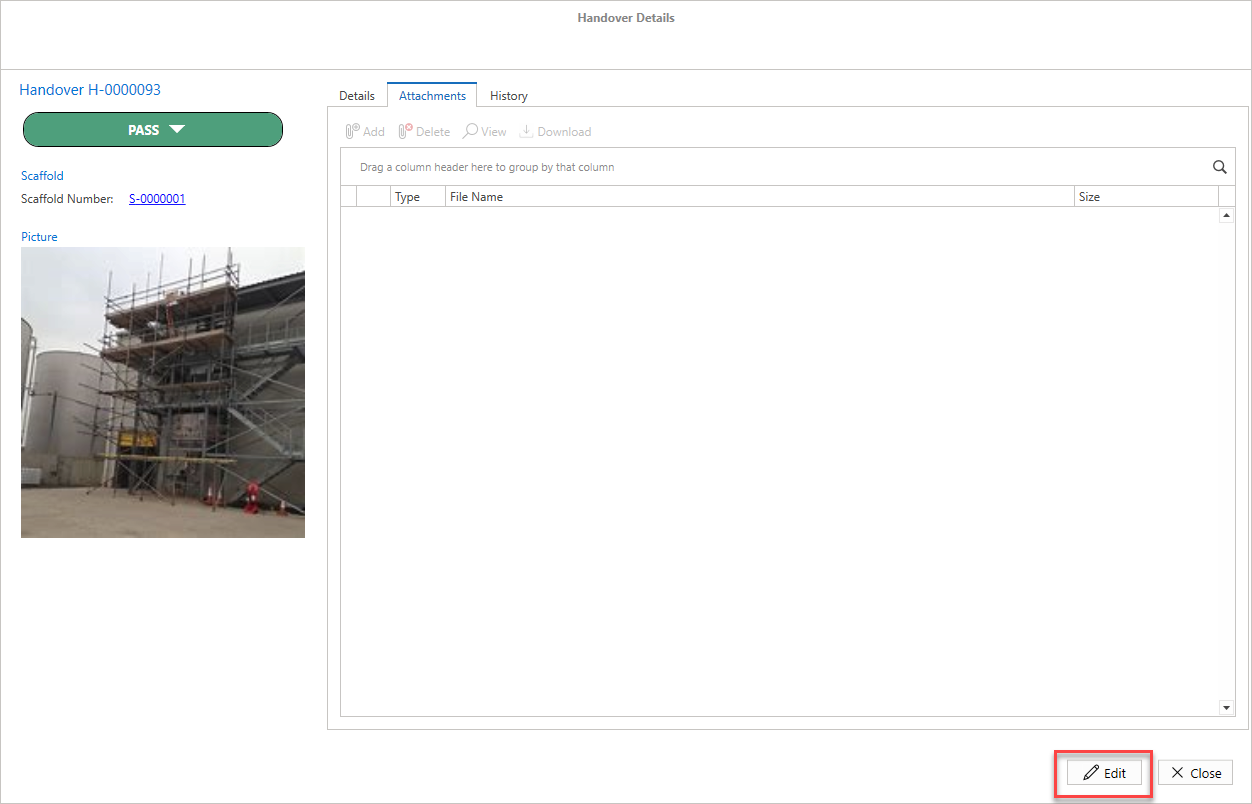
Attachments
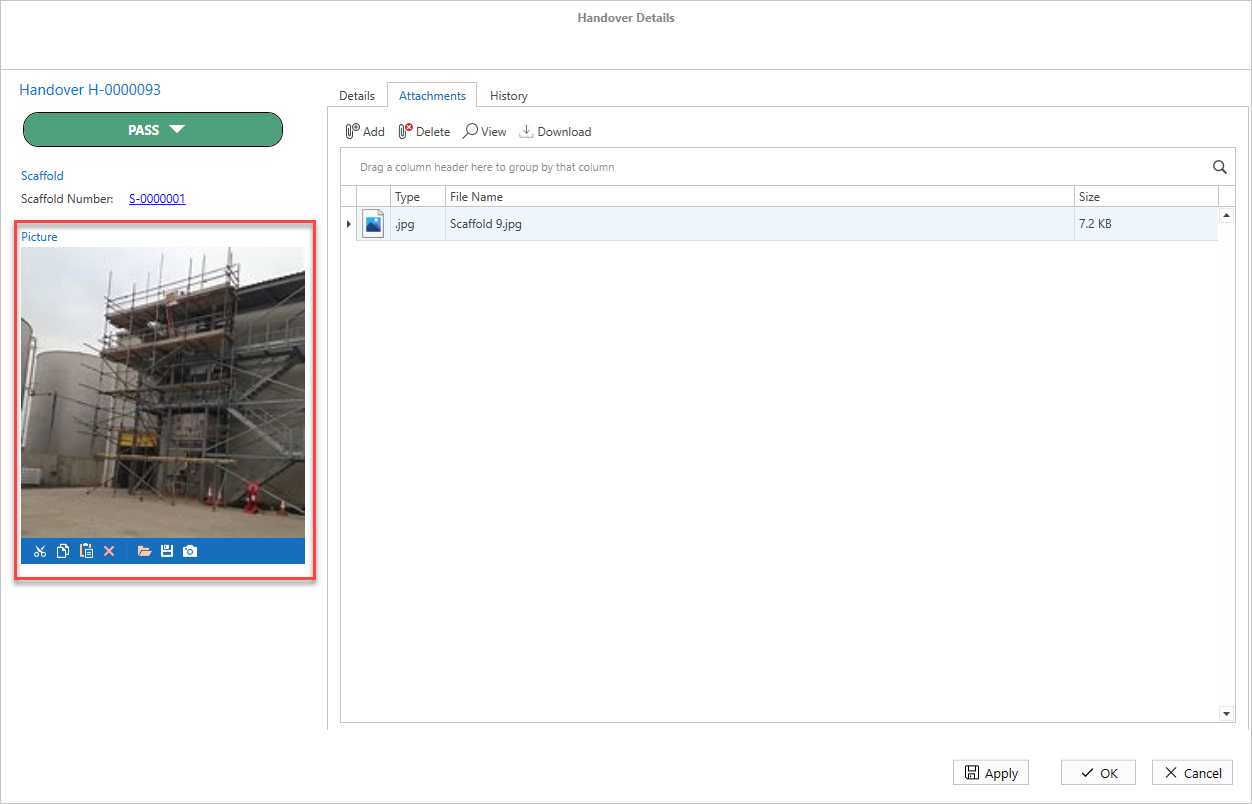
The Attachments tab is for adding any related documents to the Handover, such as an image of the scaffold.
Click Edit to add or delete files.
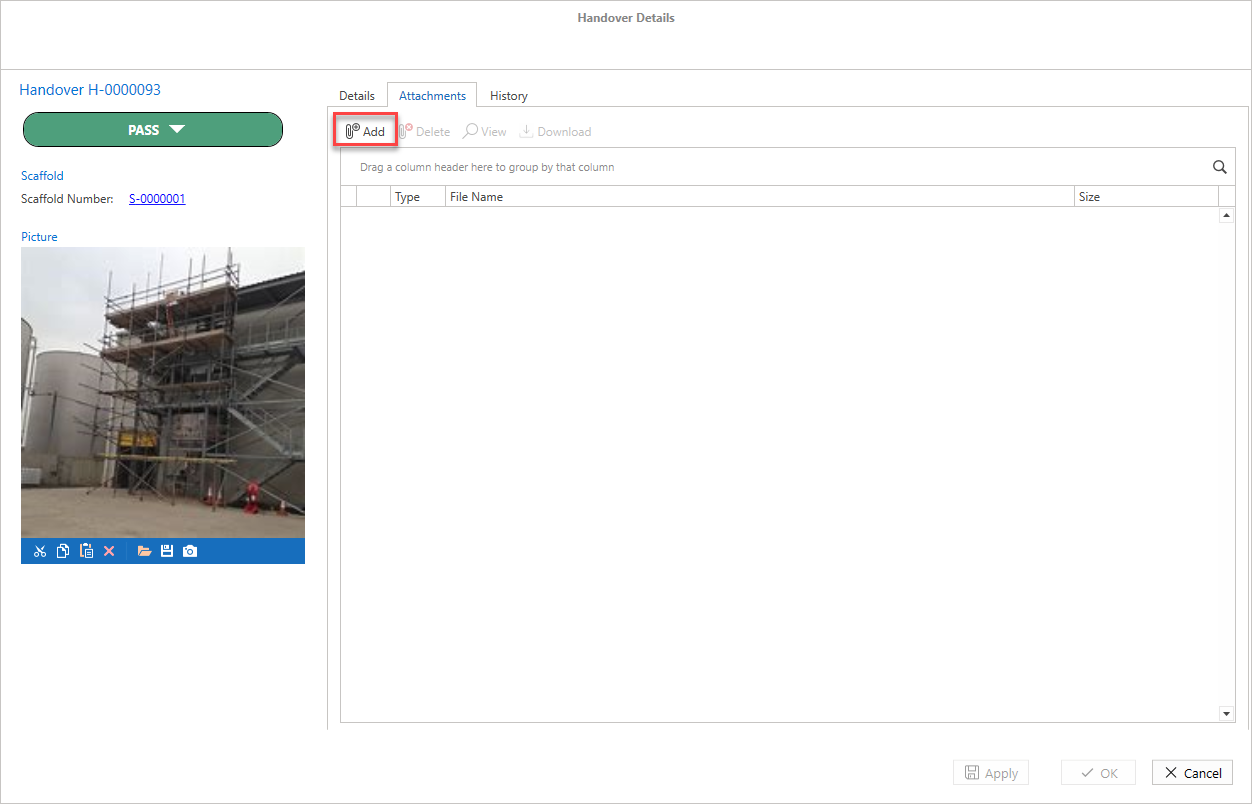
The Add and, if there are files, Delete buttons will become available.
To add a file, select the Add button and then select the file to add.
To delete a file, click on the file to be deleted then click Delete.
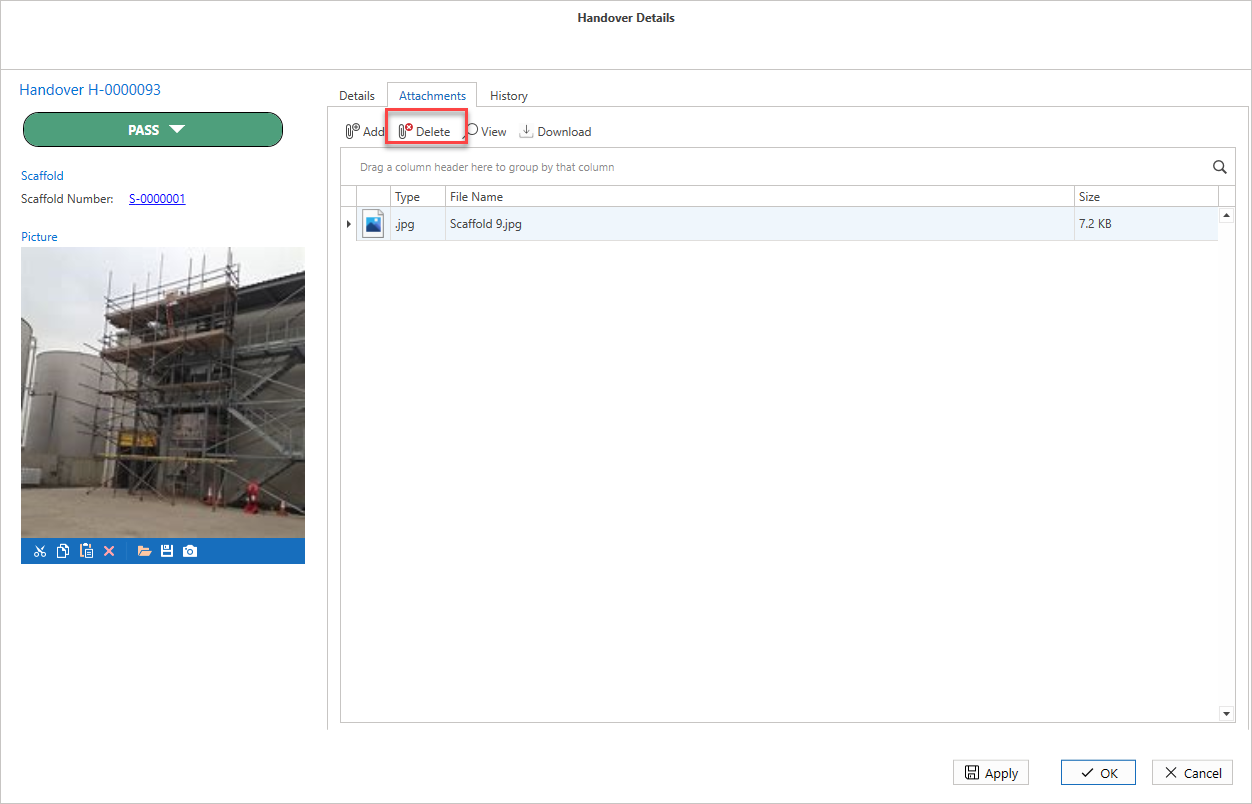
You can also add and delete a picture of the Scaffold.
Select  to delete the image and select
  to add a file.
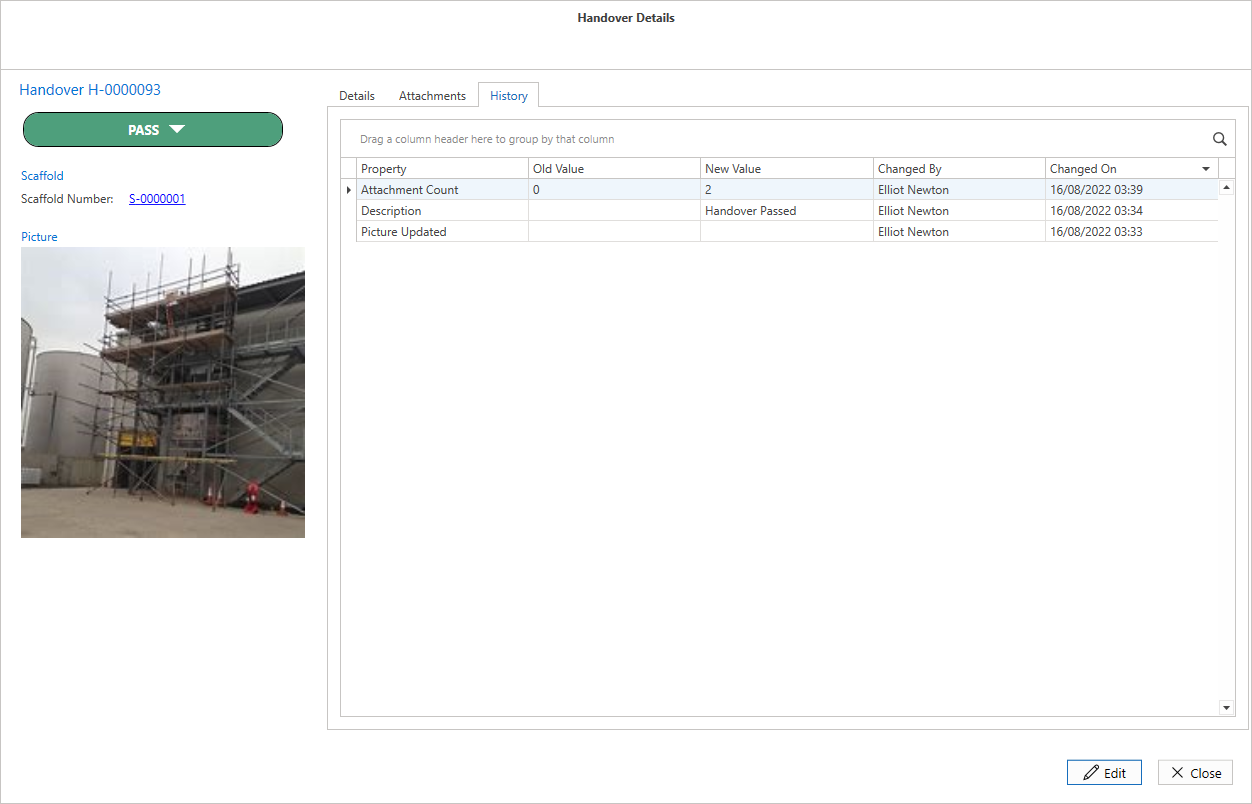
History
The History tab provides an overview of the Handover's history, such as newly added attachments.