My computer crashed while I was working on my drawing! How do I find my auto-saved drawing files?
Answer:
After a crash, you can easily find the last auto-saved drawing file for the drawing in your default drawing folder.
To find your auto-saved drawing files:
- As necessary, launch Avontus.
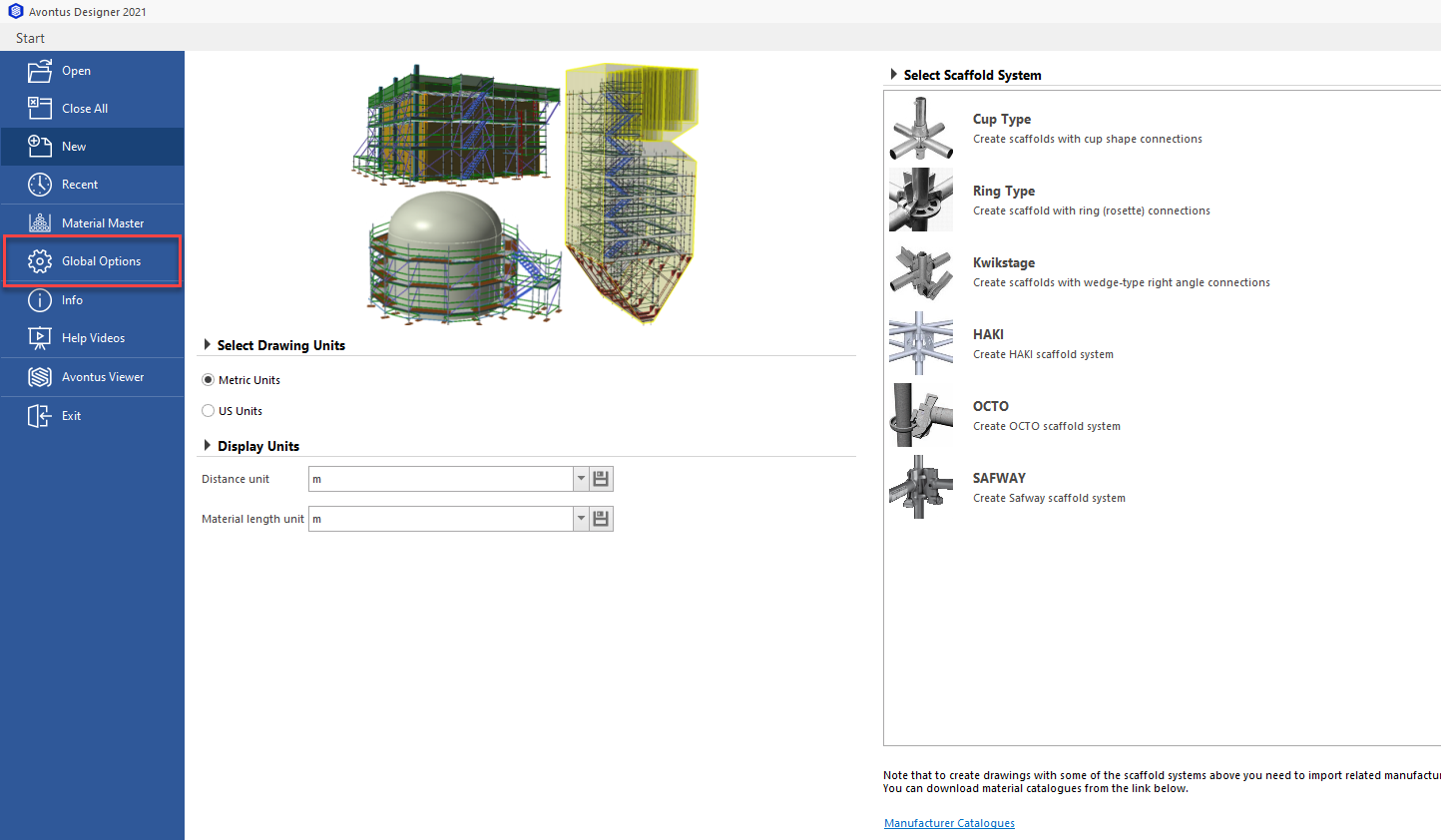
The Backstage appears with the New option selected. - Click Options.
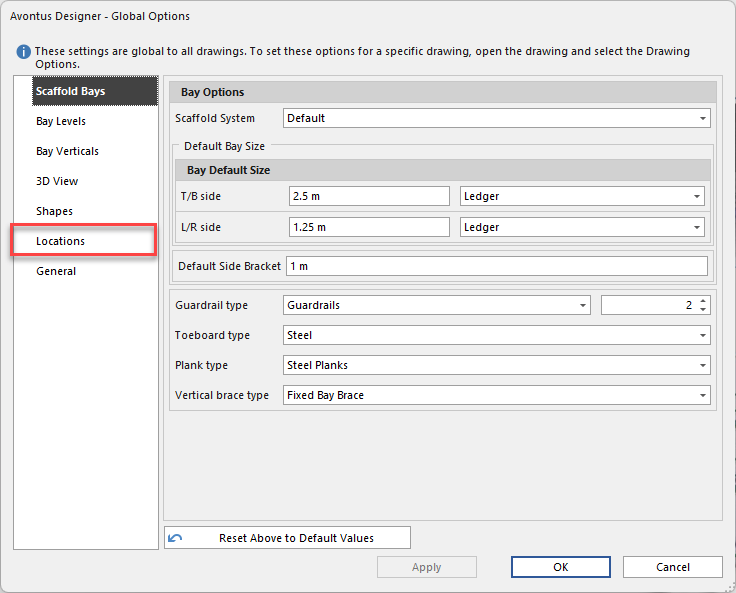
The Options dialog appears, with the Scaffold Bays tab pre-selected. - Click the Locations tab in the Avontus Options dialog.
The Avontus Options dialog refreshes, displaying default file location options. - Look in the Drawings Folder text field to learn where Avontus auto-saves your drawing files.
Note: You can change the default locations in this tab at any time.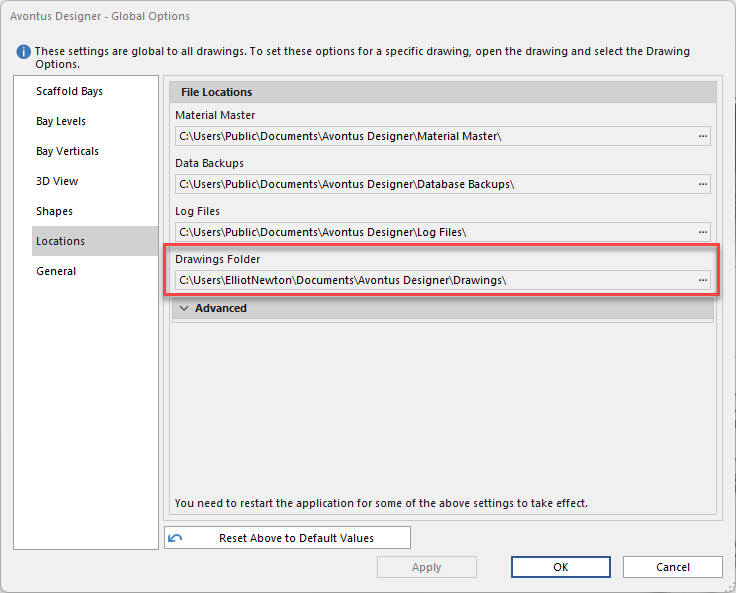
Once you have found your default auto-save location, you can open the latest auto-saved version of a drawing. - Launch a File Explorer window and navigate to the folder into which Avontus auto-saves your drawing files.
- Locate and double-click the auto-save file to open it in Avontus. (The auto-save file name ends in .A$V.vsdx.)
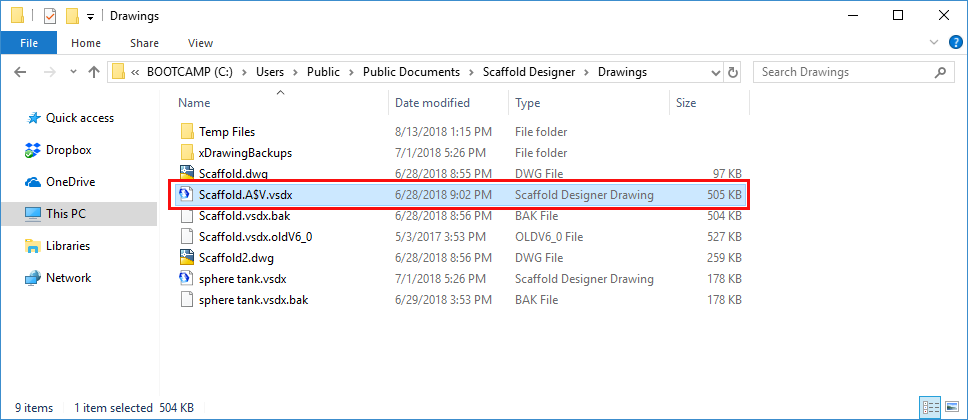
Note: You can also open the drawing with the Open button in the Backstage above.
To learn how to adjust the frequency with which Avontus auto-saves your drawings, refer to Setting Default General Options.