You can import Job Sites into Quantify from a Job Site template. During the import, Quantify adds the customer to the database, if the customer doesn’t already exist. The new Job Sites will default to non-billable, but you can easily change them to billable.
You should be able to find the required Excel template here: C:\Program Files\Avontus\Quantify Client\Catalogs\Jobsite Import.xls. Enter the appropriate information and and save it as a tab-separated text file and use that for importing. If you do not have the template, contact support@Avontus.com and we will be happy to provide it.
To import a Job Site:
Click the location into which you want to import the Job Site. and select Tools.
In the Tools menu and select Import Job Sites from the Import sub-menu.
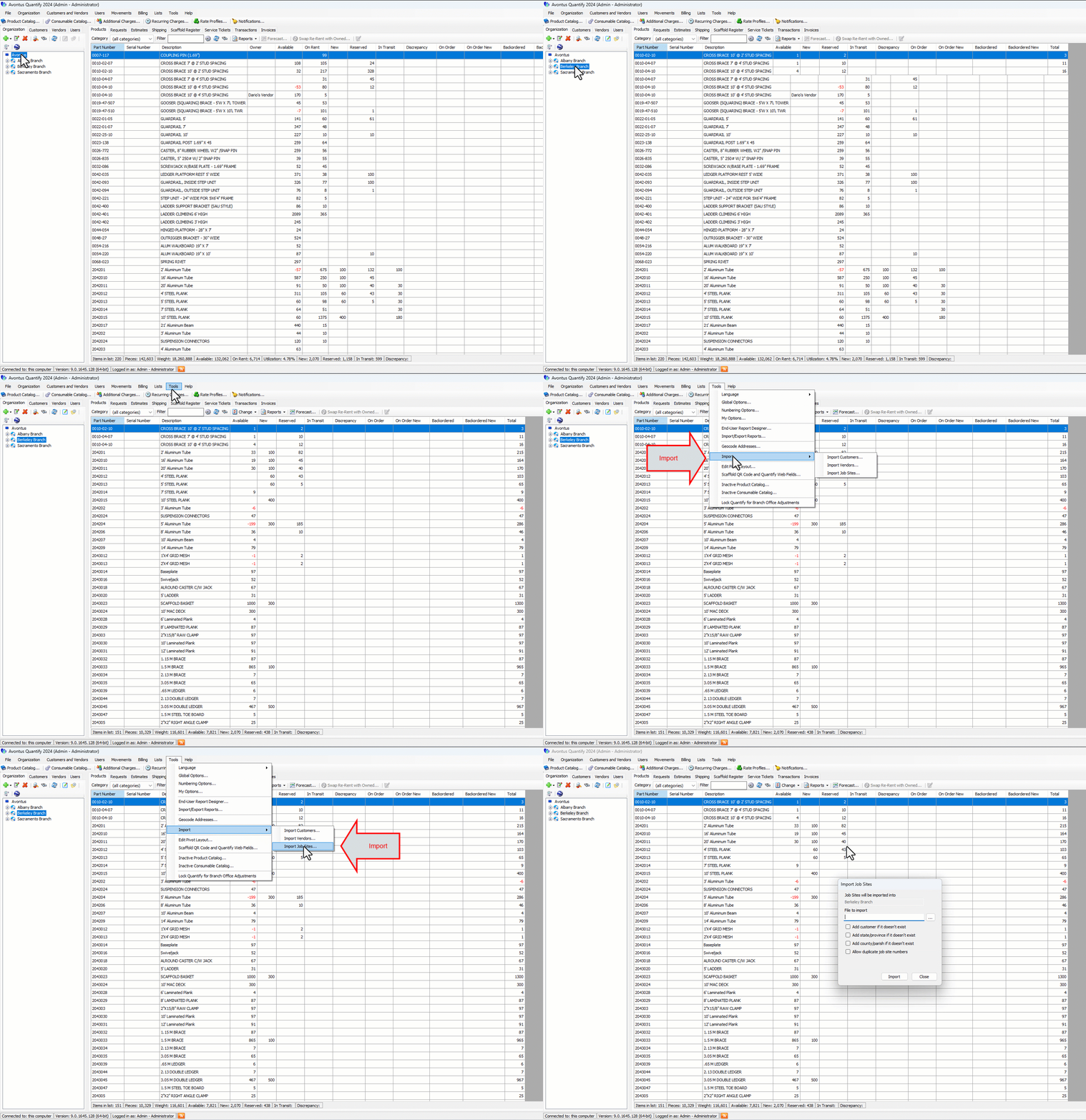
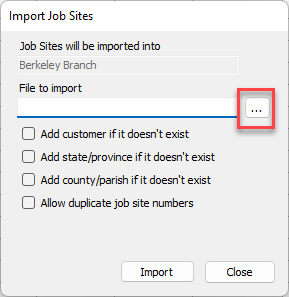
The Import Job Sites dialog appears.Click the Browse button (…)
The Import from Tab Delimited File dialog appears.
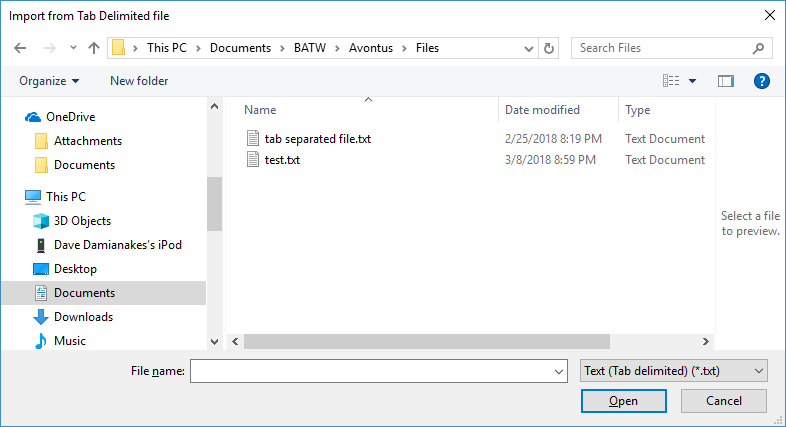
Navigate to the folder that contains the the file you want to import, click the file and click Open.
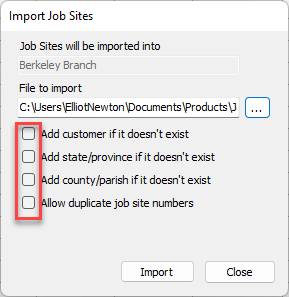
The Import Job Sites dialog returns.Click the appropriate Options checkbox(es).
Click Import.
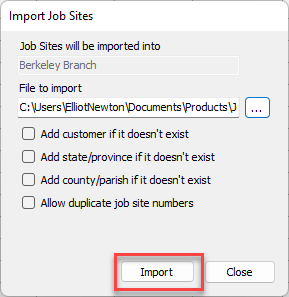
Quantify processes the import and adds the new Job Site(s) to the tree beneath the selected location.
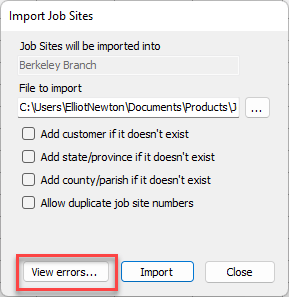
Note: If errors occur, you can view them by clicking View Errors. This button is only available if Quantify encounters errors during the import process.