When Quantify synchronizes an Invoice with Xero, the original Quantify Invoice is automatically added to the Related Files section of the Xero Invoice. Including the original Quantify Invoice with the Xero Invoice when printed or emailed can provide a customer with more detailed information than what is natively on the Xero Invoice. To include a Quantify Invoice with a Xero Invoice, follow the steps below.
To include a Quantify Invoice when printing a Xero Invoice:
1. Find the Xero Invoice within your Xero company website.
2. To the right of your Invoice identification information (To, Date, Due Date, Invoice #, Reference, and Branding) and under the Invoice Options button, click the Attachment button (  ).
).
The Attachment menu appears.
3. Under the Related Files section, click the Options button ( ) next to the Quantify Invoice PDF file and select Include with Invoice.
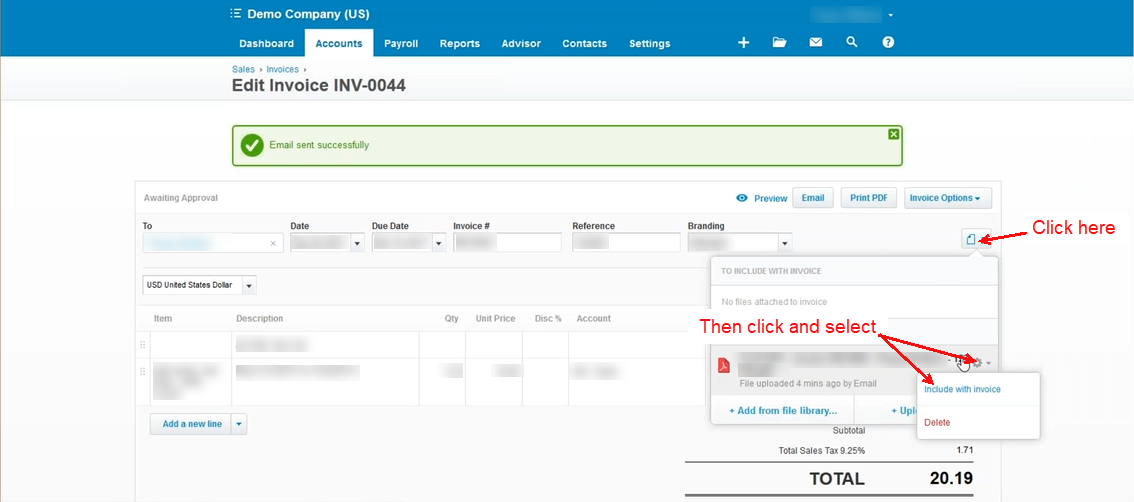
The Quantify Invoice will now be included when you print or send your Xero Invoice.