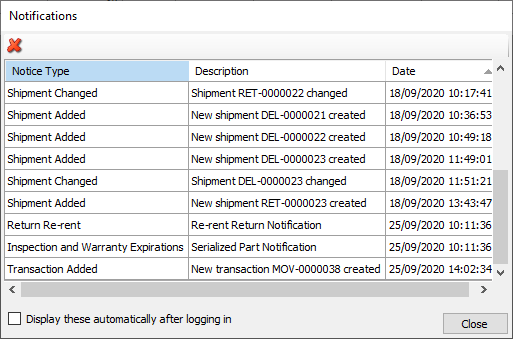
Notifications enable specific users to stay informed about changes, updates or events that occur in Quantify. In-app notifications and/or email notifications are controlled by settings in the Notifications tab in the Global Options dialog. You can set users to receive desired notifications in their user account. Users may also edit their own notification preferences.
Before you work with Notifications, they must be enabled in the Notifications tab in the Global Options dialog.
Viewing Notifications
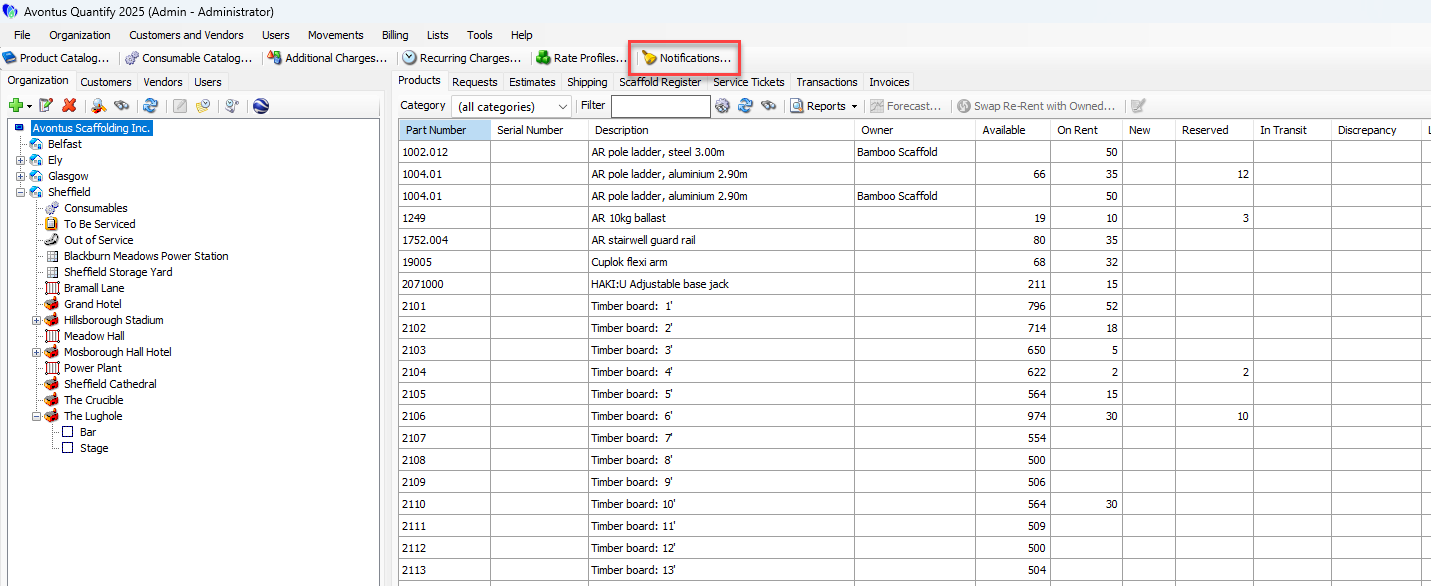
To view your Notifications, select Notifications in the toolbar.
This will display the Notifications screen, where you will see a list of changes in Quantity made by yourself and/or other users. This list will depend on what items you have selected to be notified about.
Notification Types
Notifications can be triggered by a user action, login or other event.
Action-Triggered Notifications
Quantify emails these notifications and/or adds them to the active notifications list once a user action (like saving a record) is completed.
Estimate Added
Estimated Changed
Estimated Deleted
Reorder Point Reached
Note: The user completing the action may not receive a notification if the Do not send a notice to the user that caused the notification checkbox is checked in the Notifications tab of the Global Options dialog.
This notification is triggered when a shipment occurs that causes the available balance of an item to fall below the reorder points configured for the item in the Product Catalog or Consumables Catalog.
Return Re-rent
These notifications inform you when you could return re-rented equipment. The notification is triggered when a shipment (RET) of re-rented material causes balances of Re-Rent at the Branch Office or Sub-Branch to be more than owned, available balances.
Request Added
Request Changed
Request Deleted
Shipment Added
Shipment Changed
Shipment Voided
Transaction Added
Transaction Changed
Transaction Voided
Date (Login) Notifications
Quantify emails these notifications and/or adds them to the active notifications list upon user log in after the specified dates have passed.
Inspection and Warranty Expirations
This notification is triggered once a Product is overdue for inspection or a warranty has expired based upon the next inspection date and/or warranty expiration date for a specific serial number. This feature is only available for serialized assets.
Scaffold Inspection Due
This notification is triggered once a Scaffold is overdue for inspection, based upon the configured Next Inspection Date in the Dates and Inspections tab of the Scaffold dialog. Scaffolds with a status of Complete are excluded from this notification.
Setting Up Reorder Point Notifications
Quantify can notify users when inventory is low at a location. When the available quantity of an item falls below the reorder point quantity, the user will receive a notification that it is time to order more of the item. Email notifications include the item details and the suggested amount to order based upon the item's re-order quantity.
In Quantify Notification | Email Notification |
| |
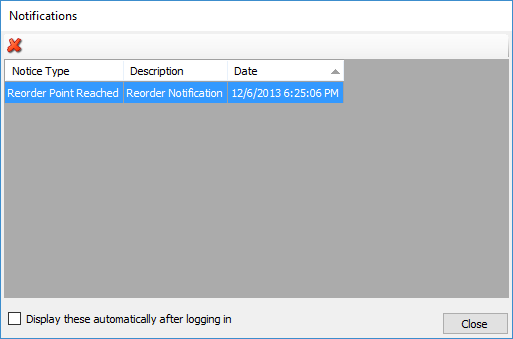
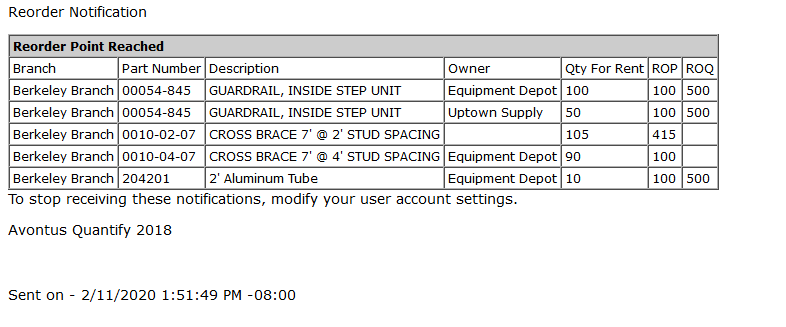
You manage this through Reorder Point Notifications.
Enabling a User for Reorder Point Notifications
Quantify makes it easy to enable a user to receive notifications when a Product must be reordered. All you need is a user and their email address.
To enable a user for Reorder Point Notifications:
Ensure notifications are enabled in Global Options.
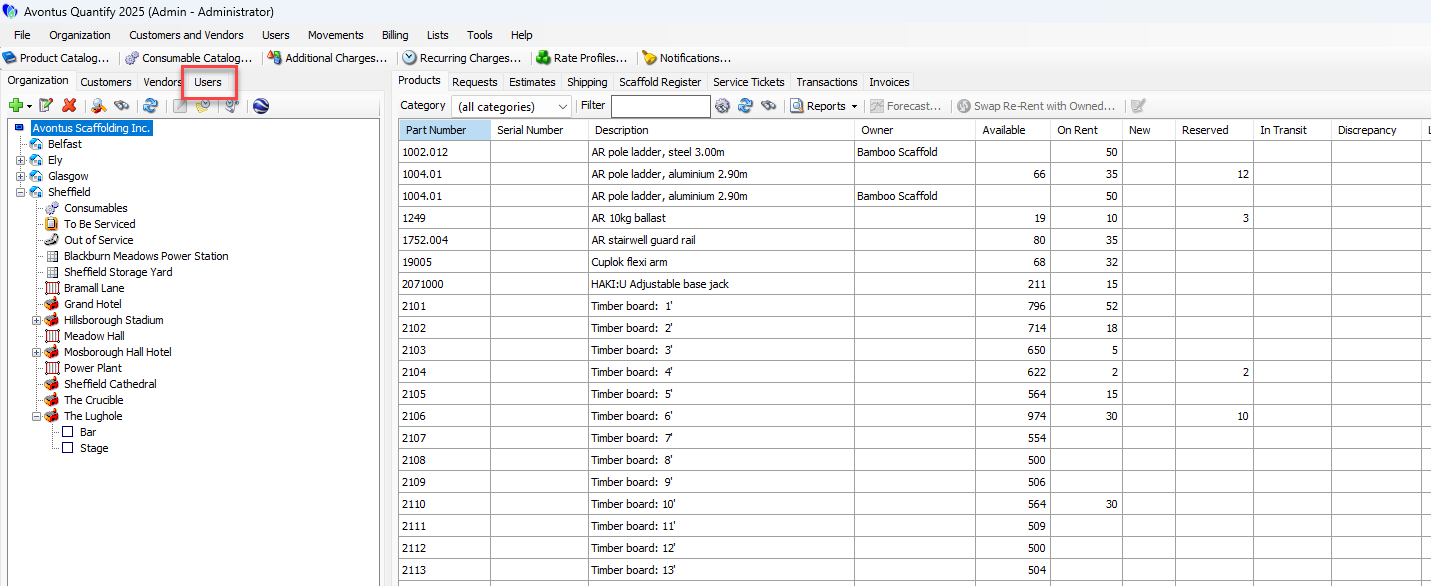
Click the Users tab.
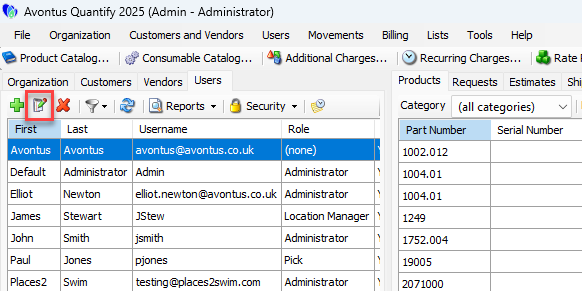
Click the appropriate user, then click the Edit User button.
The User dialog appears.Click the Reorder Point Reached checkbox, to put a check in it.
Click in the Email text field and enter the user's email address (as necessary).
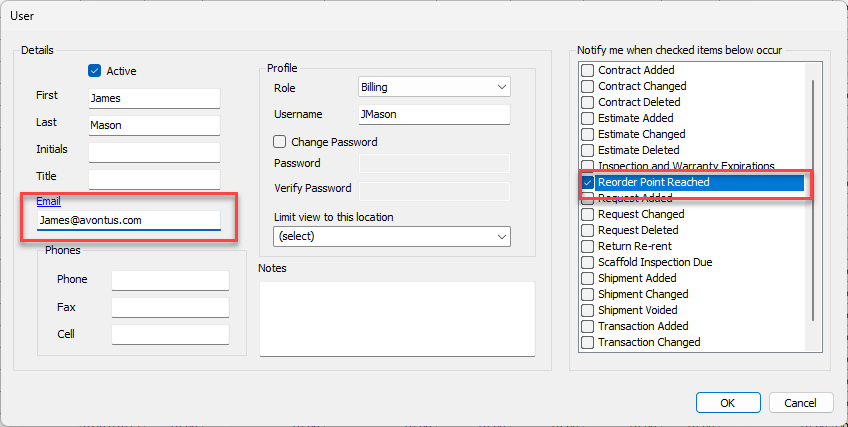
Click OK.
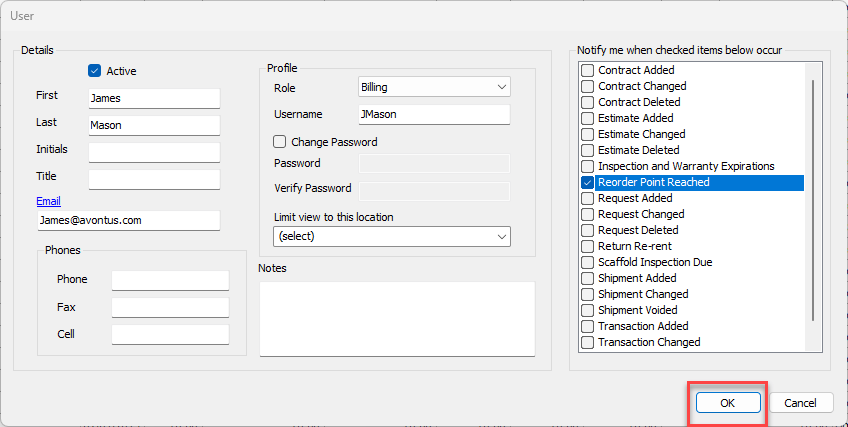
Repeat the above steps for each appropriate User.
Setting Up Reorder Points and Reorder Quantities
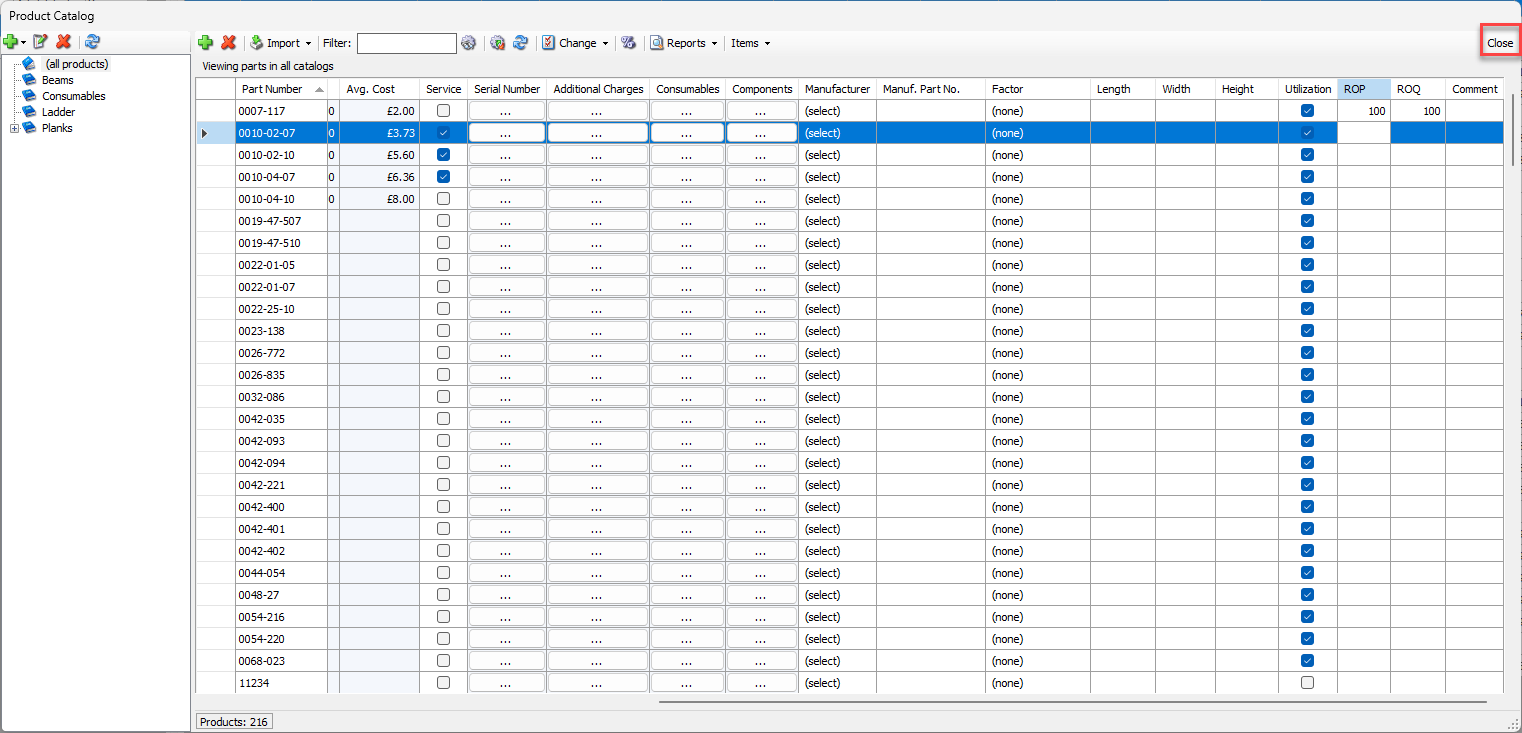
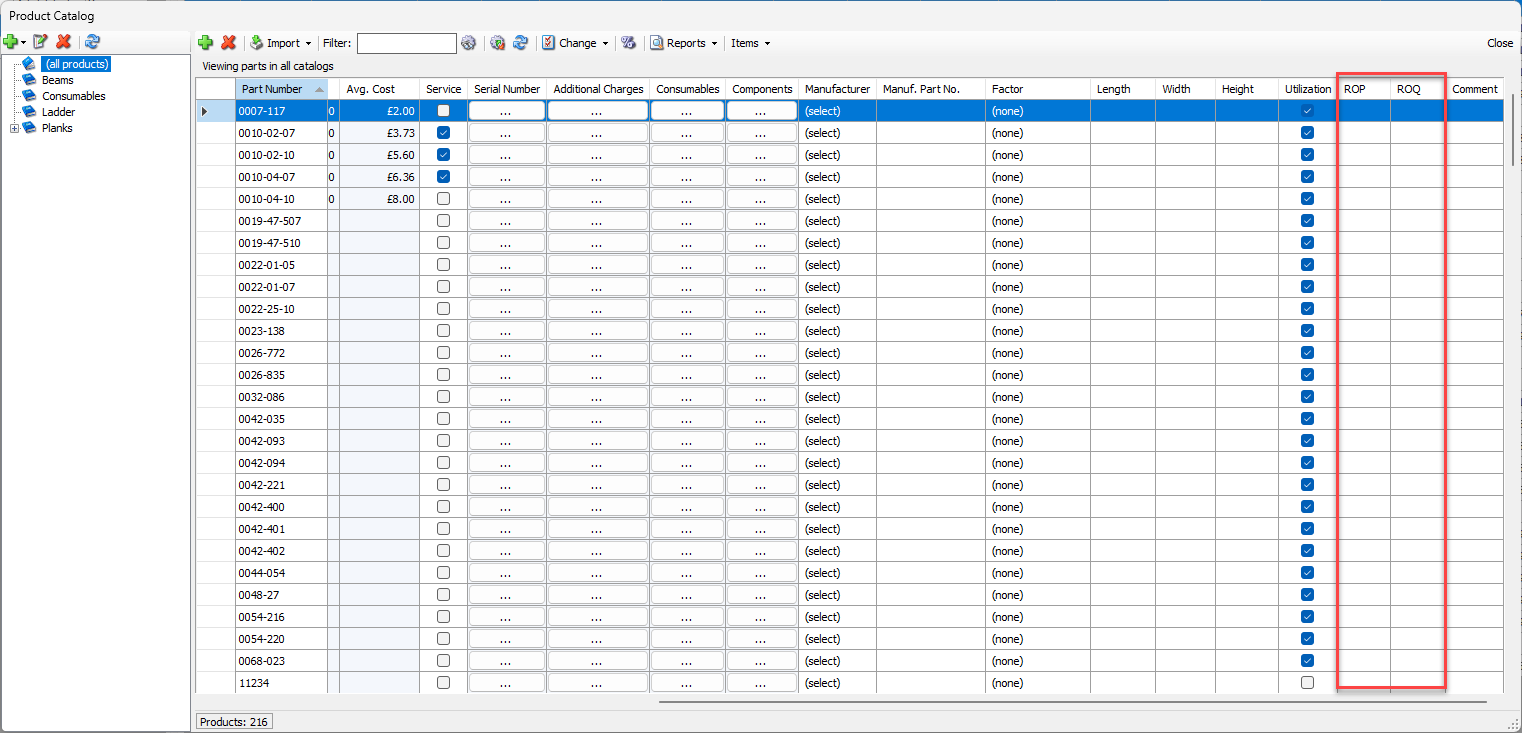
The last two columns in the Product Catalog are ROP (Reorder Point) and ROQ (Reorder Quantity). They enable you to set the reorder point for any item in the Catalog and the number to be reordered (Reorder Quantity).
To set up reorder points and reorder quantities:
Click Product Catalog.
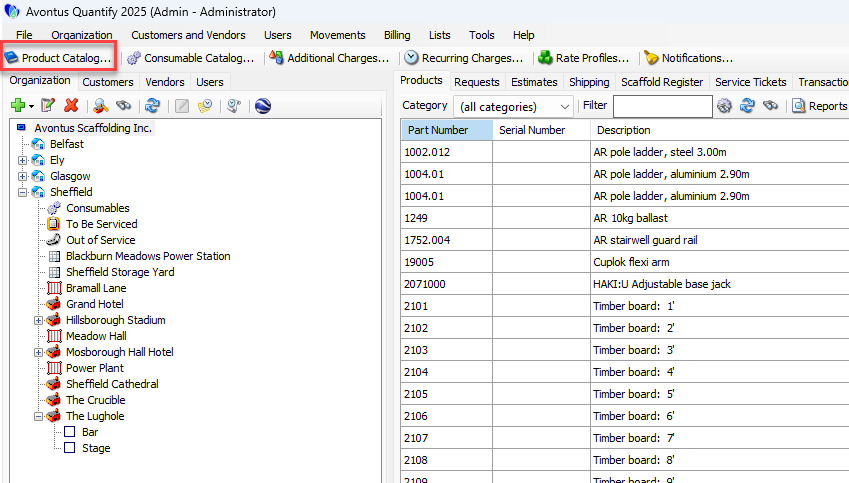
The Product Catalog appears.Locate the appropriate Product, click in the cell in its ROP column and enter the appropriate number of reorder points.
This determines the threshold at which Quantify sends notifications.Locate the appropriate Product, click in the cell in its ROQ column and enter the appropriate number of reorder quantities.
This determines the number to be reordered that appears in the notifications.
Click Close.