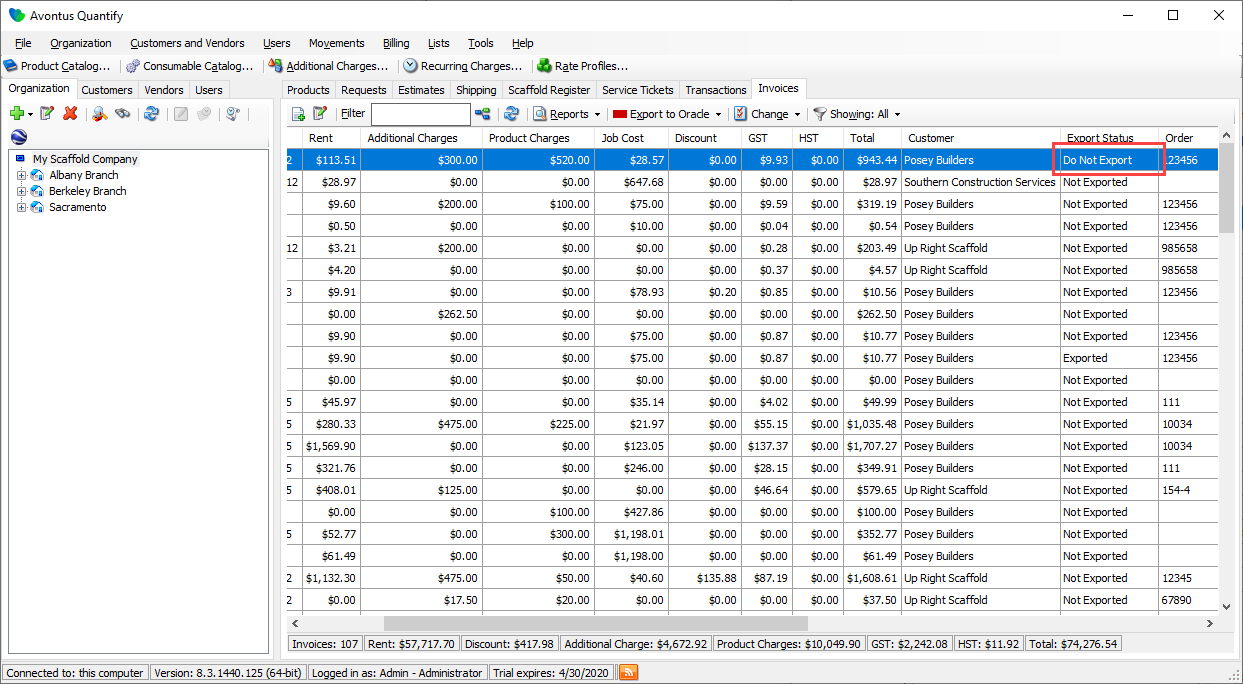
The Invoices tab enables you to quickly view those Invoices with either an Exported or Not Exported status and reset the status of selected Invoices.
Displaying Invoices that have a Specific Status
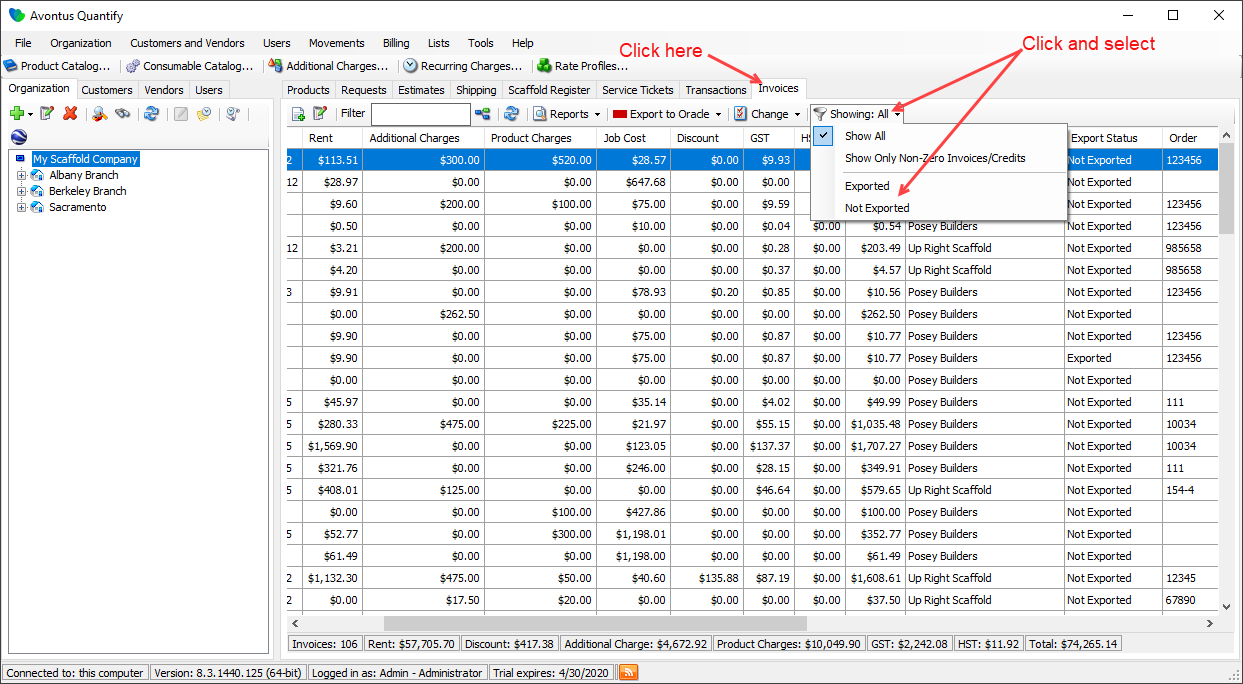
You can use the Invoices tab grid filter to only display Invoices with statuses of Exported or Not Exported.
To display Invoices that have a specific status:
- Click the Invoices tab, then click the Showing filter and select either Exported or Not Exported.
The Invoices tab refreshes, displaying only those Invoices with the status you selected.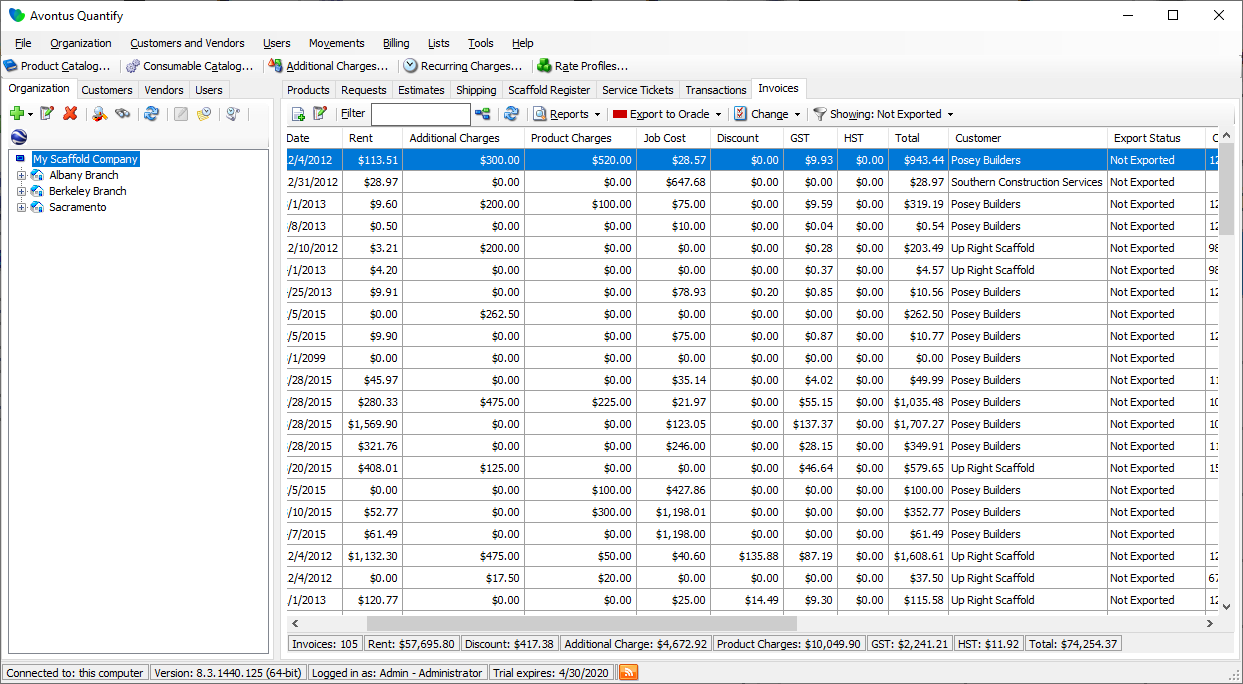
Resetting Invoice Status
Once an Invoice has been exported, Quantify displays its export status in the Invoices tab as Exported. You can use the Export to Oracle dropdown to reset the status to either Do Not export or Not Exported, if needed.
To reset Invoice status:
- Click the Invoices tab and select the Invoices having the status you want to reset.
- Click the Showing filter and select either Set Selected to 'Not Exported' or 'Set Selected to 'Do Not Export'.
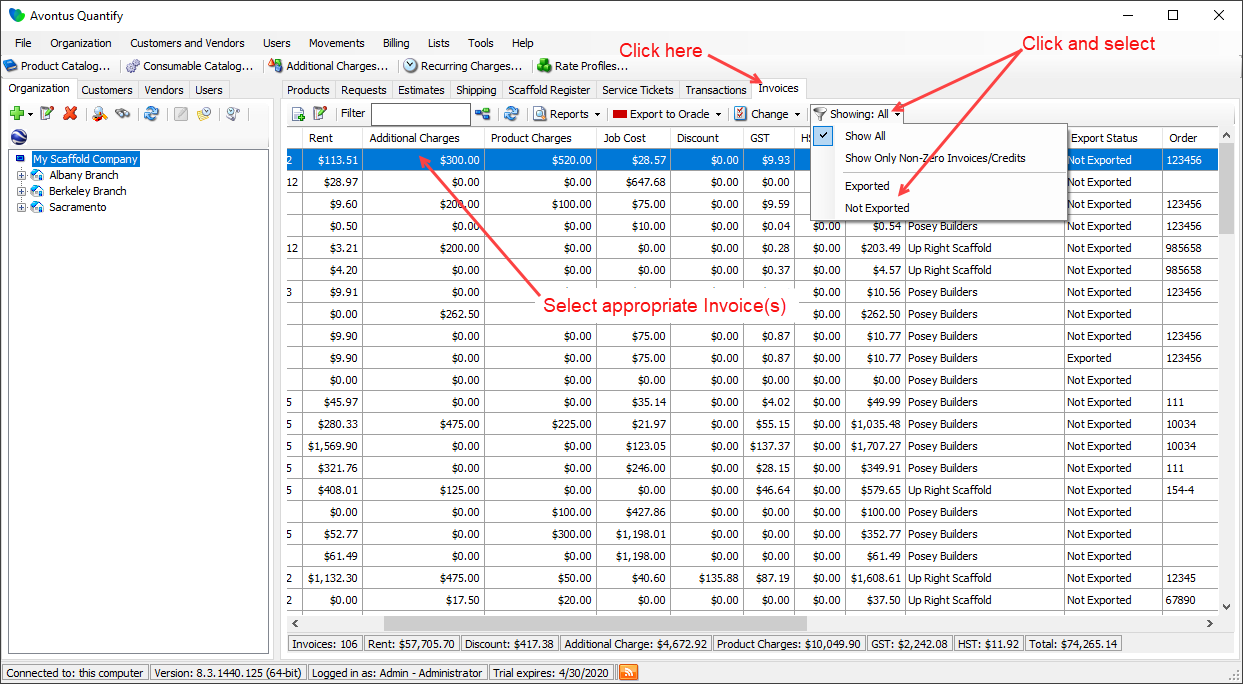
Quantify resets the Invoice status appropriately.