There are two ways to modify a scaffold. You can create a modify request or a scheduled modification. A modification request will go through the request process (like a scaffold request) and will be approved by an approver. Once approved, a scheduled modification activity will need to be created.
To create a new modification request.
- When viewing Scaffolds on the Map screen, tap the Scaffold to modify
- Tap the status
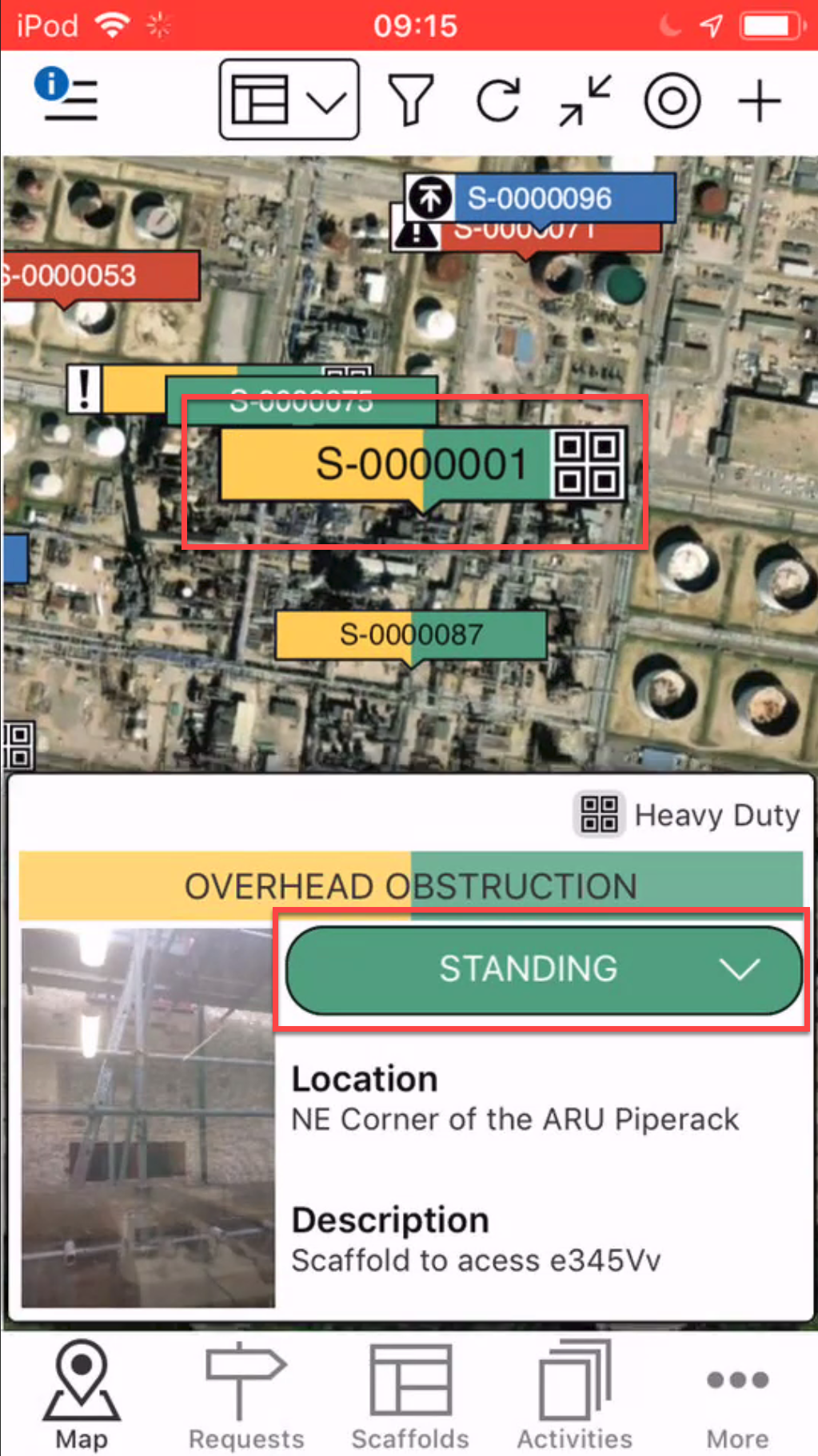
Note: You can also modify a Scaffold from the Scaffold Details screen - Tap Modify
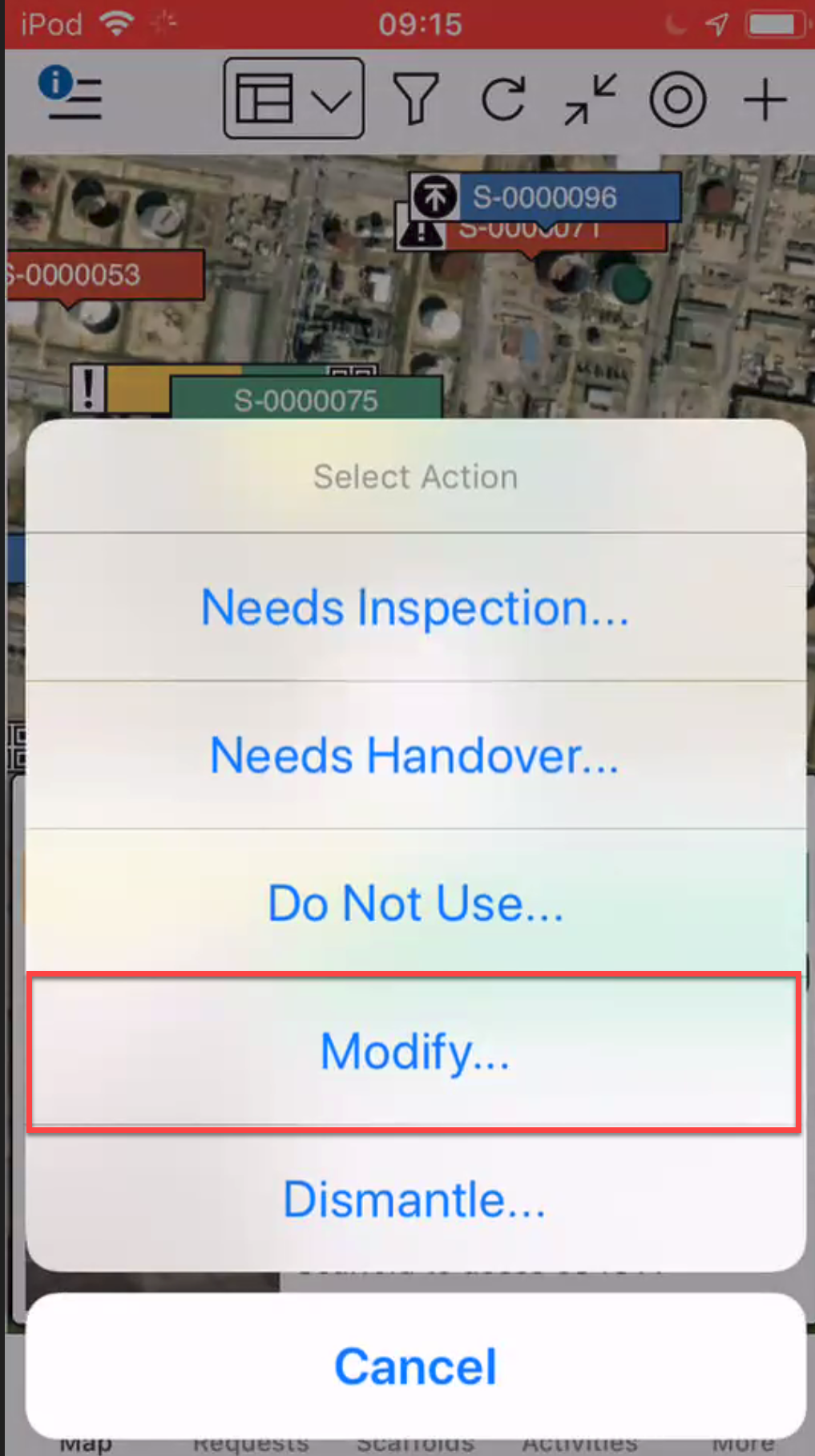
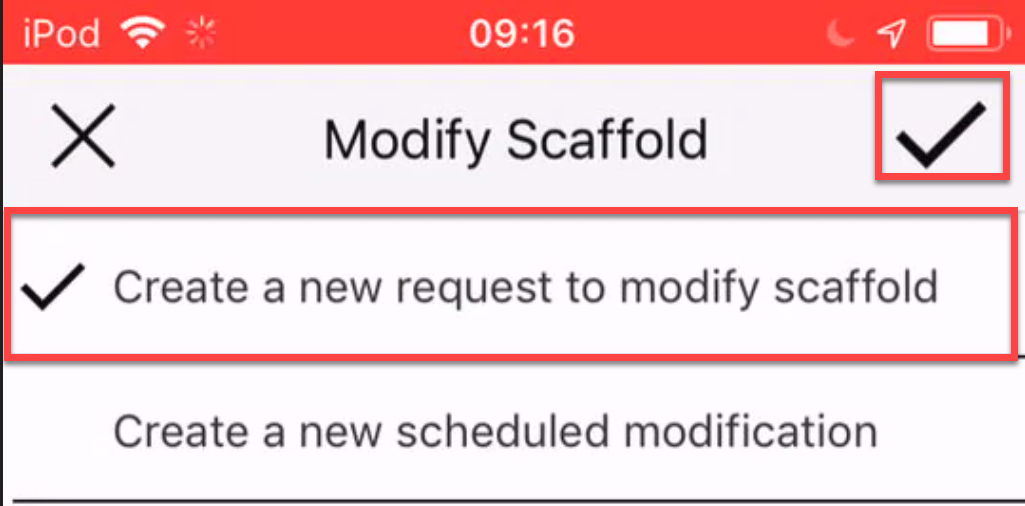
- Tap Create a new request to modify scaffold and select the tick icon
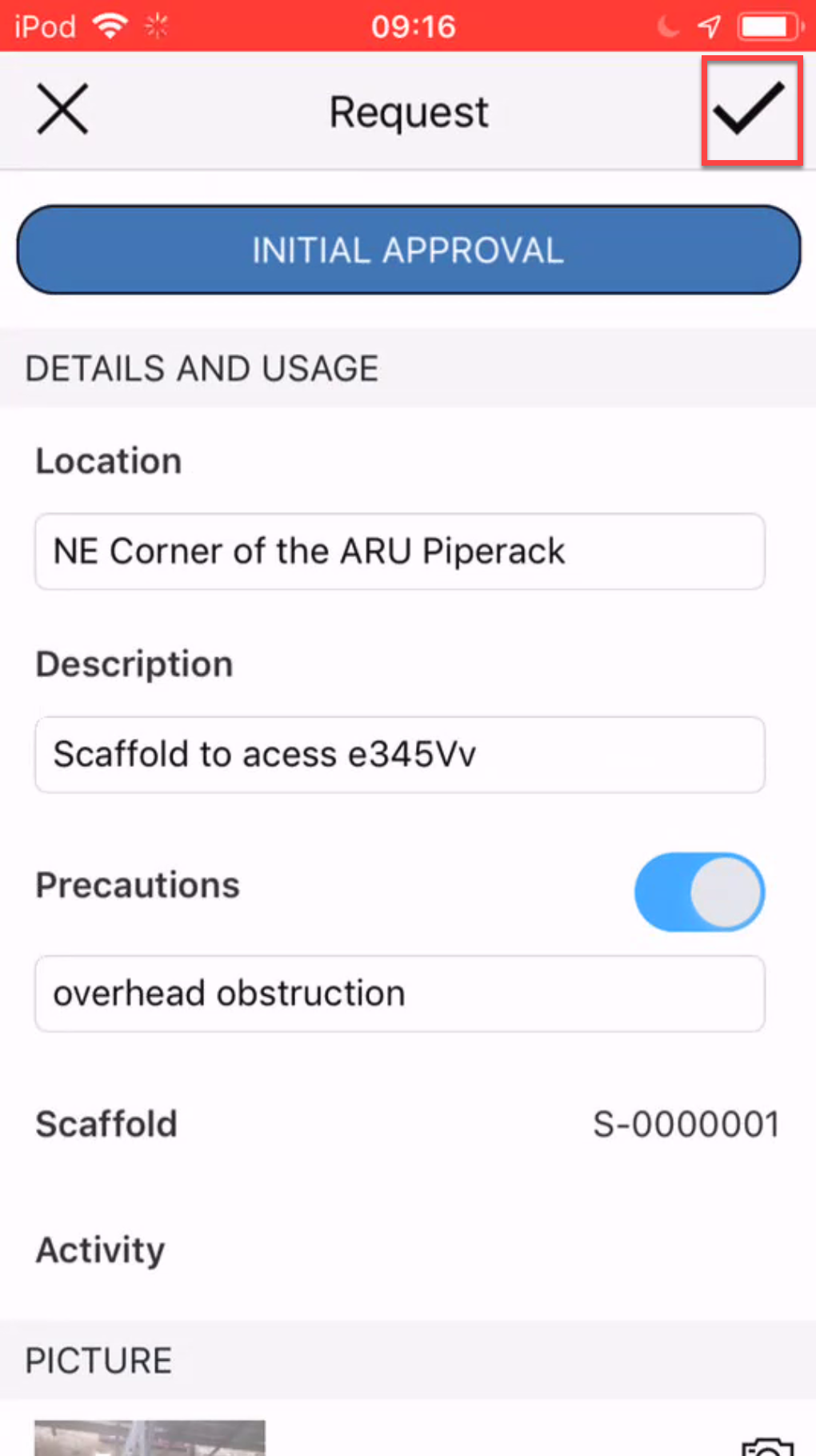
- Complete the Request and tap the tick icon
- In the Map screen, tap View
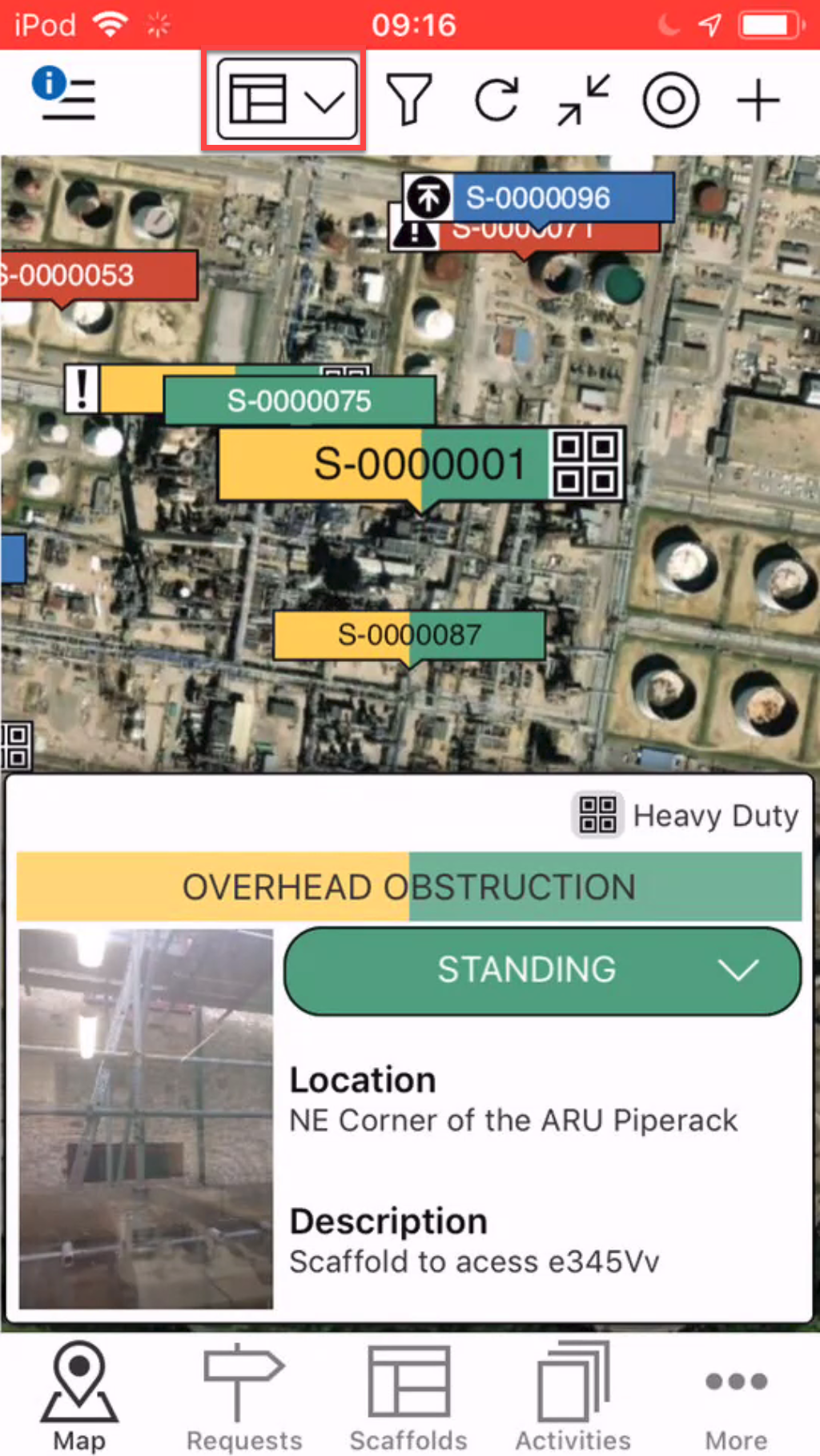
- Change to Requests
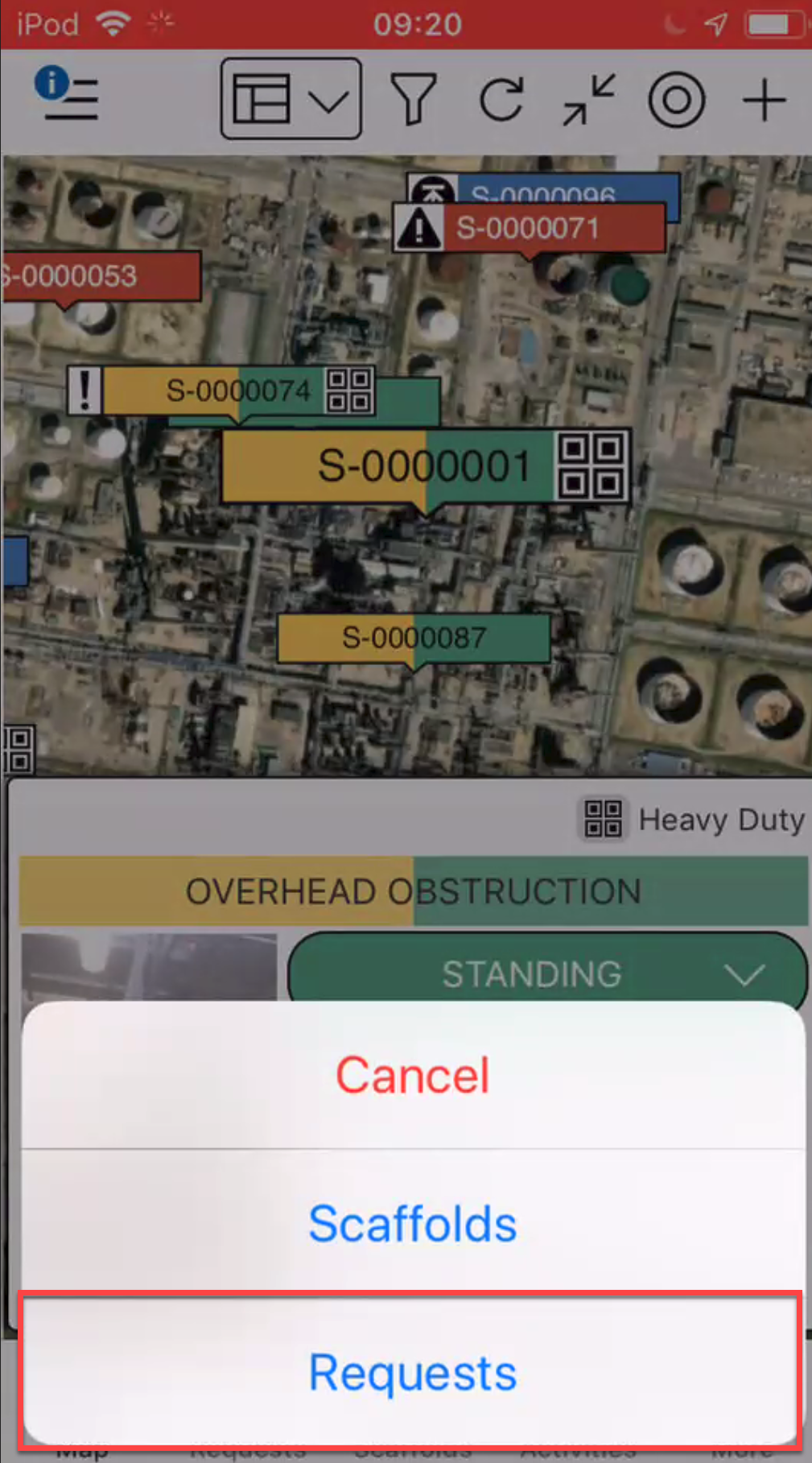
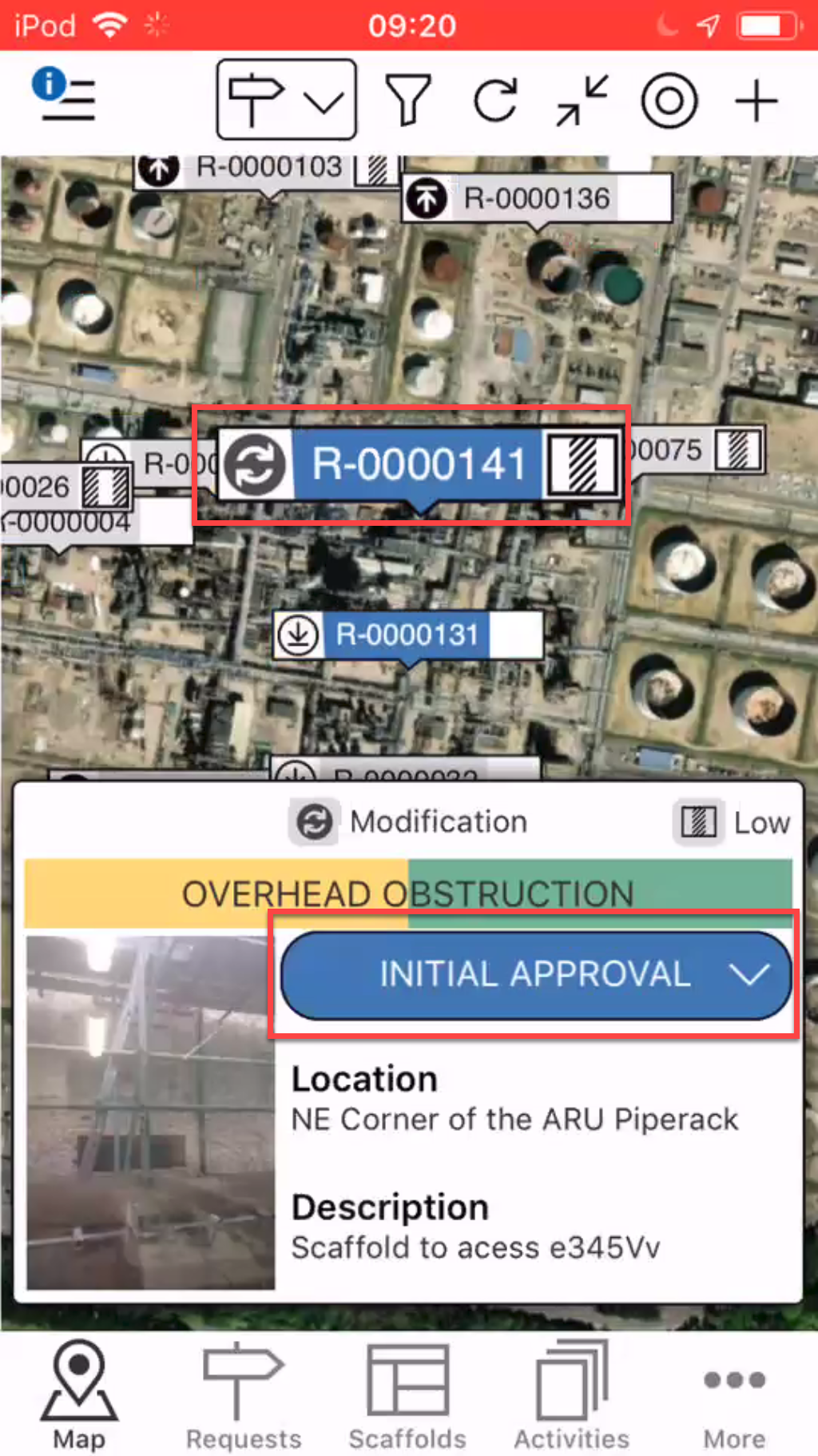
- Select the Request
- Tap Initial Approval
- Select Approve
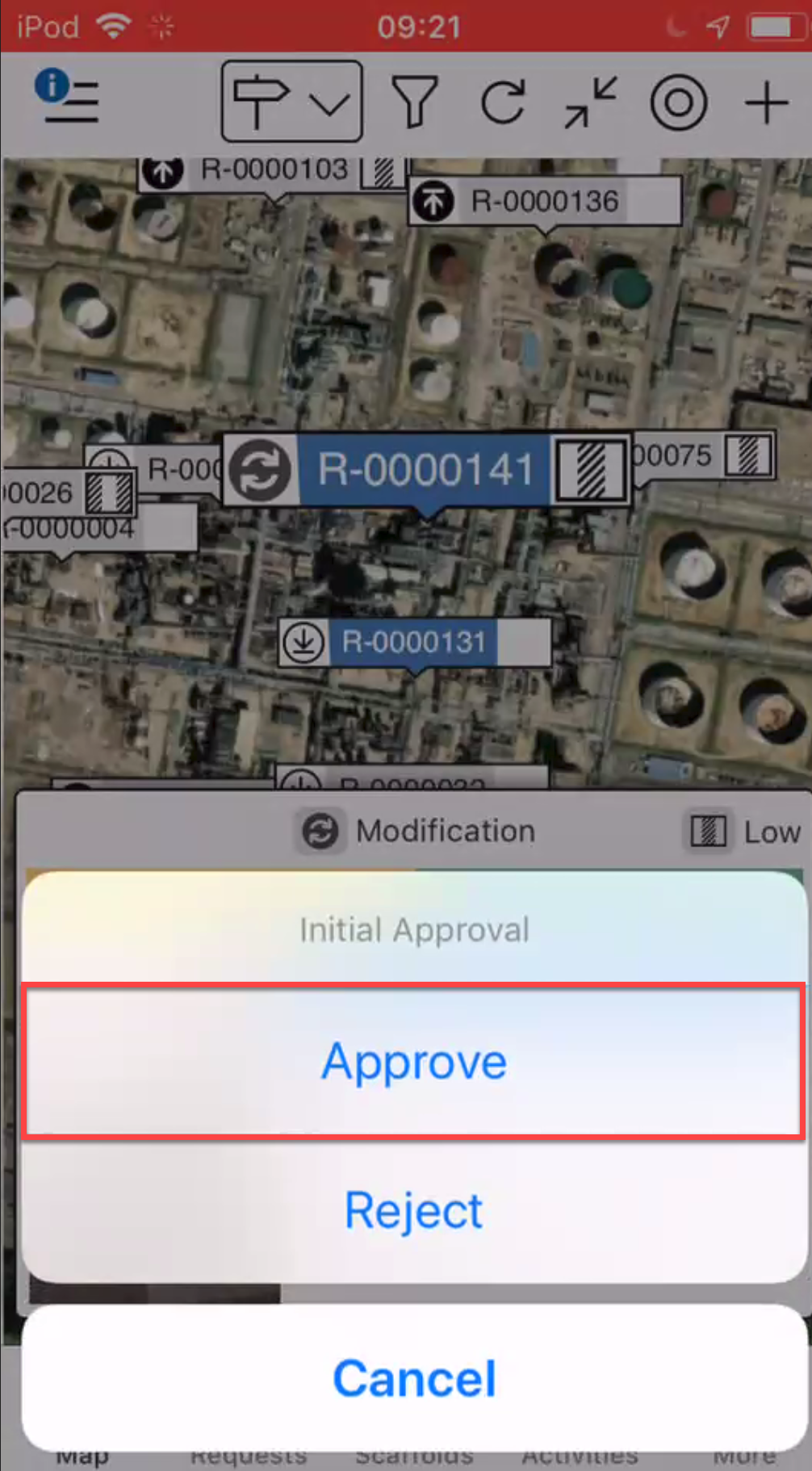
- Repeat the above step until the modification is fully approved
Note: The number of steps in the Approval depends upon what is set up in the Request Settings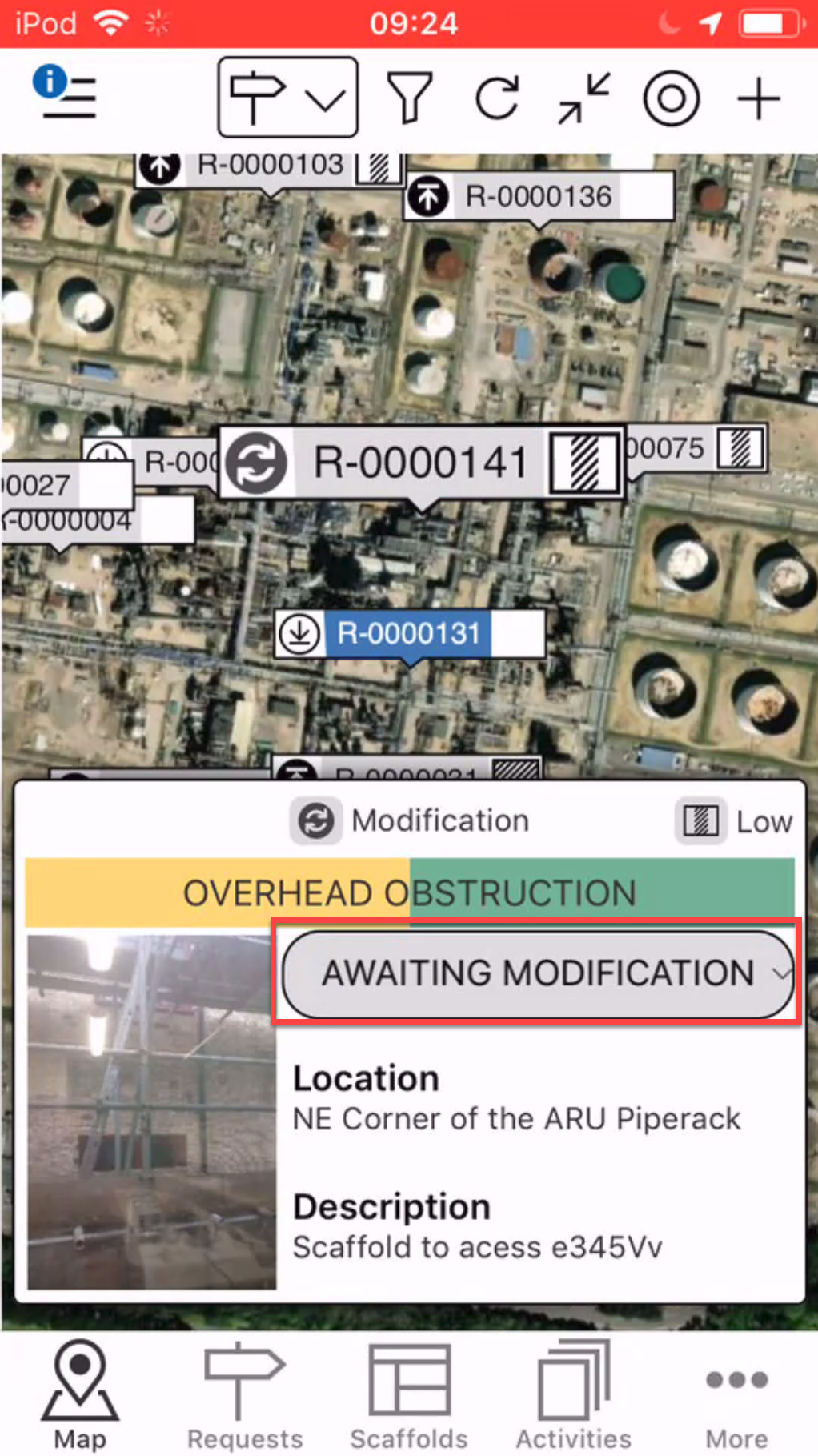
- Tap the view button to change it back to the Request view
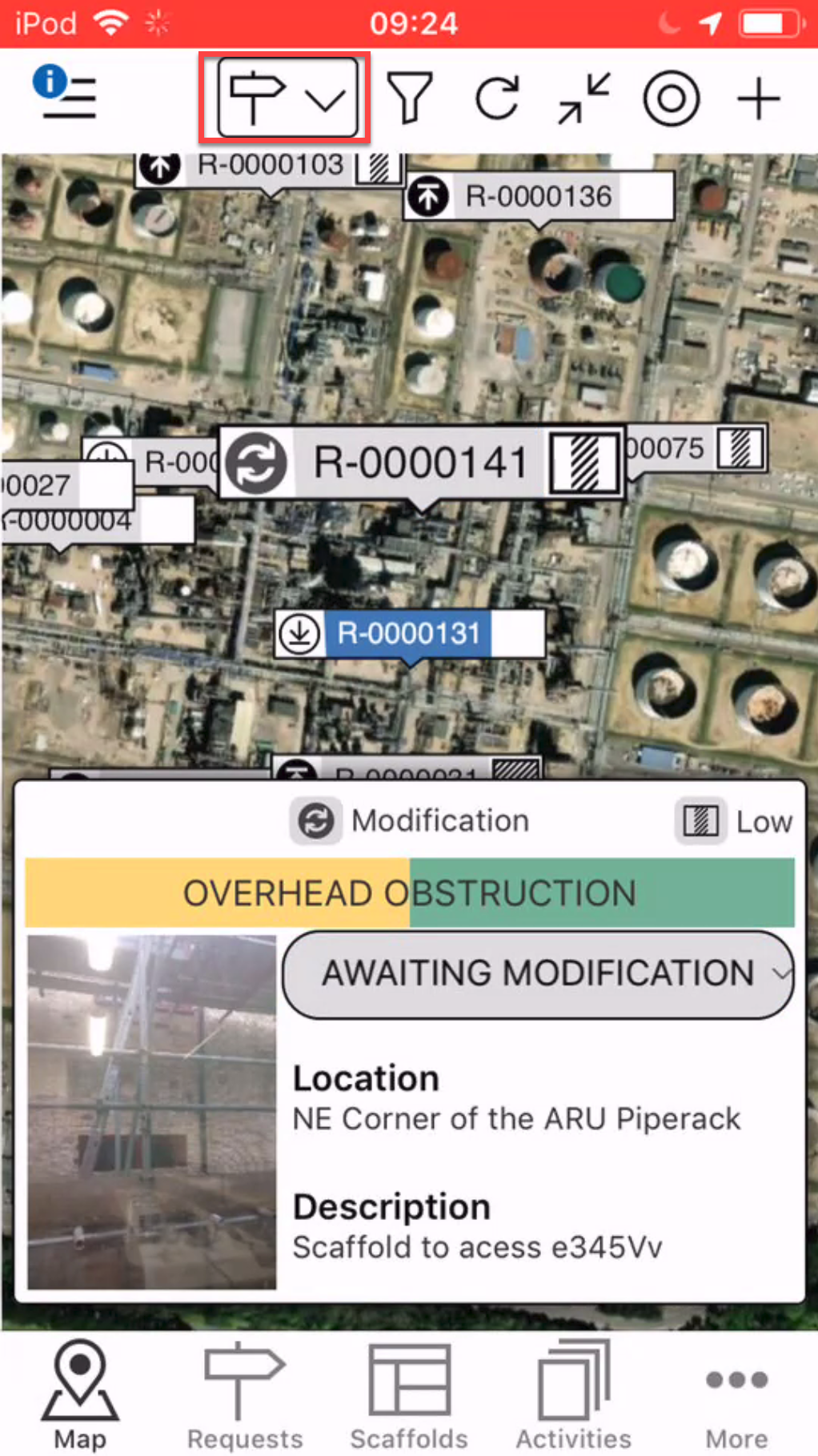
- Tap Scaffold
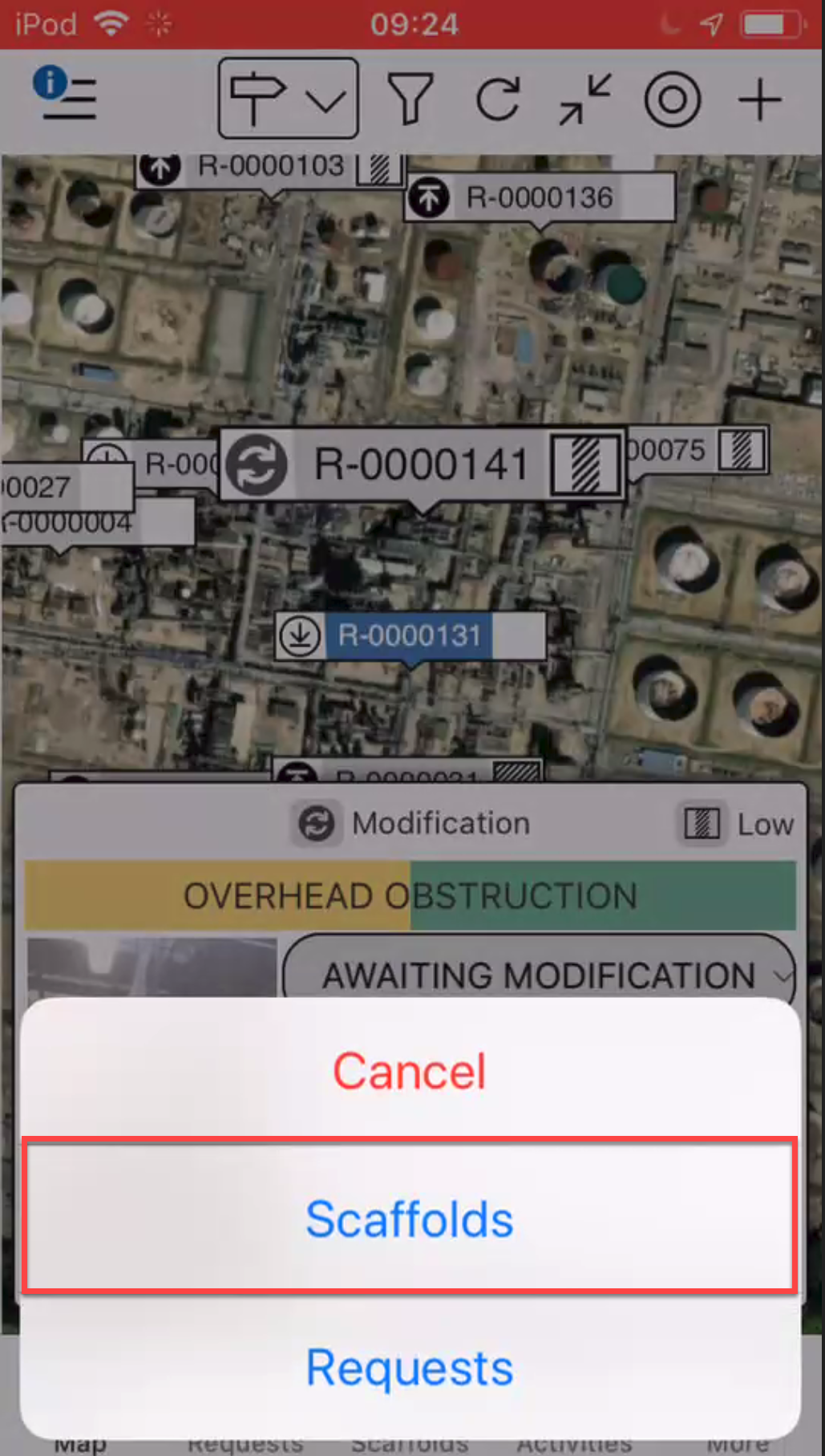
- Tap the Scaffold to be modified
- Select the status
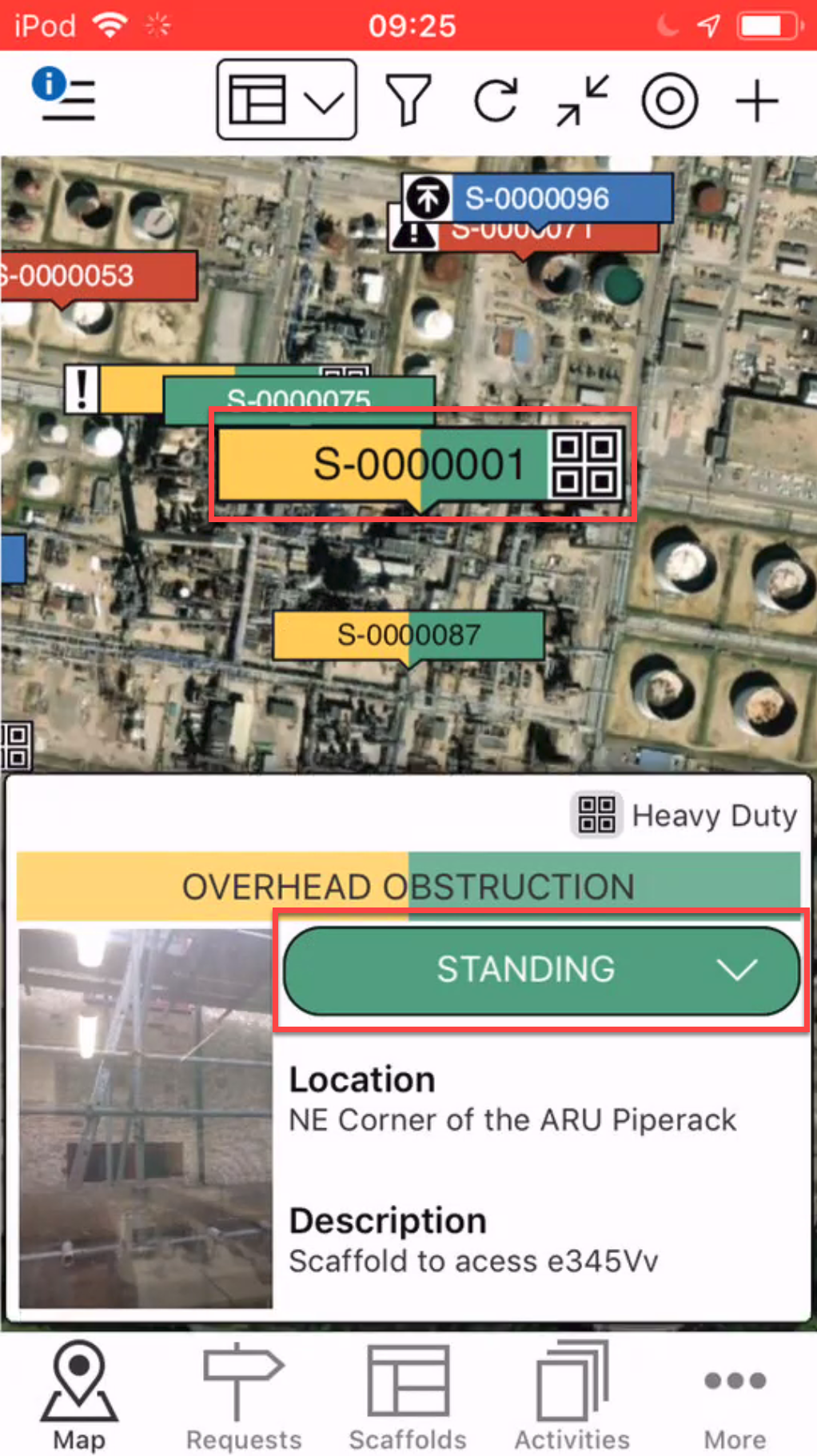
- Select Modify
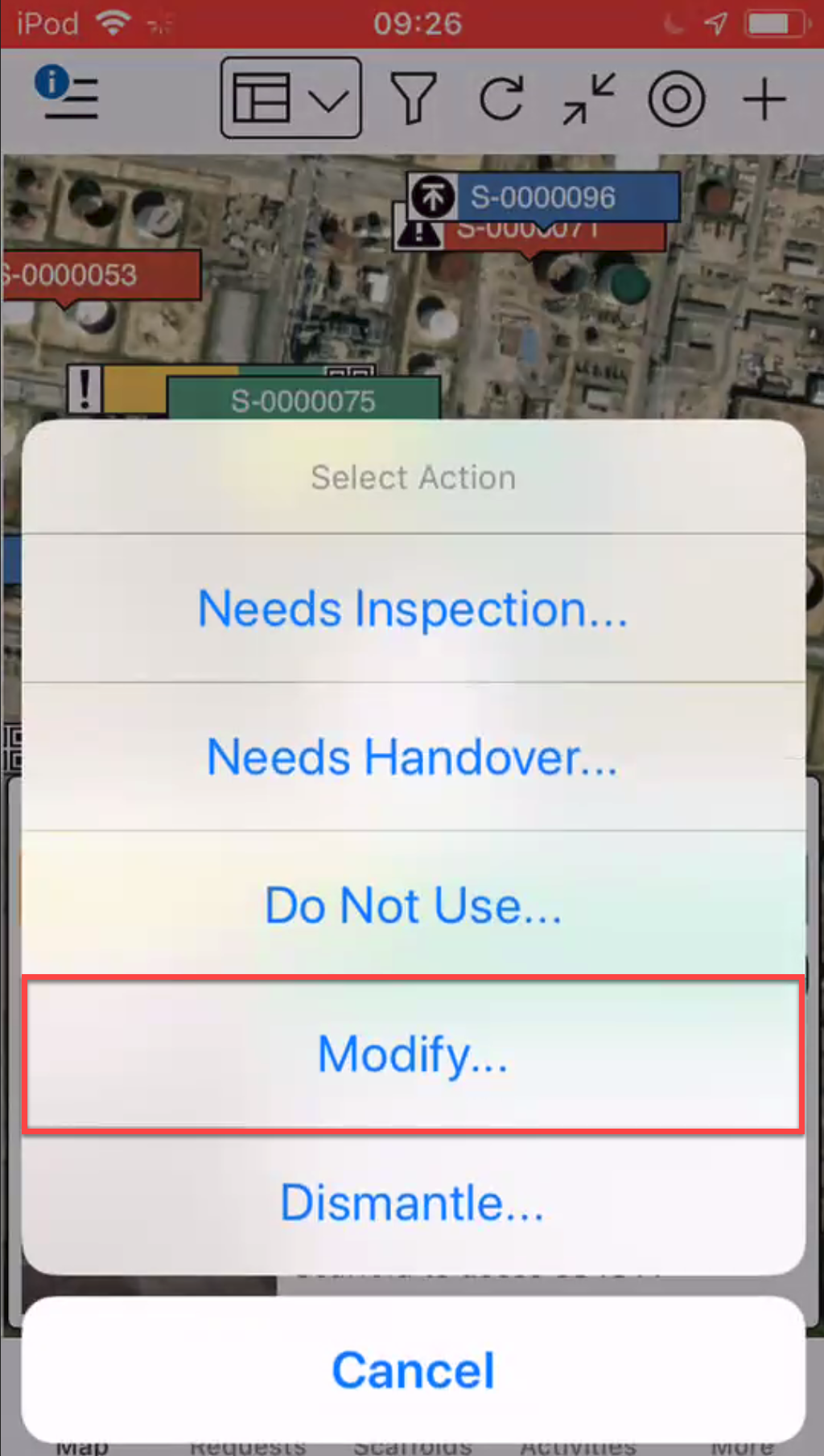
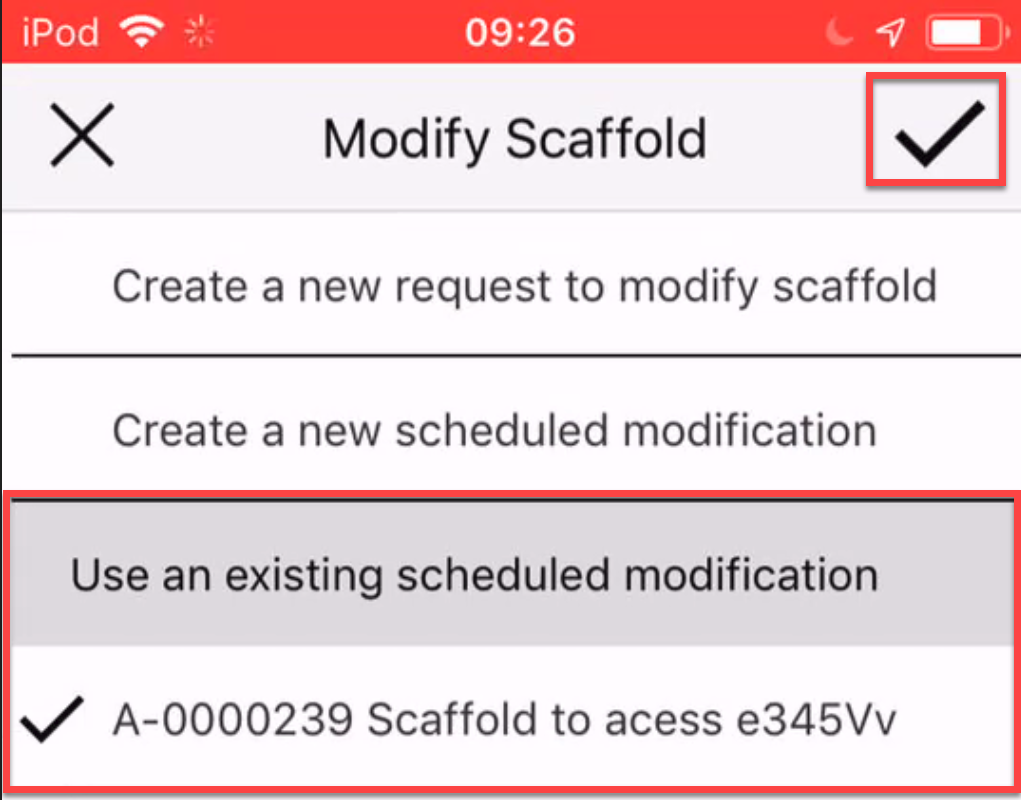
- Select to use an existing scheduled modification
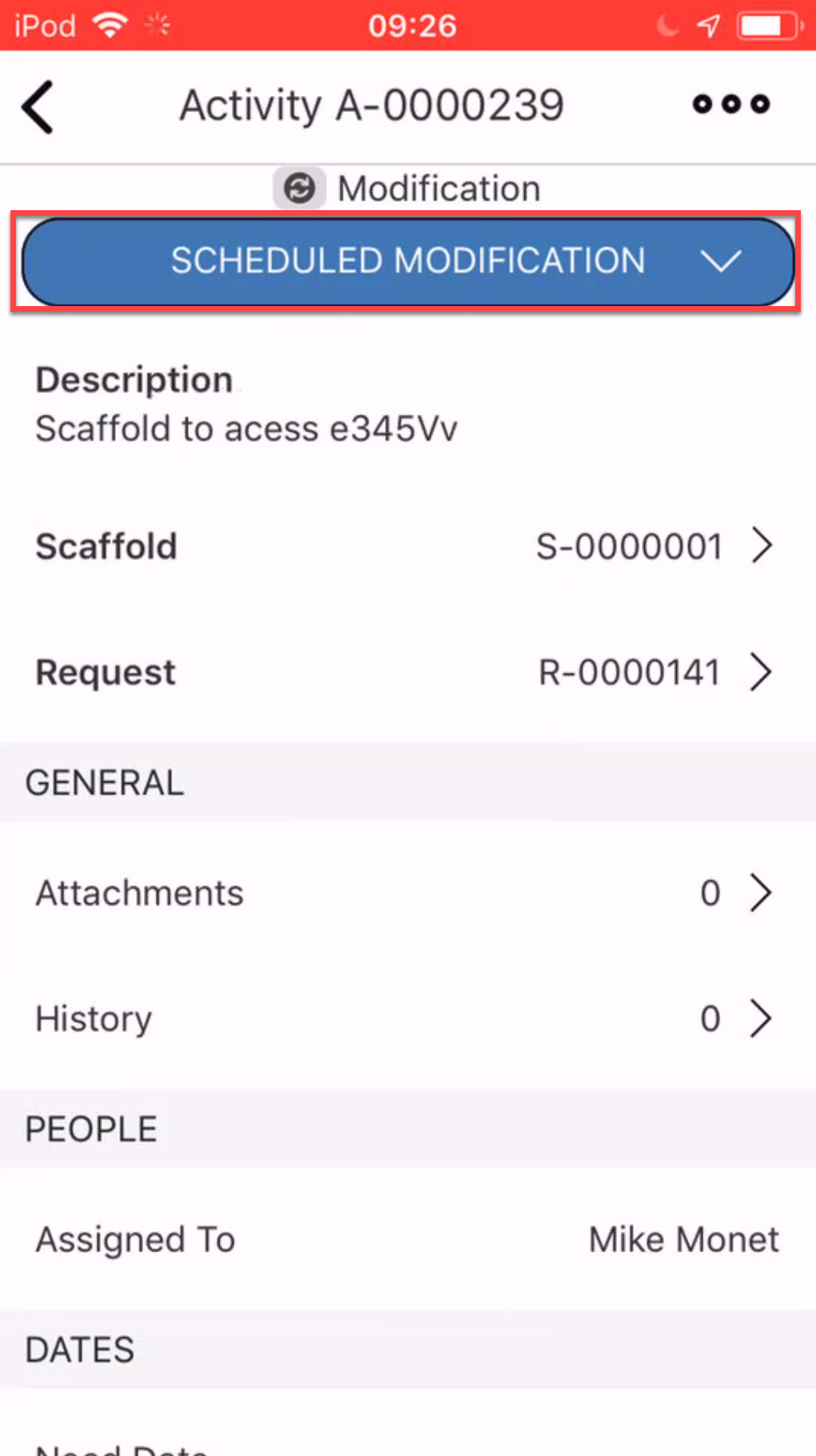
- Tap Scheduled Modification
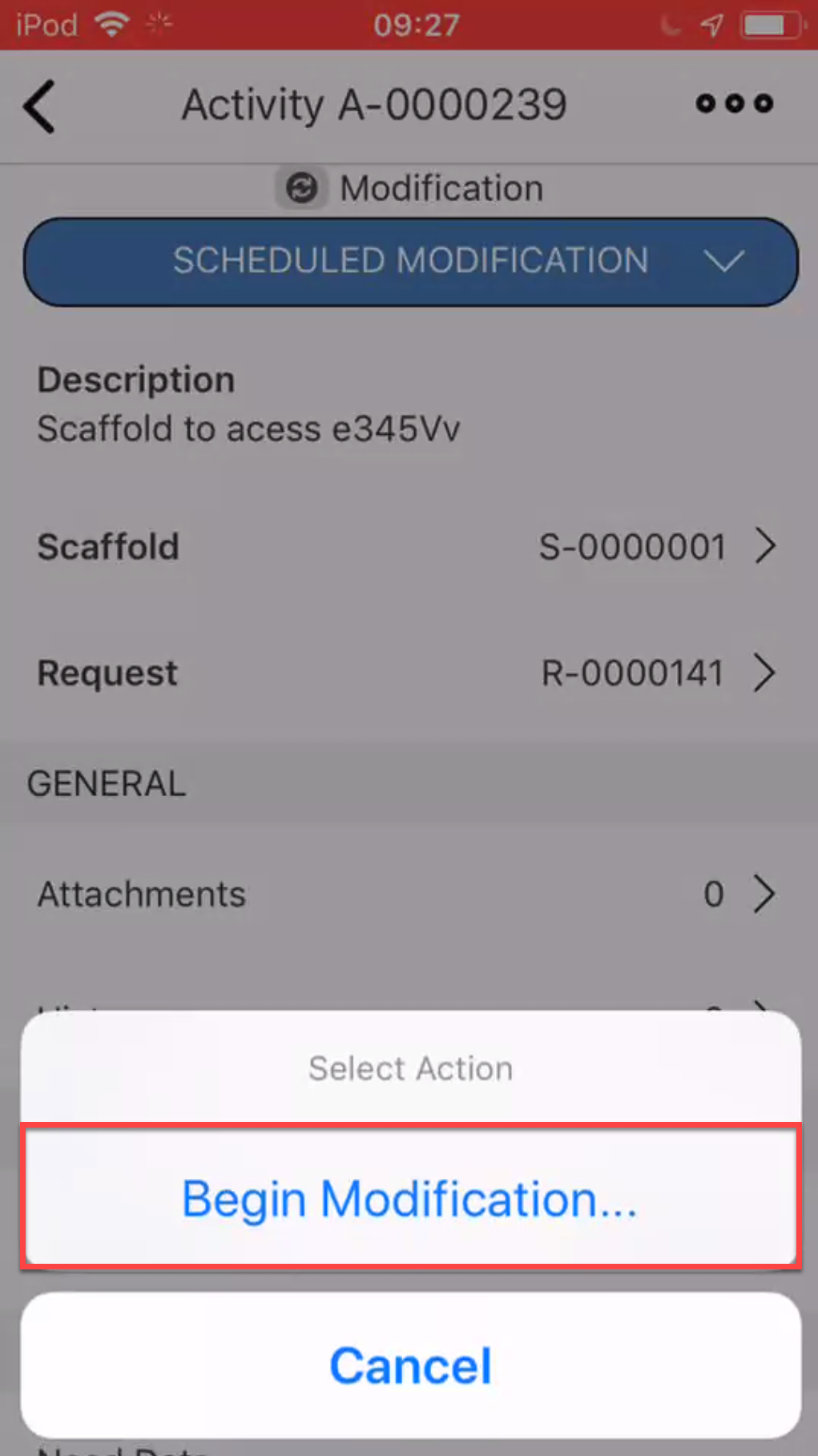
- Tap Begin Modification
- Tap Yes, Change Status
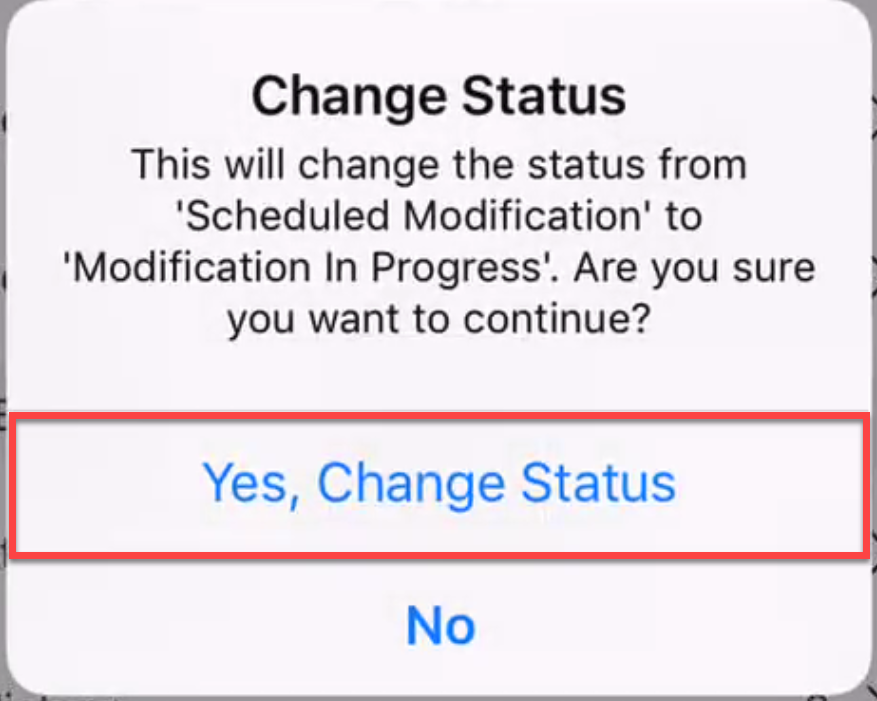
The status of the Scaffold will either change to Awaiting Handover or Standing, depending on how your workflow is set up in Global Settings.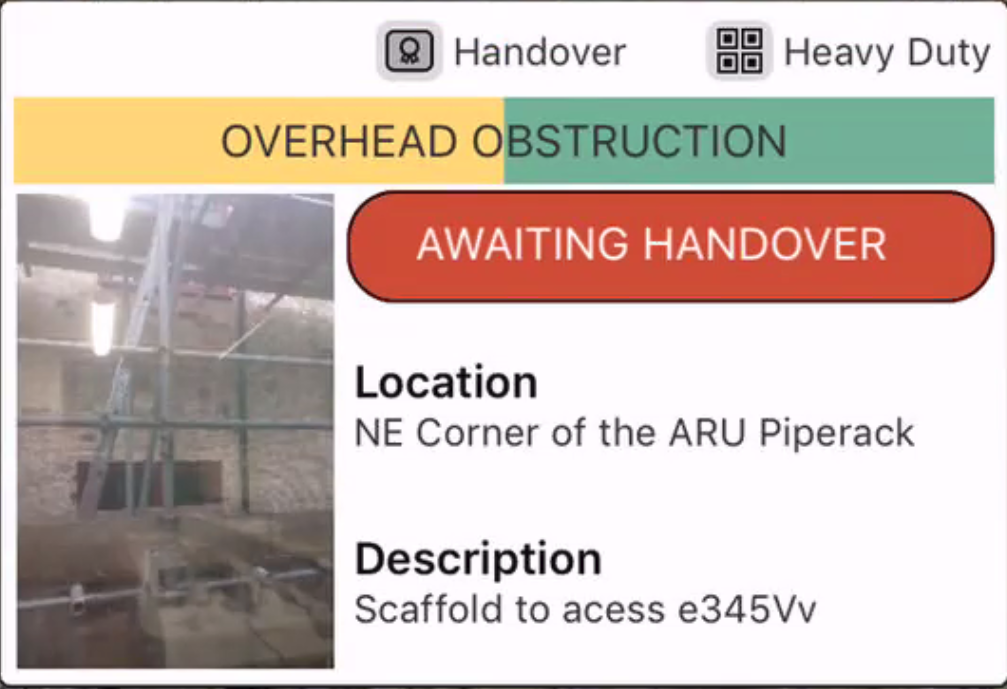
See Performing a Handover for more information.
Once the Handover is approved, the Scaffold will be Standing.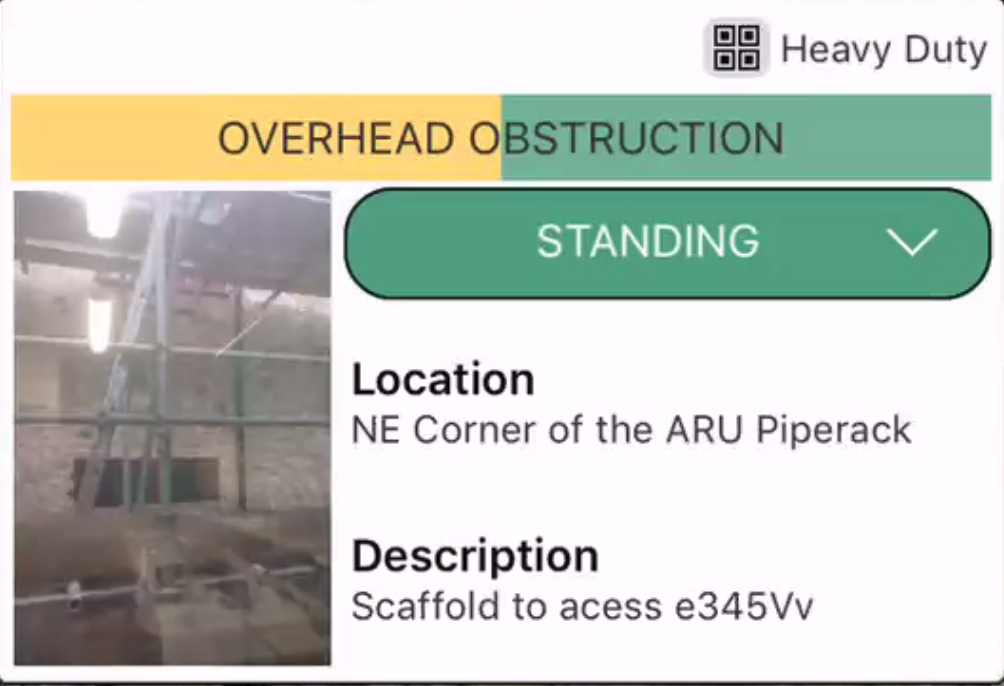
If Bypass Handover after modification is selected in Scaffold Settings, then the Scaffold will go straight to Standing after the modification is completed