There are two ways to modify a scaffold. You can create a modify request or a scheduled modification. A scheduled modification allows a user to bypass the request process.
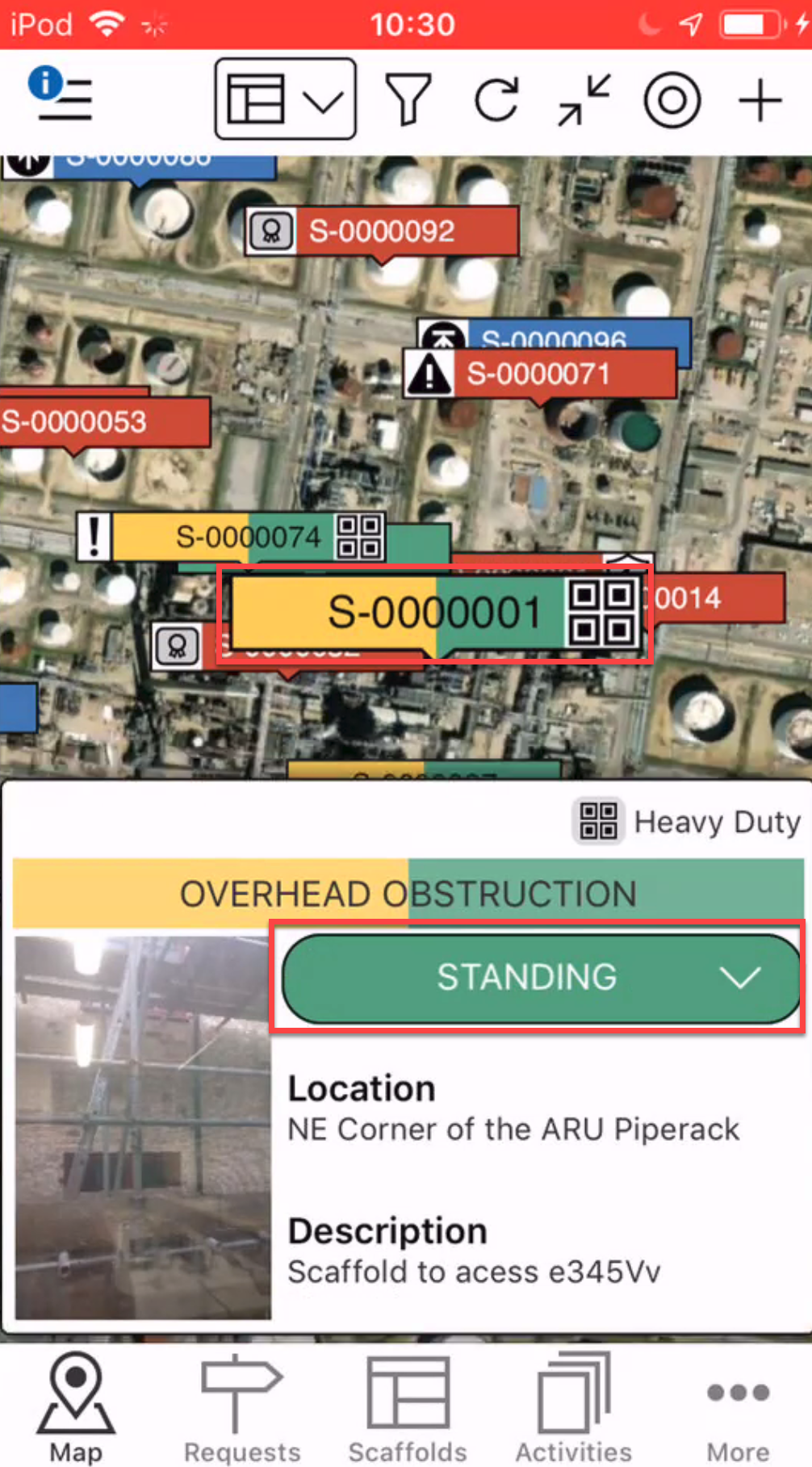
- When viewing Scaffolds on the Map screen, tap the Scaffold to modify
- Tap the status
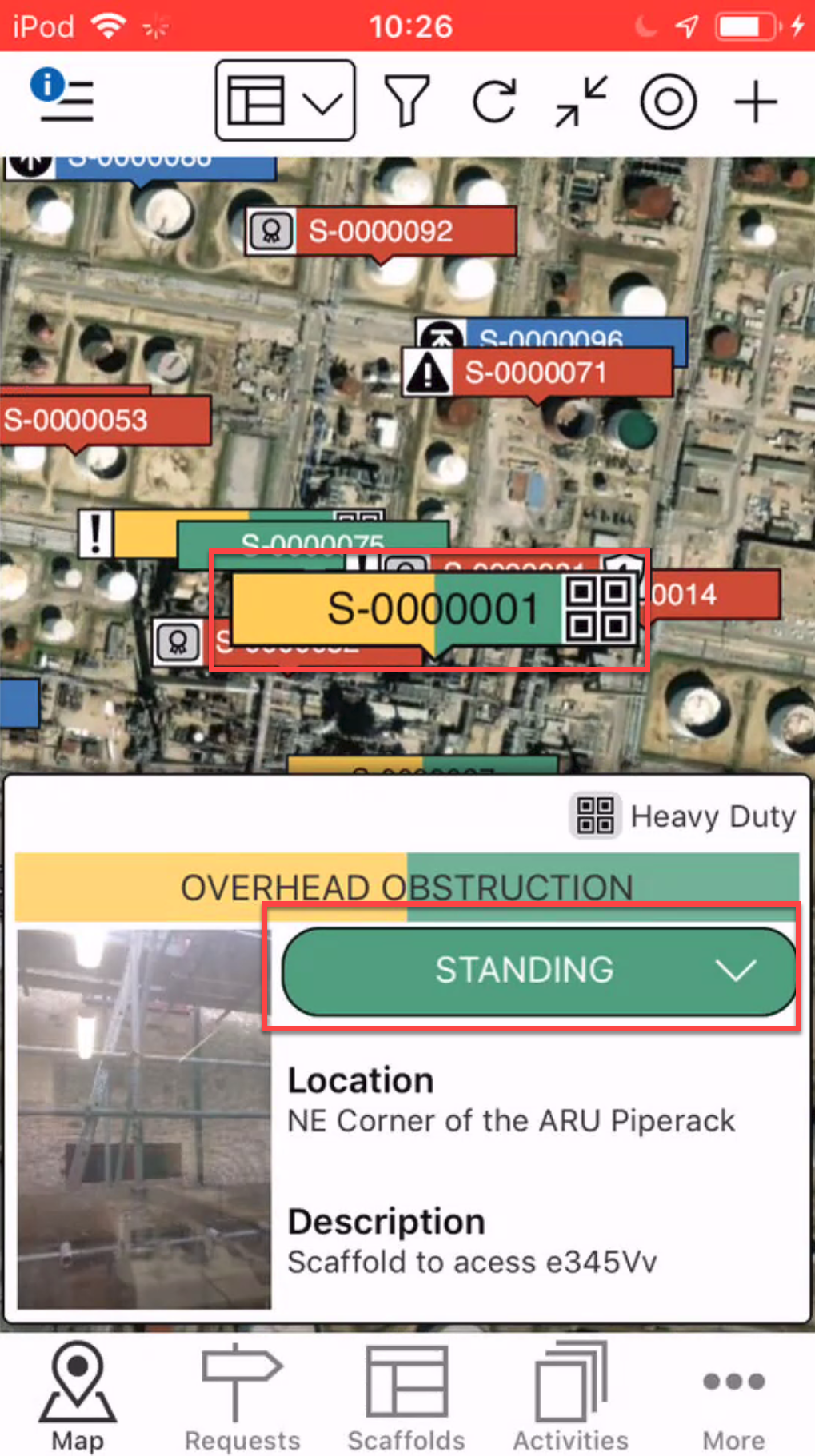
Note: You can also modify a Scaffold from the Scaffold Details screen - Tap Modify
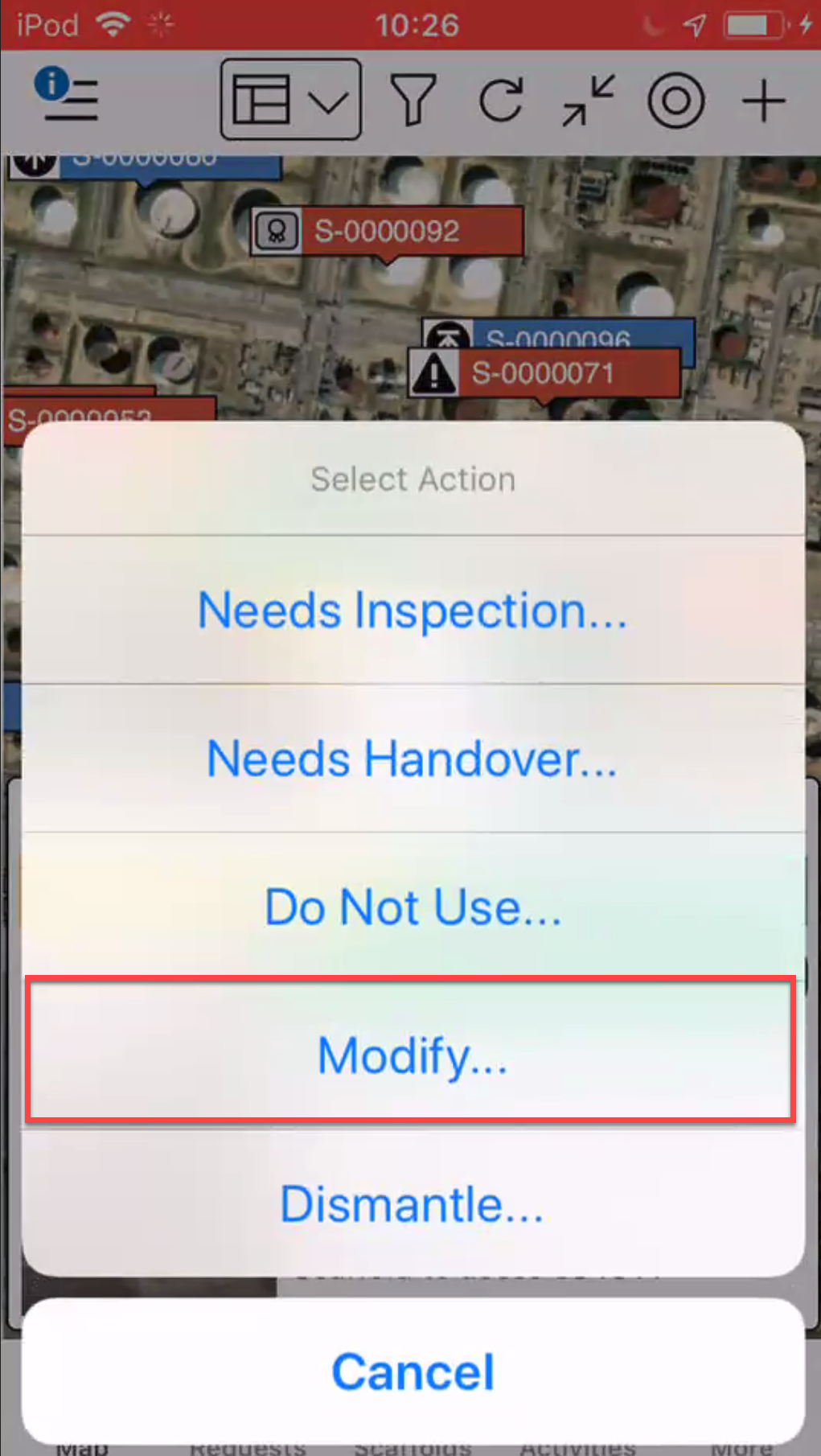
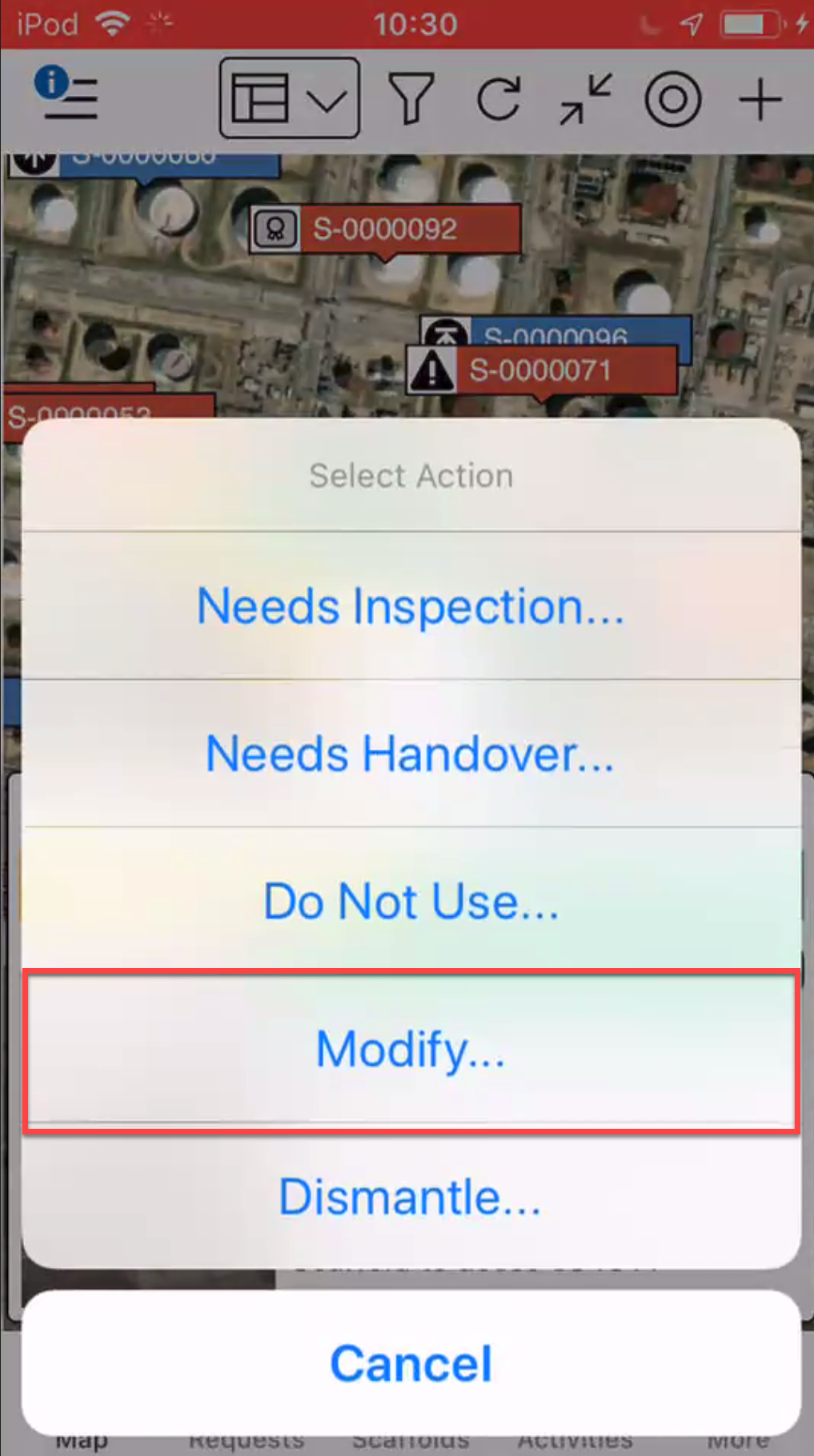
- When you select to modify a scaffold from the Select Action screen, you will get two options:
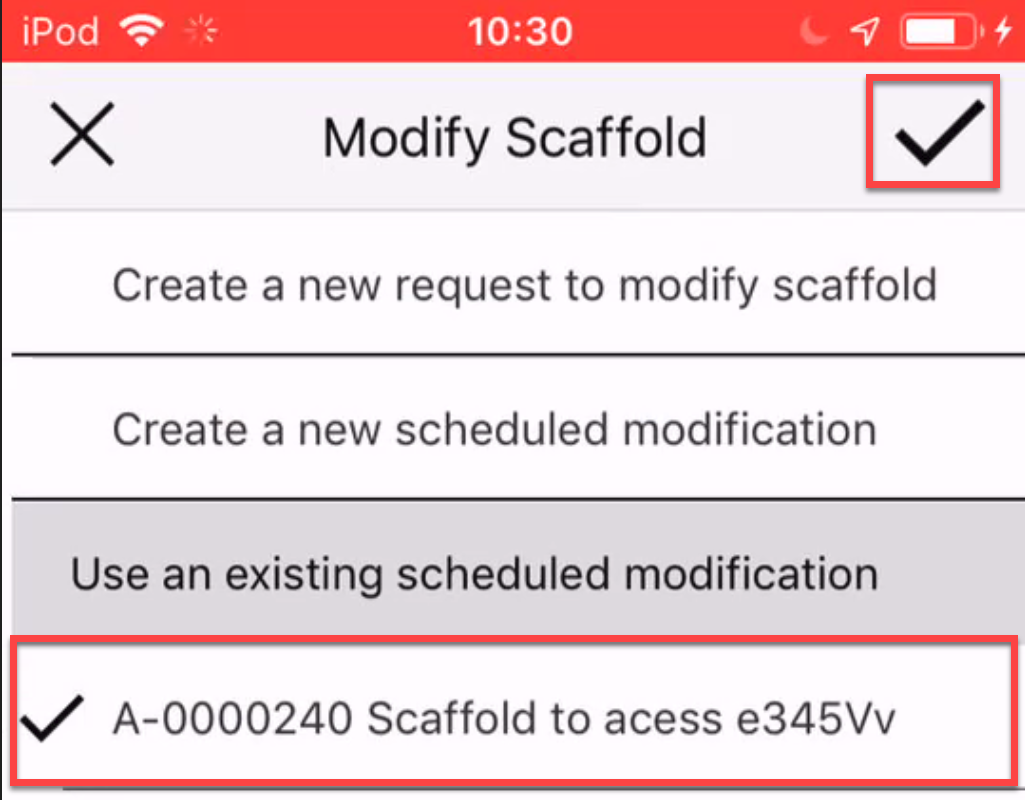
- Create a new request to Modify Scaffold - This opens the Request Details screen allowing the requestor to specify the changes that needs to be made to the scaffold and create this as a new request. This request can be viewed in the main request screen and the request screen of the scaffold.
- Create a Scheduled modification - Create a scheduled modification without creating a new request
- In the Modify Scaffold screen, select Create a new Scheduled Modification and tap the tick icon.
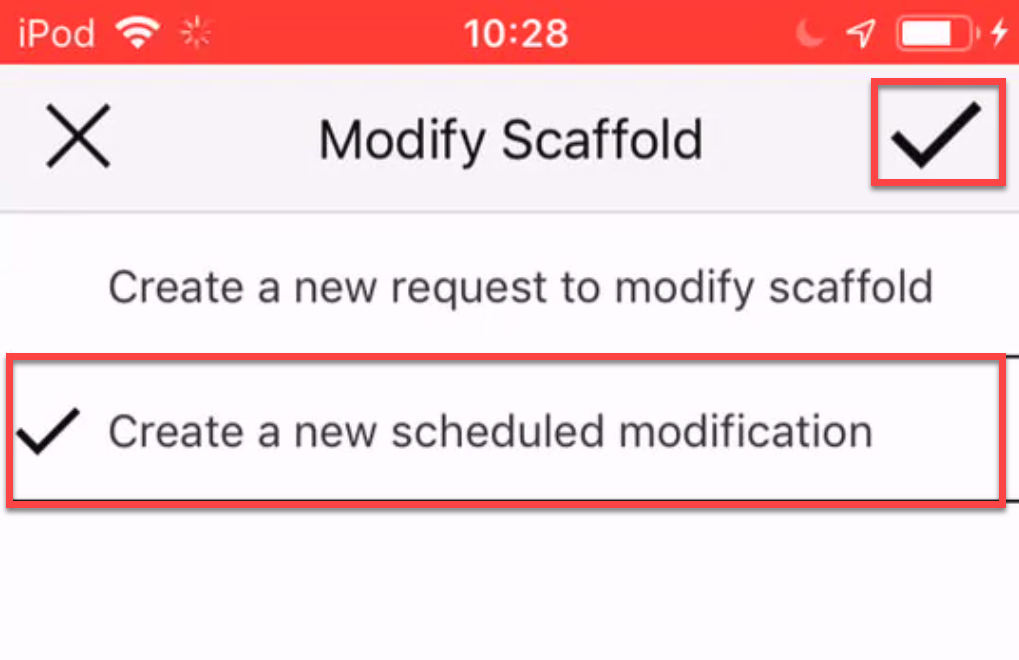
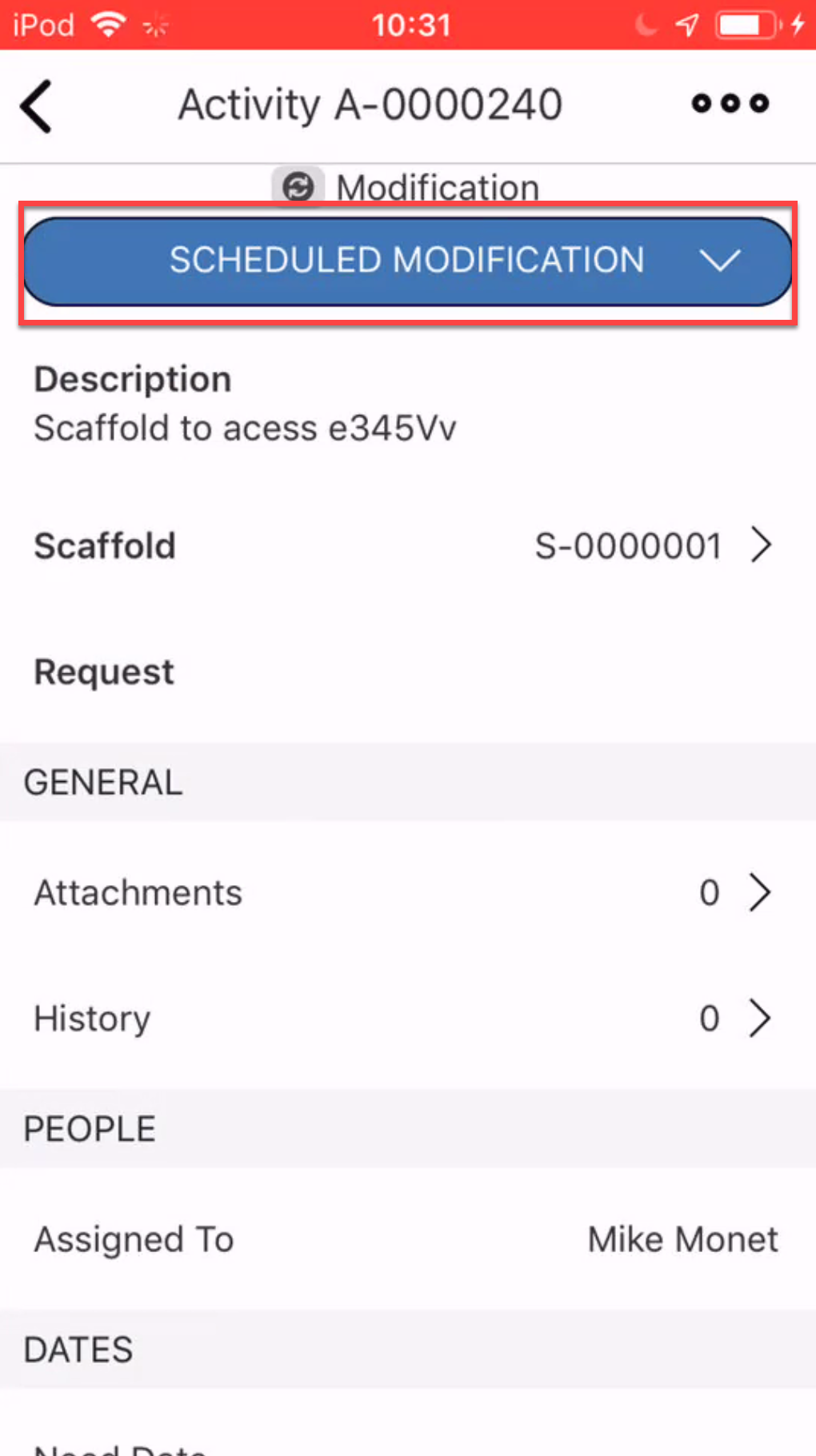
This will create a new Activity. - In the Activity screen, enter any details of the Activity and tap the tick icon
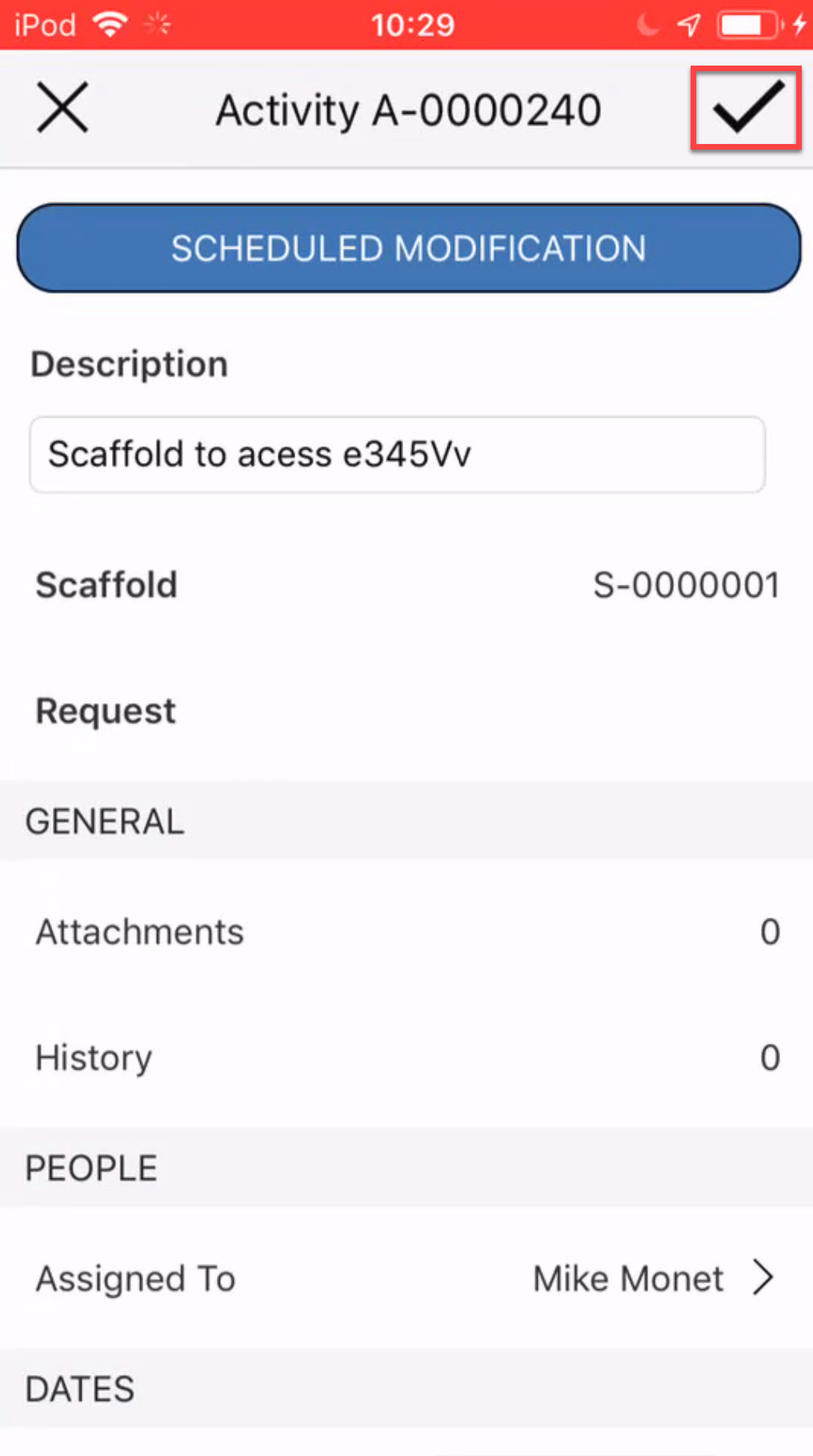
- On the same scaffold as before, tap Standing.
- Tap Modify.
- In the Modify Scaffold screen, select the newly created modification.
Note: Alternatively, you can go to the Activity screen and select the Modification activity (the name will be the same as the description set in step 6). - In the Activity screen, select Scheduled Modification
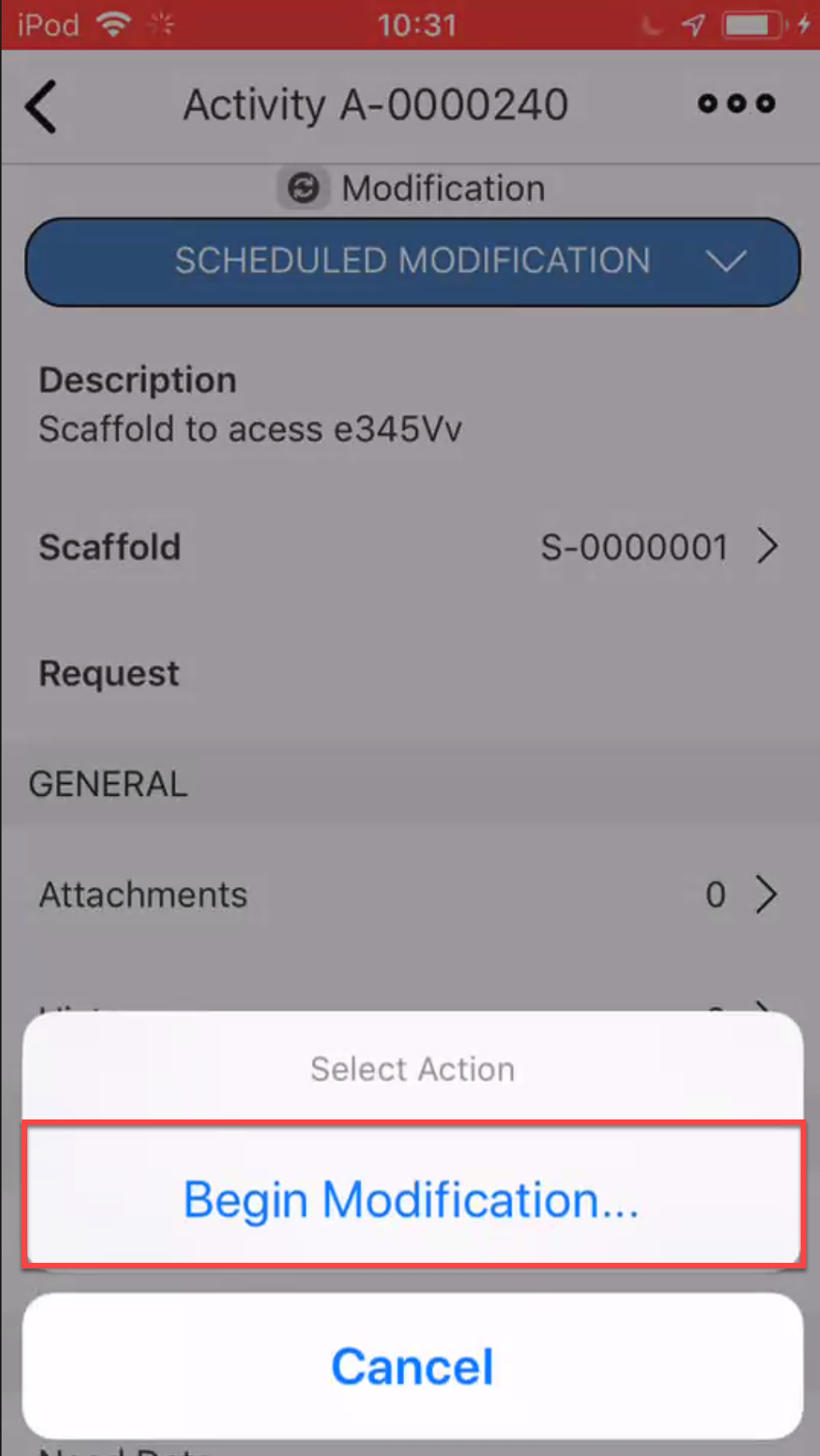
- Tap Begin Modification.
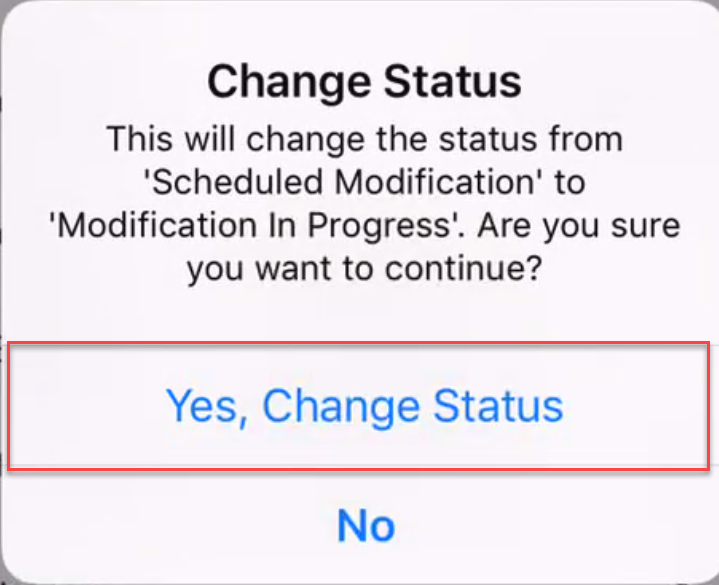
- Tap Yes. Change Status
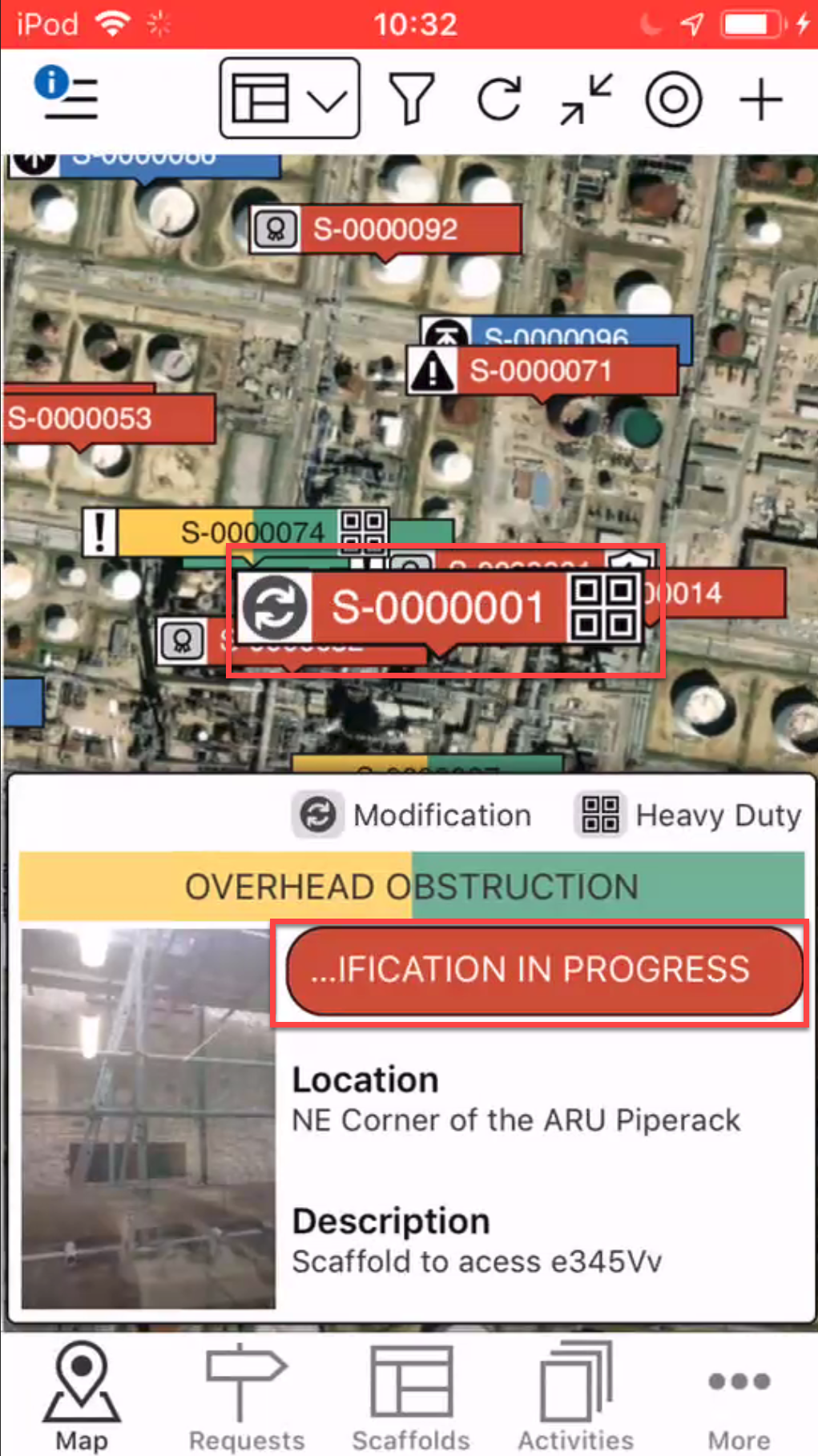
- Tap the scaffold pin of the same scaffold and tap the status
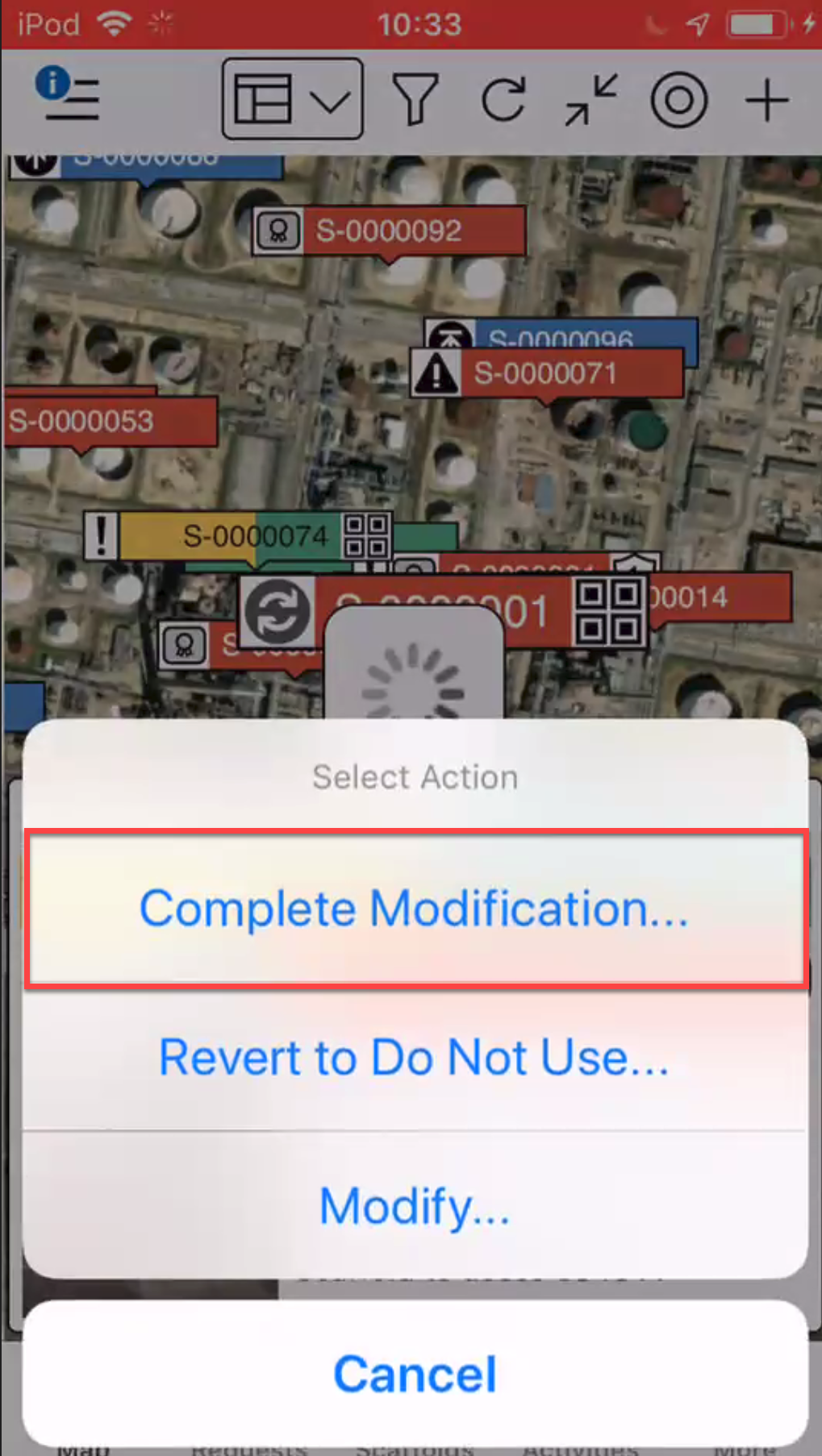
- In the Select Action dialog, select Complete Modification.
- Tap Yes, Change Status
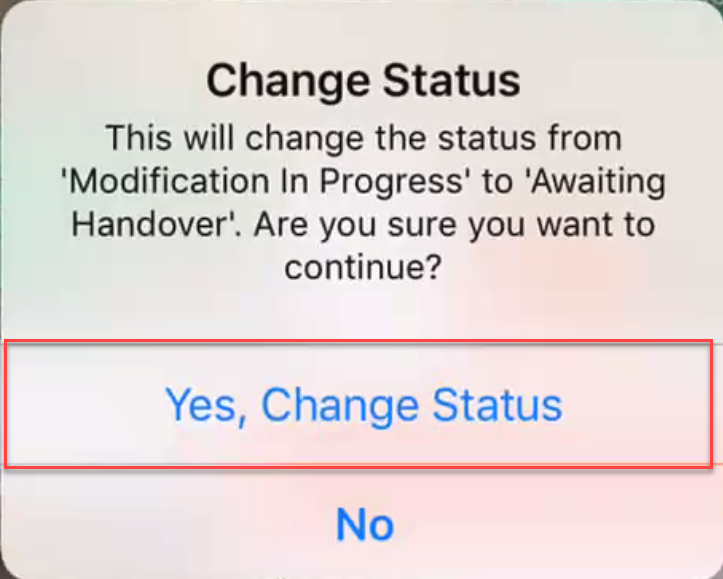
The status of the Scaffold will either change to Awaiting Handover or Standing, depending on how your workflow is set up in Global Settings.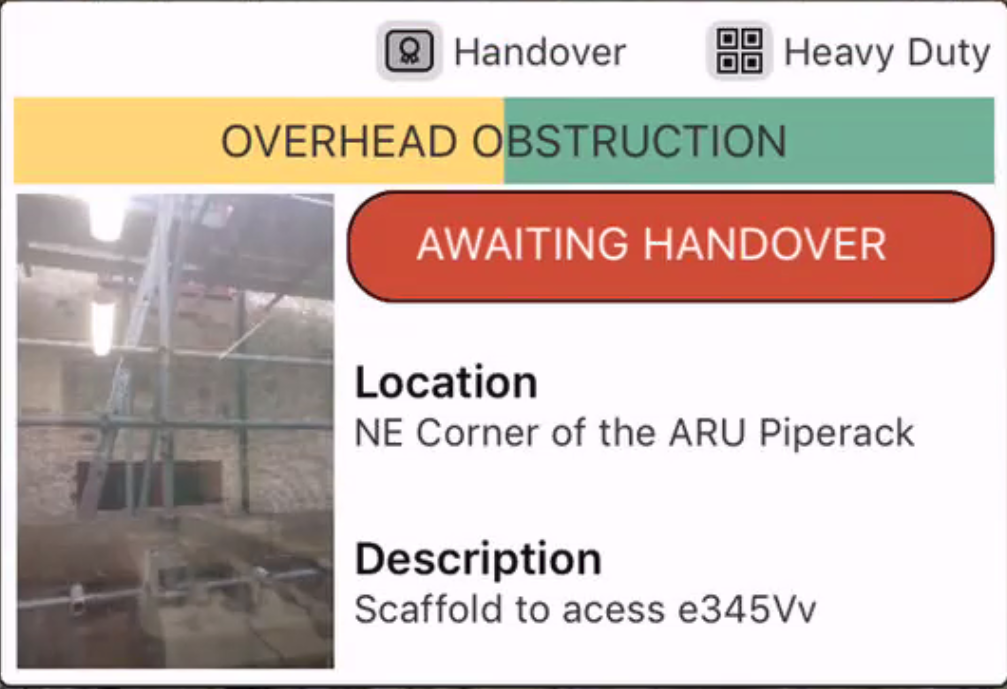
See Performing a Handover for more information.
Once the Handover is approved, the Scaffold will be Standing.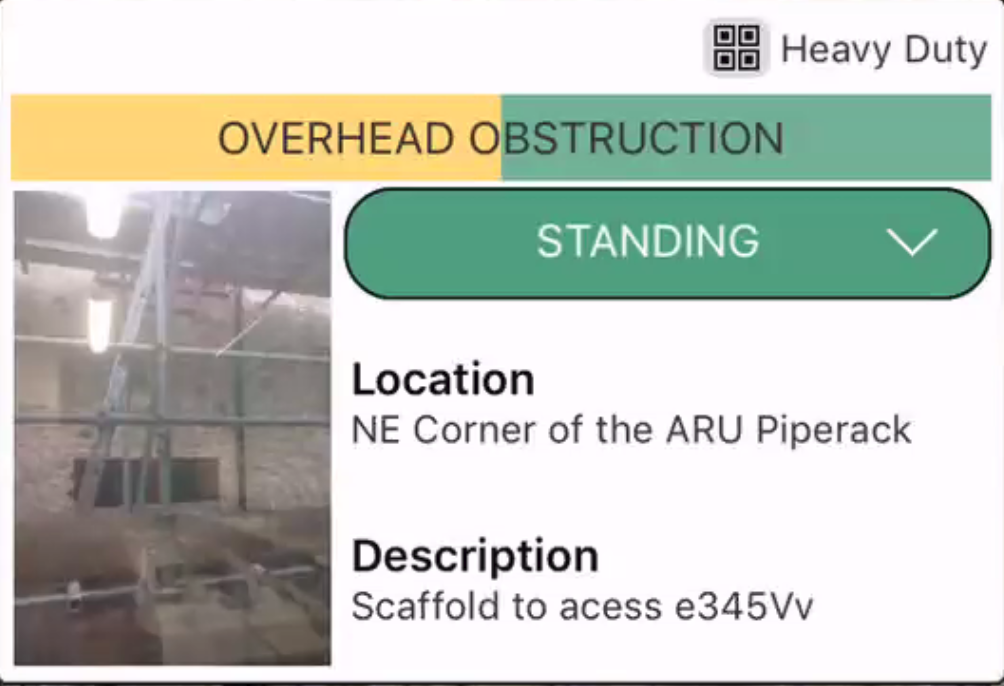
If Bypass Handover after modification is selected in Scaffold Settings, then the Scaffold will go straight to Standing after the modification is completed.