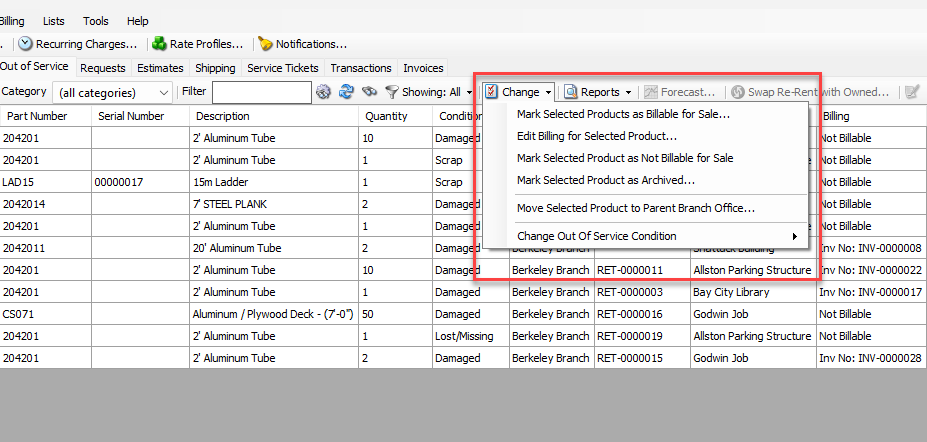
You can place equipment in an Out of Service queue at the time it is returned to a Branch Office that has an Out of Service queue associated with it.
Note: If the Branch Office with the Out of Service queue is also set to count items on returns, refer to Placing Equipment Out of Service with Counting.
Note: The labels used for the Out of Service condition in your database can be changed in the Global Options dialog.
Note: If all items to be returned need to be sent to the Out of Service queue, refer to Returning All Equipment to Out of Service.
To place equipment out of service when creating return shipments:
Locate and click the appropriate Branch Office and click the Shipping tab.
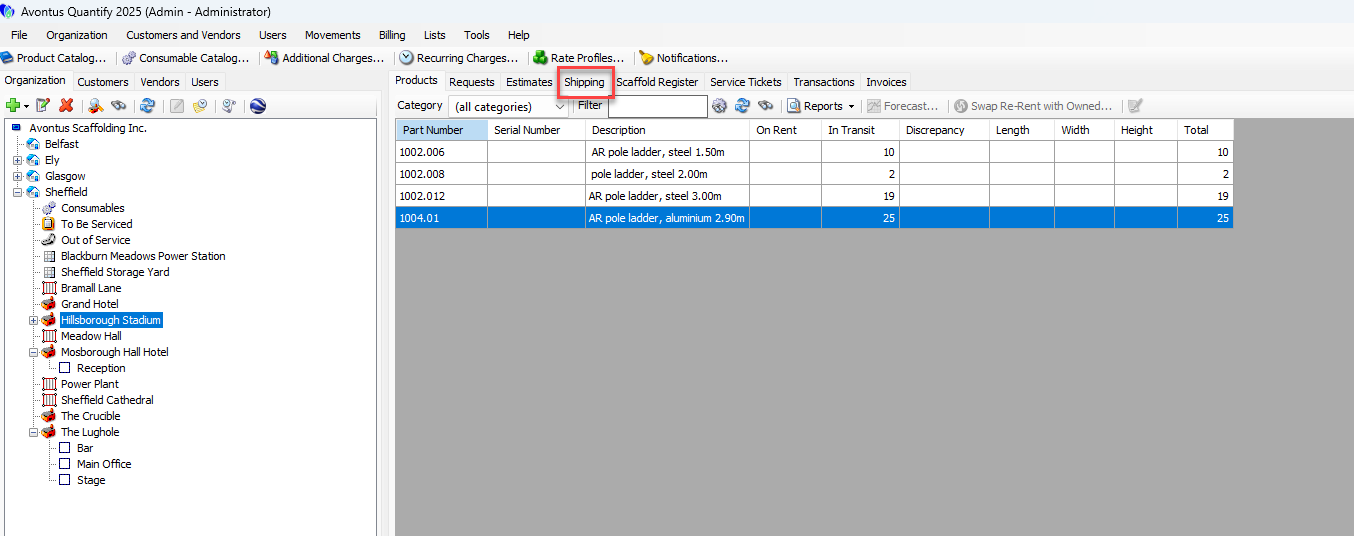
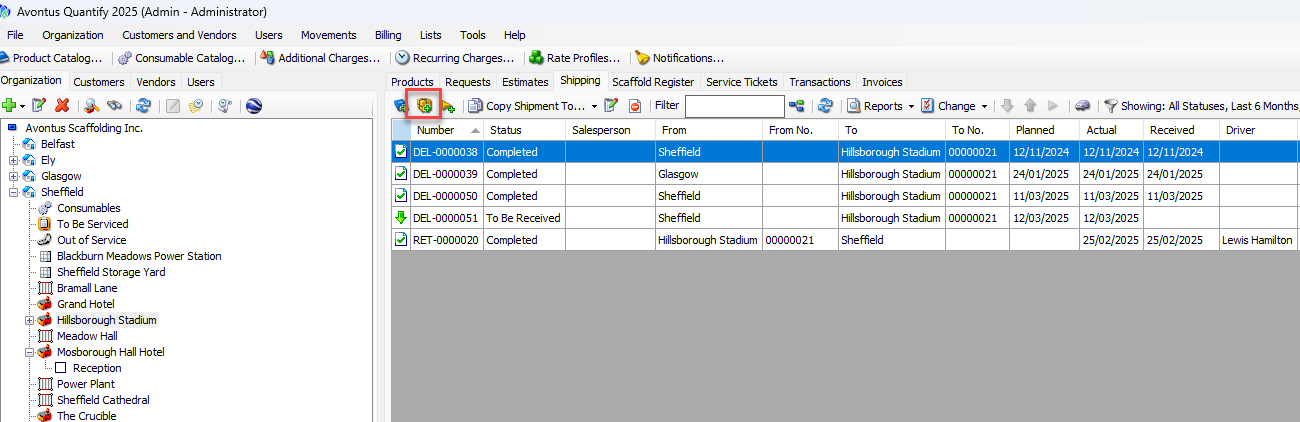
Begin creating a return Shipment by clicking the Ship Items to Location button (
 ).
).
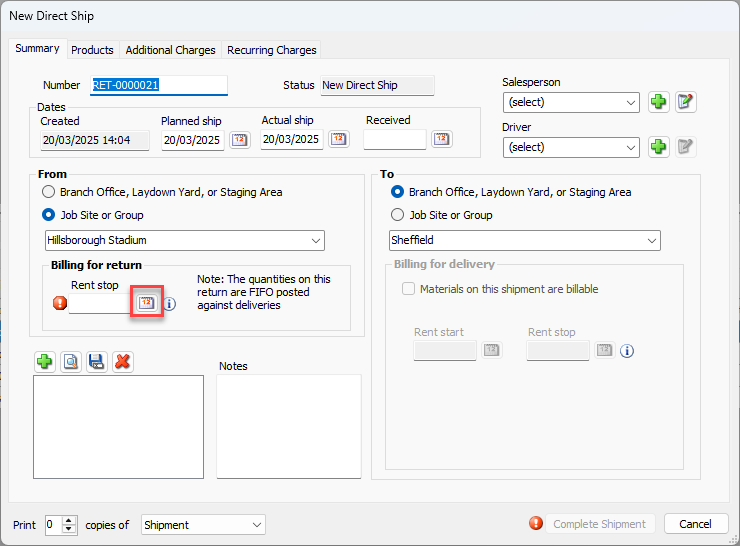
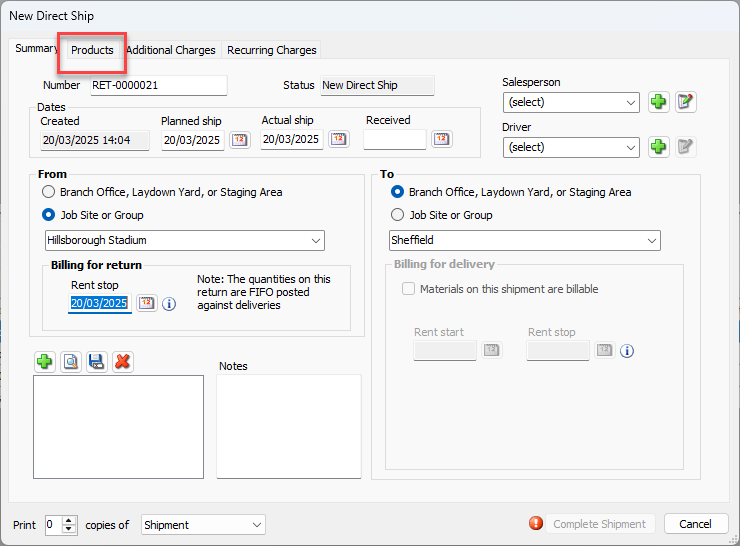
The New Direct Ship dialog appears.Click the Rent Stop calendar icon (
 ).
).
The calendar appears.
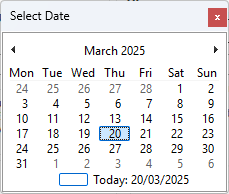
Locate and click the date on which the item(s) will be recorded as out of service.
Click the Products tab.
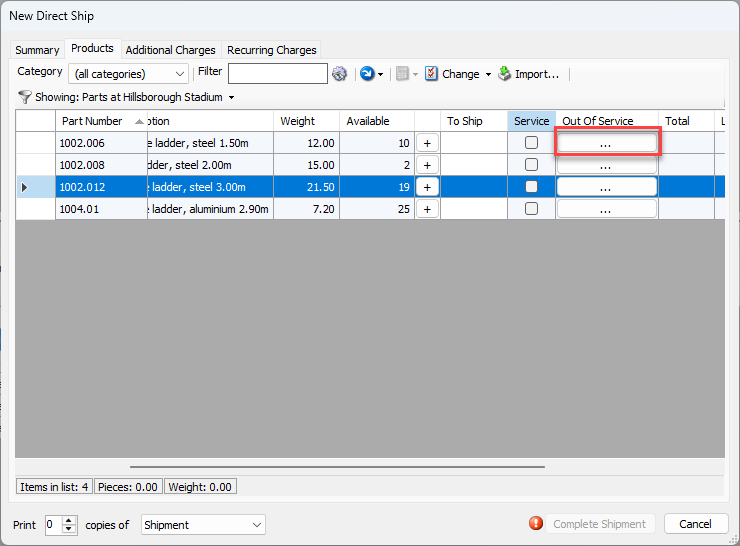
Locate the item you want to place out of service. and click the item's Out of Service button (
 ).
).
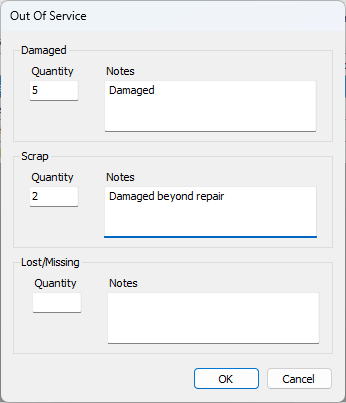
The Out of Service dialog appears.Click in the appropriate Quantity text field(s) and enter the appropriate amount. Whichever text field(s) you use determines how Quantify categorizes the items: Damaged, Scrap or Lost/Missing.
Click in the appropriate Notes text field(s) and enter any notes.
Note: These notes will appear in Out of Service reports, but not on invoices.
Click OK.
The New Direct Ship dialog returns.
The items now appear in the Out of Service column.
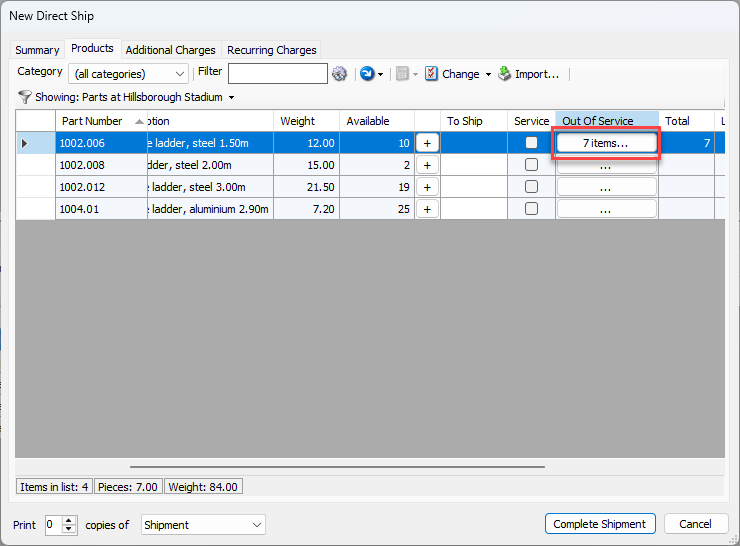
Repeat the above steps as many times as necessary.
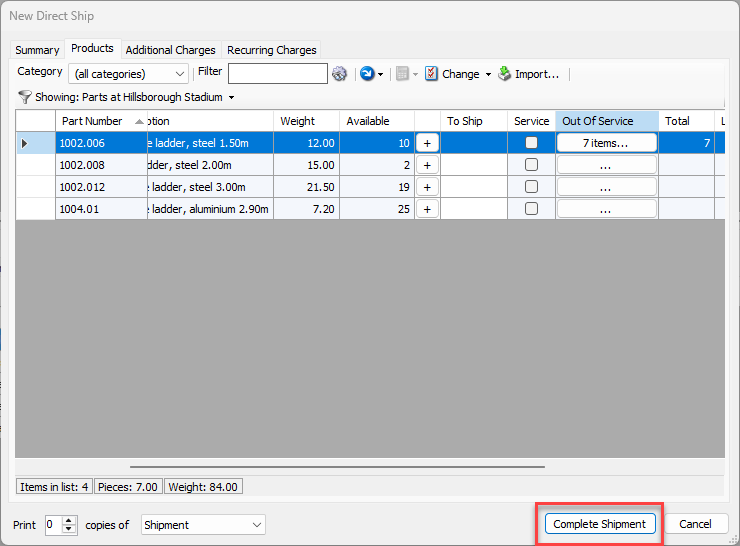
Click Complete Shipment in the New Direct Ship dialog.
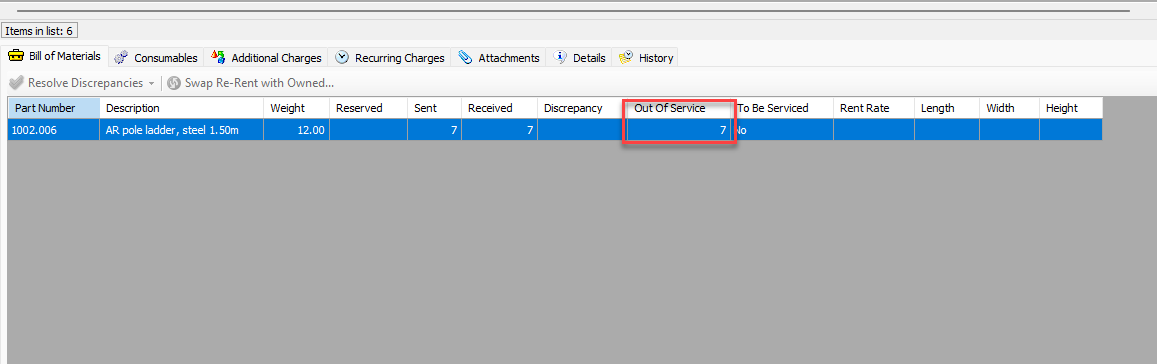
The Bill of Materials tab for the Shipment in the Shipping tab shows that Quantify has placed the items in the Out of Service queue on this Shipment.
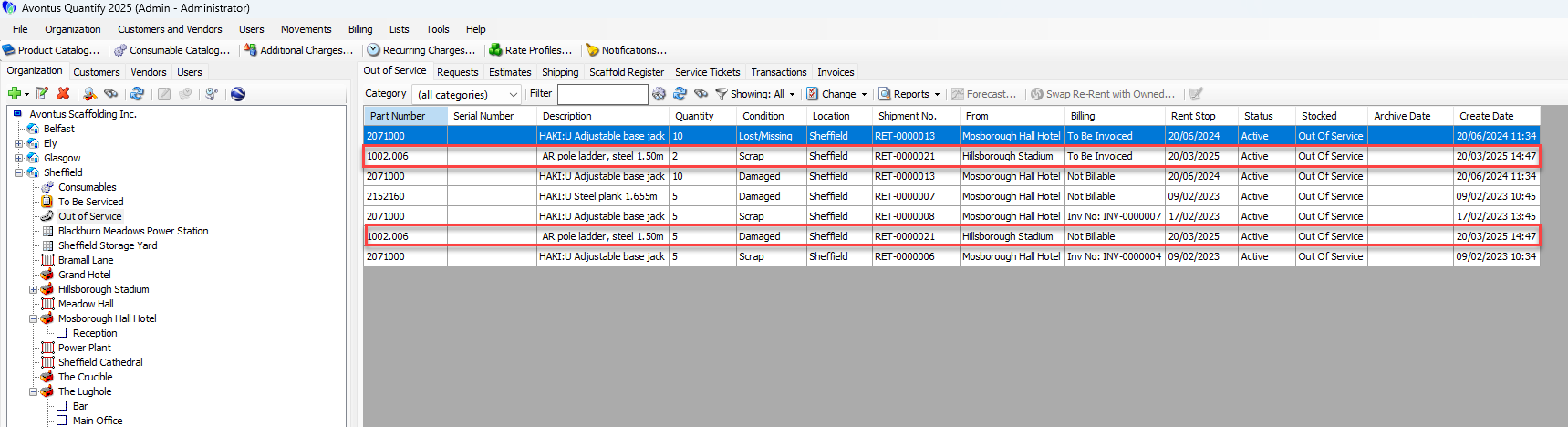
The Out of Service queue shows the items.
Also, you can use the Change menu on the Out of Service tab to bill the Job Site for the items. To archive out of service Products, move the items back to inventory or change the Out of Service condition.