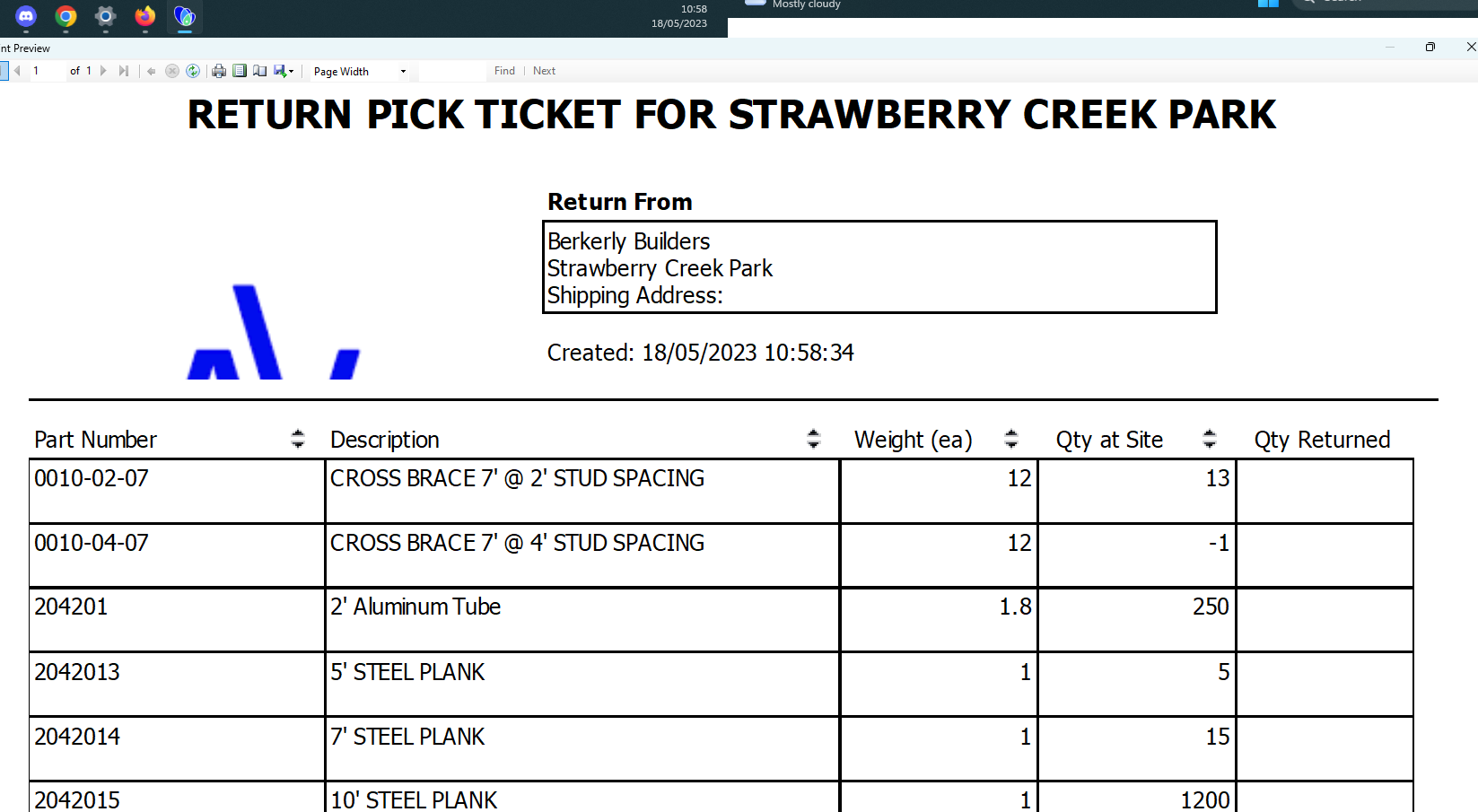
Quantify makes it easy for you to select a Reservation or a completed Shipment and preview it as a pick ticket. You can preview a pick ticket in two formats.
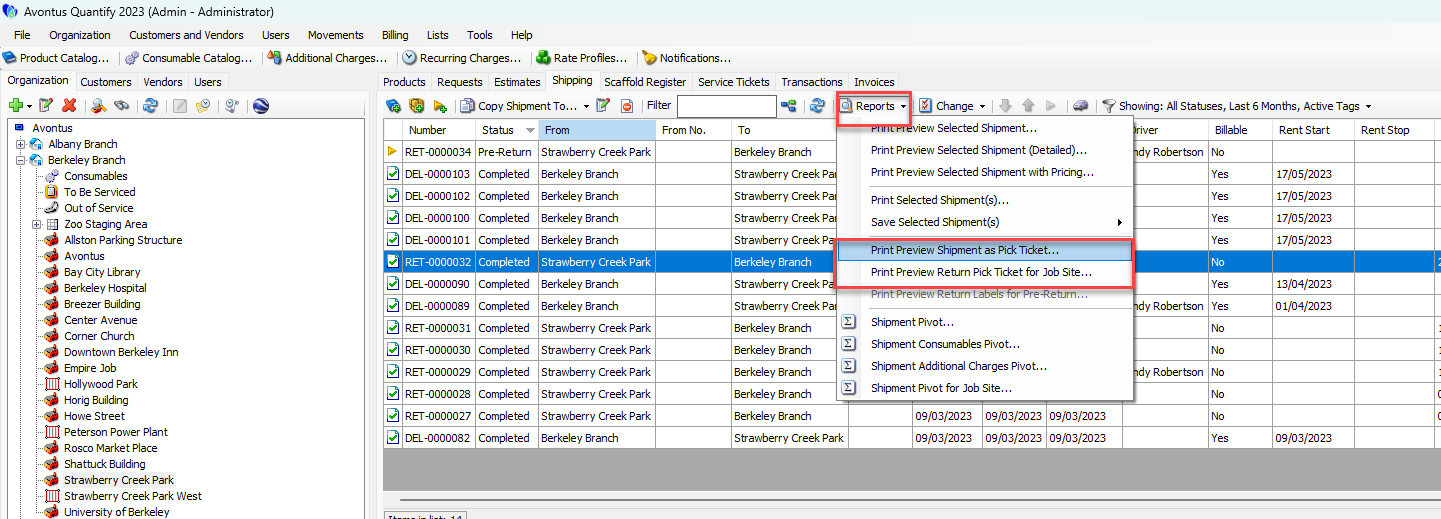
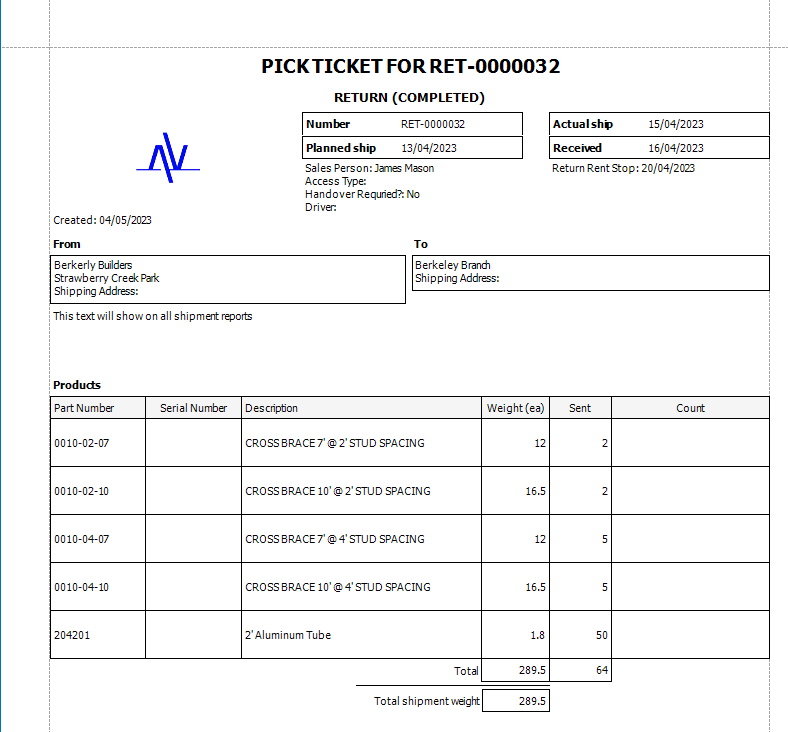
Print Preview Shipment as Pick Ticket provides information for the entire Shipment, including information about both the sending and receiving location.
Print Preview Return Pick Ticket for Job Site only provides information as it relates to the sending or receiving job site.
Note: You can only preview pick tickets for one selected Reservation or one selected completed Shipment.
To preview a pick ticket:
Locate and click the appropriate location and click the Shipping tab.
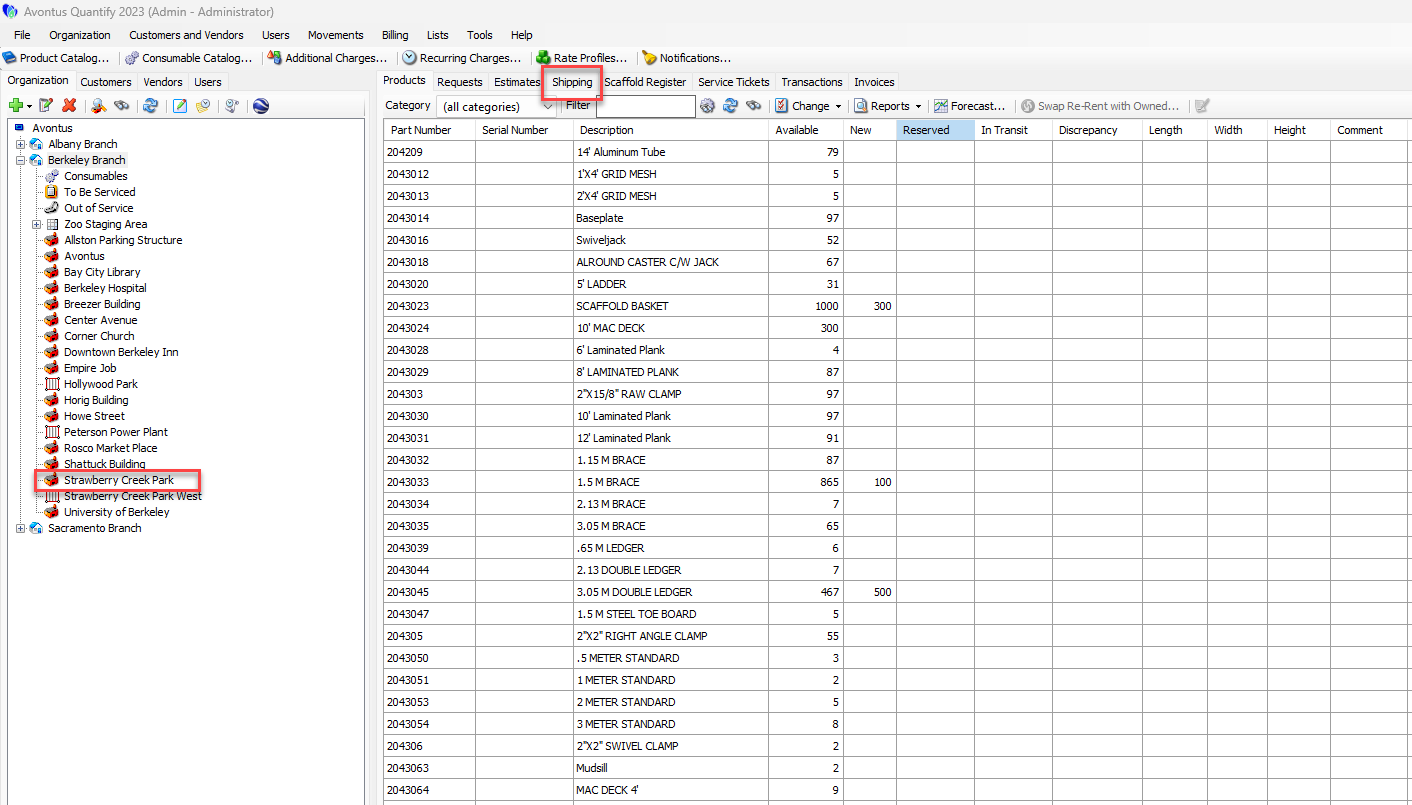
Click the appropriate Reservation or completed Shipment.
Click the Reports dropdown and select either Print Preview Shipment as Pick Ticket or Print Preview Return Pick Ticket for Job Site.
Note: To select multiple, consecutive Shipments, press the Shift key and select the first and last Shipments in the series. To select multiple, non-consecutive Shipments, hold down the Ctrl key while selecting each desired Shipment.
The Preview dialog appears, displaying a preview of the pick ticket.
The image below shows a preview when Print Preview Shipment as Pick Ticket is selected.
The image below shows a preview when Print Preview Return Pick Ticket for Job Site is selected.