Quantify enables you to preview and save the following types of Shipping reports:
Selected Shipment
Selected Shipment (Detailed)
Selected Shipment with Pricing
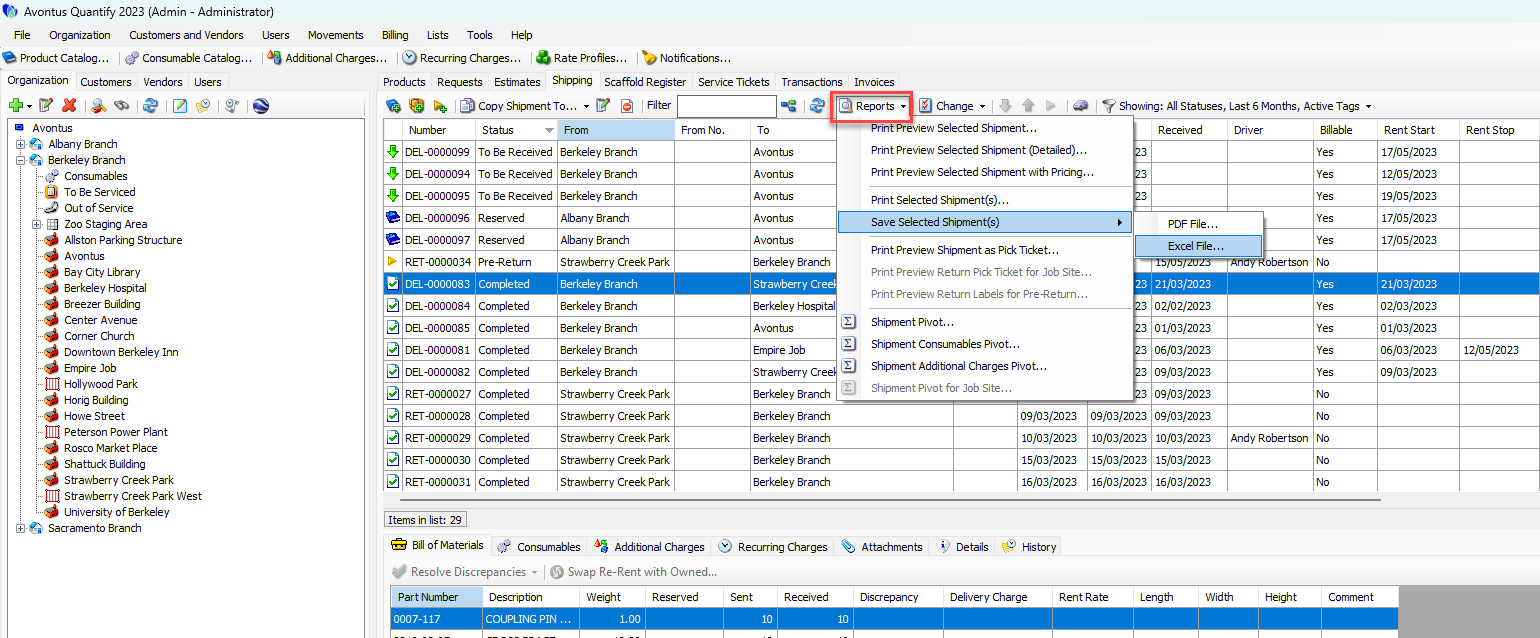
The Reports menu in the Shipping tab enables you to save reports in .pdf and Excel formats:
Previewing a Shipping Report
Quantify makes it easy for you to preview a selected Shipment report before printing or saving it, enabling you to verify its contents.
To preview a Shipping report:
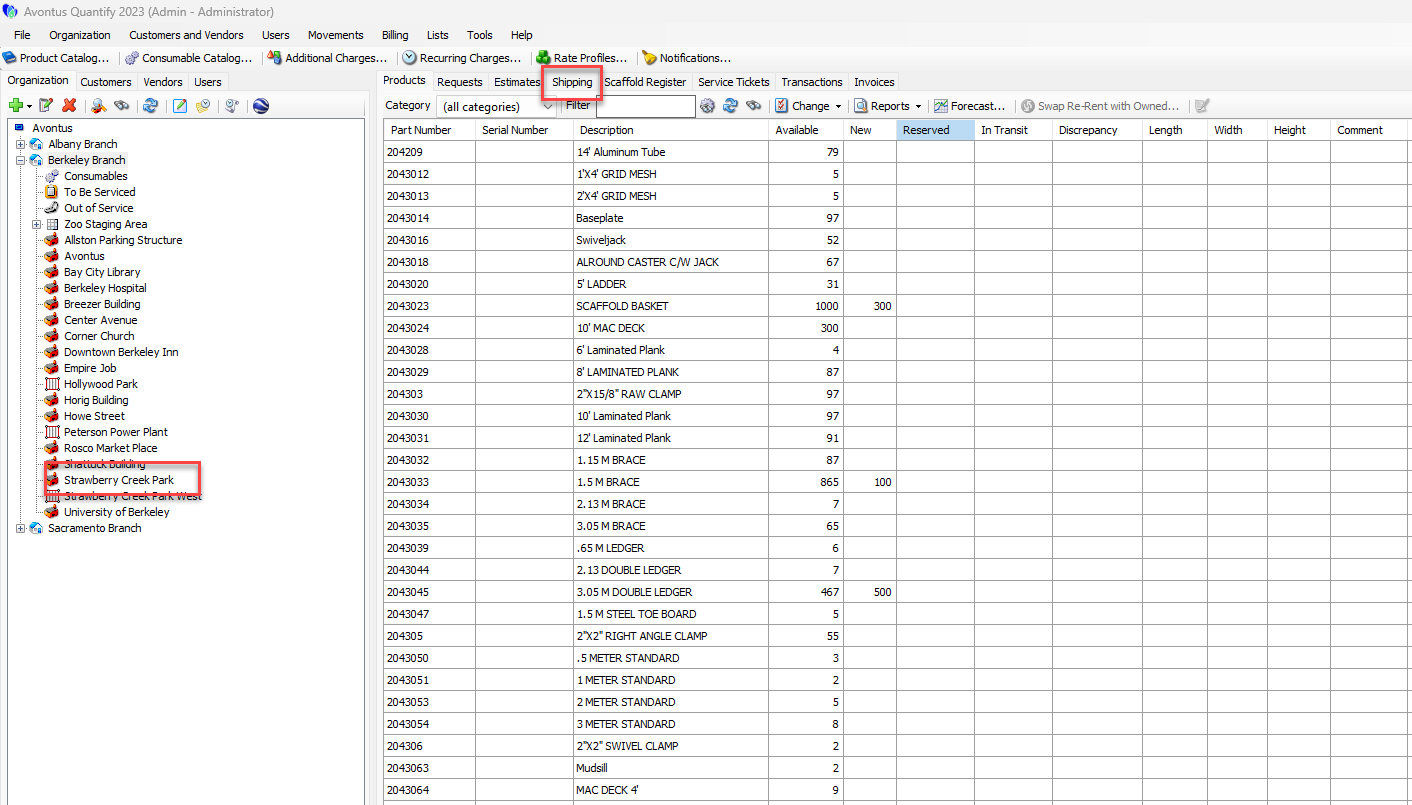
Locate and click the appropriate location and click the Shipping tab.
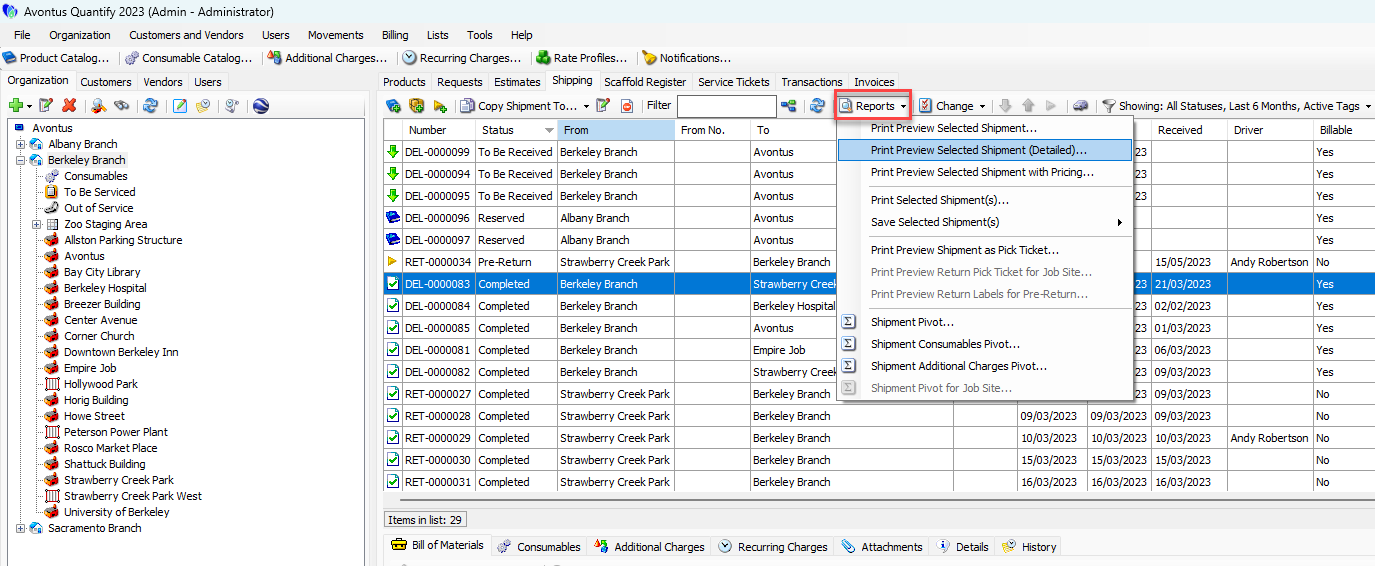
Click the appropriate Shipment(s), then click the Reports dropdown and select the appropriate Print Preview option: Selected Shipment, Selected Shipment (Detailed) or Selected Shipment with Pricing.
Note: To select multiple, consecutive Shipments, press the Shift key and select the first and last Shipments in the series. To select multiple, non-consecutive Shipments, hold down the Ctrl key while selecting each desired shipment.
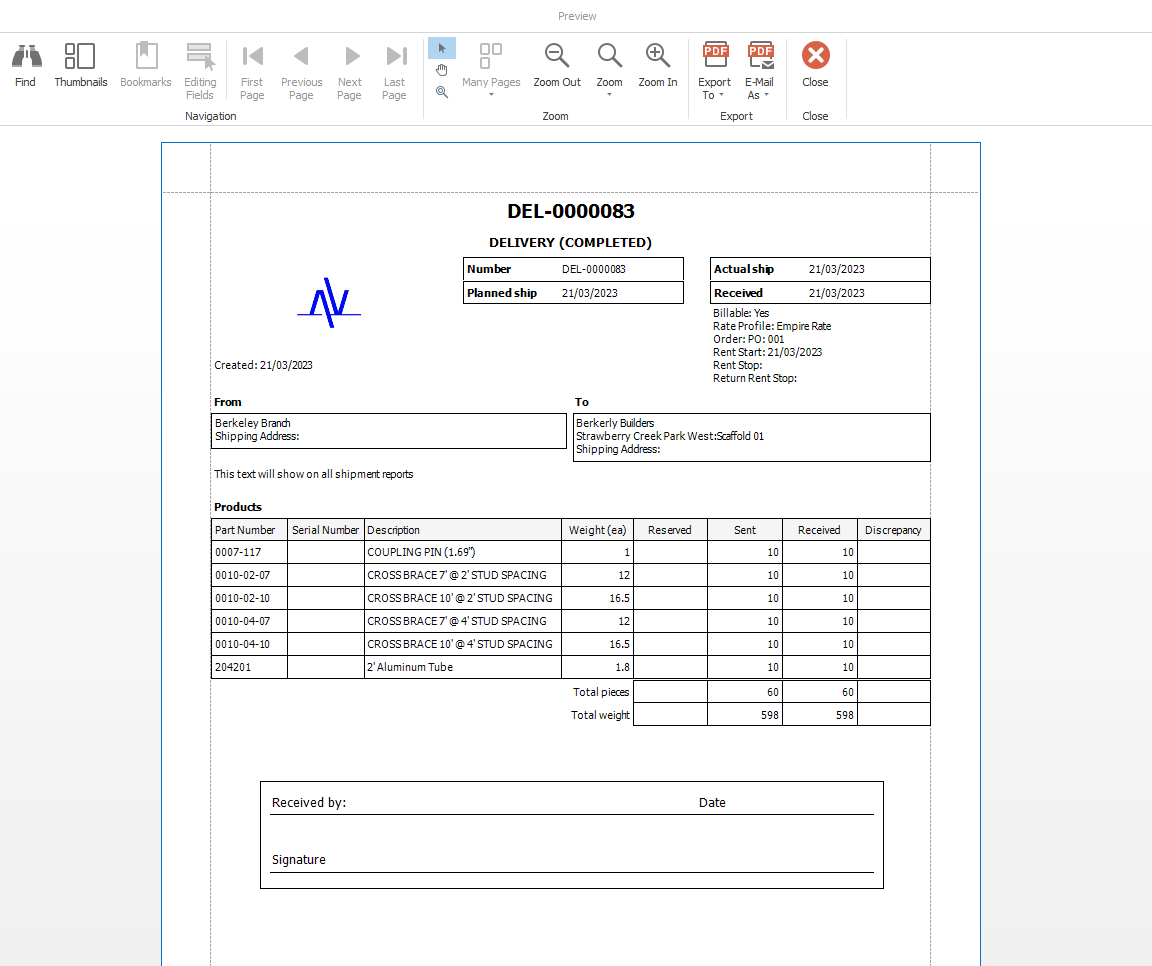
The Preview dialog appears, displaying a preview of the report.
Saving a Selected Shipment Report in PDF or Excel Format
Quantify makes it easy for you to save a selected Shipment report in PDF or Excel format. Quantify saves files into the default location set in the Invoices and Files tab of the My Options dialog.
To save a selected Shipping report:
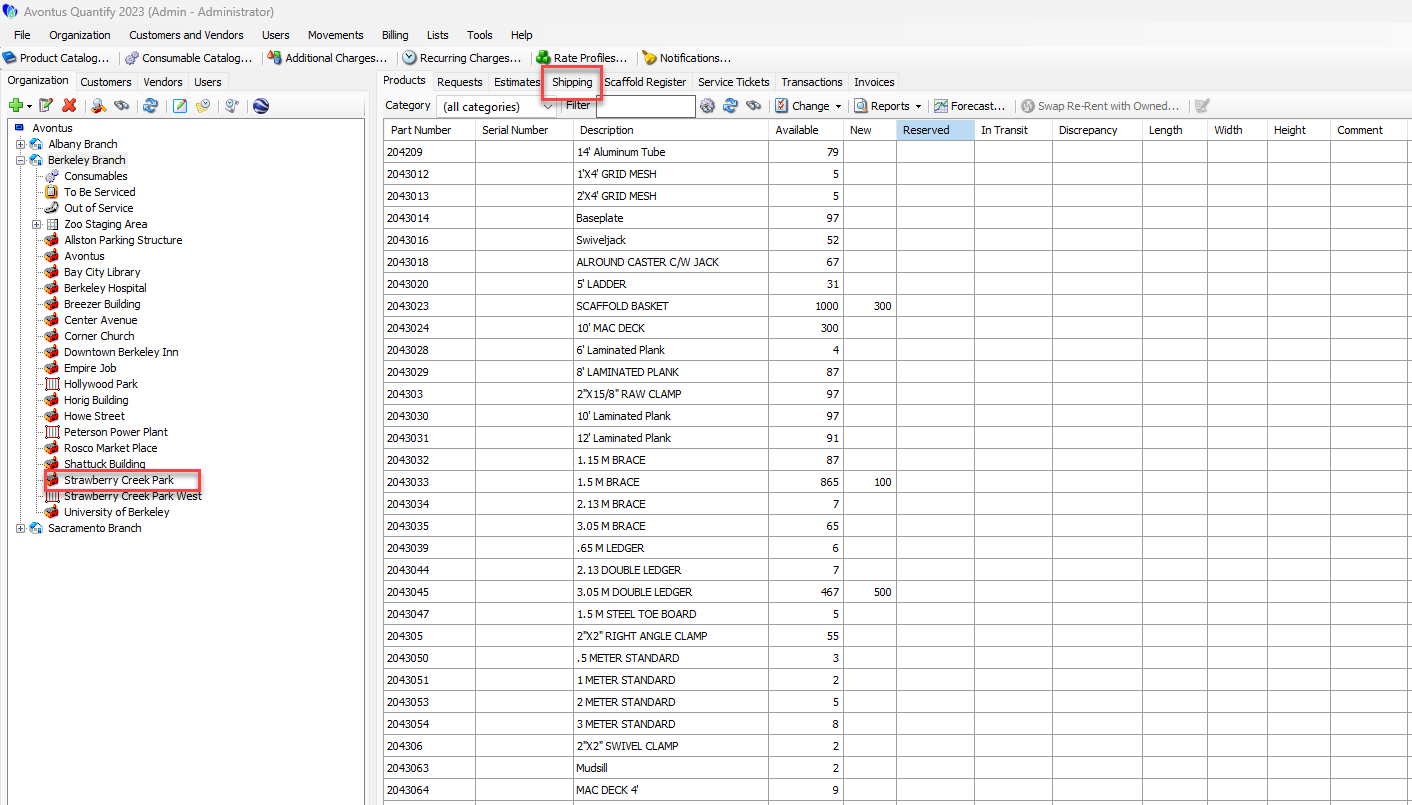
Locate and click the appropriate location and click the Shipping tab.
Click the Reports dropdown and select PDF File or Excel File from the Save Selected Shipment(s) sub-menu.
Note: To select multiple, consecutive Shipments, press the Shift key and select the first and last Shipments in the series. To select multiple, non-consecutive Shipments hold down the Ctrl key while selecting each desired shipment.
Quantify saves the file and launches a Windows Explorer dialog that enables you to locate and launch the document.