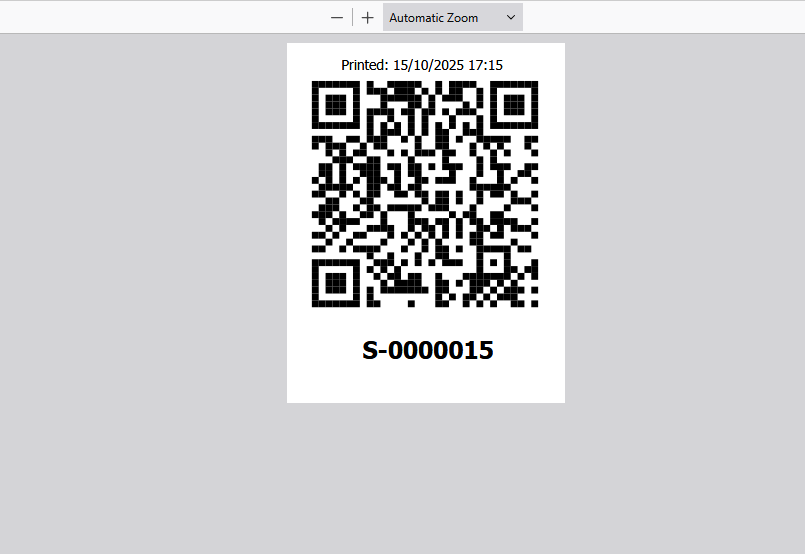
You can print a QR code for each Scaffold. When you point your phone at the QR code, you will jump directly to the Scaffold Details screen of that Scaffold. The Scaffold QR code can be placed directly on the Scaffold or added to an already existing Scaffold Tag.
For more information on scanning a QR code using a phone please see Scanning a QR code (Android) or Scanning a QR Code (IOS)
You can Print the Scaffold's QR code. To do this:
From any screen, select Scaffolds
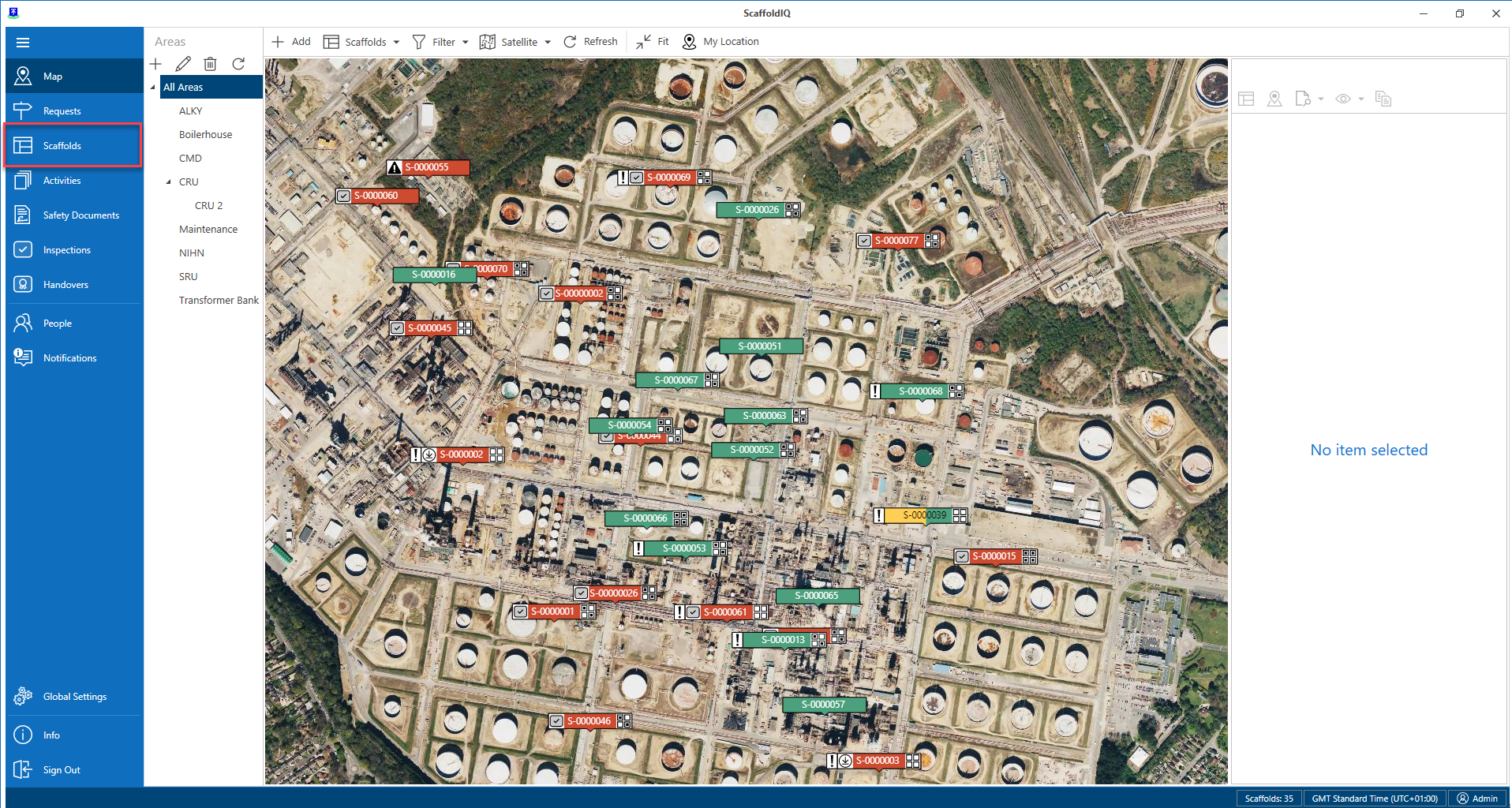
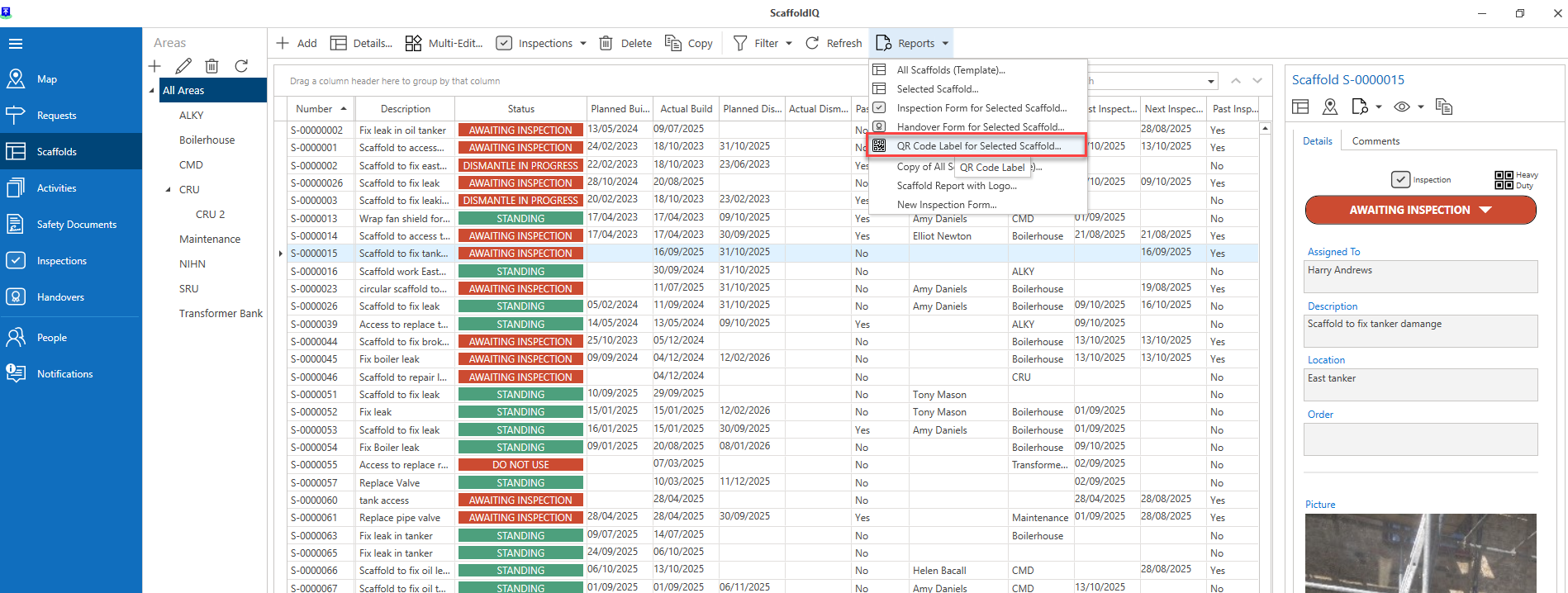
Select a Scaffold.
Select Reports and click QR Code label for Select Scaffold
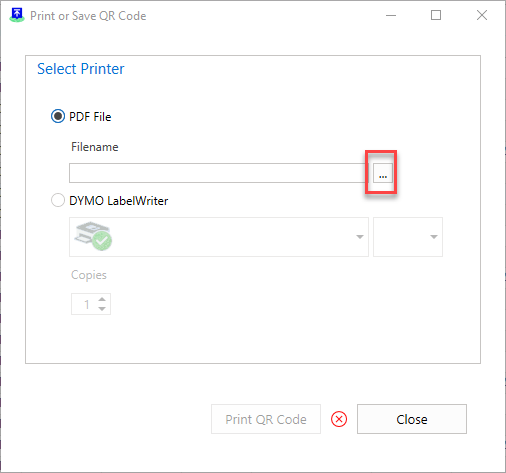
Select the Printer type.
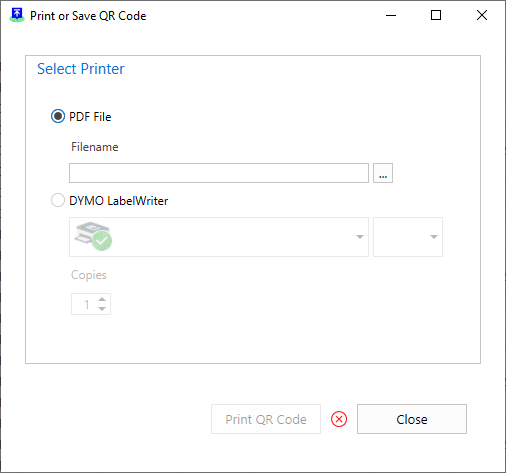
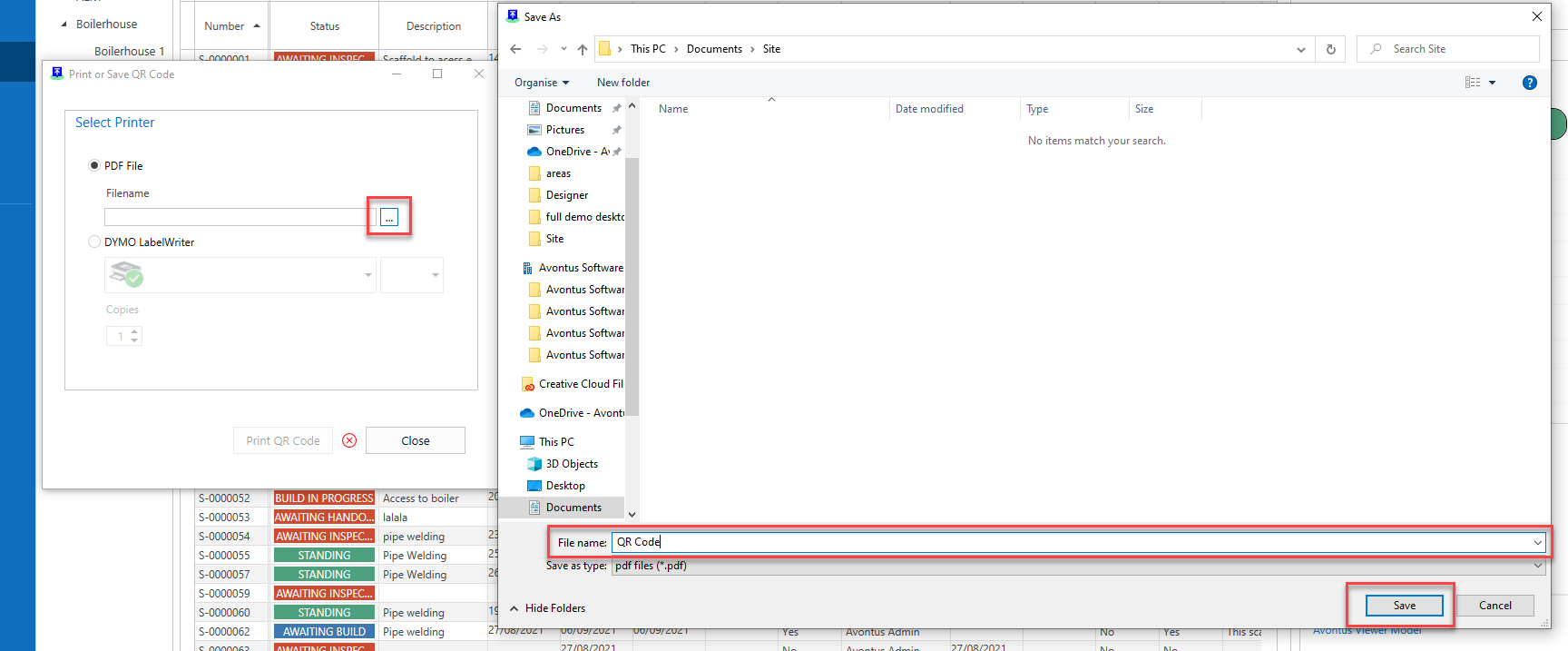
Select ... and specify the file name
Click Save
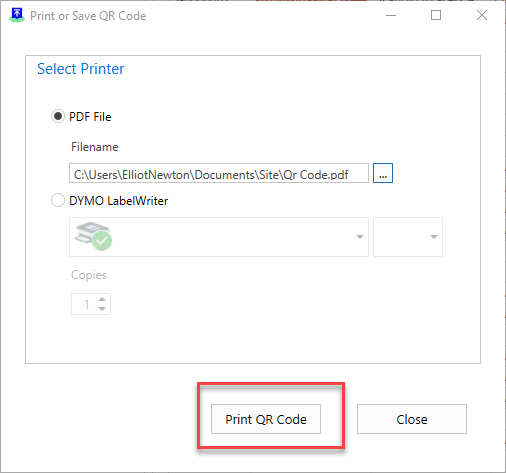
Click Print QR Code
If you open the QR code file, you will find the QR Code.