The information in this article provides a good context for working with Quantify and QuickBooks.
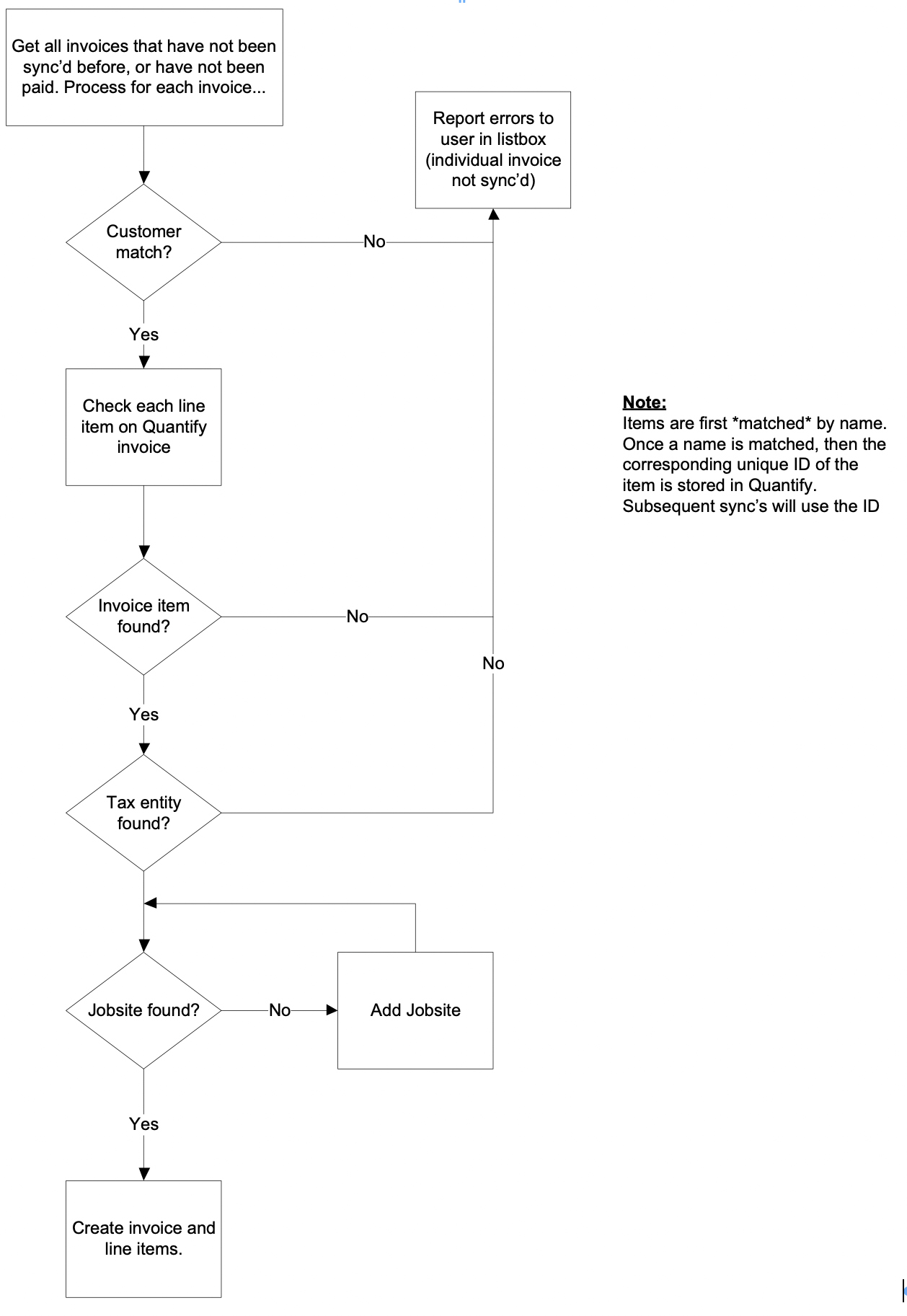
Quantify and QuickBooks Syncing Process - Flow Chart
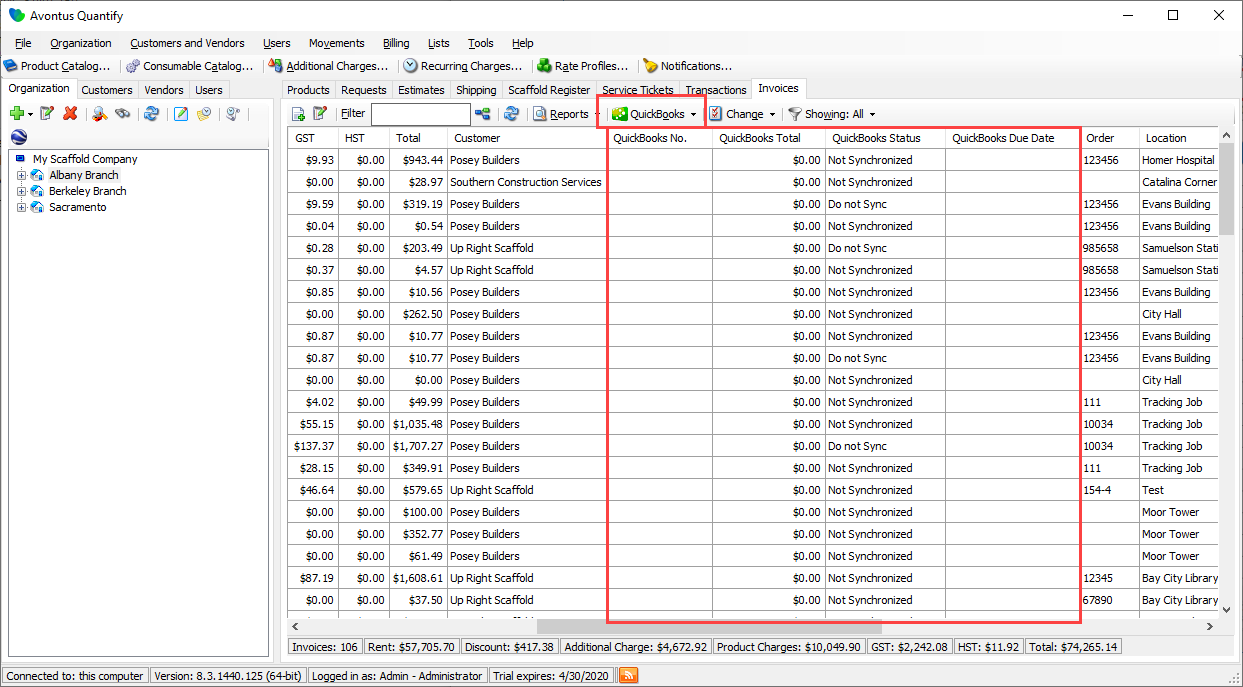
The Quickbooks Dropdown in the Invoices Tab
Once you integrate Quantify with QuickBooks, Quantify adds a QuickBooks dropdown to the Invoices tab and columns to the Invoices grid.
| QuickBooks Status | This column displays the status of each Quantify invoice, which dictates whether the Invoice is eligible to be synchronized with QuickBooks. |
| QuickBooks No. | This column displays the invoice number in QuickBooks, after the Invoice has been synchronized. |
| Quickbooks Total | This column displays the total on the Invoice in QuickBooks, so you can compare it to the Quanitfy total. |
| QuickBooks Due Date | This column displays the due date for the payment of the Invoice, again for reference. |
QuickBooks Statuses
Invoices in Not Synchronized and Not Paid status are eligible to be synchronized with QuickBooks.
| Not Synchronized | The Quantify Invoice has not been synchronized with QuickBooks and is eligible for synching. |
| Do Not Sync | The Quantify Invoice is not eligible for synching with QuickBooks. To synch an Invoice in this status, the status must be changed to Not Synchronized. |
| Not Paid | The Quantify Invoice has been synchronized with QuickBooks, but the full payment has not been applied to the Invoice in QuickBooks. Once this Invoice has been paid in full, the status will change to Paid. |
| Paid | The QuickBooks Invoice has been paid in full. The Invoice is no longer eligible to be synchronized with QuickBooks |
Adding Customers to Quickbooks
QuickBooks and Quantify both require Invoices to have assigned Customers. During synchronization, Quantify matches Customers, by name, to QuickBooks Customers and links them. Unlike most other data, a matching Customer is required to be set up in QuickBooks first or invoicing synchronization won't proceed. If a Customer doesn't exist in QuickBooks, Quantify will display the message below in the Invoice Synchronization dialog:

Once the Customer has been added to QuickBooks, synchronization of the Invoice will be possible.
If a matching Customer is found, Quantify will link the Customer with an underlying ID that is stored and reused in later synchronizations.
Note: When first synchronizing new Customer name(s), the following characters cannot be used in the Customer name:
After the first sync and the Customer has been established, the Customer name may be edited in both Quantify and QuickBooks.