Quantify enables you to create a re-rent transaction to add serialized inventory that a third party owns. Prior to creating the re-rent transaction, you must add serialized products (from the Product Catalog) with the appropriate owner assignment.
To add re-rent material to inventory or remove it from inventory, refer to:
Adding Re-Rent Material to Inventory
Removing Re-Rent Equipment from Inventory - Return Re-Rent
To re-rent serialized products:
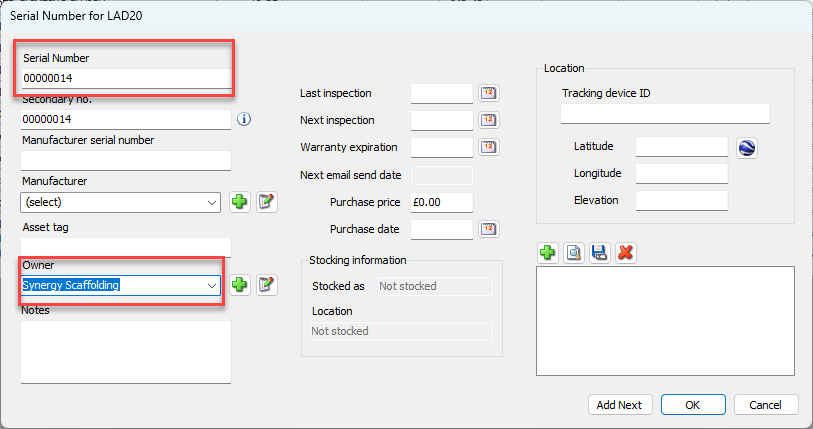
As necessary, use the Product Catalog to add the appropriate serialized parts. (Refer to Working with Products with Serial Numbers.)
Note: Make sure to set up the Serial Number and Owner
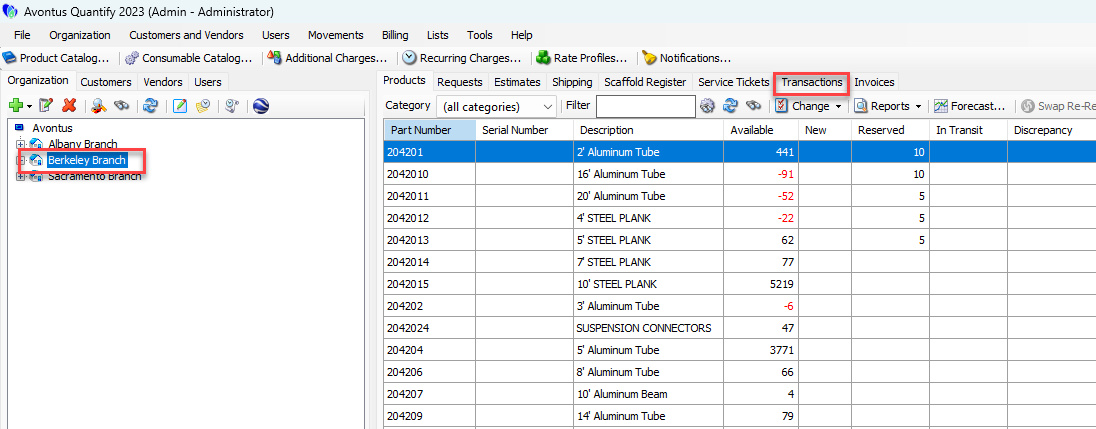
Click the appropriate Branch Office and click the Transactions tab.
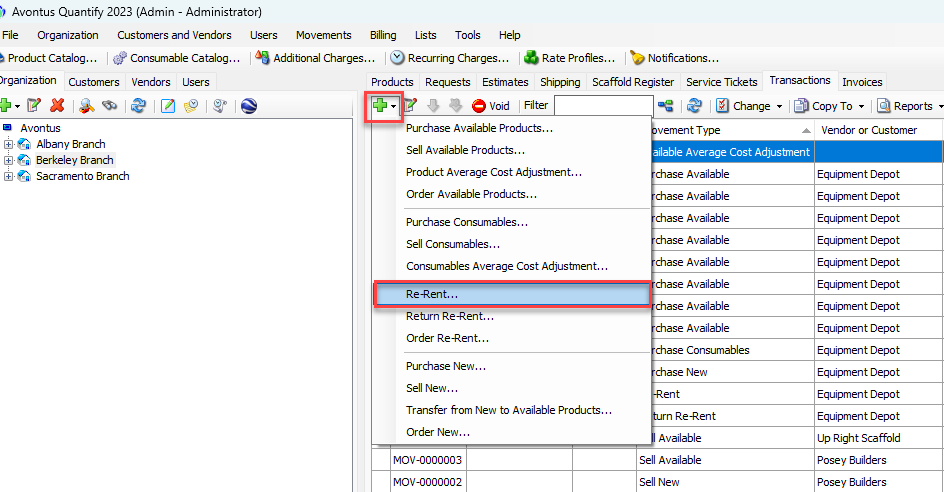
Click Add button (
 ) and select Re-Rent from the menu that appears.
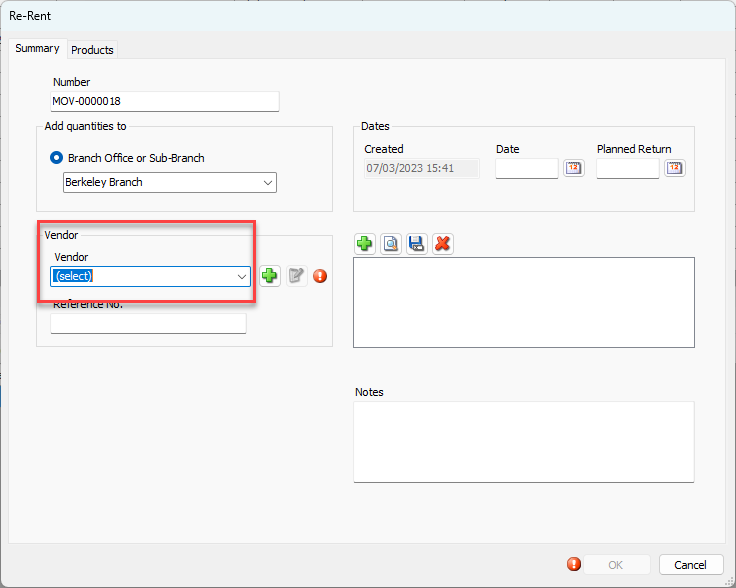
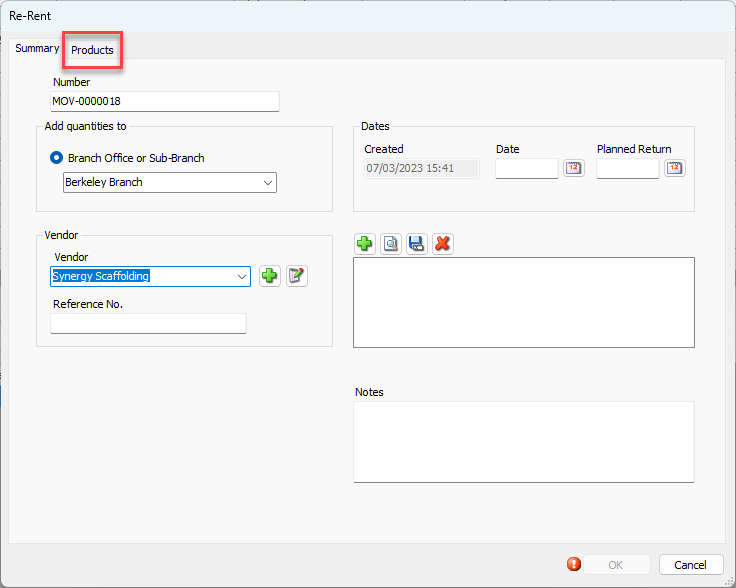
The Re-Rent dialog appears.Click the Vendor dropdown and select the owner of the equipment (as configured when setting up the serialised part).
Click the Products tab.
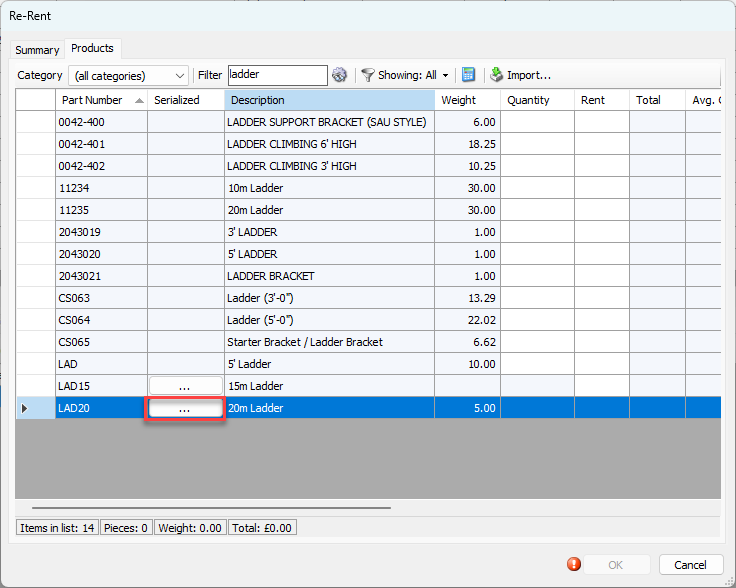
The Re-Rent dialog refreshes.Locate the serialized product in the Product Grid and click its Serialized button.
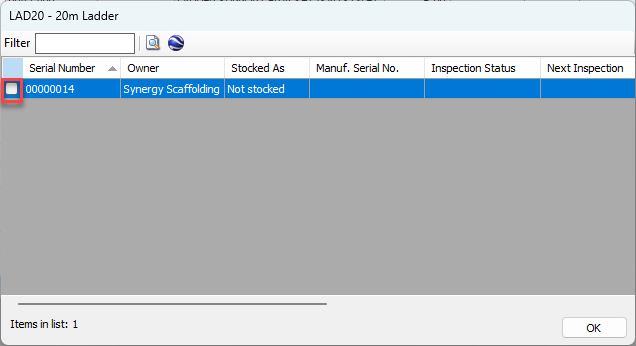
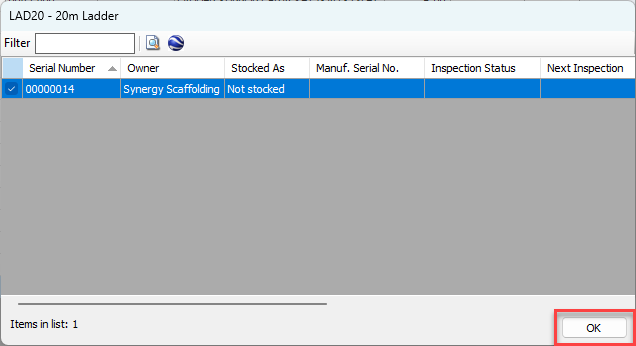
The Serial Number dialog appears, displaying the serial numbers available to be re-rented.Click the checkbox beside the serial numbers to be re-rented and click OK.
The Re-Rent dialog returns.Click OK to complete the transaction.
The re-rented serialized Products will be available in the Branch Office.