Once you have added the serialized items to your Product Catalog, the parts can be added to your inventory.
To stock a serialized product with purchase transaction:
Click the appropriate Branch Office and click the Transactions tab.
Click Add button (
 ) and select Purchase Available Products from the menu that appears.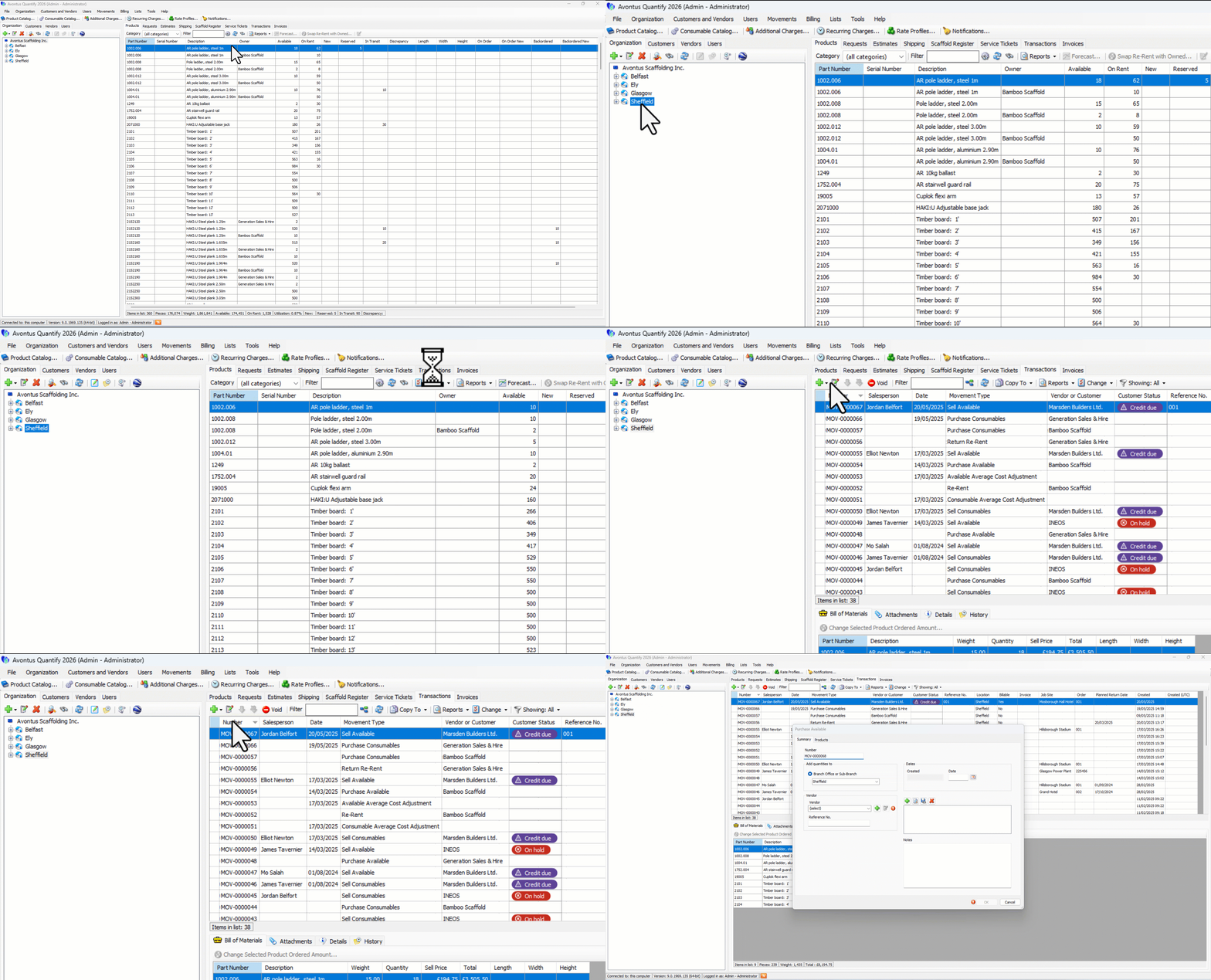
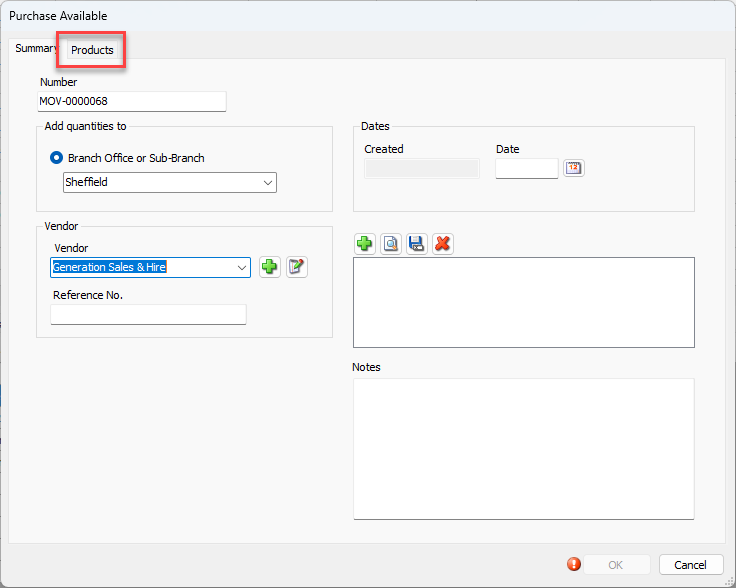
The Purchase Available dialog appears.Select the Vendor
Click the Products tab.
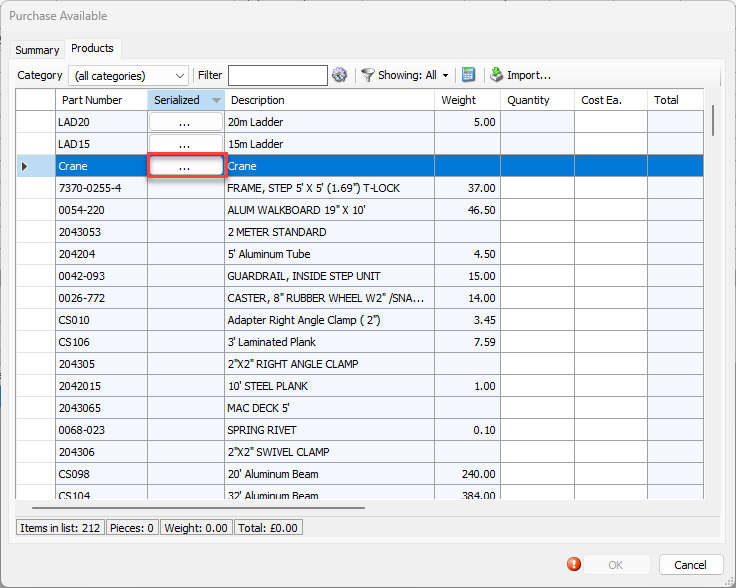
Locate the serialized product in the Product Grid and click its Serial Number button.
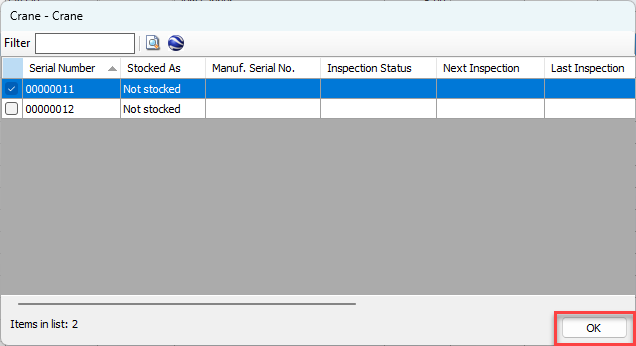
The Serial Number dialog appears, displaying all the serial numbers added to the Product Catalog and available to be purchased.Click the checkbox for the serial numbers to be purchased and click OK.
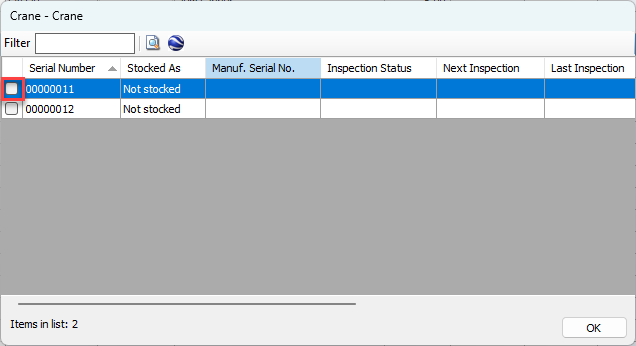
The Purchase Available dialog returnsClick OK to complete the transaction.
The serialized parts will be available in the Branch Office.