Since the drawing entities will be placed on the active Drawing Page, it is sometimes best to import your AutoCAD drawing first, before drawing anything else. Once the file is imported you will see the entities on the drawing page. Depending on how the drawing fits on the page, or whether you want to copy and paste some of the entities to other pages, you may need to rescale your drawing.
To rescale a drawing:
- Click File.
 The Info interface appears.
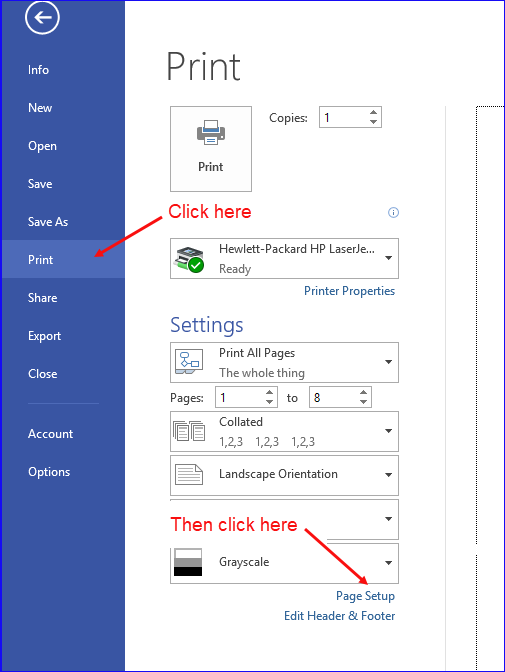
 - Click Print.
The Print Interface appears. - Click Page Setup
The Page Setup dialog appears.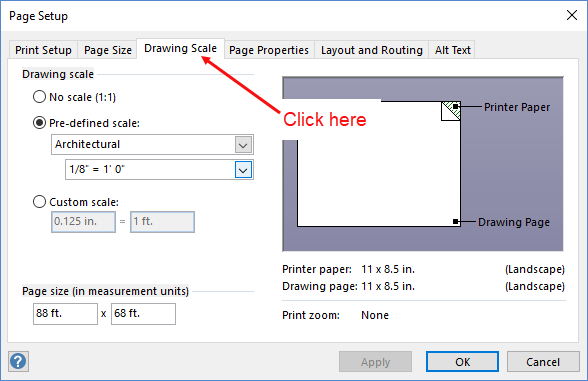
- Click the Drawing Scale tab.
Note: Handset Designer supports all drawing scales, but the Title Block will always show Scaled to fit if anything other than the Architectural scale is selected. - To assign no scale, click the No Scale radio button.
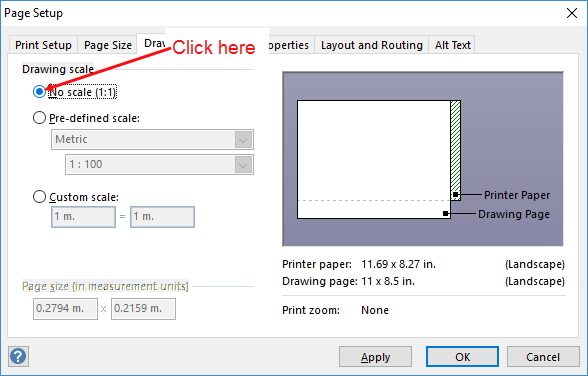
- To assign a pre-defined scale:
- Click the Pre-defined Scale radio button.
- Click the top dropdown and select the appropriate standard.
- Click the bottom dropdown and select the appropriate ratio.
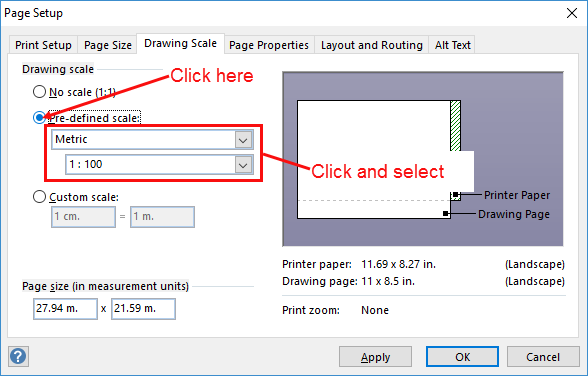
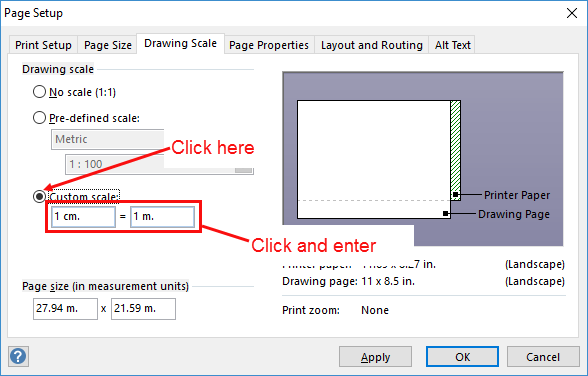
- 6. To assign a custom scale:
- Click the Custom Scale radio button.
- Click the left dimension text field and enter the height of the page.
- Click the right dimension text field and enter the width of the page.
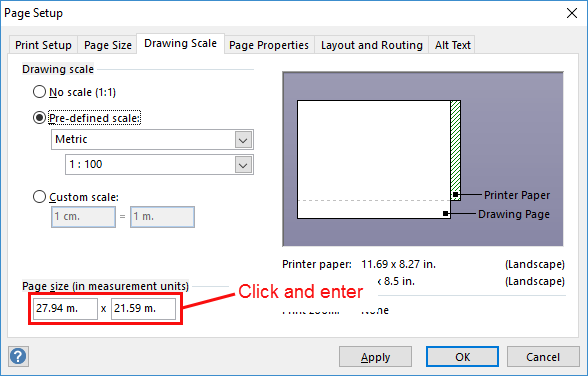
- To assign a page size:
- Click in the left Page Size text field and enter the height of the page.
- Click in the right Page Size text field and enter the width of the page.
- Click OK.
Handset Designer automatically calculates and displays the page size based upon the scale you select.
You can change the scale without affecting text and dimension sizes. These elements will always stay the same point size on your final printed page.