The first section of the details panel displays the current status of the scaffold. Here you can also find the load duty, a description, and the location of the scaffold. You can change the status of the scaffold here by selecting the status drop-down.
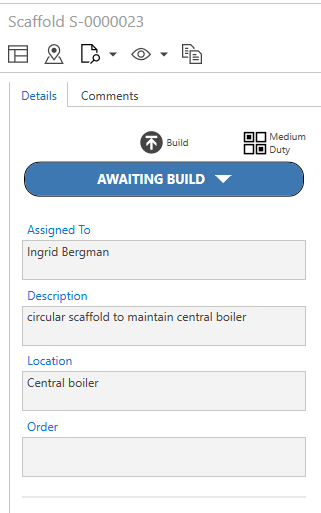
Status icons
These are the scaffold status icons you see on the scaffold details panel.
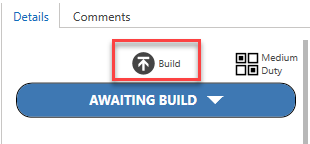
Icon | Purpose |
| This indicates that the scaffold is in the build status. |
| This indicates that the scaffold is out of limits. |
| This indicates that the scaffold is undergoing inspection. |
| This indicates that the scaffold has passed its planned dismantle date. |
| This indicates that the scaffold is undergoing dismantling. |
| This indicates that the scaffold is undergoing modification. |
| This indicates that the scaffold is undergoing a Handover. |


Note: For more information on statuses, please visit the Working with Statuses section.
Also displayed are the duty indicators which indicate how much load the scaffold will endure daily.
Load Icon | Load Meaning |
| Low Load Duty |
| Medium Load Duty |
| Heavy Load Duty |


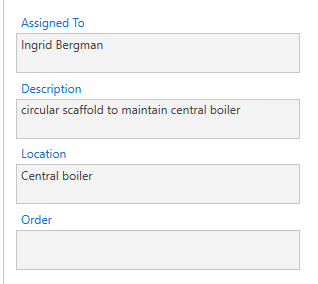
Assigned to - Indicates who the scaffold is assigned to.
Description - Offers an explanation of what the role and the purpose is.
Location - Indicates where the scaffold can be found.
Order - The order associated with the Scaffold
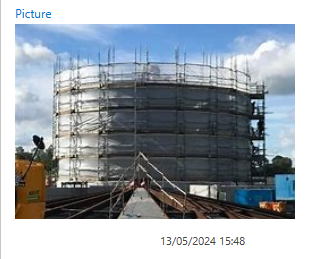
Picture
In the details panel, you will also find a picture of the scaffold. This is so on-site staff can locate the correct scaffold.
Click the picture to view the full-sized image.
To upload a picture, visit the Uploading a Picture help guide.
Avontus Viewer Model
Inbuilt into ScaffoldIQ is the Avontus Viewer Model which renders a 3D model of the scaffold you created on Avontus Designer. To open the Avontus Viewer Model, click on the 3D model.
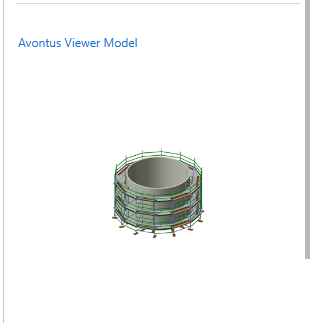
To upload a 3D model of your scaffold, visit the Uploading a 3D Model help guide.