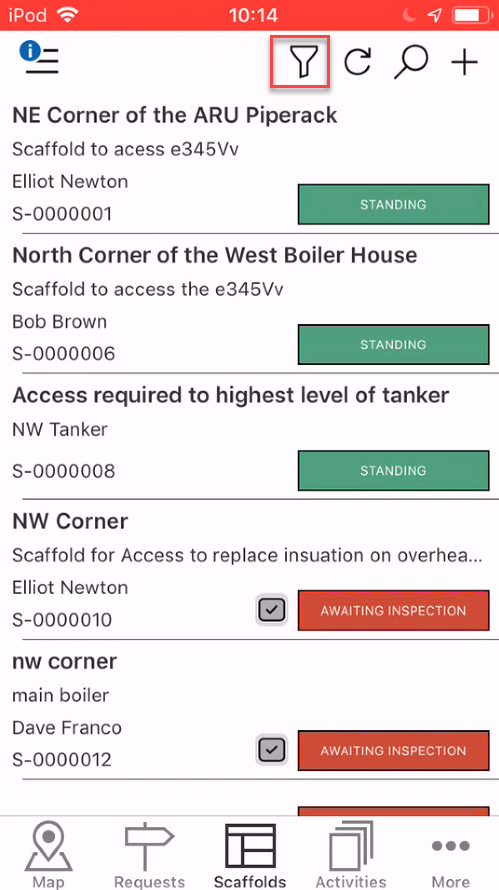
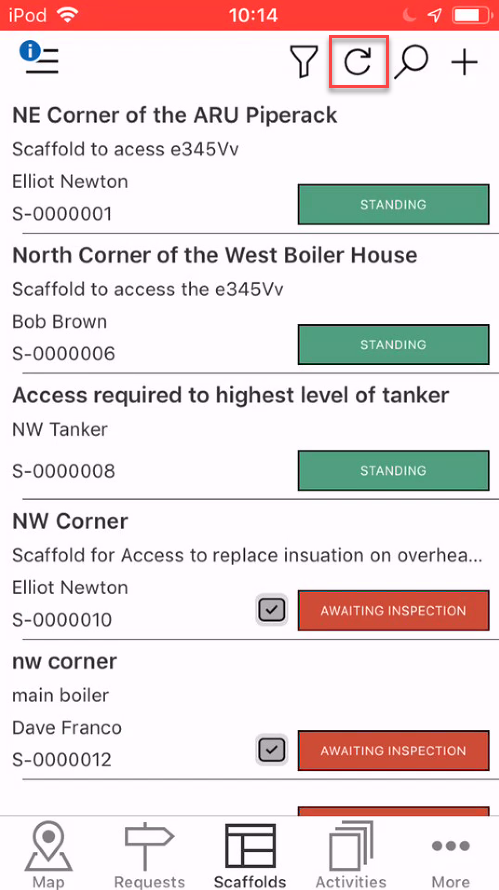
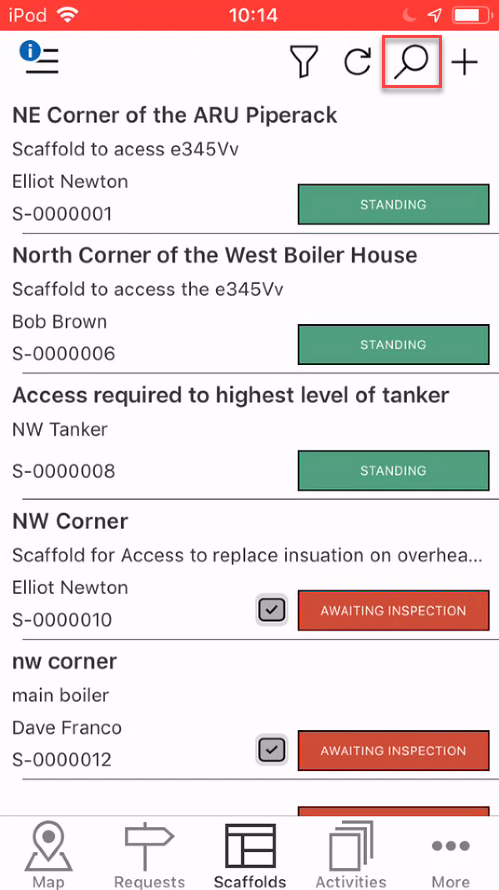
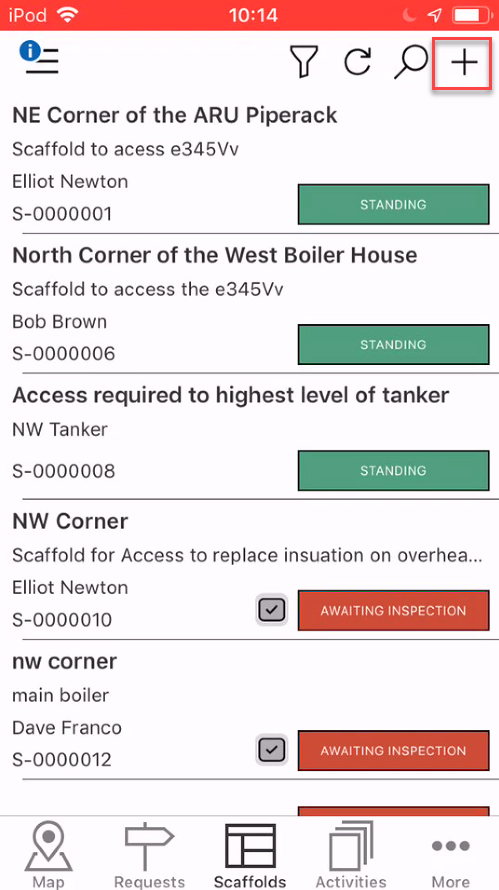
The controls along the top allow you to filter the content with the table, refresh the content, and search within the table. You can also find the Add button, which will allow you to add a Scaffold.
Filter
The filter is used to display specific data to ensure that only the data you wish to see is visible on the screen. This allows a user to only display scaffolds that are relevant to them. For instance, a user can filter out all scaffolds except those that are in the Awaiting Build status so that only scaffolds that are waiting to be built will be displayed.
The following filters determine what is visible on the Scaffolds screen
Note: If the slider button is blue, then the Scaffold will be displayed
Awaiting Build - Display all scaffolds in the Awaiting Build status.

Build in Progress - Display all scaffolds in the Build in Progress status.

Standing - Display all scaffolds in the Standing status.

Awaiting Handover - Display all scaffolds in the Awaiting Handover status.

Awaiting Inspection - Display all scaffolds in the Awaiting Inspection status.

Do Not Use - Display all scaffolds in the Do Not Use status.

Modification In Progress - Display all scaffolds in the Modification In Progress in status.

Awaiting Repair - Display all scaffolds in the Awaiting Repair status.

Repair In Progress - Display all scaffolds in the Repair in Progress status.

Dismantle in Progress - Display all scaffolds in the Dismantle in Progress status.

Scaffolds that are assigned to me - Display all scaffolds assigned to you.

Scaffolds that I’m a member of - Display all scaffolds where you are the requestor, scaffold user, foreman or inspector.

Scaffolds that I'm watching - Display scaffolds that you have selected to watch.

Note: Dismantled Scaffolds can only be viewed in the Desktop app.
Refresh
Tap this button to refresh the screen to account for any recent changes made to the scaffolds.
Search
Click the magnifying glass to begin searching for a specific scaffold.
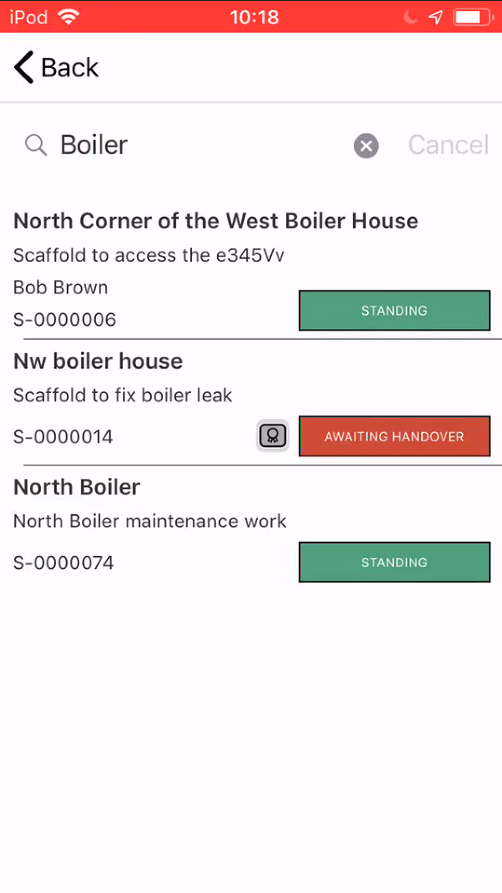
Specify your search term (both numbers and letters are valid) and the results will be displayed below. You can also search for the scaffold ID.
Add
Click the + button to add a new scaffold. You will be taken to the Map screen.
Please see the Adding a Scaffold (IOS) for more information on adding scaffolds.