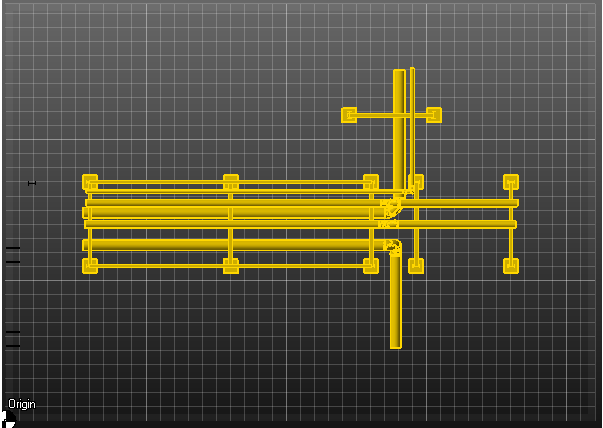
Dynamic Transformation allows users to move and rotate a 3D object.
Selecting Objects
There are many ways to select objects, you can change the selection method by clicking Selection Mode and then picking a selection mode.
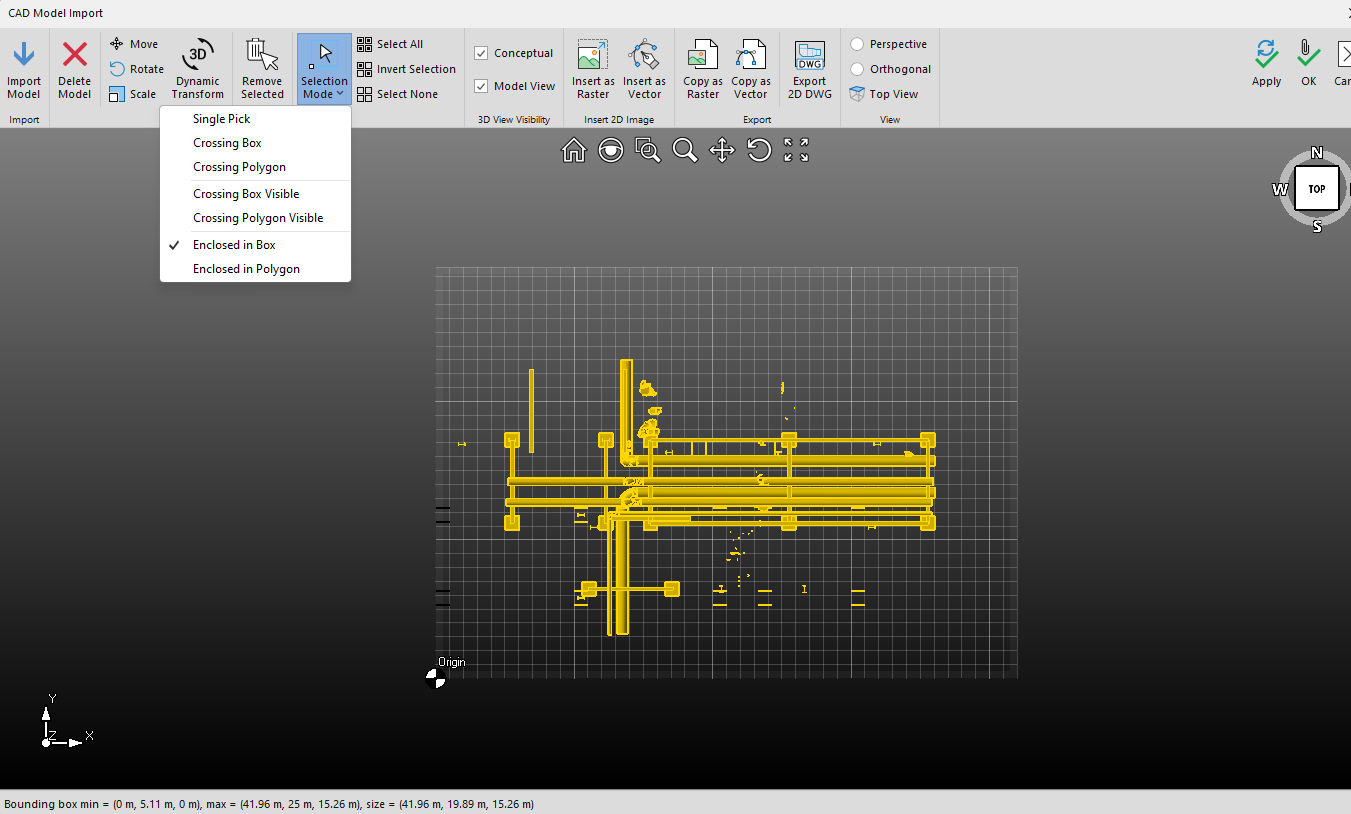
Single Pick
Allows you to select a single object
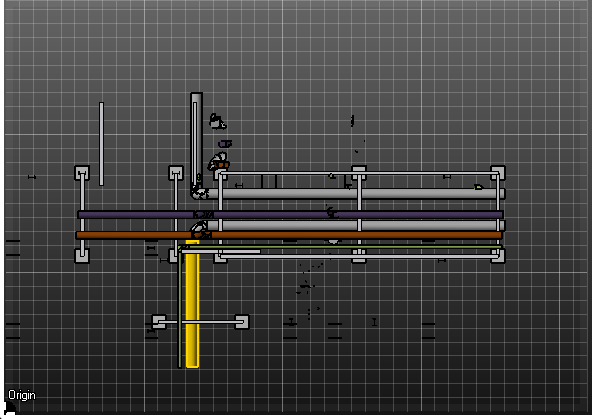
Crossing box Visible
Allows you to select all objects that come into contact with the box, but not necessarily enclosed within it.
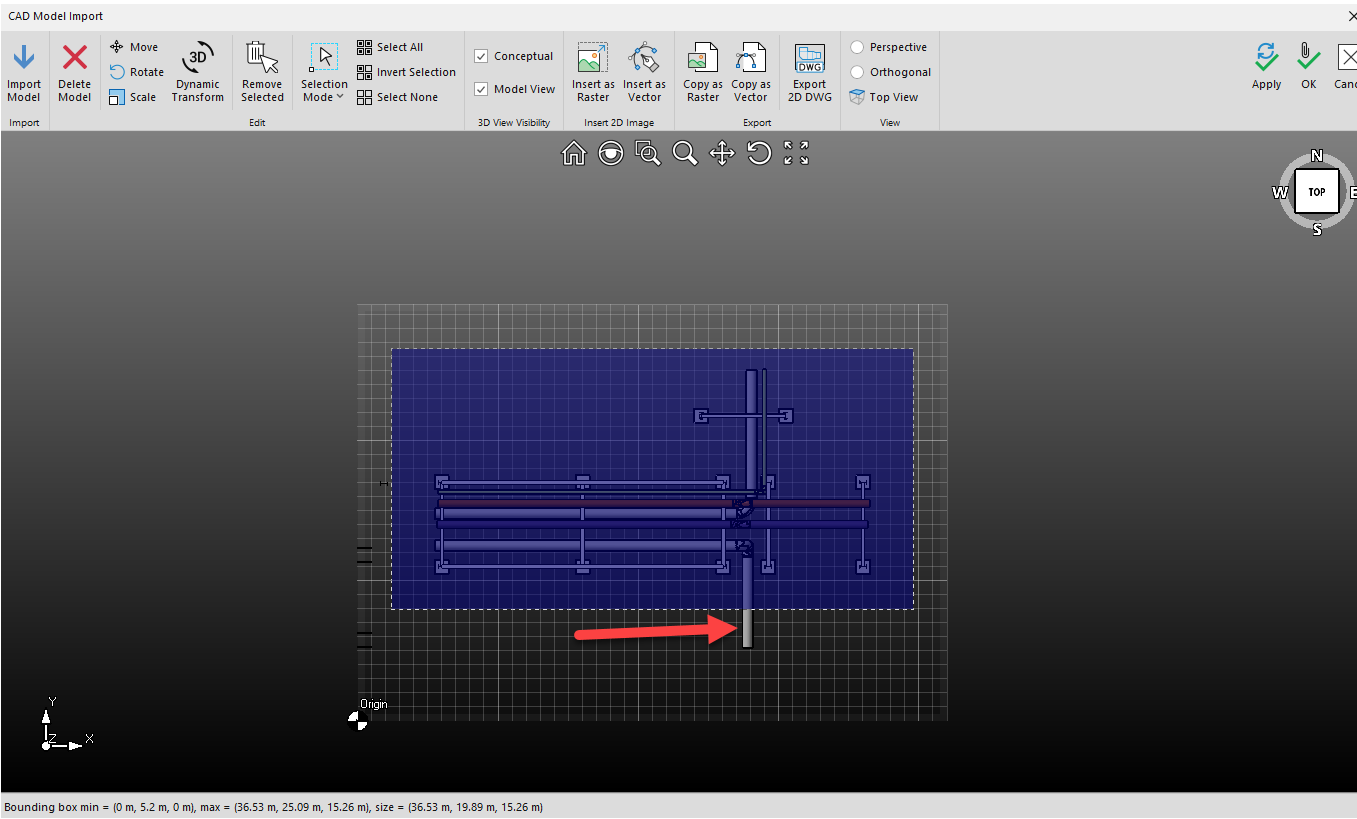
In the example above the bottom object indicated by an arrow will still be selected, even when it's not fully enclosed within the box.
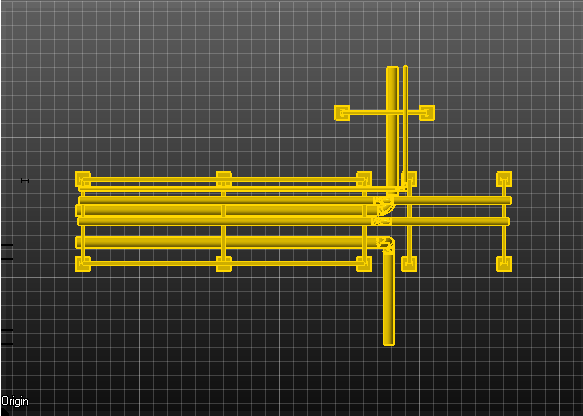
Crossing Polygon
Crossing Polygon works like Crossing Box in as such, any objects that comes into contact with the selection area will be selected. When using the Polygon option, you will need to rejoin the shape.
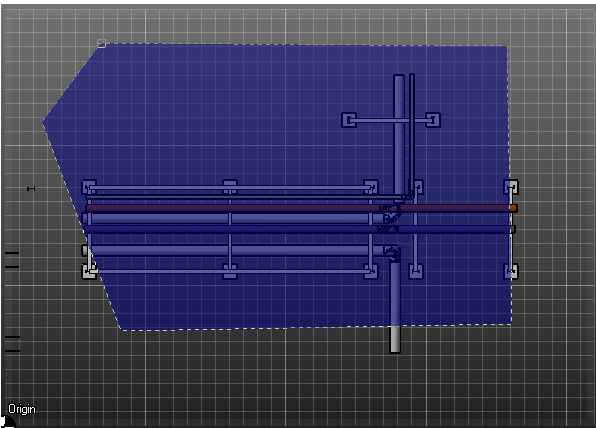
This will select the following shapes.
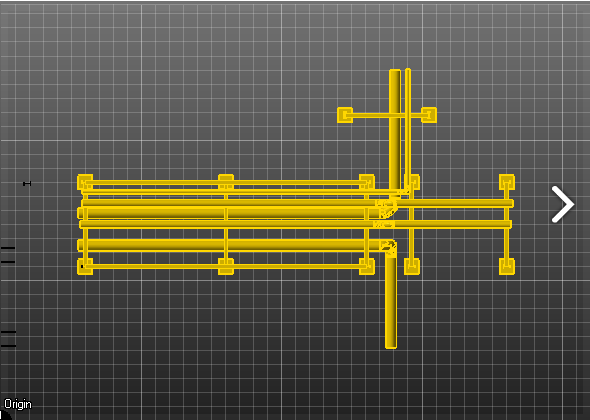
Crossing Box Visible
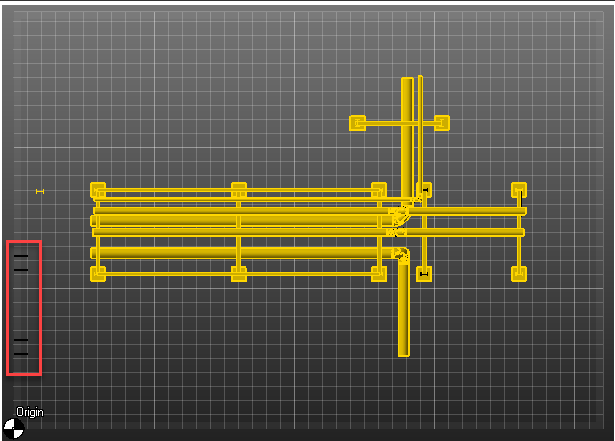
This only selects objects that are visible in the 3D view.
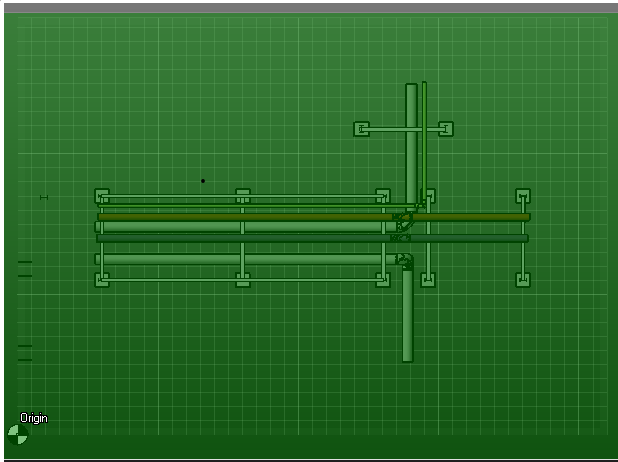
In the image below, the highlighted objects were not selected.
Crossing Polygon Visible
Crossing Polygon Visible works like Crossing Box in as such, only objects visible in When using the Polygon option, you will need to rejoin the shape.
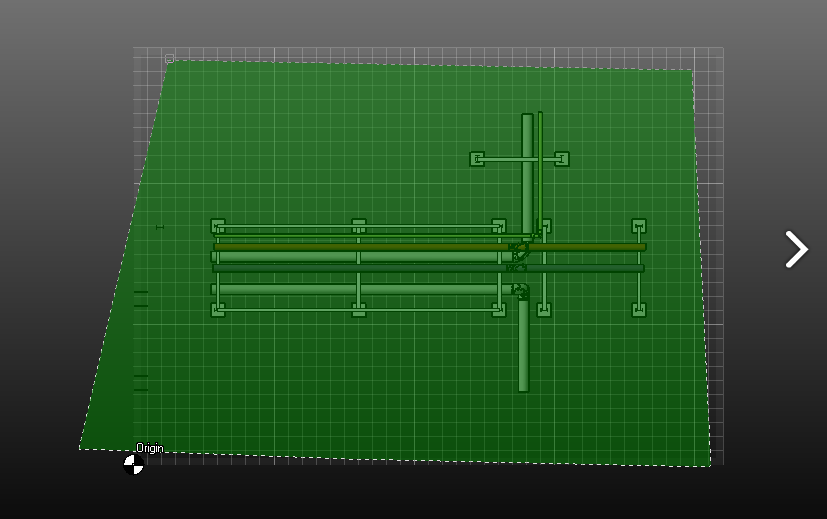
This polygon shape will select the following objects.
Enclosed in box
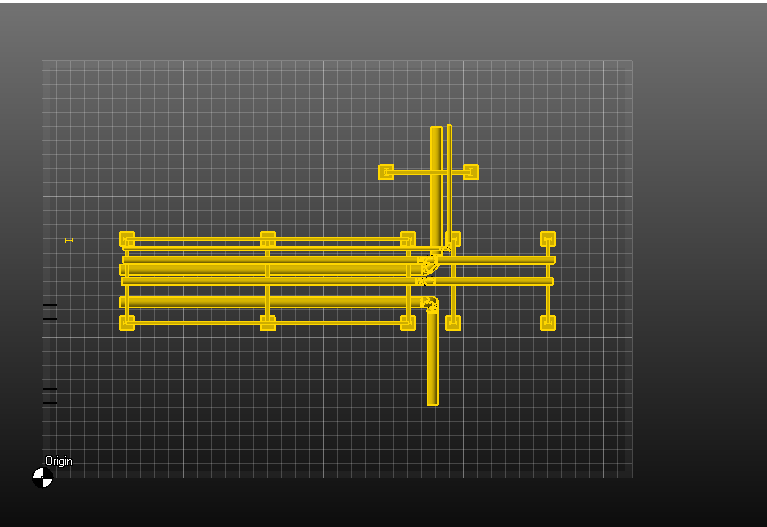
This will only select parts that are fully enclosed in the selection box.
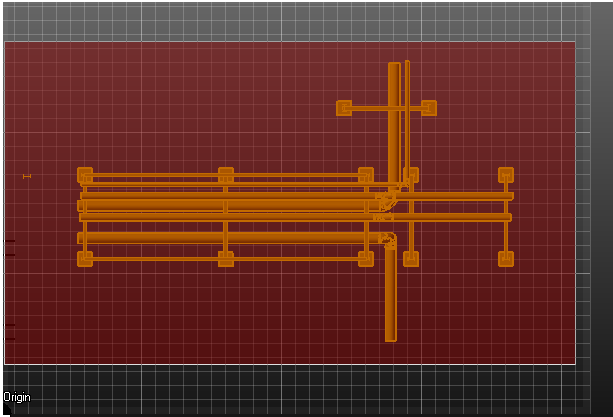
Therefore, any object which is not fully in the selection box will not be selected.
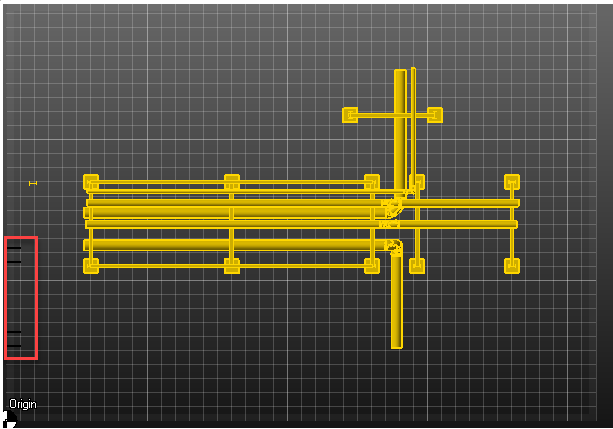
Enclosed in Polygon
This works like Enclosed in box, but instead, it is a polygon shape.
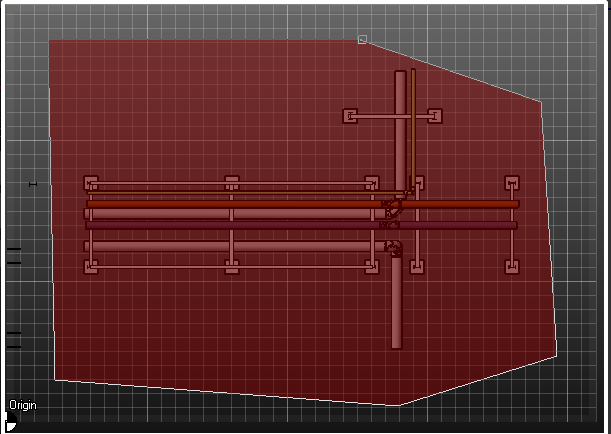
Any objects enclosed in the polygon will be selected. Any that are not will not be selected.