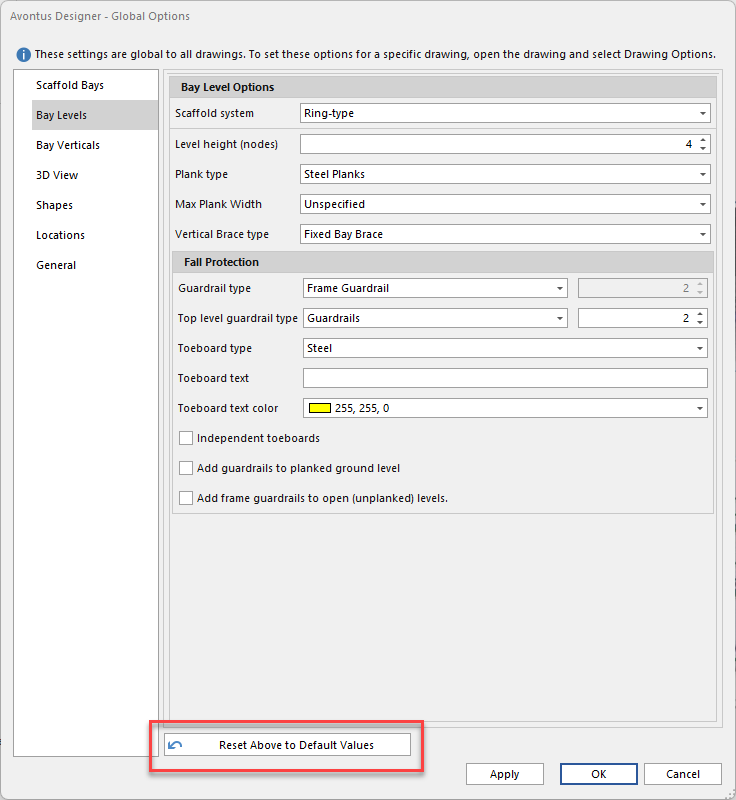
The Bay Levels interface of the Global Options dialog enables you to determine the materials Avontus Designer will use on each bey level when you create new Bays.
To set default Bay levels options:
Click the Bay Levels tab.
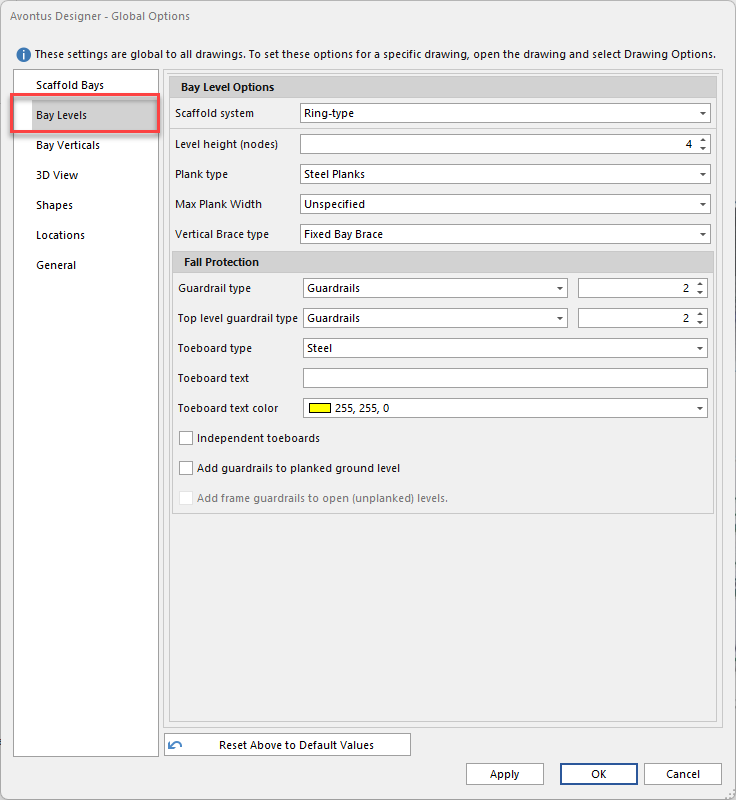
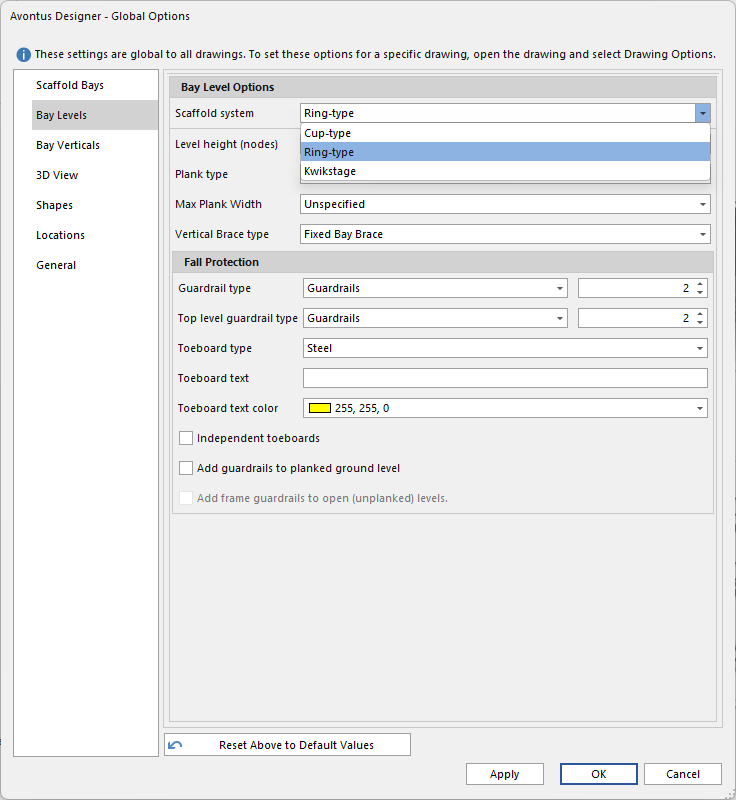
The Avontus Designer Options dialog refreshes, displaying the means for configuring default Bay level options.Select the Scaffold system. You can select from
Cup-type
Ring-type
Kwikstage
Selecting Cup-type, Ring-type or Kwikstage allows you to apply the global options to those drawing types separately. So, any changes made to Kwikstage will only apply to Kwikstage drawings.
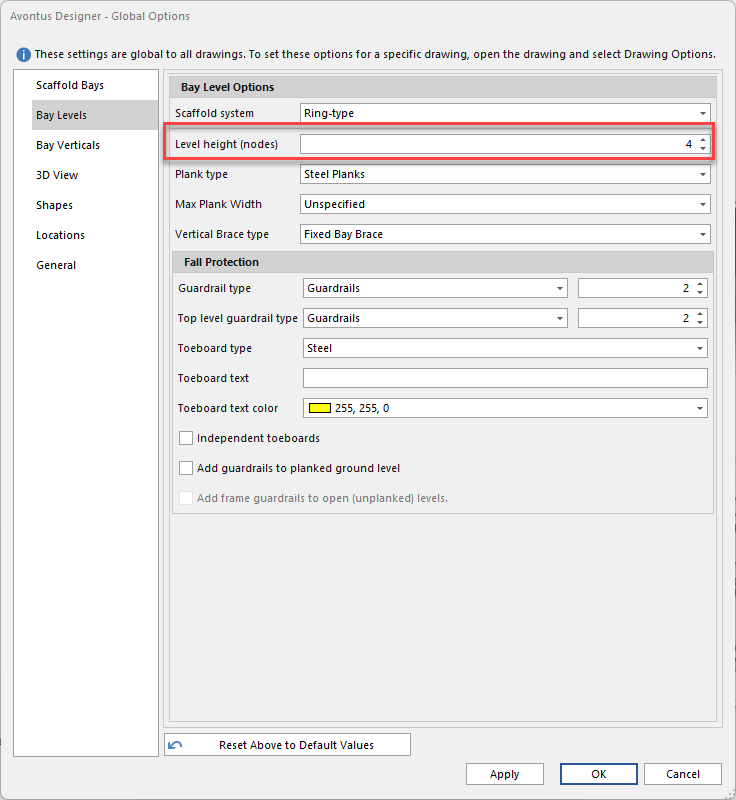
Click in the Level Height (nodes) text field and enter a number or use the arrow buttons
Note: A node is 0.5m (1.64 feet)
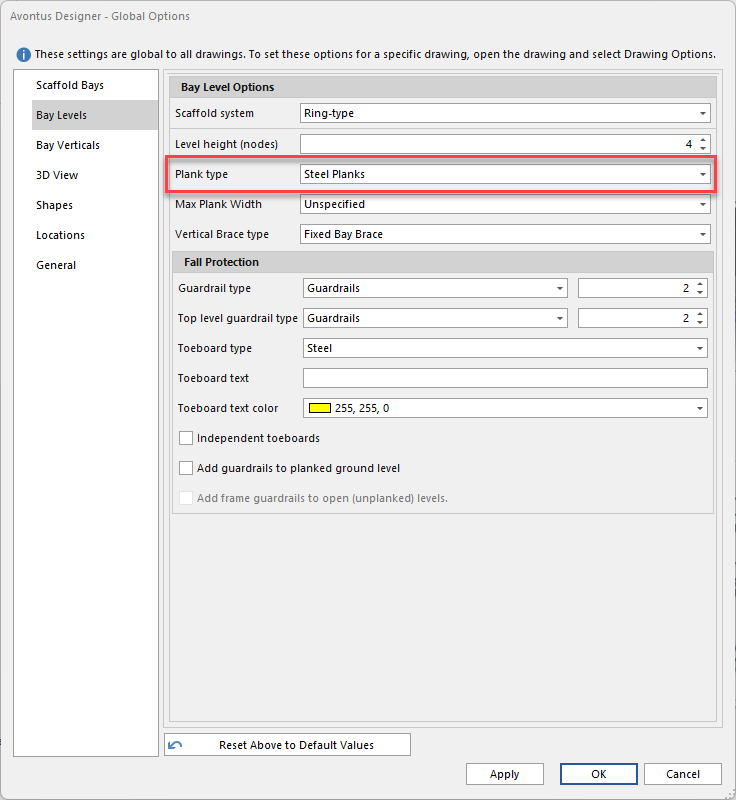
Click the Plank Type dropdown and select the default plank type.
Select fromNone
Steel Plank
Wood plank
Alum Ply-deck
All Alum Deck
Access Deck
Corner Deck
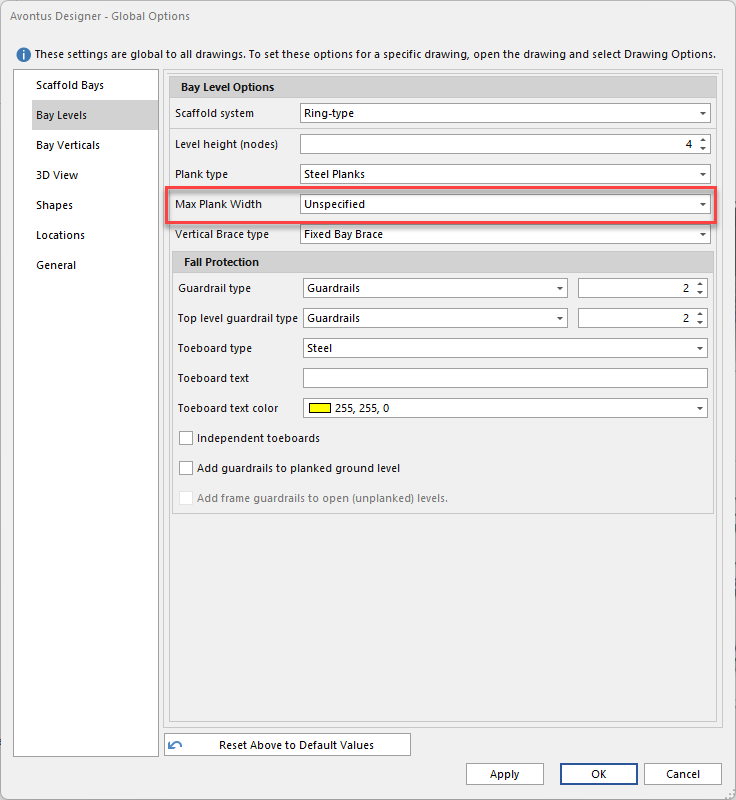
Set the Max Plank Width
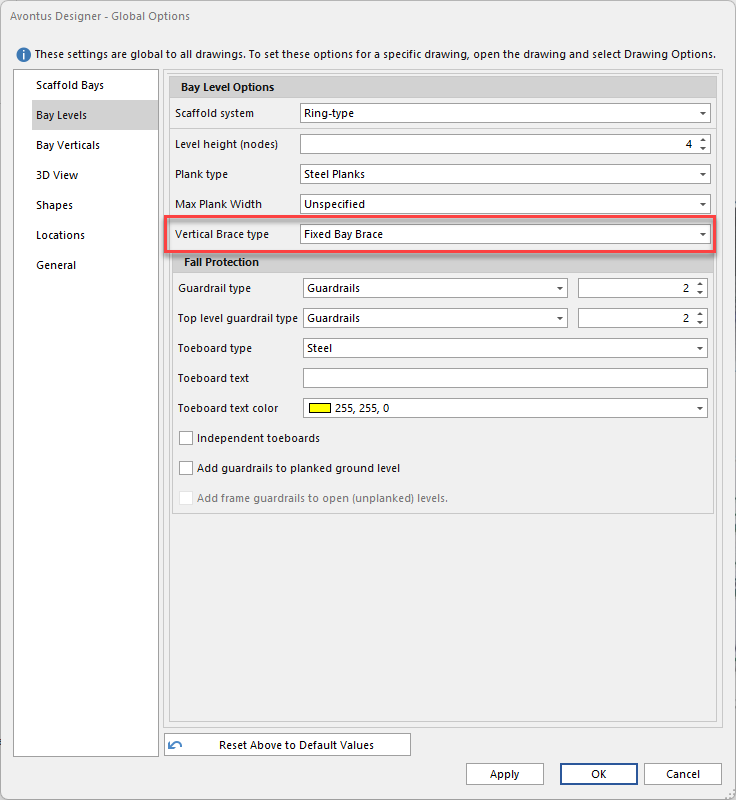
Click the Vertical Brace type, and select the default Vertical Brace Type
Select from:Fixed Bay Brace
Tube and Clamp
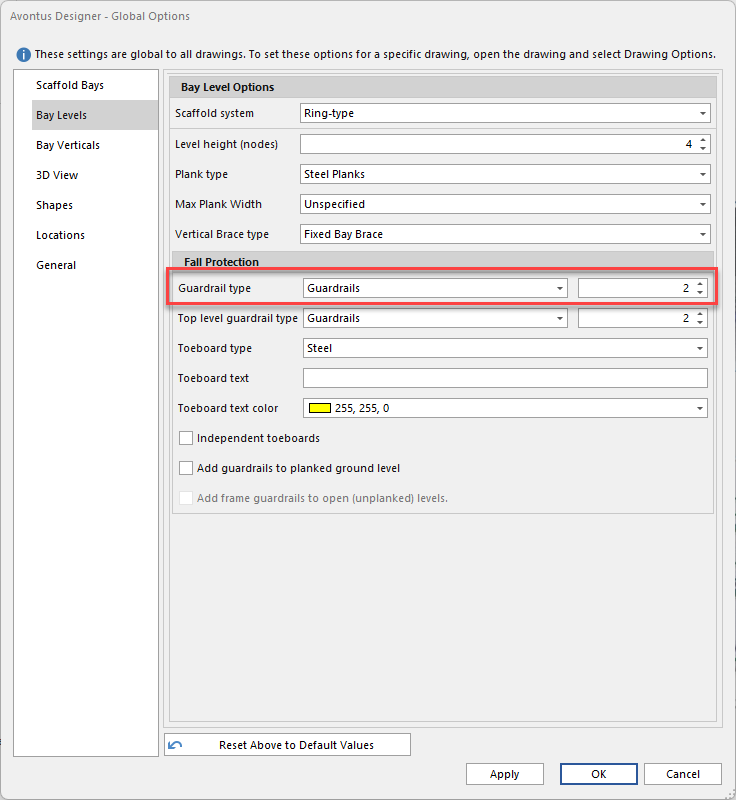
Select the Guardrails type and the number of guardrails that will be added to a bay on all sides of the bay
Select fromGuardrails
California Guardrails
Mesh Guard
Frame Guardrail
Child-safe Guardrail
Note: You can set a maximum of 4 guardrails and a minimum of 1
Select the top level guardrail type and the number of the guardrails - this will be the guardails on the very top level
Select fromGuardrails
California Guardrails
Mesh Guard
Frame Guardrail
Child Safe Guardrails
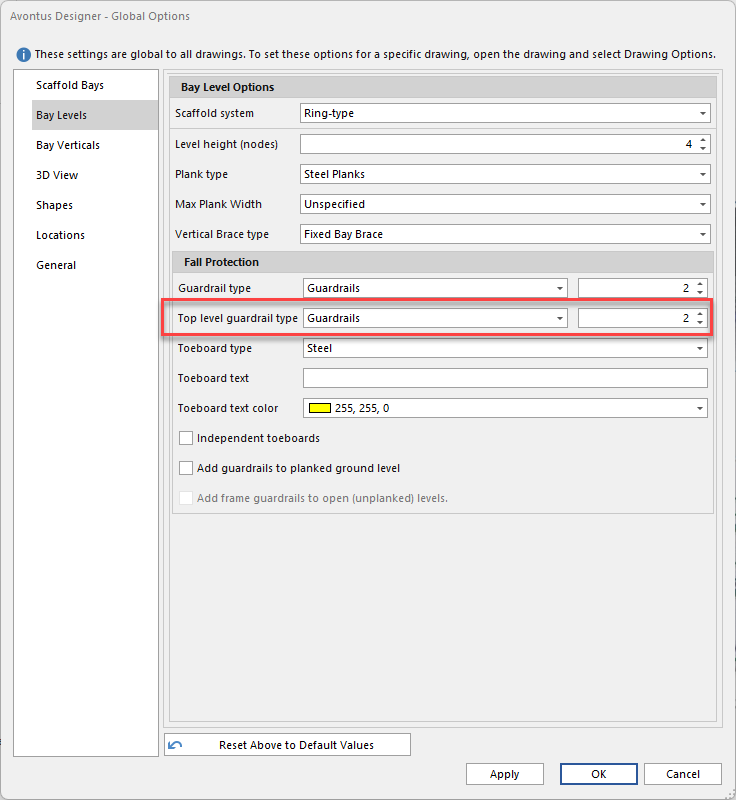
Note: You can set a maximum of 4 guardrails and a minimum of 1
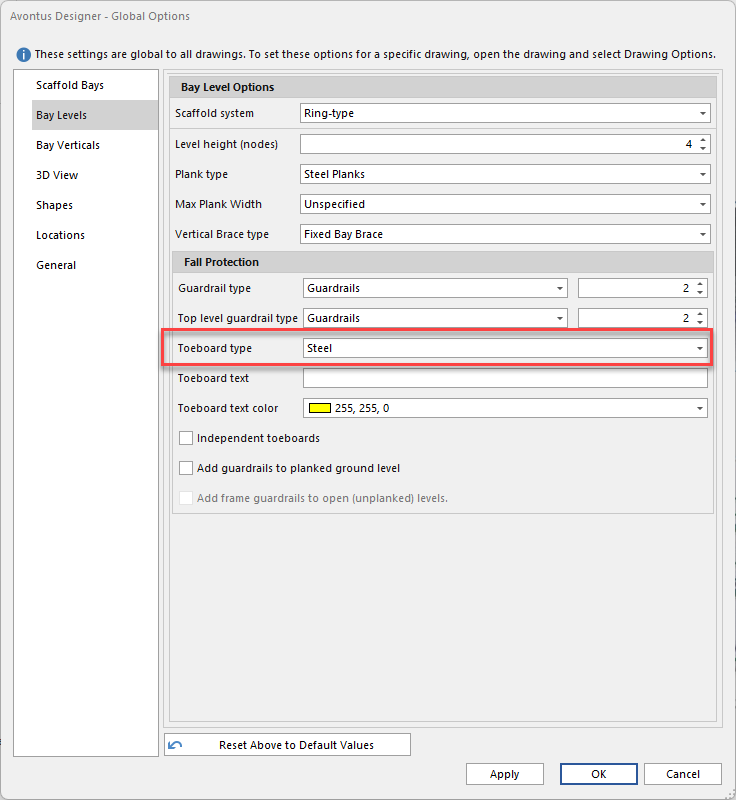
Select the toeboard type
Choose from:Steel
Wood
Alum
Note: You can click Reset Above to Default Values to set individual scaffold systems to match the default settings
Set the Toeboard text, and color.

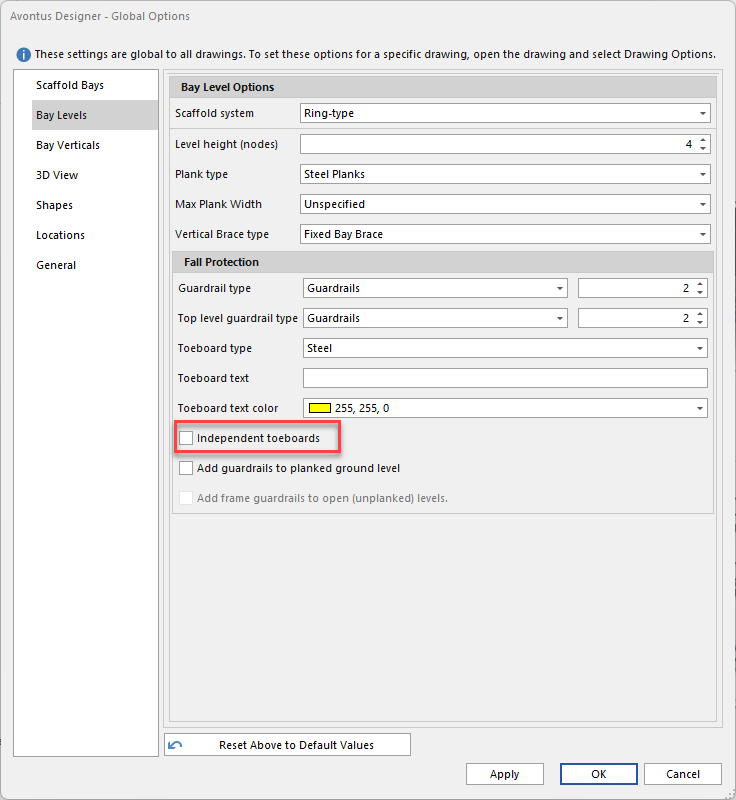
If you want Avontus Designer to add independent toeboards to all new Scaffolds by default, click the Independent Toeboards checkbox, to put a check in it.
Note: If you leave this checkbox empty, Avontus Designer links toeboards to guardrails. If guardrails are removed for a Bay/level, Avontus Designer automatically also removes the toeboards as well. If this checkbox is checked, turning off guardrails will have no effect on toeboards.
If you want Avontus Designer to add ground-level guardrails to all new Scaffolds by default, click the Add guardrails to ground level checkbox, to put a check in it.
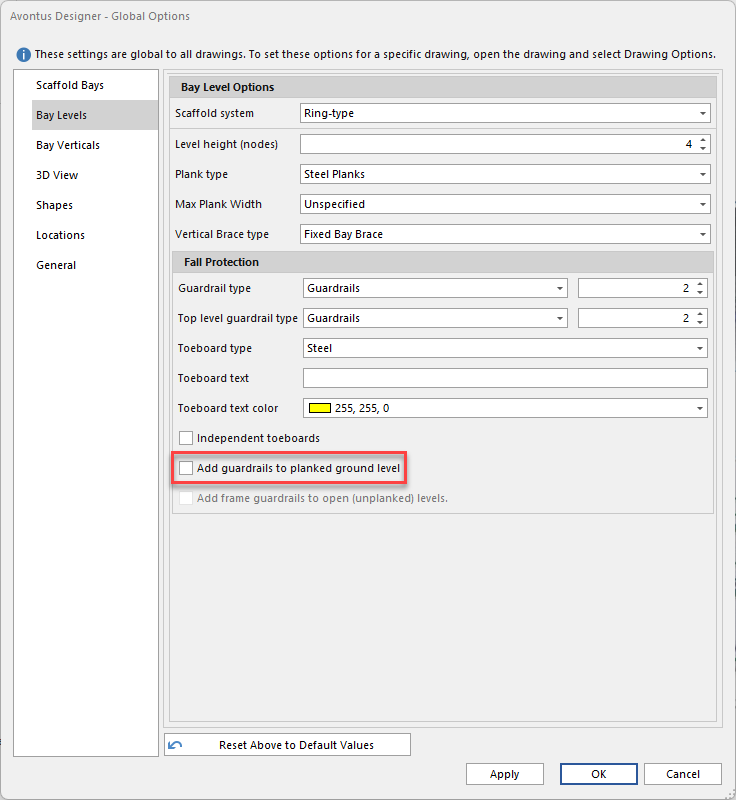
Note: If you leave this checkbox blank, level 0 (ground level) Bays will not have guardrails by default. If this is checked, each new level 0 Bay will automatically have guardrails.
To add frame guardrails to open unplanked levels
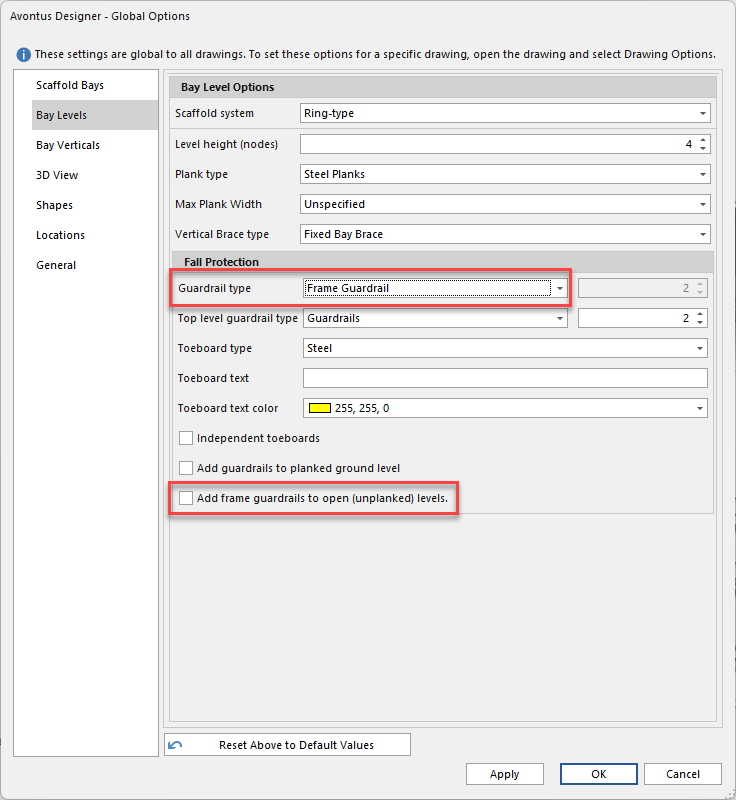
Note: You need to select Frame Guardrail type from the Guardrail type drop-down
If you are done, click OK.
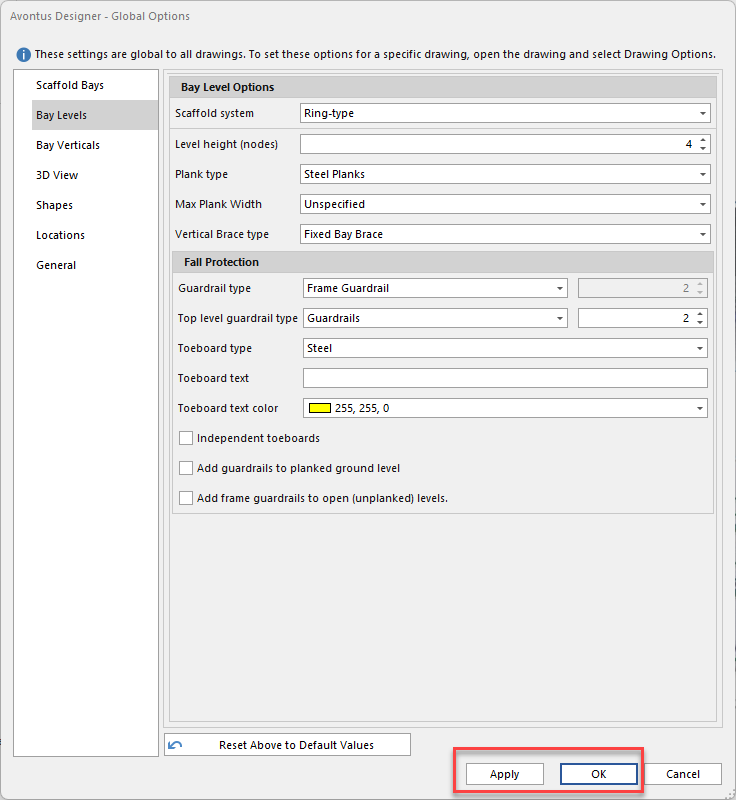
If not, click Apply and then the next appropriate tab.
Note: Click Reset Options Above to Default Values to restore Avontus Designer default values.