Before converting any of your Scaffold Tag Job Sites to billable, it is important that you check several areas and settings in Quantify.
Reviewing Rate Profiles
If you plan on using existing Rate Profiles, review the profiles to ensure the appropriate parts, consumable and other charges have accurate rates.
If you plan to use new Rate Profiles or copies of Rate Profiles, these must be created and available in Quantify before converting a Scaffold Tag Job Site to billable.
To review Rate Profiles:
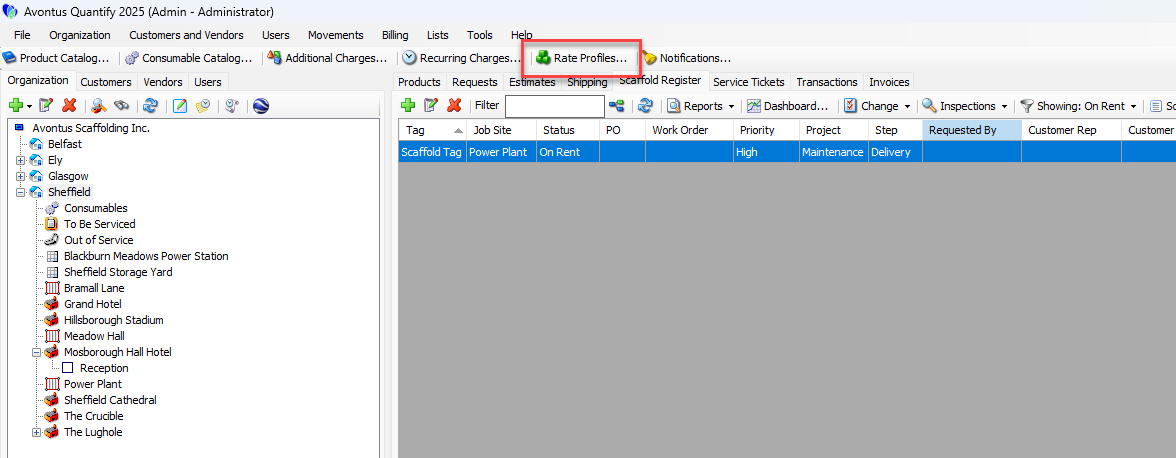
Click Rate Profiles.
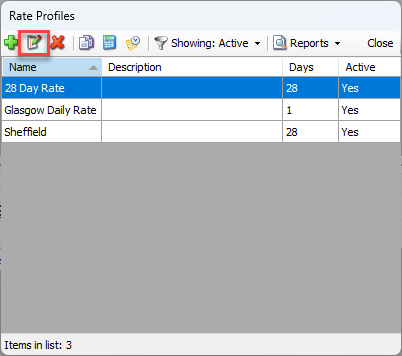
The Rate Profiles dialog appears.Click the appropriate Rate Profile, then click the Edit button (
 ).
).
The Rate Profile dialog appears.
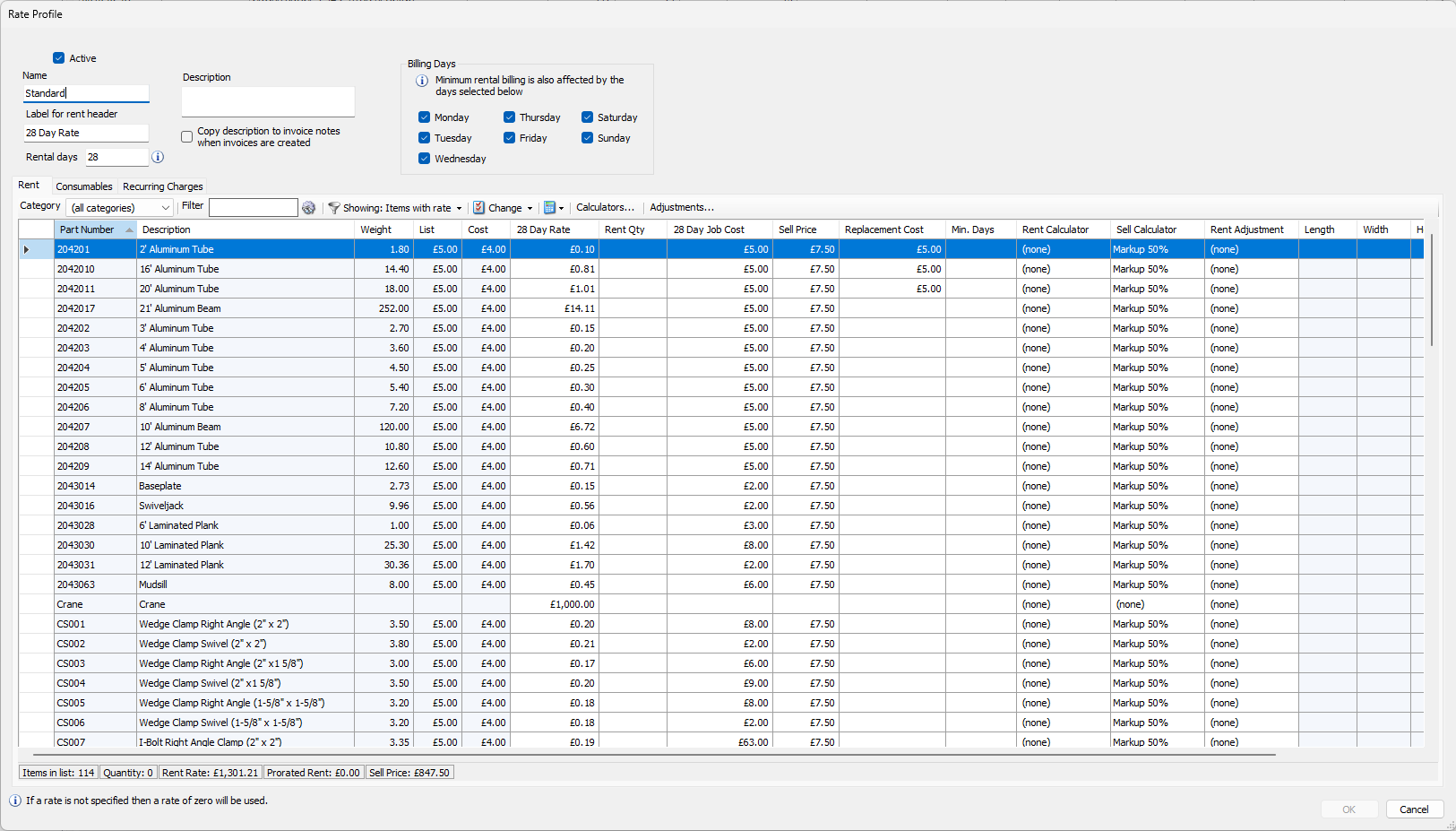
Review the Rate Profile and ensure it has the appropriate parts, rent rates, consumable and other charges have accurate rates.
If it does, click OK.
If it does not, make any necessary adjustments, then click OK.
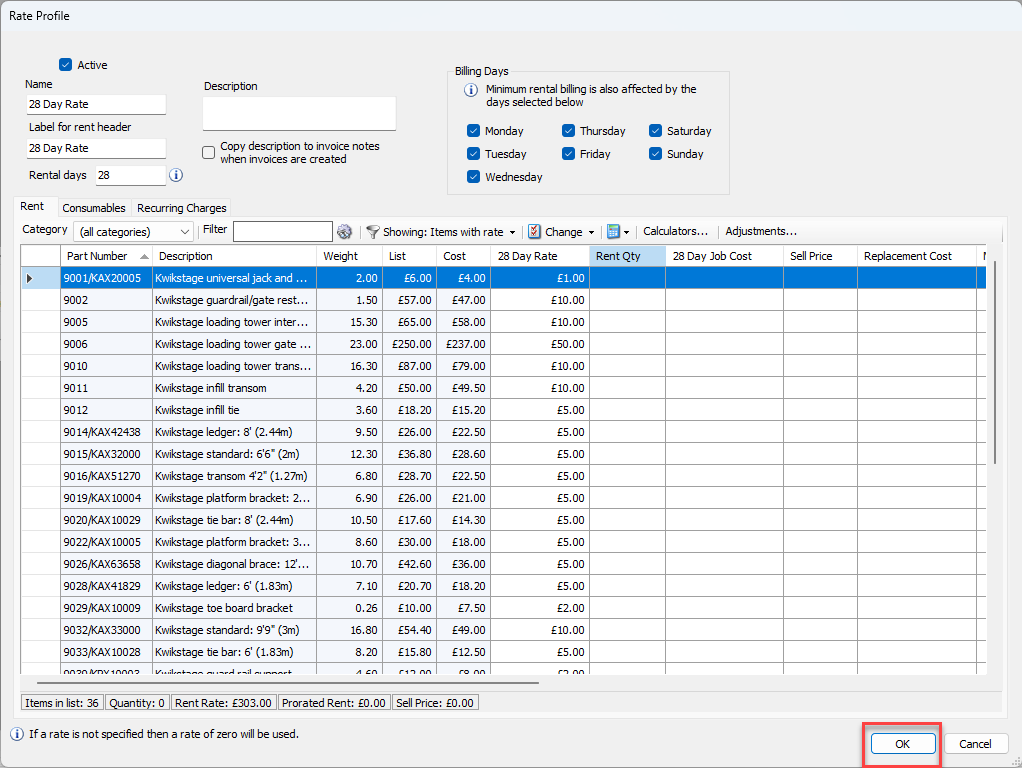
Repeat the above steps for other Rate Profiles, as necessary.
Reviewing Taxes
If Quantify will charge taxes to any billable Scaffold Tag Job Site, review existing Tax Codes and/or create any needed Tax Codes.
Note: If you need to create new Tax Code, refer to Adding a Tax Code.
To review taxes:
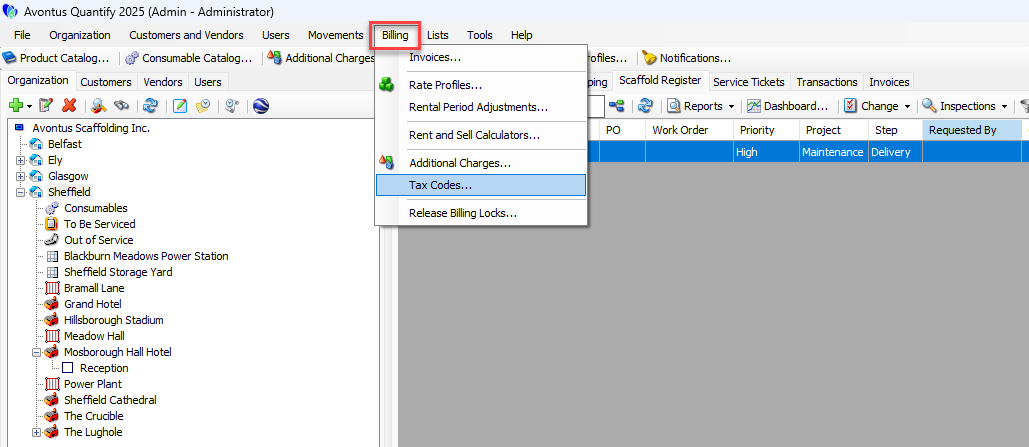
Click the Billing menu and select Tax Codes.
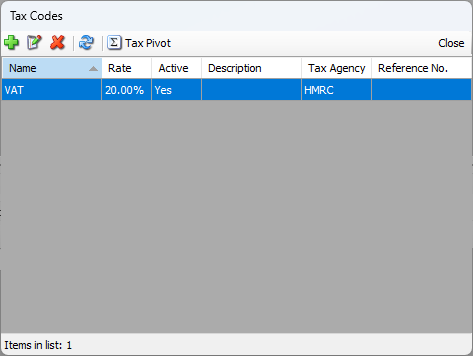
The Tax Codes dialog appears, displaying existing tax codes.Click the appropriate Tax Code, then click the Edit button (
 ).
).
The Tax Code dialog appears.
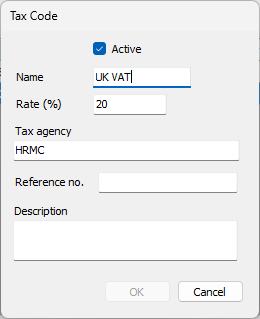
Review the Tax Code, then click Cancel if everything is OK
If not, make any necessary adjustments, then click OK.
Repeat the above steps for other Tax Codes, as necessary.
Reviewing Order Numbers
Review existing Scaffold Tags for correct customer Purchase Order/Work Order number assignments.
To review order numbers:
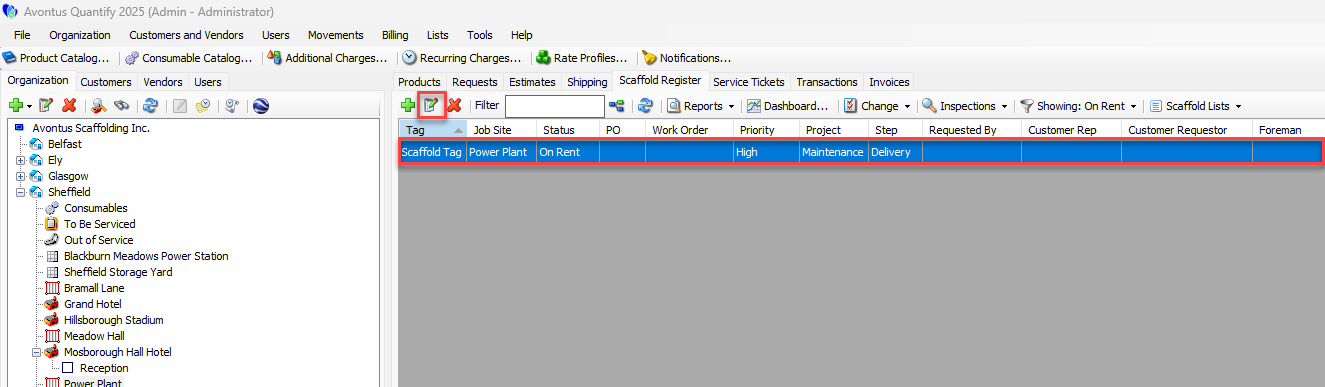
Click the appropriate location, then click the Scaffold Register tab.
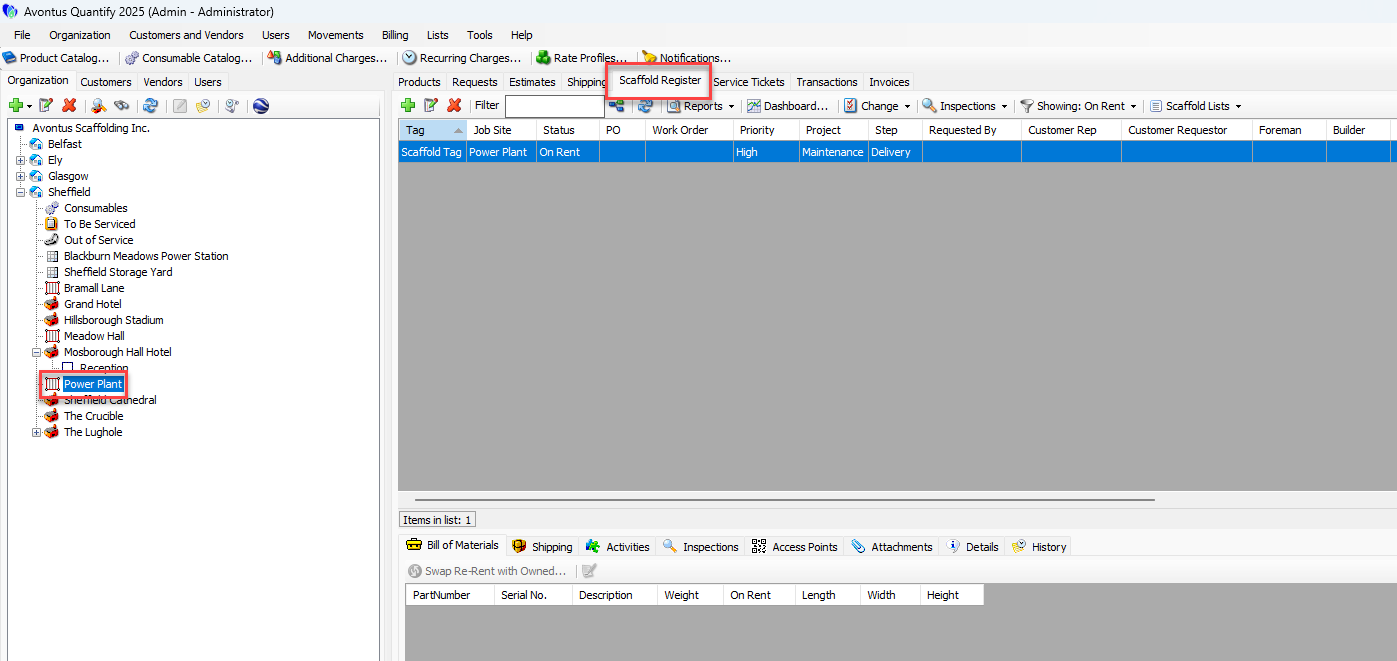
Locate and click a Scaffold that does not have a correct customer Purchase Order/Work Order number assignment, then click the Edit Scaffold button (
 ).
).
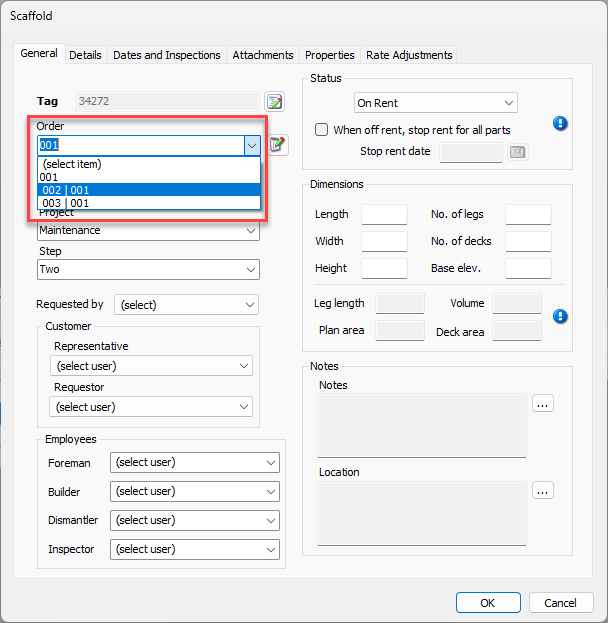
The Scaffold dialog appears.As necessary, click the Order dropdown and select the appropriate PO/Work order combination and click OK.
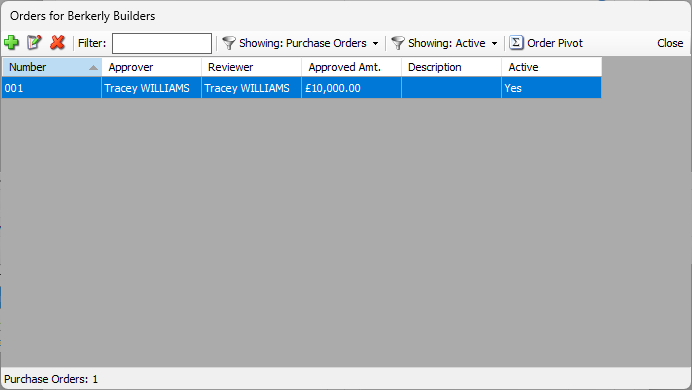
Note: As necessary, click the Add/Edit Order button (
 ).
).
The Orders dialog appears.
When the Scaffold dialog returns, click OK.
Repeat the above steps for other Scaffolds where the order number must be updated, as necessary.
Reviewing Shipment Dates
Verify entered Actual Shipment Dates on existing Shipments. These will become the Rent Start dates on deliveries (DELs) and the Rent Stop Date for returns (RETs).
Note: Quantify will NOT convert Scaffolds that meet all of the following criteria, and therefore will not include them in invoicing.
Scaffold status is Completed
Scaffold has no products on rent
Most recent shipment date for the Scaffold is prior to the Converting Scaffold Billing billing conversion date
To review shipment dates:
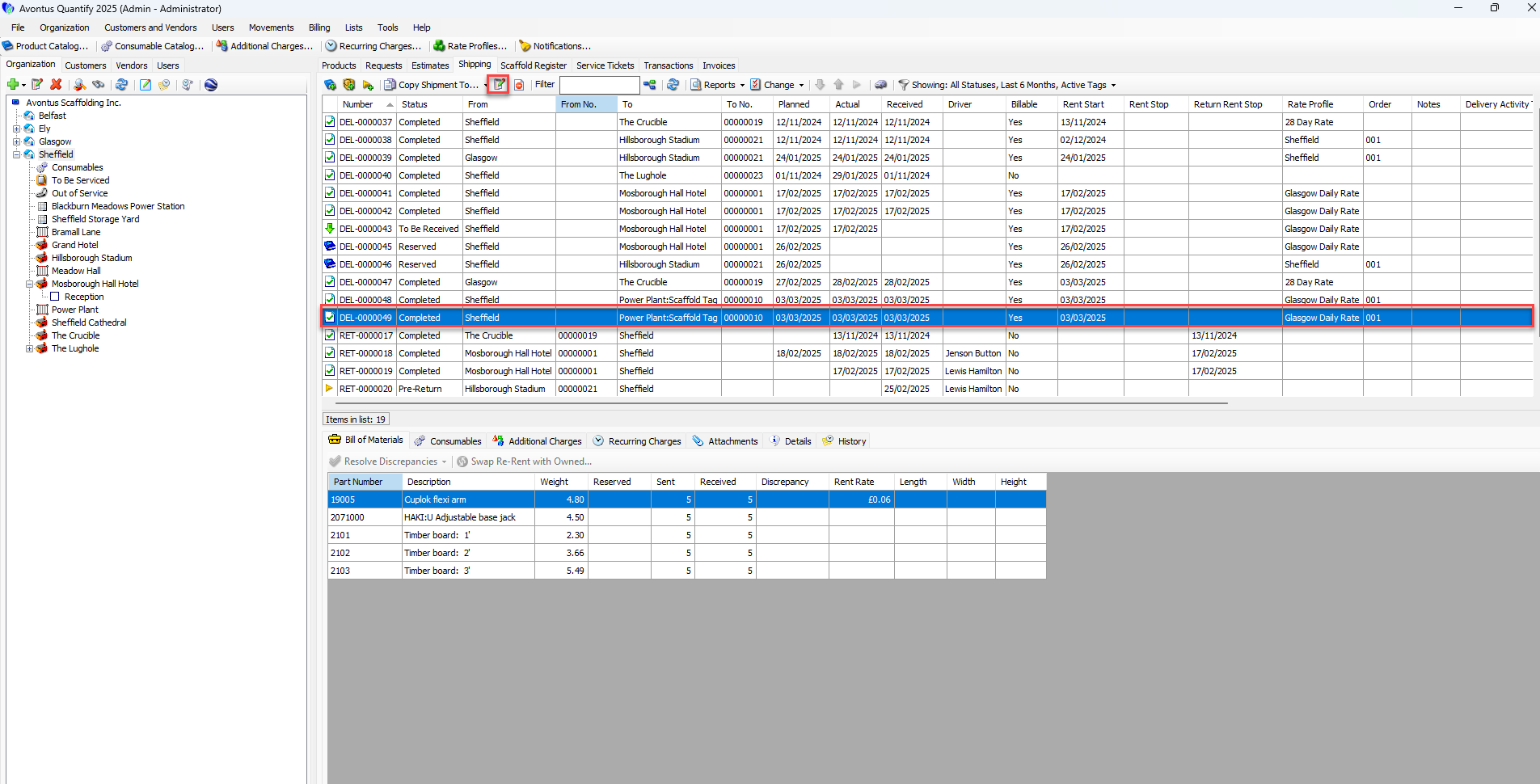
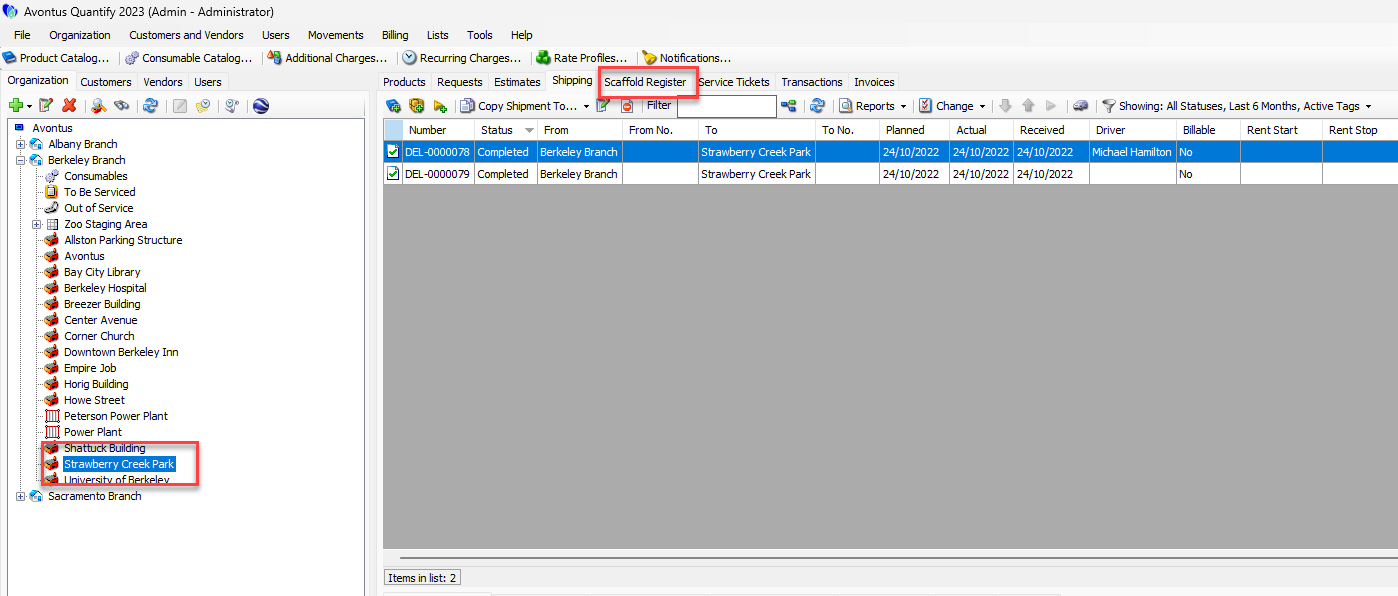
Click the Company node in the Organization Tree, then click the Shipping tab.
Read through the dates in the Actual column.
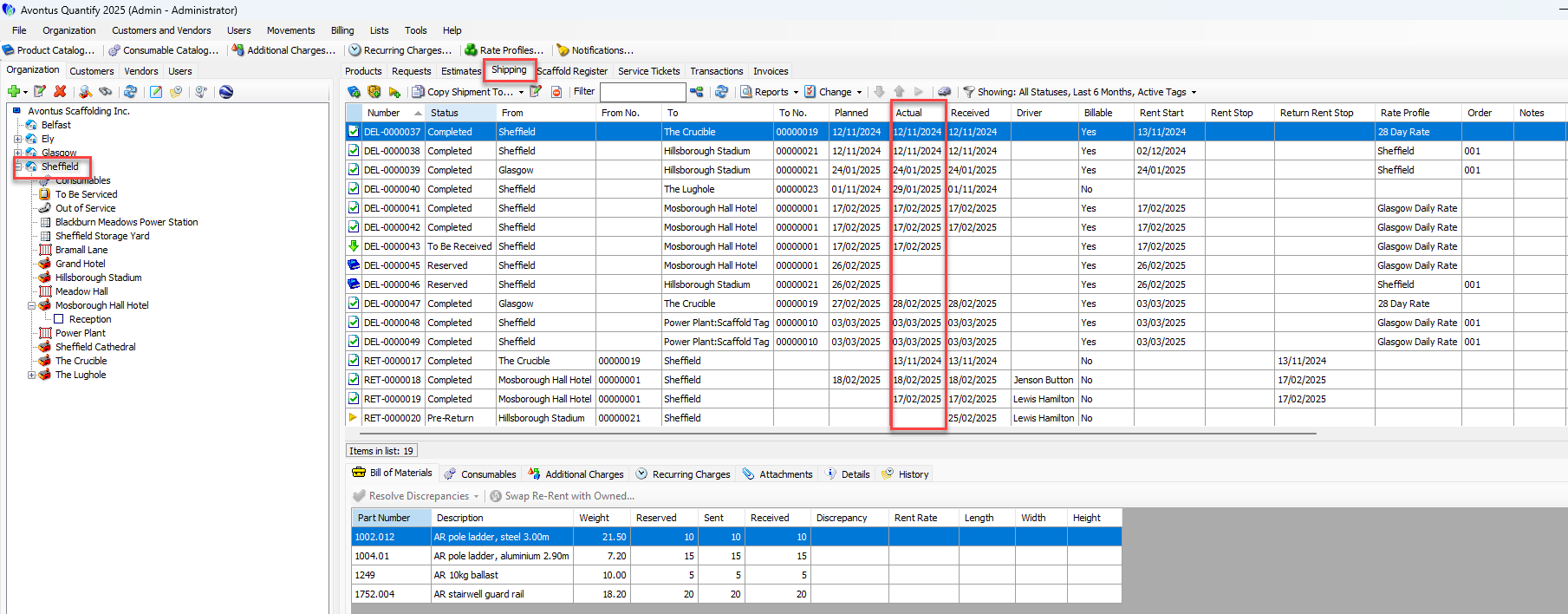
As necessary:Click the appropriate shipment, then click the Edit Shipment button (
 ).
).
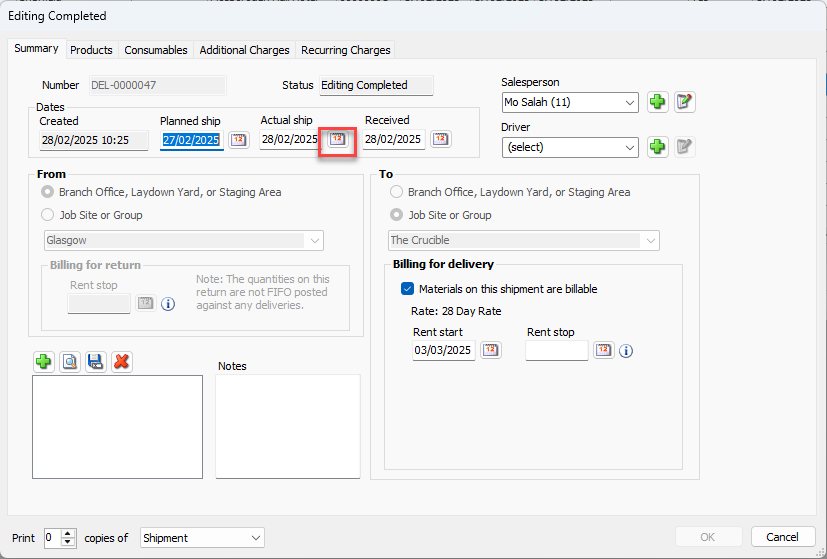
The Editing Completed dialog appears.Click the Actual Ship date calendar icon (
 ).
). 
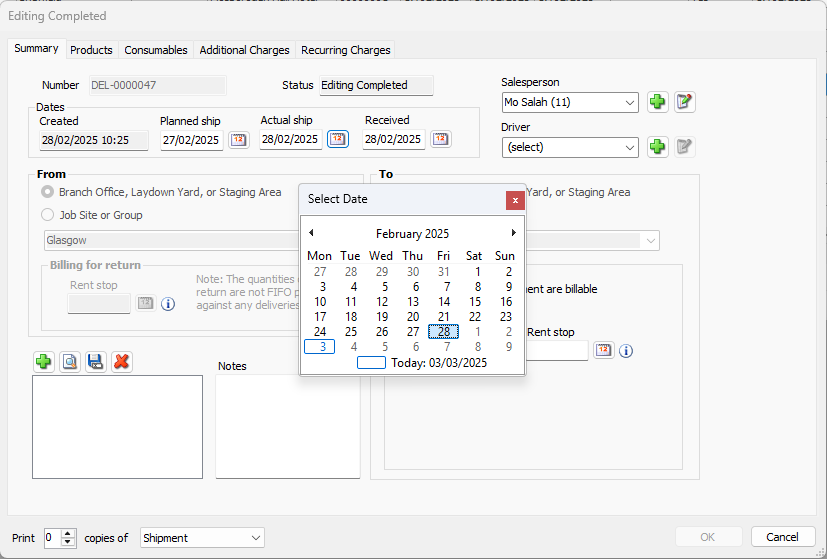
The calendar appears.Locate and click the appropriate date.
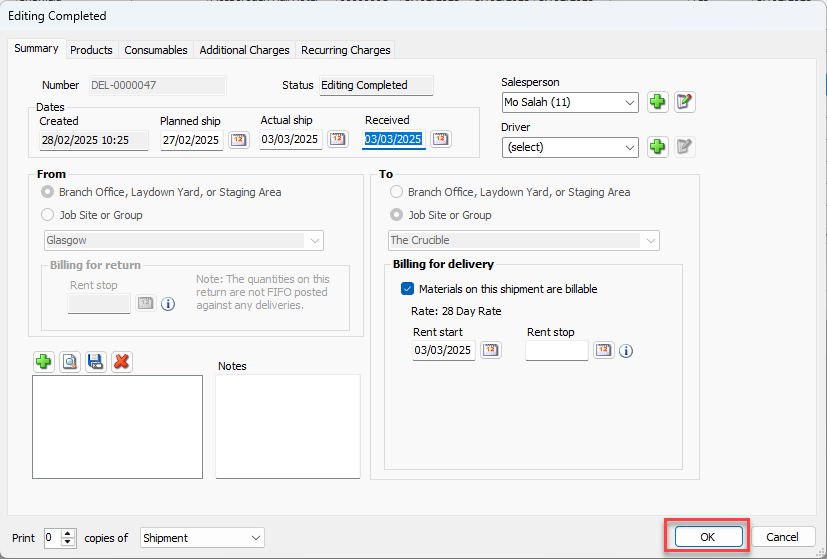
The Editing Completed dialog returns.Click OK.
As necessary, repeat the above steps for appropriate shipments.
Reviewing Scaffold Tag Statuses
Review existing Scaffold Tag statuses and change any that are incorrect.
Note: Quantify will NOT convert Scaffolds that meet all of the following criteria, and therefore will not include them in invoicing.
Scaffold status is Completed
Scaffold has no products on rent
Most recent shipment date for the Scaffold is prior to the Converting Scaffold Billing billing conversion date
To review scaffold tag statuses:
Click the appropriate node in the Organization Tree, click the Scaffold Register tab.
Click the Showing filter and select Show All.
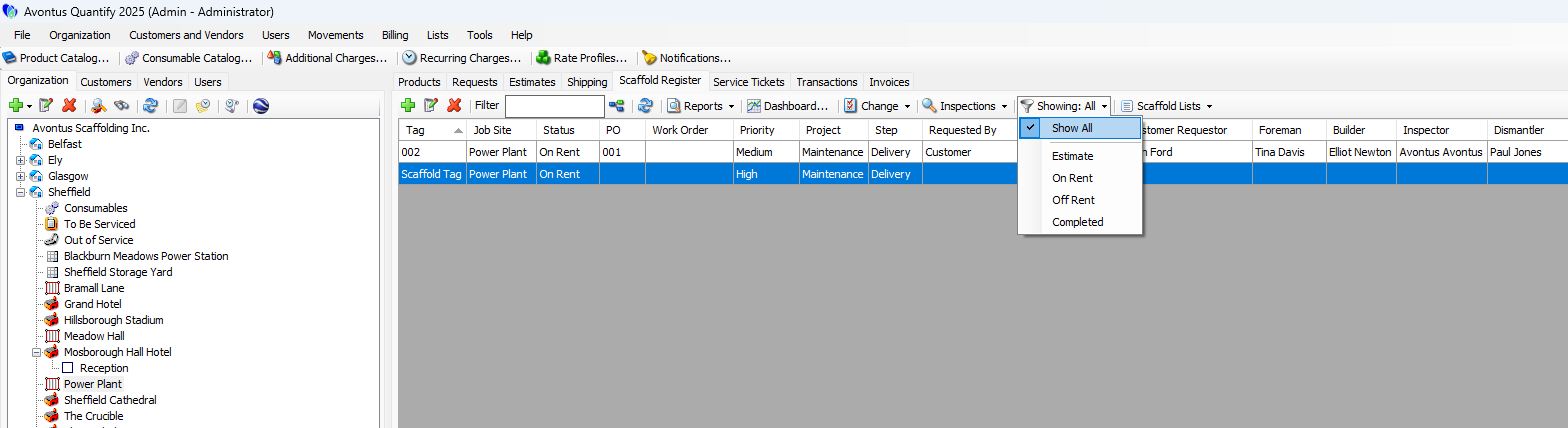
Read through the entries in the Status column.
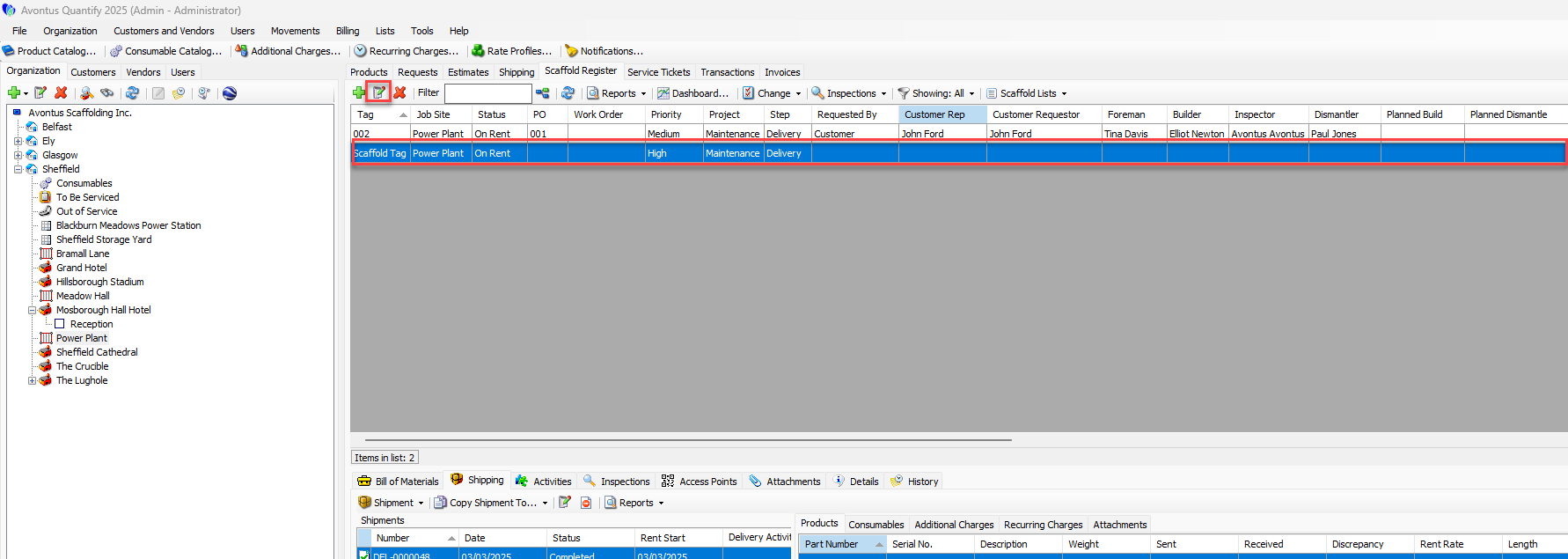
As necessary:Click the appropriate Scaffold, then click the Edit Scaffold button (
).
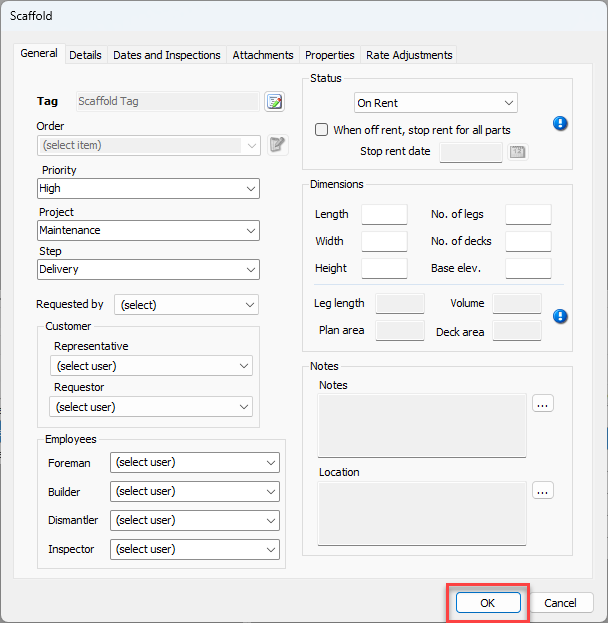
The Scaffold dialog appears.Click the Status dropdown and select the appropriate status.
Click OK.
As necessary, repeat the above steps for appropriate scaffolds.