Adding a new Tax Code is a simple process. Before you begin, make sure you have this information:
A name for the new code
The rate percentage
The name of the tax agency
An internal reference number (optional)
A description of the new code.
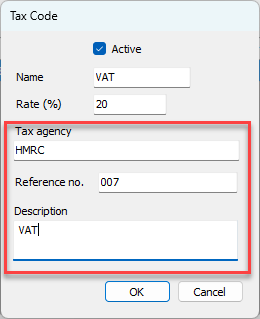
Important: If your company uses an accounting software package that requires appropriate Tax Codes to have a tax agency and a reference number assigned, you must make sure to enter that information into the text fields in the Tax Code dialog.
To add a Tax Code:
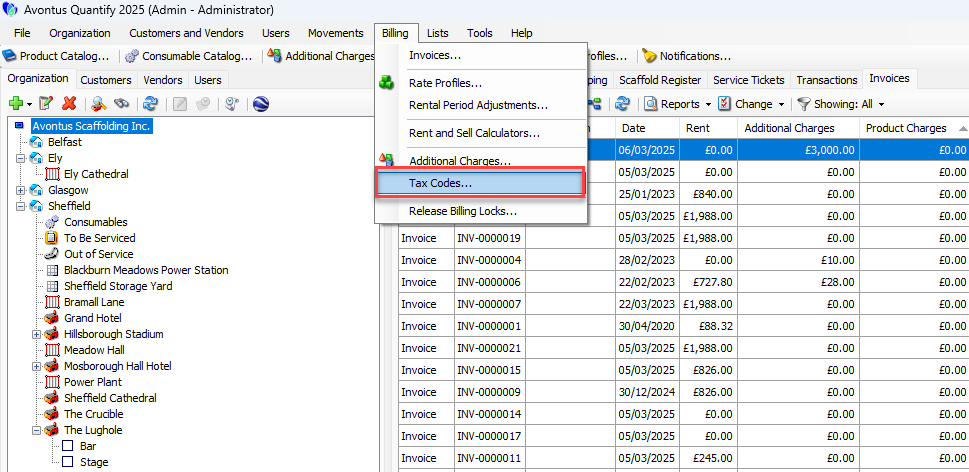
Click the Billing menu and select Tax Codes.
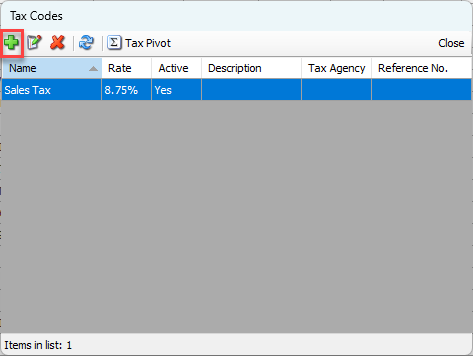
The Tax Codes dialog appears, displaying existing Tax Code.Click the Add button (
 ).
).
The Tax Code dialog appears.Click in the Name text field and enter a name for the Tax Code.
This text field is required.Click in the Rate % text field and enter rate percentage.
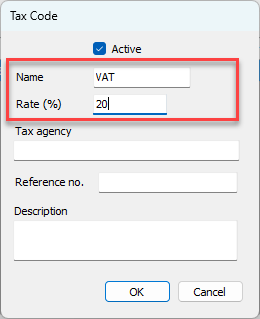
Click in the Tax Agency text field and enter tax agency name.
Click in the Reference No. text field and enter your reference number for internal use, as necessary.
Click in the Description text field and enter a description of the Tax Code, as necessary.
Click OK.
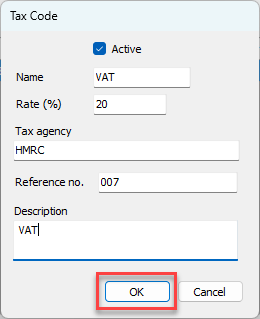
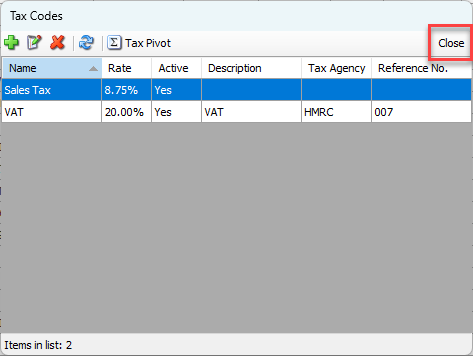
The Tax Codes dialog returns, displaying the new tax code.Click Close.